August 2003
Volume 21, Issue 8
Kokomo PC
Users Group
Presidents Message:
Welcome to another (hopefully dry) month of PC computing. I hope nobody lost any of their computer gear to flooding. Luckily I was high and dry in spite of all the rain.
I hope the July meeting went well. I had a pretty good time at Boy Scout camp. The first two days were hot and humid; the remainder of the week was rainy. I had an unexpected trip to the emergency room with one of the scouts (only a sprain) and had a tornado pass by 4 miles south of us. The mosquitoes weren’t too bad; the army of spiders must have eaten them all, when they weren’t chewing on me.
Like most of you, I haven’t had much time between yard work and vacations to play with my computer. Summer is a tough time to stay focused on PC computing.
We continue to offer warm hospitality and engaging meetings. Please take a moment to invite a friend (or enemy for that matter) to one of our regular meetings. We offer first class presentations, good fellowship and an informative question and answer period. If they join our group they will also receive our wonderful newsletter, mailed directly to their home or office. A good users Group is the most important accessory you can buy for your computer.
If you have any tips or tricks for improving our enjoyment of our PCs, please write them up in a short article for the newsletter. We would love to hear how clever you are and would like to learn your secrets. This is a great way to provide a service to the club. You can also earn User Bux for each full page of original text.
If you have a computer passion you would like to share with the Group, we would love to have you present it at one of our regular meetings. Some of our best presentations come from our own Group members talking about the programs and hardware they love. Just let one of the officers know that you would like to present and what topic you will be presenting. This is a great way to provide a service to the club. You can also earn User Bux for providing this service to the Group.
If you feel that you would like to become involved in the leadership of the group, please volunteer to be an officer. We are looking for warm bodies … I mean visionary leaders to participate in the leadership of the Group. Just contact one of the current officers and we will put you to work changing the destiny of the Group.
Mark Pendergast
Da Prez
Kokomo Computer Show
The ‘big’ computer show at the Johanning Civic Center was pretty little. (Any smaller and they could have held it in a three car garage.) There were about a dozen computer exhibits. They had a mix of hardware and software available for purchase. It was disappointing for the $5 price of admission.
They did offer a few door prizes and there was a good selection of cheap software CDs available. I bought a couple CDs of networking tools, as well as a Tetris disk for my wife. My son bought a game. Most of the CDs were $5-9.
I suspect that this one show was plenty for me for the next decade or so. I may have to travel to Indy to see if they can do any better.
If you have any tips or tricks for finding computer bargains, please write them up in an article for the newsletter. I would love to hear from you.
Mark Pendergast
- - - - - - - - - - - - - - - - - - - - -
Thumb Drives
Years ago I learned to be stingy with my hard drive. Never enough room so like everyone else I saved everything on floppy disks. Yet today with a large hard drive, I still revert to the old trusty floppy. Over a period of years in my room there is an accumulation of disks that would reach from the floor to the ceiling.
I have found something to replace all those disks called a Thumb drive. The one I’m talking about is the Lexar 128mb drive. It is about the size of the first joint in your thumb after you have just hit it with a hammer! There are many manufacturers of this type of drive and they all come with various capacities. The most popular seem to be in the 32, 64, and 128 to 512 megabytes capacity. Up to 128 megabytes is powered by the USB 1.1 port, over 128 are usually powered by a USB 2 port. I chose the 128 model because I thought the price and capacity was about right. Besides that my laptop only has only USB 1.1 ports. The 128 megabyte model will hold a little more than 80 floppy disks. If you watch where you buy, you can get one for less than fifty bucks.
It takes four floppy’s to back up my Quicken programs; this takes a lot of shifting and watching for the green light to go out. The Thumb Drive seems to be very fast as it will back up this same program in about 10 seconds. Not only that, I have about 150 of my favorite digital photos on it using just one fourth of the capacity. Just think, I can come to your house, take my keys (I keep it on my key ring) from my pocket and plug this thing into one of your USB ports and show you pictures of my family! If you are running Windows XP or 2000, no problem, just plug it in and it will be up and running. (Investigate if you use XP Pro) If you are using Windows 98 you must be at least Windows 98 SE. If you like buying your bread already sliced, I think you will enjoy this gadget.
Paul Mays
The Windows XP start menu
I have not been a big fan of the Windows XP style start menu. I find the default settings annoying and until recently didn’t realize I had any control over them. Then, as I was sitting here with writers block, I decided to start poking around. Lo and behold, I could change XP.
To get some control over your start menu right-click the Start button. Then select Properties from the pop-up menu. This will take you to the Task Bar and Start Menu Properties Dialog. It should default to the Start Menu Tab. On this tab you can select the new start menu or the classic Windows start menu. Whichever one you select provides a Customize button to allow you additional control over the look and feel of the start menu.
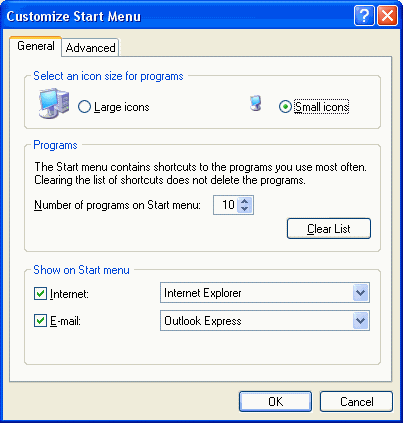
When you press the customize button on the new start menu you get the customize start menu dialog.
On the general tab you can control the basic layout of the menu. I like to have small icons so I can see more stuff. I also changed the number of programs visible to 10 so I can find things more quickly. (The Windows XP system keeps your most recently used programs on the start menu.) I also keep IE and Outlook on the menu.
The advanced tab gives you even more stuff to play with.
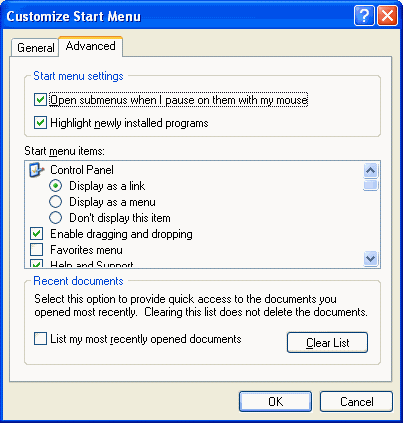
I like the submenus to open when I hover over them. I don’t really like to have new programs highlighted, but I am too lazy to uncheck the box. The scrolling list of options gives you control over the visibility of several other menu picks. In some cases you can choose between a link and a cascading menu.
The last choice on the advanced menu is the most recently used document selection. Although I liked this feature of Win98, again I am too lazy to check the box to activate it.
So to summarize: I am getting to love my new start menu because I have learned to make it do what I want, even if I am too lazy to actually make it happen in some cases.
Mark Pendergast
Disk Cleanup Program
There is a program on Windows that allows you to easily clean up space on your hard drive when you are running low. It is called disk cleanup. It is located on the start menu under Programs > Accessories > System Tools.
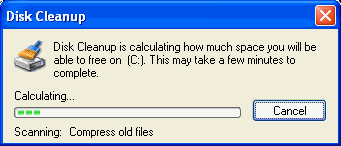
The disk cleanup program checks for files that may no longer be needed and then gives you the option of deleting them. When it first runs it shows a progress bar as it scans for files that are candidates for removal.
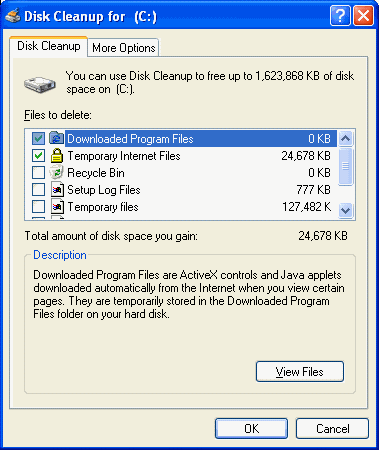
After it is done with the scan it displays a dialog that allows you to select the files you want to remove. The disk cleanup tab lists common types of files that are ripe for cleanup. These include various types of temporary files. The dialog also shows how much space you would save if you deleted them. There is also an option to compress files that are old and unused. (This option scares me to death - Compression seems way too risky for me.)
Just check the boxes next to the items you want to remove and press the OK button. This will remove all the unwanted files and free up space on your drive.
If that still isn’t enough space you can switch to the More Options tab and take a serious bite out of your drive. The more options tab allows you to uninstall software, including windows components.
You can also delete all your old system restore points. These are really pretty useless after about four or five installs, so you can probably get away with it. I don’t use these options much. I tend to go to the control panel and do it the old fashioned way.?
I hope you enjoyed my tour of the disk cleanup utility. It can be a real help when you are out of space and need ideas in a hurry.
If you have a favorite utility program you like to use to make your system run better, I would like to hear from you. Just write up a short article and email it to me so I can include it in the newsletter. You will have fun contributing to the welfare of the users group and we will all learn some cool stuff. If you don’t like to write just send me an email with your ideas and ask me to clean it up for you. I’ll be happy to do the grunt work.
Mark Pendergast
Return to the Archive