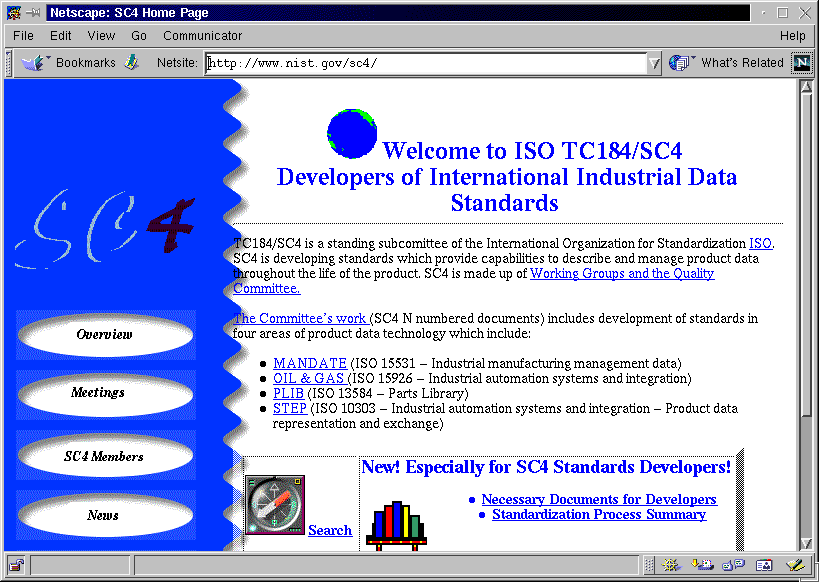
Figure 1 SOLIS Home Page
QC checklists are web-based, on-line, interactive forms that allow users to electronically capture and communicate process information. The information is communicated through check boxes and comments. This technology is currently being applied to the process of approving and signing off ISO TC184/SC4 documents.
This document explains the on-line QC checklists to three different audiences. The first audience consists of end-users. End-users are those folks who have to fill in and submit the checklists. It is expected that this will be the broadest audience and the material for end-users is presented first.
The second audience consists of HTML hackers. HTML hackers consists of those folks who need to tweak the checklists a little more than the automated system allows, or who need to update forms from computers without access to the world-wide-web. It is expected that this audience will be the second broadest and the material for HTML hackers will be presented second.
The third audience consists of web-masters. Web-masters consist of those folks who want to "steal" the checklist technology for use on another web-server, or who need to maintain the QC checklists on the current web-server.
The best way to familiarize yourself with the QC checklists is to "play" with them on-line. The checklists are only three mouse clicks away from the SOLIS home page. SOLIS may be found on the web at http://www.nist.gov/sc4.
By clicking on the link next to the bookshelf icon, you can jump to "Necessary Documents for Developers". This page opens a window with two frames.
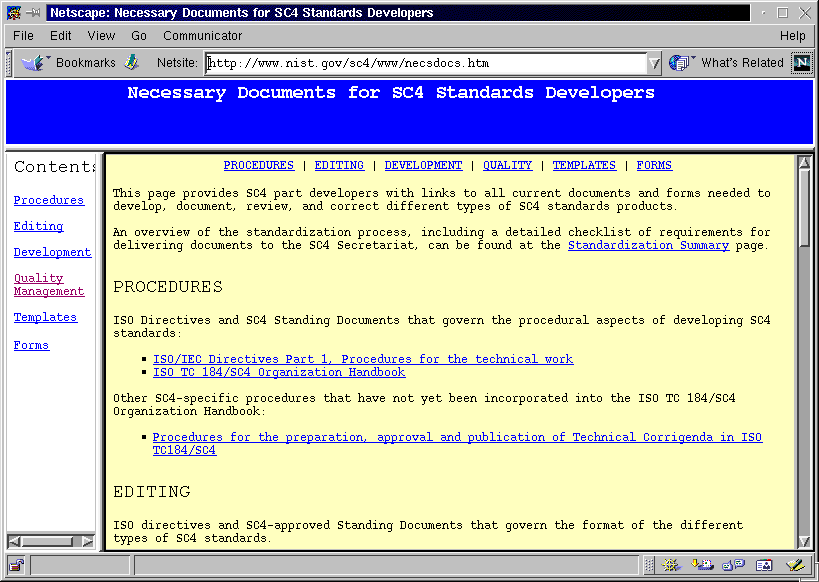
Clicking the link in the left-hand frame, or the link on the top of the right-hand frame, you can jump to "Quality Management". There are currently three checklists available.
1) Internal review checklist
2) Project Leader approval checklist for SC4
3) Convener approval checklist for SC4
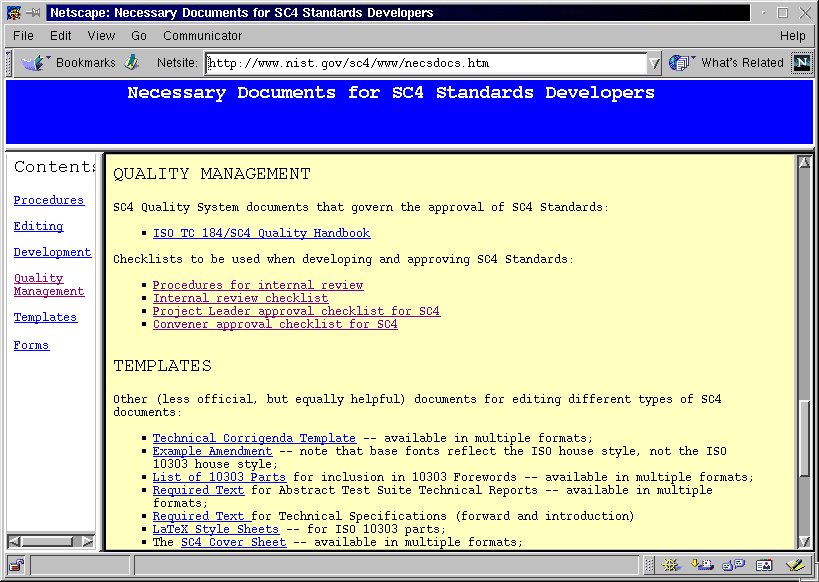
Clicking on the name of any of these checklists opens the checklist in the right-hand frame of the screen. For those of you who prefer not to be tied to the frame, or who prefer to go directly to the checklists, the URLs are listed here:
http://pitch.nist.gov/cgi-bin/apde/qc/ir_cklst.cgi
http://pitch.nist.gov/cgi-bin/apde/qc/pl_cklst.cgi
http://pitch.nist.gov/cgi-bin/apde/qc/c_cklst.cgi
Each form starts off with the QC n-number of the document from which the requirements are drawn, along with the date the form was generated and document being superseded. This information is followed by the form title and some introductory text. Next come the actual QC requirements.

Each requirement is numbered sequentially starting from one. Requirements are divided into related groups and these groups are arranged to follow the order of the document being reviewed. For example, requirements about the table of contents precede requirements about page one. Requirement numbers do not start over with each group of requirements. This allows each requirement to be identified by a unique number within each form.
There are only four types of widgets with which you may interact:
Check Box
Text Box
Radio Button
Button

Every requirement has a check box to the left of the number and a text box labeled "Comments:". Some requirements ask the reviewer to choose among mutually exclusive options. In this case, Radio buttons are used.
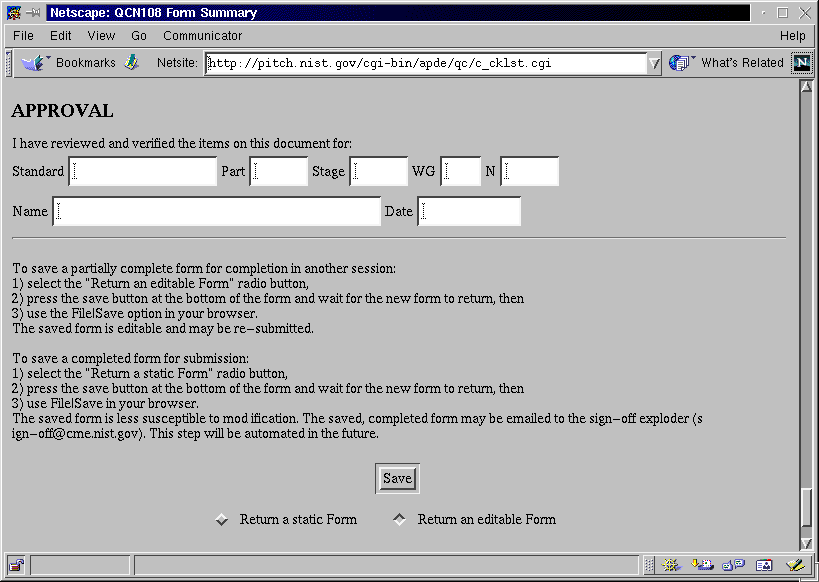
Following the requirements, the form contains several text boxes that allow you to identify yourself, and the part you have reviewed. This section is followed by some instructions, a "Save" button, and two radio buttons.
As soon as the form finishes loading from the web-server, you may begin entering data. If the document you are reviewing satisfies the stated requirement, then check the box next to the requirement number. For example, if the project leader has dated and signed the completed checklist prior to submitting it to the convener, then the convener should check the box for requirement 1 (see Figure 4). Clicking on a selected box unselects the box.
In the case where a yes or no answer is not enough, text may be entered into the comment box. Currently comment boxes are only one line tall, which means that you may not be able to see your entire comment while you are typing it in. Furthermore, there is no spell checking built into the text processing of forms on most web-browsers. For these reasons, you may find it easier to type your comment in a word processor, then to cut and paste your comment into the space provided. The text box does scroll, so it is possible to enter long comments.
As shown in Figure 5, radio button groups are initially displayed with none selected. As soon as you click on a radio button, this button is selected. If you select a different button, the new button becomes selected and the old choice becomes unselected. You cannot return to the none-selected state once a radio button in the group has been selected.
Data is not automatically saved when you type it in. Pressing the "Save" button at the bottom of the form does not save your data either. You must press the "Save" button at the bottom of the form, wait for the new form to be returned from the web-server, then use File|Save in your web-browser to save the form.
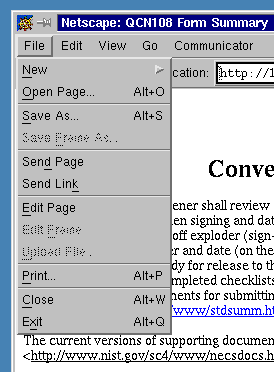
The "Save" button is shown in Figure 6. The two radio buttons which follow the "Save" button will be discussed later in this section. File|Save is a short hand notation which means to execute the save command on the File menu (see Figure 7).
This cumbersome process ("Save", wait for new form, File|Save) is the result of a design trade-off between ease of use and control of data. The current QC checklists are web-based and are therefore easy to use. The checklists also give you complete control over your data (the state of the check boxes and any comments you have entered) by allowing you to store your work on your local computer.
Having the checklist application run on a web-server minimizes the requirement to install software on your computer. This is perceived as making the system easier to use. All you need is a web-browser. Further more, since web-browsers are free on most computer platforms, there is minimal issue with copyrights.
In theory, it is possible to save your data on the web-server computer. This would allow a single button press to save your data. However, you would only have access to your data when you have access to the internet AND the server is on-line. As internet technology continues to advance, these problems will become much less significant. For now most users prefer to store their data on disks that they can touch and in a format that they can access from any computer.
Since the checklist is generated by a web-server, its contents are controlled by the server not your web-browser. Unfortunately, your web-browser cannot update the web-page when you check a box or enter a comment, it simply stores this knowledge in a temporary place until you submit the form by pressing the "Save" button. Also, the server does not know when you check a box or enter a comment, until you submit the form.
As an experiment, open a form in your web-browser, enter some data, use File|Save, then re-open the saved file in your web-browser. You will find that your data is lost! The reason for this is that File|Save only saves the data sent from the web-server, which in this case is the form without your input.
When you press the "Save" button on a QC checklist, your web-browser sends your input to the web-server. The web-server then generates a new web-page which contains your input and sends it back to your web-browser. In this case, File|Save will save your data because it has been sent from the web-server.
To further complicate the situation, QC checklists allow you to control the format of the web-page generated by the web-server after you press the "Save" button. There are two formats to choose from: "static" and "editable". You choose the format returned by the web-server by selecting one of the two radio buttons under the "Save" button at the bottom of the checklist. "Return an editable form" is the default setting, but you may also choose the radio button to "Return a static form".
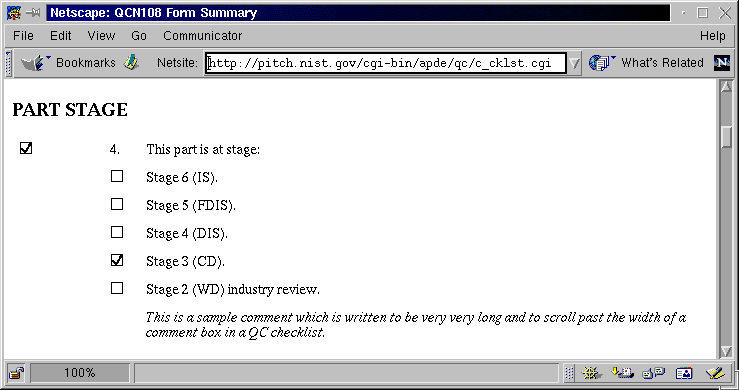
This paper has only discussed "editable" forms up to this point. These forms have widgets that allow you to check boxes and input comments. "Static" forms, on the other hand do not have any widgets. On a "static" form, selected check boxes and radio buttons are indicated by drawing a box with a check-mark inside. Comments on a "static" form are shown as italicized text that is not confined to a single line on the screen. Figure 8 shows a static form. Compare figure 8 to figure 4 to see the difference between these two formats.
Besides showing comments in a more friendly manner, "static" forms have two other advantages that make them suitable for communicating process information. First, because there are no widgets on a "static" form, reviewers of the form are not able to easily change the form's content. It is fairly easy to accidentally click on a check box before printing a form or during the process of reviewing the form on a computer screen. "Static" forms eliminate this problem.
The second advantage applies to several UNIX web-browsers which do not print check box or radio button widgets when printing a form. By using images to represent these widgets, "static" forms ensure these web-browsers print the forms correctly.
It is recommended that you follow these steps when filling out an on-line QC checklist:
| 1 | Start With a clean form from SOLIS. |
| 2 | Check boxes and enter comments as appropriate. |
| 3 | Choose "Return editable form" and press the "Save" button |
| 4 | When the new form is returned use File|Save to save your data on your local disk. |
| 5 | If you need to make more changes during this editing session, go to step 2 |
| 6 | If you need to make more changes in a subsequent editing session, Use File|Open to open the previously saved file in your web-browser. Go to step 2 |
| 7 | Choose "Return a static form" and press the "Save" button. |
| 8 | When the new form is returned use File|Save to save your data on your local disk. Use a different file name than the one used in step 4. |
| 9 | E-mail the "static" form to the appropriate SC4 authority. |
| 10 | Should subsequent changes need to be made to your input, go to step 6. |