StatRat is yet another attempt to interpret and visualise the vast mountain of data that us Planetarions so lovingly call the 'Ship Stats'.
It is not a full battle-calc nor is it a set of unit tables, but it combines elements of both into a compact user interface.
It is a 32-bit windows app written using Delphi 6, so it should run on most flavors of windows from win95 up.
This version introduces a customisable user interface in the Details/Setup/Settings page.
Also some menu items have been moved to the new popup menu, right click anywhere in the main window to bring this up.
MAIN FEATURES
Can determine the outcome of combat between any two Planetarion ship types and works out the relevant stats.
Has a small screen footprint and a stay on top form style, so its never lost behind multiple windows, and yet doesn't take up much more screen real-estate than that bit of 'Hosted by Chello' spam does :)
Has an editable ship stats table.
Utilises 64bit integers for BIG fleet sizes.
INSTALLATION
1). Create a directory, name it 'Pa Stat Rat' or whatever you fancy.
2). Download the StatRat.zip file and unzip all three files into this directory.
3). The program is now installed and can be run by double clicking on the StatRat.exe file.
4). If you make a shortcut, just ensure that the Start In/Working Directory refers to the directory you created and you should have no problems.
5). To un-install, manually delete the installation files and any associated directories/shortcuts.
BASIC OPERATION
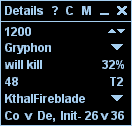
The MAIN WINDOW is laid out as follows...
------------------------
Menu
-------------------------------------------
Ship List Btn
Spin Buttons
<---(input)
Attacking Ship Type
Ship List Btn
<---(input)
Resulting Combat Type
Resource Kill Efficiency %
No of Target Ships Killed
Target Type
Target Ship Type
Ship List Btn
<---(input)
Ship Class info
Initiative info
-------------------------------------------
1). Enter the number of attacking ships in the top edit field. You can do this either directly with the keyboard or by using the spin buttons to the right to adjust the number.
2). Next select the attacking ship type from the drop-down list using the button on the right. Or, if you click on the ship type, it should be possible to flick through the list using the mouse wheel or keyboard arrow buttons.
3). Finally, select the ship type of the target from the drop-down list at the bottom. All results are displayed automatically as the calculation is carried out every time an input value is changed.
For example... (using rnd 6 stats)
This means...
1200 Gryphon will kill 48 KthalFireblade.
Ship classes are Corvette v Destroyer, and Initiative is 26 v 36... ie the Gryphons fire first.
And 100 resources worth of Gryphons will kill 32 resources worth of Fireblades... (32% Resource Kill Efficiency)
The MENU is laid out as follows...
------------------------
Details ? M C _ X
------------------------
1). Details - This opens the Details Window, see below for more info.
2). ? - This turns the cursor help tips on or off, default is OFF.
3). M - Click and drag on this button to move the program around the screen.
4). C - This copies the current result to the windows clipboard.
5). _ - Minimises the program.
6). X - Shuts the program down.
THE DETAILS WINDOW
This window shows various stats and results relating to the values entered in the main window.
It is split into 6 pages as follows...
1). Calculation page - Shows how the main result was worked out.
2). Targeting page - For the attacker, this shows all primary, secondary and tertiary target ships of the attacker. While for the defender it shows all ships that have the defender as their primary, secondary or tertiary target.
3). Resources page - Shows the resources used for both the attackers and defenders ships. Also gives the attackers and defenders kill ratios in terms of both ships and resources. For attacking stealing ships, it also shows the ships lost during capture and the resource capture rate.
4). Basic Stats page - Gives the basic stats for the attacker and defender.
5). Results page - Provides an area to store and organise results.
6). Setup page - Allows for the editing and updating of the ship stats used by the program.
FEEDBACK
Bug reports, questions, suggestions etc can all be sent to...
[email protected]
Happy Roiding :-)
Portions of this website were created using the free web resources available at www.elated.com and are copyright Elated Communications Ltd 1996-2001.