Ronald's Bloodbowl Tool
Player options
The players of Bloodbowl are shown in the main window as red and blue squares, numbered from 1 to 16. A player with higher strenght will be shown in a darker shade.If you move the mouse cursor over a player, his stats and skills will be shown at the left (for Red) or at the right (for Blue) of the field. If you hold the cursor over a player, his status will be shown.
Players can be in one of the following places:
- On the field
- In the Reserve Box
- In the KO Box
- In the Out (Dead & Injured) Box
Player on the field
A player that is on the field can have different states: standing (Red or Blue with White number), carrying the ball (Orange or Aqua/White), prone (Light Gray/Red or Blue) or stunned (Dark Grey/Red or Blue). If a player has lost his Tackle Zone, the number will be Black instead of White. And if a player already had his move this turn, the number will be shown in a smaller format.Leftclicking a player will select that player. The player will be shown with a yellow border.
Drag a player to another square and the player will be moved.
Drag a player onto an opponent and a block roll will be made automatically. If the player first is moved, the
program will recognize this as a blitz and the 'Horns' skill will be taken into account.
Drag a player onto an opponent that is stunned or prone and the foul roll window will be shown.
Drag a player on top of the ball and he will become the ball carrier.
Menu
Rightclick on a player on the field and a menu will be shown with these options:- Move
- End of Move
- Ball Carrier
- Standing
- Prone
- Stunned
- Reserve
- KO
- Badly Hurt
- Seriously Injured...
- Dead!
- Send off
- Lose/Regain Tackle Zone
- Stats Change
- Make Dodge roll
- Show/Hide Passing Ranges
Move
If you want to move a player, select him and click on an empty field square to move him there. Or select this option, then click the square to move him to. Or just drag the player from one spot to another.
End of Move
If a player has ended his move this turn, select this option. The number will be turned to a smaller font so you can easily see which player has moved and which still can make a move. If you move a player, the number will automatically be turned small.
Ball Carrier
This option will hand the ball to the player. The player will change color to reflect this.
Standing, Prone, Stunned, Reserve, KO, Badly Hurt, Seriously Injured..., Dead!, Send Off
These options change the status of the player. Standing, Prone and Stunned leave the player on the field, Reserve moves him to the Reserves box, KO moves him to the KO box, the other options move him to the Out box.A player standing up will be changed to a small number, unless he has the 'Jump Up' skill.
Lose/Regain Tackle Zone
Some options (like Hypnotic Gaze) make a player lose his Tackle Zone. Use this option to toggle a player's Tackle Zone off and on. A player that has lost his Tackle Zone is shown with a black number.
Stats Change
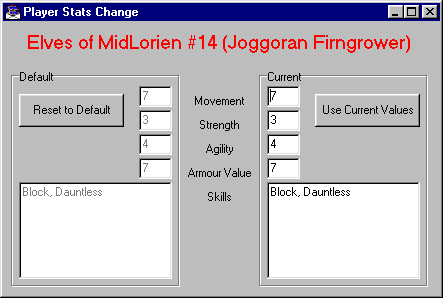 Sometimes a player can have his stats changed during a game. He might gain strength because of a card or he may be turned
into a toad by a wizard's spell. This option allows you to change a player's stat on-the-fly. In the team roster,
the changed stats are shown in red.
Sometimes a player can have his stats changed during a game. He might gain strength because of a card or he may be turned
into a toad by a wizard's spell. This option allows you to change a player's stat on-the-fly. In the team roster,
the changed stats are shown in red.
|
Make Dodge roll
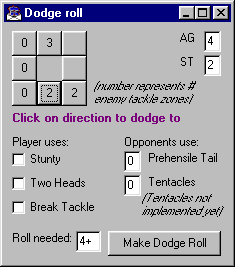 Now working out the roll to dodge is a piece of cake! Select this option and the Dodge roll window will be shown.
The square buttons in the top-left indicate the number of Tackle Zones in each square the player can dodge to.
Buttons without a number represent used squares so the player can't move to them. Click the
square you want to dodge to, and the roll needed is shown in the box at the bottom of the window. Click on the
button to make the roll and the program will tell you if you were succesful or not.
Now working out the roll to dodge is a piece of cake! Select this option and the Dodge roll window will be shown.
The square buttons in the top-left indicate the number of Tackle Zones in each square the player can dodge to.
Buttons without a number represent used squares so the player can't move to them. Click the
square you want to dodge to, and the roll needed is shown in the box at the bottom of the window. Click on the
button to make the roll and the program will tell you if you were succesful or not.
|
Show/Hide Passing Ranges
Select this option and the passing ranges from the selected square will be shown. No need for counting squares and calculating distances, this option shows you immediately what range you need to use. Use the option again to clear the passing ranges.
Player in the Reserve box
A player in the Reserve box can be moved to the field by dragging, or selecting the player and clicking on the field.
Menu
Rightclick on a player on the field and a menu will be shown with these options:- Move to Field
- Niggled Out
- Misses Game
- Empty Roster Slot
Move to Field
The same as the 'Move' option for a player already standing on the field.
Niggled Out, Misses Game and Empty Roster Slot
Usually when you load a team, the tool will already recognize players having a niggling injury, missing a game, or an empty roster slot, but in case it doesn't, you can use these options to correct any mistakes.
Player in the KO box
Menu
Rightclick on a player on the field and a menu will be shown with these options:- Move to Reserve
Move to Reserve
The player is no longer Knocked Out and can be used in the next drive again. The player is moved to the Reserves Box.
Player in the Out box
A player in the Out box can be: Badly Hurt (Red or Blue/White), Seriously Injured (Red or Blue/Gray), Dead (Red or Blue/Black), Sent off (Black/Red or Blue), Missing the Game (Light Gray/Red or Blue), Niggled Out (Dark Gray/Red or Blue) or an empty roster slot (White/Red or Blue).When a team is loaded, the tool will recognize the players that will miss this game and the ones having a niggling injury. Note that both are automatically placed in the Out box, even though a player with a niggling injury might be able to play. So remember that before the toss, you have to roll for each niggled player to see if he returns to the game.
Menu
Rightclick on a player on the field and a menu will be shown with these options:- Move to Reserve
Move to Reserve
The player is no longer Out and can be used in the next drive again. The player is moved to the Reserves Box.