The Microsoft
System Configuration Utility, MSCONFIG, is a tool designed to help
troubleshoot computer problems. By removing unnecessary programs from "Startup,"
computers load faster and crash less.
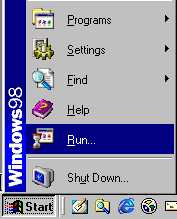
1. Go
to Start ... Click Run
|
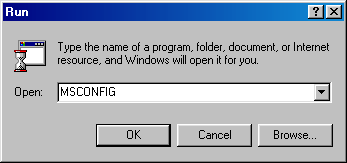
2. Type MSCONFIG
 |
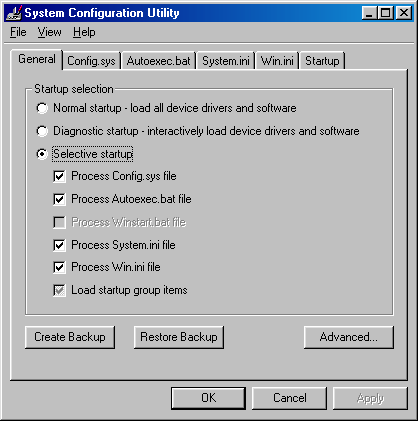
3. Click
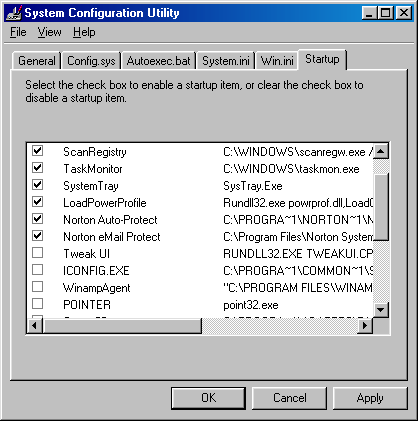
on the Startup tab.
 |
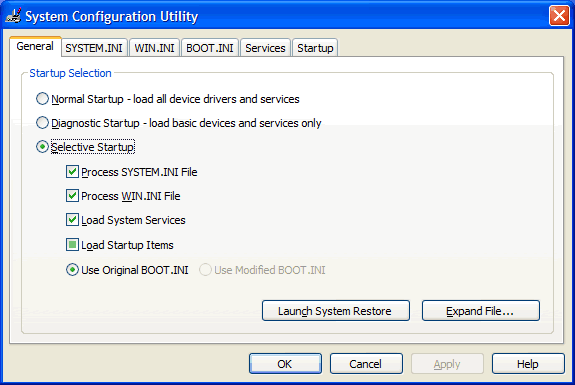
Windows XP users
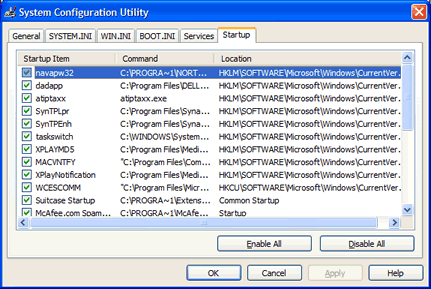
will notice that the Microsoft System Configuration Utility screen looks
different than the one in Windows 98, 98 SE, or ME. Click on the
Startup tab.
 |
4. Below is a list of "startup items." Startup items are load automatically every time you turn on your computer. Some startup programs are absolutely necessary, most are not.
The only startup items you absolutely need are:
Do not be concerned If you don't see one or two these items on your list of startup items but if you see them, they must be checked. Sometimes an item may be listed more then once. In this case, each occurrence must be checked.
The rest of
the startup items are optional. As a rule, un-check only those programs
that you recognize and don't need to be running all the time. When in doubt,
leave it checked.
 |
The Microsoft
System Configuration Utility in Windows XP is a little different from previous
versions. In XP, all essential programs are loaded through
"Windows Services." As a result, most of the startup items you see in XP
are optional. Therefore, only disable those items that you recognize and
don't need to have running all the time. When in doubt, leave the item
Checked.
 |
5. Click ... OK .
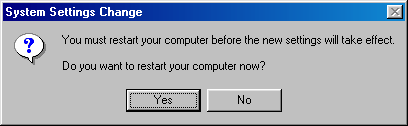
6. A message
will pop up telling you that you must restart your computer before these
changes will take effect. Click on "Yes" and your computer will automatically
reboot.
 |
7. You can enable
items that you disabled with MSCONFIG by running MSCONFIG again and
checking the items you choose to add.