| Windows
XP's Internet Connection Firewall (ICF) protects your network against
undesired incoming traffic from the Internet -- everything from casual
port scans by bored teenagers to serious break-in attempts by determined
hackers. ICF creates a protective barrier between your network and the
Internet, only passing through traffic that you've requested.
You
can enable or disable ICF separately on each dial-up, LAN, or high-speed
Internet connection in the Network Connections folder. That's good,
because there are some connections that can benefit from ICF, and some
that must not use it.
Here
are some points to ponder when deciding whether to use ICF on your network
connections.
WARNING
#1: As its name implies, the Internet Connection Firewall is for
use ONLY on a direct connection to the Internet, such as a dial-up,
DSL, or cable modem. If your computer gets its Internet connection through
a software router (like Internet Connection Sharing) or a hardware router,
you don't have a direct connection and must not enable ICF.
WARNING
#2: If the Internet Connection Firewall is enabled on a local area
network connection with other computers, it will block File and Printer
Sharing. This is probably the most common problem in Windows XP networking.
WARNING
#3: ICF is only effective against undesired incoming traffic from the
Internet. It can't stop undesired outgoing traffic from spyware, Trojan
horse programs, or other hacker tools. If you want outgoing protection,
use a firewall that offers that capability, and disable ICF on all connections.
WARNING
#4: To enable or disable ICF, you must be logged on as a user that
is a member of the Administrators group.
Enabling
and Disabling the Internet Connection Firewall
To enable
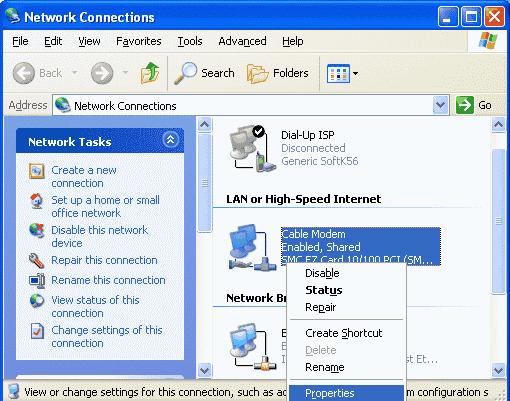
ICF on an Internet connection, open the Network Connections folder,
right click the desired connection, and click Properties.
The
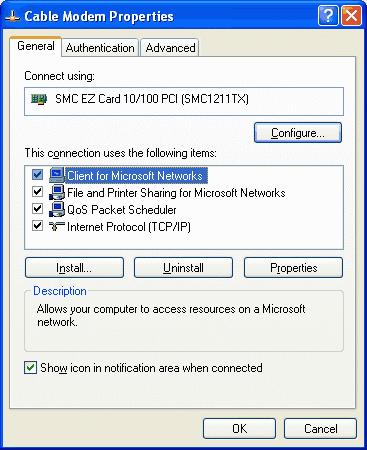
Properties sheet shows the network components associated with the connection.
Click
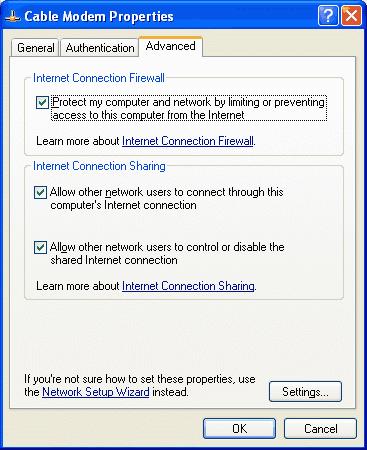
the Advanced tab, then check Protect my computer and network
by limiting or preventing access to this computer from the Internet.
If
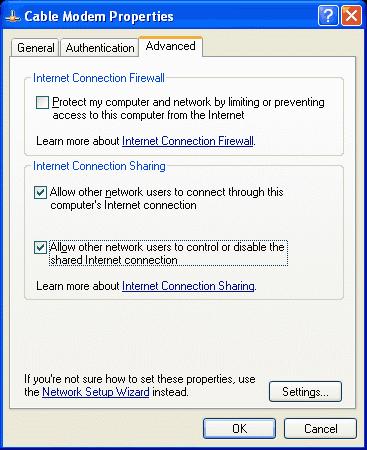
the firewall is enabled and you want to disable it, un-check the same box.
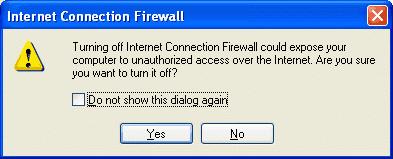
Windows
XP asks you to confirm your decision to disable the firewall. Click Yes
to disable it.
Internet
Connection Firewall Security Log
By default,
ICF silently discards all undesired incoming traffic. To see a record of
its activity, you can enable security logging.
Open
the Advanced tab of the network connection's properties and click
Settings.
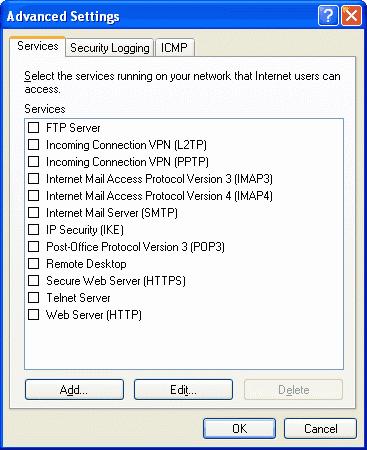
Click
Security
Logging to bring up the logging options.
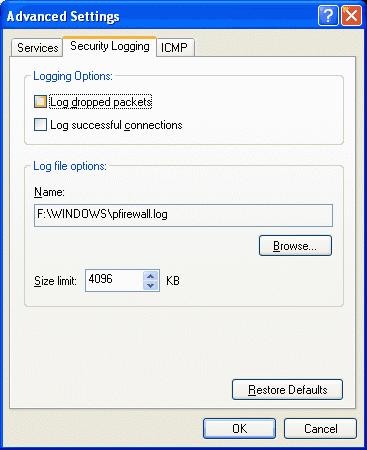
To
see messages about discarded traffic, check Log dropped packets.
On a cable modem connection, it's common to see several dozen of these
messages every day.
To
see messages about permitted traffic, check Log successful connections.
Selecting this option can cause the log file to grow very large very quickly.
To limit its size, enter a number in the Size limit box.
By
default, the security log is written to file pfirewall.log in the
Windows folder. To change the file name, enter a new name in the Name
box, or click the Browse button and browse to the new file.
For
information on how to read and interpret the security log, click Learn
more about Internet Connection Firewall on the Advanced tab.
|
