Word
-
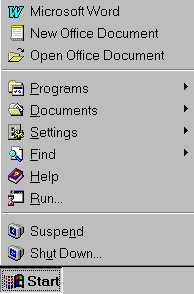
Click the Start
button
in the lower-left corner.
-
Position the mouse
pointer to Microsoft Word, and click again.
Word 97 will start,
and a new document will open.
Note
If your software
installation looks different from this image, click Programs to
see the menu, and select
Microsoft Word.
The Page Layout
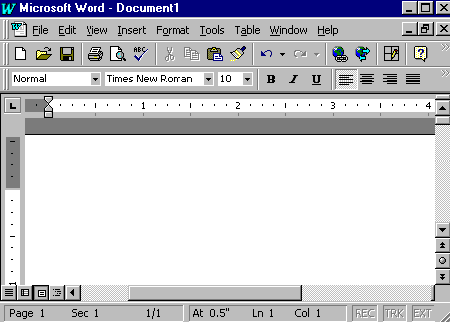
view shows your document in a professional layout style. Look at the standard
screen that appears after you open the program. (Screens may vary, depending
on the Office 97 package you have.) As you become more familiar with the
available options in Word 97, you can customize the menus and add buttons
to the toolbars.
Here is the initial
screen you see when you open Word 97.
Using Office
Assistant
Microsoft Word
in Office 97 has an Office Assistant that can answer your questions and
give tips to help you improve your productivity. Wherever you are doing
your task, your Office Assistant is available. Use it to learn more about
and to discover faster and easier ways to use Microsoft Word 97.
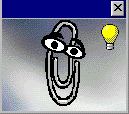
When you first
install Word 97, Office Assistant looks like an expressive paper clip looking
over your work.
Working with
Office Assistant options
Before you begin
this lesson, make sure you are in a new Word 97 document. (To open a new
document quickly, press ctrl+n.) If your Office Assistant is not
visible, click the question mark button on the Standard toolbar, and Office
Assistant appears.
Presetting topics
for assistance
-
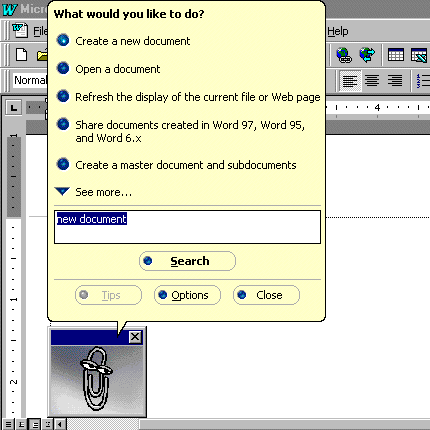
Click anywhere in
the Office Assistant image box to display the Office Assistant dialog
box.
-
Click Options,
and
click the boxes next to the options you want to preset.
-
Click Reset my
tips, and click OK.
Note
The Office Assistant
light bulb signals a tip about how a Word 97 feature could help you perform
your current task.
Working with
Office Assistant questions
Asking a specific
question
-
Click anywhere in
the Office Assistant image box to display the Office Assistant dialog
box.
-
Type new document
into the dialog box.
-
Click Search.
-
Click Create a
new document, and read the Help topic that appears.
-
Close the Help window.
Selecting a
different image
Although the paper
clip is the default image for Office Assistant in Word 97, you can choose
other images as your Assistant. There is a cat, a bouncing ball, a kindly
genius, and several others.
Choosing a different
image
-
Right-mouse click
the Office Assistant image box.
-
Click Choose Assistant.
-
Click the Next
button until you find the image you want for your Office Assistant.
-
Click OK when
you have made your selection.
Word
97 document
There are three
ways to create a new Word 97 document. You can use a standard template,
and then "fill in the blanks"; you can use one of the built-in wizards;
or you can just create your own document. Using a wizard or template to
create a new document saves time.
Using a template
Templates store
boilerplate text, custom toolbars, macros, shortcut keys, styles, and so
on.
Using the template
process
-
On the File
menu, click New.
-
Click each tab to
view the available templates.
-
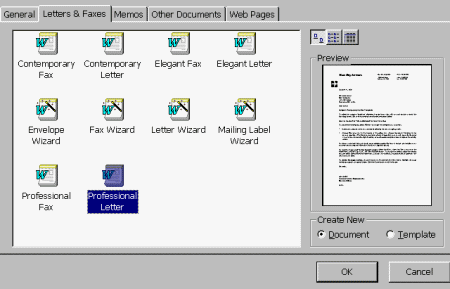
Click the Letters
& Faxes tab, and then click Professional Letter to see the
letter style in the Preview window.
-
Click OK, or
double-click Professional Letter to open the template.
-
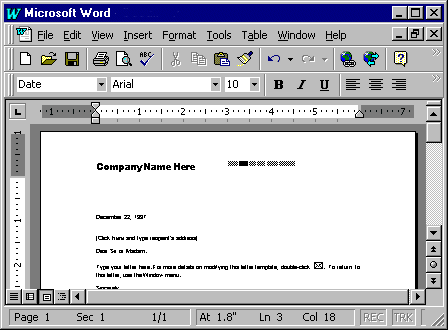
Click in each area
of the letter to enter your school name, the recipient's address, and so
on, and write a thank you letter for goods donated to your classroom.
-
When you're finished
working on your letter, from the File menu, click Save. The
Save
As dialog box will appear.
-
In the File name
box, type xxThank you.doc, using your initials instead of xx.
-
Click Save.
-
On the File menu,
click Close to close the document.
Note
 To
enlarge the appearance of an open document, use Zoom on the Standard toolbar.
To
enlarge the appearance of an open document, use Zoom on the Standard toolbar.
Using a wizard
You can create
a Word 97 document using the wizard method. Wizards help you design letters,
newsletters, directories, resumes, online forms, and common memos.
Using a wizard
to create a letter
-
On the File
menu, click New.
-
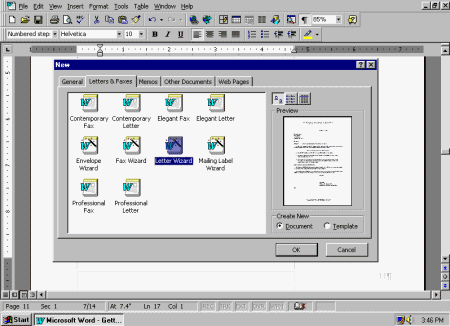
Click the Letters
& Faxes tab.
-
Double-click Letter
Wizard.
-
In the Office Assistant
dialog box, click Send one letter.
-
In the Letter Wizard
dialog box, click the Date line box to use today's date. You can
also type a different date or choose a different format from the Date
line list box.
-
Click Next
to continue.
-
Type the recipient's
name and address in the Recipient's name and Delivery address
boxes.
-
Under Salutation,
click
the type of opening you want to use.
-
Click Next
to continue.
-
Click check boxes
and type in text to include other elements in your letter.
-
Click Next
to continue.
-
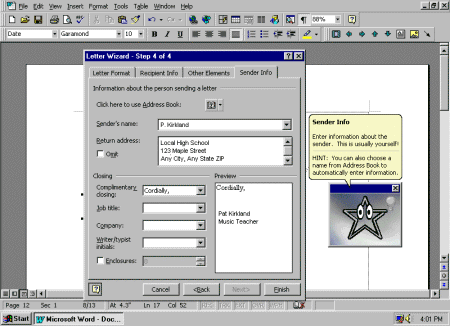
Type your name, return
address, and job title in the appropriate boxes. Click the Complimentary
closing arrow to choose the closing for your letter.
-
Click Finish.
-
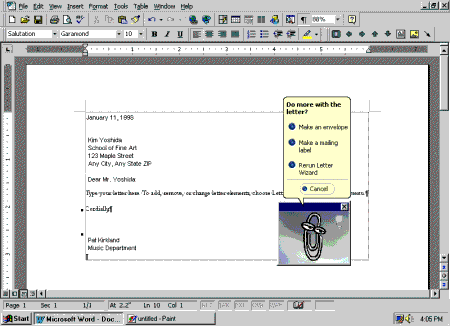
At this point you
have selected and entered all the components, except for the body of the
letter. Click Rerun Letter Wizard in the Office Assistant dialog
box to start a new document.
- or -
Click Cancel
in the Office Assistant box to close the wizard and finish your
letter.
-
When you're finished
working on your letter, from the File menu, click Save. The
Save
As dialog box will appear.
-
In the File name
box, type the name you want to give this letter.
-
Click Save.
-
On the File menu,
click Close to close the document.
As you can see, the
wizard is an easy tool to use, and it provides a fast, efficient way to
create a document. As a teaching tool, a Letter wizard shows students the
types of letters, elements of letters, and position of the elements. Once
students enter information through the wizard, they can then concentrate
on the contents of the letter.
Creating your
own document
Creating your
own original document in Word 97 is easy to do, too. You can begin typing
your document right away, or you can customize it to take advantage of
the many Word 97 features. The following exercise will change your screen
to show where your margins are and allow you to see all nonprinting characters,
such as carriage returns, spaces, and tabs.
Note
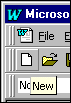 The
New button is on the Standard toolbar.
The
New button is on the Standard toolbar.
Creating your own
document
-
On the Standard toolbar,
click the New button.
-
Type the days of the
week with a space between each day.
-
Press enter each time
Word 97 makes a suggestion.
-
Press ctrl+a
to select the text.
-
On the Tools
menu, click Options.
-
Click the General
tab, and then click the Blue background, white text box.
-
Click OK.
-
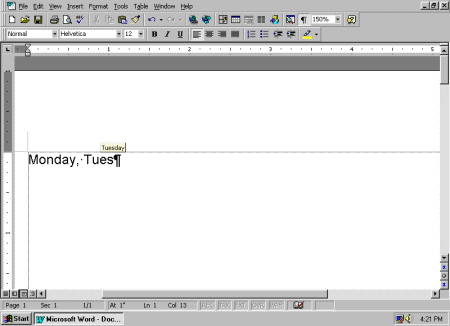
On the Standard toolbar,
click the Show/Hide button to display or remove nonprinting characters
such as spaces between words and carriage returns. You can return to the
normal screen by repeating steps 5 through 7.
-
To close the document,
on the File menu, click Close, and then click No.
Note
-
 Use
the Show/Hide button when you edit your document.
Use
the Show/Hide button when you edit your document.
Opening
an existing Word 97 file
There are several
ways to open a Word 97 file. There is no single right way; use whichever
method you prefer.
Using the
Start menu
Opening an existing
Word 97 file
-
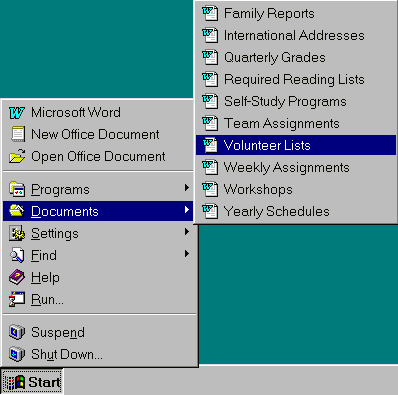
Click the Start
button, and move the mouse pointer to Documents to display the list
of files you have opened recently.
-
Click a document to
open it.
-
Close the document.
Opening a document
from inside Word 97
While using Word
97, you can open another document.
Note
If you open too
many documents at the same time, your computer may run more slowly than
its normal speed.
Opening an existing
file with the menu bar
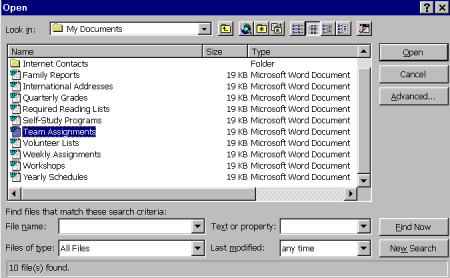
-
On the File
menu, click Open.
- or -
Press ctrl+o.
-
Double-click the file
you want to open.
- or -
Select the file
name, and click the Open button.
-
Close the document.
Changing font size
and colors
Part of the versatility
of Word 97 is in the variety of font sizes and colors. Ordinary text comes
alive with color. This lesson explores the available fonts and color choices.
Changing fonts
to explore the variety of Word 97
-
Open a new document.
-
On the Format
menu, click Font.
-
Click the Font
tab, select Arial Narrow from the Font list, and observe
this and the following changes in the Preview box.
-
By using the Size
scroll bar or typing the number in the dialog box, change the font size
to 36.
-
In the Color
list, click Blue.
-
Under Effects,
click Outline. Click it again to remove this effect.
-
Click Cancel
to void all changes.
-
Close the document
without saving changes.
Each method of creating
a Word 97 document has its advantages; use whichever is easiest for you.
When you are familiar with templates and wizards, you may find those features
useful for creating documents you frequently use. For instance, you can
create a student progress note to parents or an administrative schedule
that you send to staff weekly. You can create borders, add graphics, and
include repetitive information on a frequently used document.
Saving your
work
When you create
a document, regardless of which method you use, you must save your work
in a logical place on the computer. Just like filing a document in a file
drawer, storing a computer document requires some attention to how you
name the document and where you place it, in order for you to be able to
find it again. Unless you specify otherwise, Word 97 saves all files to
a default folder on your computer called My Documents.
Once you have saved
the document, the file name is displayed in the title bar at the top of
the document. You can save files in many ways.
Saving for
the first time
When you save
the file for the first time, you should name the file as descriptively
but as briefly as possible. Sometimes, you will want to name it as a particular
version, or as a type of document (i.e., Student Program Letters, V.1.2)
This following
lesson uses material excerpted from the U. S Department of Education Report
Getting
America's Students Ready for the 21st Century: Meeting the Technology Literacy
Challenge.
Saving a new document
-
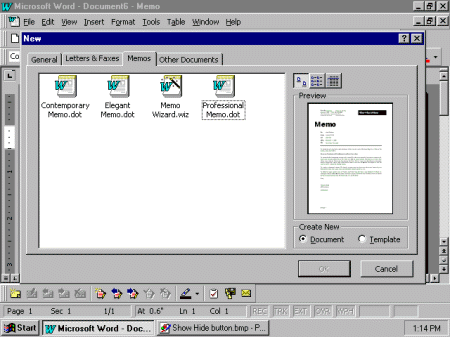
On the File
menu, click New.
-
In the New
window, click Professional Memo.dot and open Professional Memo.dot.
-
Type Local High
School in the Company Name Here box.
-
Type this excerpt
of the memo from the Department of Education's Report on Getting America's
Students Ready for the 21st Century in the body of the Professional
Memo:
Background
Technology literacy--meaning
computer skills and the ability to use computers and other technology to
improve learning, productivity, and performance--has become as fundamental
to a person's ability to navigate through society as traditional skills
like reading, writing, and arithmetic. Yet, for the most part, these new
technologies are not to be found in the nation's schools. Students make
minimal use of new technologies for learning, typically employing them
for only a few minutes a day.
-
On the File
menu, click Save.
-
In the File name
box, type Technology Report.doc.
-
Click Save
to save the file.
Saving to a
different location and changing the file name
Saving as a different
name or to a different folder or disk drive
-
With the document
from the previous lesson still open, on the File menu, click Save
As to save the document with a new name.
-
In the File name
box, type a different document name.
-
Select a folder and/or
drive.
Click Save
to save the file.
Saving your
document as another file type
If you are saving
your document to share with others who may have a version of Word 97 different
from yours or other kinds of word-processing programs or documents, you
may need to select a different file type. By saving your file as a specific
type, you make it possible for others to read and download your document
on their computer systems and software.
Saving to
other Word 97 file types
Saving to earlier
versions of Word 97
-
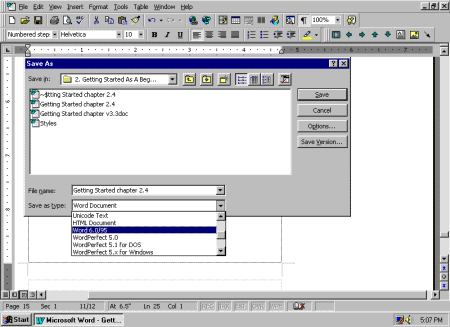
With the document
from the previous lesson still open, on the File menu, click Save
As.
-
Click the Save
as type down arrow to see the format types.
-
Click Word 6.0/95.
-
Click Cancel
to return to Word 97 without saving this document as a Word 6.0/95 document.
(Clicking Save will overwrite any existing document with the same
name and three-letter extension.)
Note
If you want to
"back out" of a dialog box and continue working in Word 97, click Cancel.
Saving to
other word-processing formats
If you want to
share a document with someone who has different word-processing software,
or transfer the document to another computer that has different software,
you can save your document in the file format used by another program.
Saving to other
word-processing programs
-
With the document
from the previous lesson still open, on the File menu, click Save
As.
-
Click the Save
as type down arrow to see format types.
-
Click MS-DOS Text
to select a generic word-processing format.
-
Click Cancel
to return to Word 97 without saving this document in MS-DOS® Text format.
Quitting
Word
There are several
ways to quit Word 97. Always follow proper procedures. All Office 97 applications
prompt you to save changes if you try to quit a program without saving
your open documents.
Quitting
Word using the Exit command
Quitting Word
97 using the Exit command
-
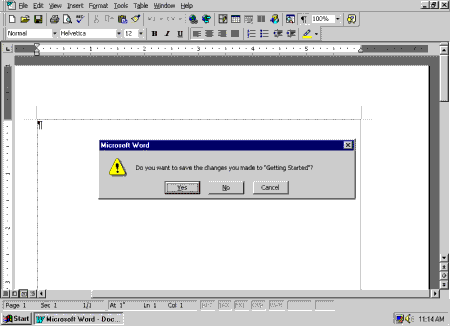
With the document
from the previous lesson open, on the File menu, click Exit.
-
Click Yes if
you want to save your document and quit Word 97.
- or -
Click No
if you do not want to save the document for future use, but you do want
to quit Word 97.
- or -
Click Cancel
if
you do not want to close this document.
Quitting Word
with keystrokes
If you have already
quit in the preceding exercise, open the Professional Memo document at
the beginning of this section to create a new document. There are three
keystrokes you can use to quit Word 97.
Quitting Word 97
with keystrokes
-
Press alt+f+x.
- or -
Or press alt+f4.
- or -
Or double-click
the Microsoft Word button in the top-left corner of the screen.
-
Click Yes to
confirm quitting the program.
Note
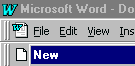 You
can quit Word 97 quickly when you double-click the Microsoft Word button
as shown:
You
can quit Word 97 quickly when you double-click the Microsoft Word button
as shown:
Extensions
Create a letterhead
that lists your hours of availability and phone numbers. Word 97 makes
it is easy to update the stationery each term.
Note
You can create
a Template with your letterhead. Each time you create a document with that
Template, your header will appear as you designed it.
Creating your letterhead
-
Open a new document.
-
Type your name, available
hours, and phone numbers.
-
Copy all the text,
by pressing ctrl+a and then pressing ctrl+c.
-
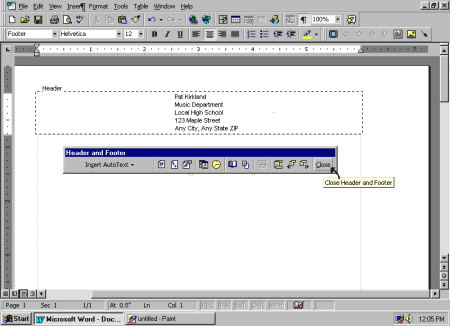
On the View menu,
click Header and Footer.
-
Paste the information
into the header, by pressing ctrl+v.
-
Center the text, by
selecting all the text and then clicking the Center button on the
Formatting toolbar.
-
To close the header,
click Close on the Header and Footer toolbar.
-
Delete your name and
other information from the document.
-
Save your document,
and name it Letterhead.
-
Close your document.
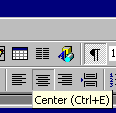 To
center text or align it left or right use the buttons on the Format toolbar
To
center text or align it left or right use the buttons on the Format toolbar