Windows
XP lets you share a computer's disks and folders with other computers on
the network, using a method called Simple File Sharing. And it really
is simple. If a disk or folder is shared, everyone on the network can access
it. There are no user permissions and no passwords. Because sharing in
this way is so wide open, Windows XP tries to protect you from some potential
security risks.
Right
click the disk or folder that you want to share and select Sharing and
Security.
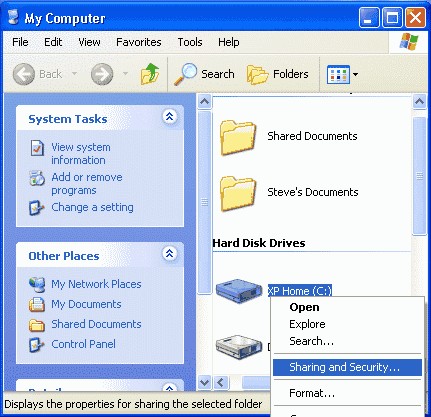
The
disk or folder that you share, along with all of the folders that it contains,
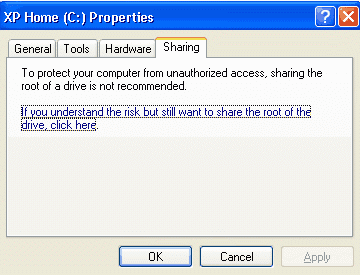
will be accessible by other network users. If you're sharing an entire
disk, Windows XP gives a warning. The implication of the warning is that
it's better to share a specific folder, since only that folder (and its
subfolders) will be accessible by others, and the rest of the disk will
be inaccessible. Click where indicated if you want to go ahead and share
the entire disk. This screen doesn't appear if you're sharing a folder.
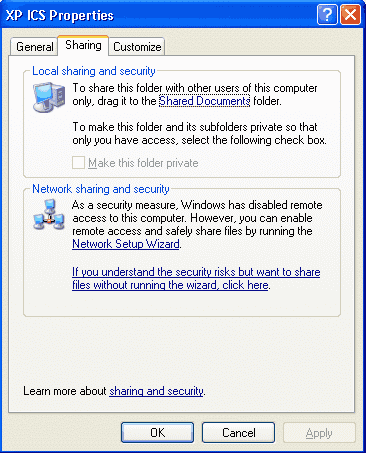
The
first time that you set up sharing, Windows XP displays a warning, urging
you to use the Network Setup Wizard
for safety. Click where indicated to either run the Wizard or to do it
yourself.
What
great secret does the Wizard know that XP thinks you don't? The Wizard
automatically enables the Internet Connection
Firewall (ICF) to prevent other Internet users from accessing your
shared disks and folders. Enabling ICF is a good idea if you connect directly
to the Internet through a dial-up, DSL, or cable modem. But it's a terrible
idea if you connect to the Internet through your LAN, using a software
router (like Internet Connection Sharing) or a hardware router, since it
will block File and Printer Sharing.
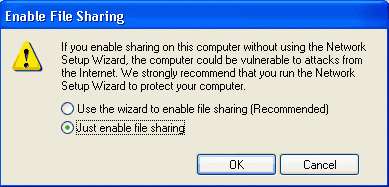
XP
displays another warning. If you want ICF enabled, select Use the wizard
to enable file sharing. Otherwise, select Just enable file sharing.
Having
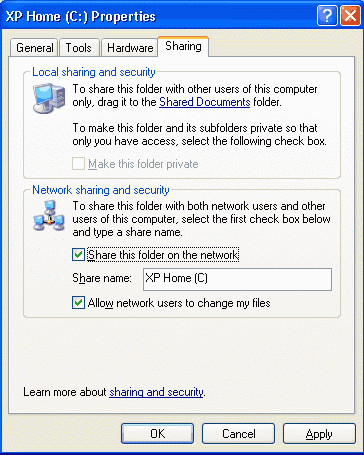
successfully run the Wizard's obstacle course, you may now specify a Share
name, which users on other networked computers will use to access this
disk or folder. For maximum compatibility with all versions of Windows,
use 1-12 characters.
By
default, users on other computers have full access: they can read, write,
and delete shared files. If you only want them to be able to read files,
un-check Allow network users to change my files.
Warning:
If a user has full access, deleting a file doesn't put it in the Recycle
Bin. Once it's deleted, it's gone for good.
Hiding
a Shared Disk or Folder
What
if you don't want everyone on the network to be able to access a shared
disk or folder? For example:
-
Mom,
Dad, and Junior each have a computer.
-
The
computers are networked so that everyone can share a cable modem Internet
connection.
-
Mom
and Dad share a folder that stores the family's financial data.
-
They
don't want Junior to see the folder or the data.
The answer
is to create a hidden share by adding a dollar sign ('$') to the
end of the share name. A hidden share doesn't appear in My Network Places
or Network Neighborhood on any of the networked computers. Only
people who know the share name can access it.
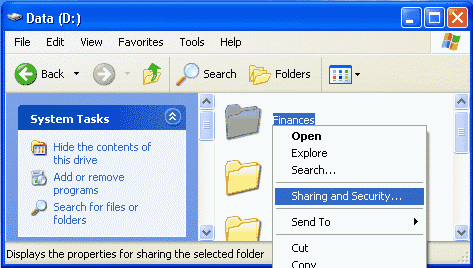
To
create a hidden share, right click the disk or folder and select Sharing
and Security.
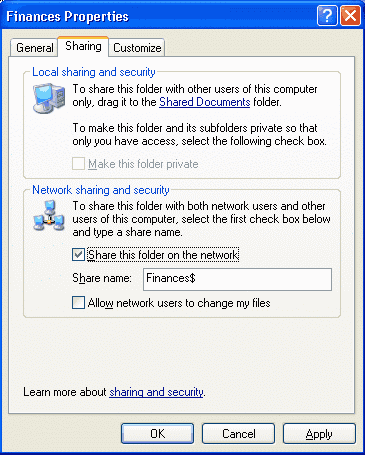
Specify
a share name that ends with a dollar sign. Once again, use 1-12 characters
(1-11 before the dollar sign). If Junior is clever enough to guess a name
like Finances$, use a more secure name, like a combination of letters and
numbers. Just make sure that Mom and Dad can remember it, and don't write
it on a yellow sticky note attached to the monitor!
]
Accessing
a Hidden Share
A hidden
share doesn't appear on any of the networked computers, so how can someone
on another computer access it? The answer is to map it as a network drive,
which assigns a drive letter to the hidden share. Once it has a drive letter,
you access it just like a disk on the same computer.
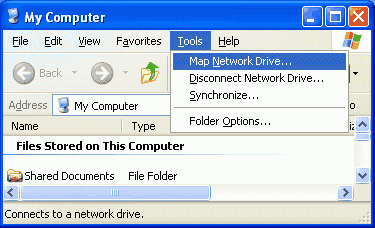
To
map a network drive, open My Computer, click Tools, and select
Map
Network Drive.
Specify
an unused drive letter and enter the network path for the hidden share,
being sure to include the dollar sign. If you check Reconnect at logon,
the mapping will happen automatically every time you start your computer.
Otherwise, you'll have to map it manually every time.
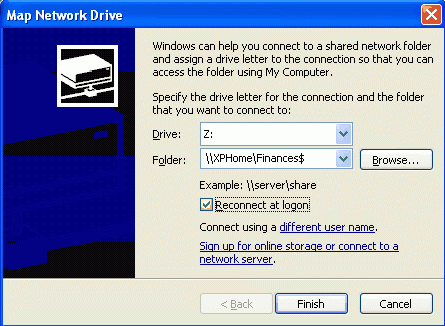
Click
Finish.
The mapped drive is connected and appears in a new window. It's also available
|
