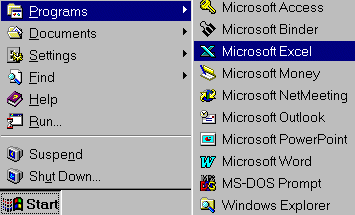
Starting Excel 97
Exploring
Excel
When you start working in Excel, you begin using a workbook that contains screens called worksheets. They are identified as Sheet1, Sheet2, and so on. (Screens may vary, depending on the Office 97 package you have.) As you become more familiar with the available options in Excel, you can customize the menus and add buttons to the toolbars.
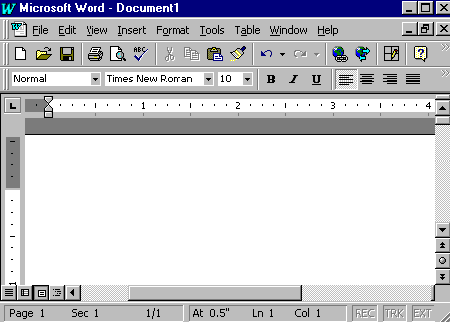
Here is the initial screen you see when you open Excel 97.
Moving around
in the Excel 97 worksheet
There are a number of ways to move around in a worksheet. Moving from one cell to another in Excel is quick and easy. The ways to move from cell to cell include clicking a cell or using the Go To command, the scroll bars, the arrow keys, or the home, end, page up, and page down keys.
Moving within a window
Using Office
Assistant
Microsoft Excel 97 in Office 97 has an Office Assistant that can answer your questions and give tips to help you improve your productivity. Wherever you are doing your task, your Office Assistant is available. Use it to learn more about and to discover faster and easier ways to use Microsoft Excel 97.
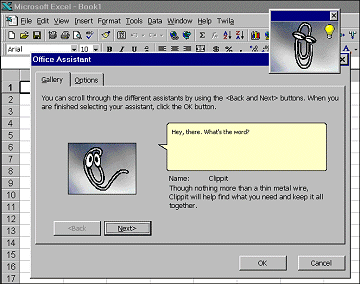
When you first install Excel 97, the Assistant looks like an expressive paper clip looking over your work.
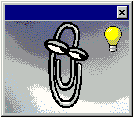
The Office Assistant light bulb signals a tip about how a Microsoft Excel 97 feature could help you perform your current task.
Working with Office Assistant options
Before you begin this lesson, make sure you are in a new Excel 97 workbook. (To open a new workbook quickly, press ctrl+n.) If your Office Assistant is not visible, click the question mark button on the Standard toolbar, and Office Assistant appears.
Presetting topics for assistance
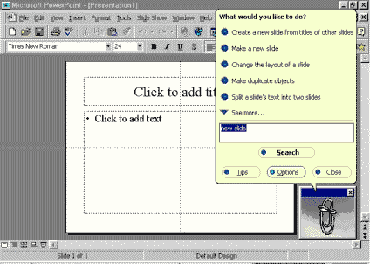
You can use everyday language to ask specific questions, and Office Assistant gives you a choice of available information.
Asking a specific question
Selecting a different image
Although the paper clip is the default image for Office Assistant in Excel 97, you can choose other images as your Assistant. There is a cat, a bouncing ball, a kindly genius, and several others.
Choosing a different image
Teachers can use worksheets to collect and analyze information, including student records, lesson notes, school activity budgets, professional organization information, and data. Students may use Excel 97 for scientific data, weather journals, financial reports, nutritional diaries, and legislative voting records. Each worksheet can be easily customized and enhanced with graphics and artistic additions.
There is a difference between a workbook and a worksheet. A workbook can contain many worksheets. Each worksheet can contain up to 256 columns across and 65,536 rows down.
Creating an Excel workbook
When you create a workbook, regardless of which method you use, you must save your work in a logical place on the computer. Just like filing a document in a file drawer, storing a computer document requires some attention to how you name the document and where you place it so you can easily find it again.
Unless you specify otherwise, Excel 97 saves all workbooks to a default folder on your computer called My Documents.
Saving for the first time
When you save the file for the first time, you should name the file as descriptively but as briefly as possible. Sometimes, you will want to name it as a particular version, or as a type of workbook (i.e., Student Lists V.1.2).
Saving a new workbook
Saving an existing file to the same file name, location, and format
Unless you specify otherwise, Excel 97 will save all files to a default sub-directory on your computer called My Documents.
Saving to a different name and folder or disk drive
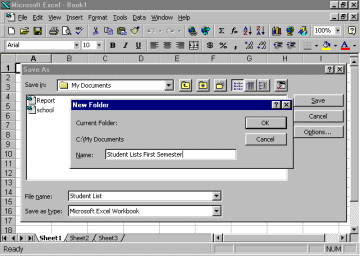
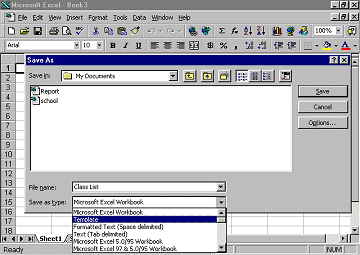
If you are saving your workbook to share with others that may have different versions of Excel or other types of spreadsheet programs, you may need to select a different file type. Saving your file as a specific type makes it possible for others to read your worksheet on their computer systems and software.
Saving workbooks as other file types
Using the Start menu
Opening an existing Excel 97 file
While using Excel 97, you can open another workbook.
Opening an existing file with the menu bar
Quitting Excel 97
There are several ways to quit Excel 97. Always follow proper procedures, or your work may not be saved. All Office 97 applications prompt you to save changes if you try to quit a program without saving your open workbooks.
Always quit the program before you turn off your computer.
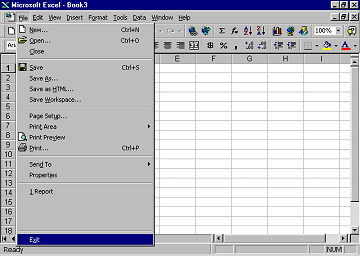
Quitting using the Exit command
Quitting Excel 97 using the Exit command
Quitting Excel 97 with keystrokes
Extensions
Using automatic fill
Using the automatic fill feature in Excel 97, you can quickly and easily design useful charts for your classroom. You can use this feature to create a calendar; a daily, weekly, or monthly checklist; or a special event or topic chart.
Note To turn the automatic feature on or off, click Assistant and type Automatic Entry, then click Change Options button.
Creating a chart with automatic fill
