
A non-transparent image.

A transparent image.
| Animation - Images move and change on screen. | |
Transparency - Parts of images may be transparent (i.e. show the background colour of the page underneath). | A non-transparent image. |
A transparent image. |
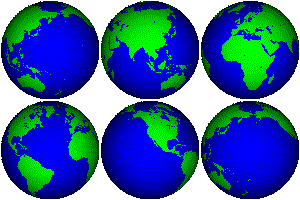
Animation is created by taking several ordinary images and stitching them together to form a sequence.
 |
 |
 |
You can create animated images using:
Issues with animation:
Images display in a low-resolution form while they are being loaded. As more detail of the image is loaded, the quality improves until finally the image displays completely. This process was developed in the early days for GIF files, which were usually displayed on computers with slow Internet connections.
Non-interlaced images are scanned and loaded from top to bottom. Part of the image will appear when the top 50% has been loaded in, but the image can stay invisible/incomplete for quite a while. Interlaced images, on the underhand, are read/scanned left to right in vertical sections, with the first 1/8 of each section stored first, followed by the next 1/8 and so on. This means that the image can be displayed (in a fuzzy way) as soon as the browser starts to load it.
Lossless compression - Data (images in this case) are compressed in such a way that no information is lost. The images can be reconstructed perfectly by decompressing the file.
Lossy compression - Data are compressed in such a way that a small amount of information is lost, but not enough to make an appreciable difference. This sort of compression is only suitable for images or music where a slight drop in picture/sound quality won't be noticed.
Raster graphics (or bitmap graphics) - Images are stored as a sequence of colours dots ("pixels") in a rectangular array. All image formats discussed on this page are raster graphics. You can create raster graphics using Paint Shop Pro.
Vector graphics - Images are stored as a sequence of instructions for drawing geometrical shapes such as lines (direction and length), circles (centres and radii) etc. The image is thus constructed from component parts rather than just lots of dots.
Vector images are good for drawing simple diagrams, which lend themselves easily to being reduced to simple components. They are scalable (can be enlarged/reduced without losing detail) and produce small file sizes. For images with large amounts of detail (e.g. photographs), raster graphics are better, as you can't reduce these images to a series of lines, circles and other shapes. However, raster graphics do not resize well, and become "grainy" when enlarged.
The World Wide Web supports three different image file formats: JPEG (Joint Pictures Experts Group), GIF (Graphics Interchange Format) and PNG (Portable Network Graphics).
File extension |
Allows animation? |
Type of compression |
Allows interlacing? |
Allows transparency? |
||
| JPEG | .jpg .jpeg |
No |
Lossy |
No |
No |
Allows 16 million colours, so generally used for photographs. Trade off between image quality and file size. |
| GIF | .gif |
Yes |
Lossless |
Yes |
Yes |
256 colours. Generally used for diagrams and cartoon-style pictures. |
| PNG | .png |
Yes |
Lossless |
Yes |
Yes |
All the advantages of JPEG and GIF, but older browsers can't render PNG images. |
There are two GIF standards, GIF87a (supports interlacing only) and GIF89a (supports interlacing, transparency and animation).
Other image file formats include:
Bitmap files (extension .bmp), developed for the Paint program bundled free with computers.
Tagged Image File Format (extension .tif or .tiff). TIFF images are of high resolution (and are used for tasks such as medical imaging), but have large file sizes.