Site Development Foundations
Chapter 6 - Introduction to Tables
All tables consist of HTML code defined within <table> and </table> tags. Each table consists of cells ("table divisions") arranged into horizontal rows.
The attributes that can be included with the <table> tag are:
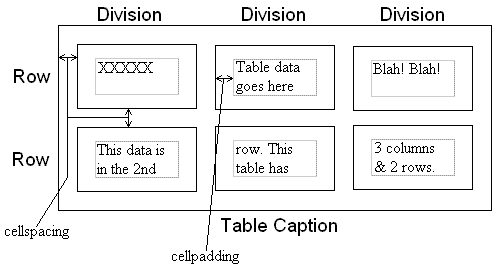
- cellspacing="...". This number indicates how many pixels there are between the outer edge of the table (the "border", although it may not be visible) and the cells inside the table, and the amount of space between the cells.
- cellpadding="...". This number indicates the amount of space between the edge of the cells and the point inside the cells where the displaying of the contents start (assuming that they are aligned to the top and the left). Of course, the cell contents may be centred vertically/horizontally, so more space will appear.
- width="...". This specified the width of the table on the screen either as a percentage of the window width (e.g. width="40%") or as a number of pixels (e.g. width="720").
- border="...". This number specifies the thickness of the border round the table and the individual cells (sorry, you can't have one without the other!) The default (if you miss out the border="..." attribute) is 0, meaning no border. The higher the number, the thicker the border.
These attributes are explained in more detail in the diagam below.
The <table> ... </table> tags contain
- an optional <caption> ... </caption> tags that will contain a caption for the table. The browser will decide where to place the caption for itself.
- a pair of <tr> ... </tr> tags for every row. These contain the code that define the cells.
Each cell within the <tr> ... </tr> tags is defined either by
- <th> ... </th> tags. These are header tags for the table, and are generally used in the top row and/or left column. The text they contain is automatically centred within the cell and in bold type.
- <td> ... </td>. These tags are reserved for ordinary cells. Within these tags are the contents of the cells themselves.
|
This text area shows the code for an example table, with four rows and four columns. Below that you will see how the table appears. Feel free to change the code in the text area, then click the "Update the screen" button to see the effects. You can click the "Default table" button to restore the original table.
|
|
Spanning multiple rows and columns
| |
This cell clearly spans two columns of the table. This is achieved by adding the attribute colspan="2" to the <td> tag for the cell. Although this table has three columns, the first row only has two <td> tags. |
| This cell clearly spans three rows of the table. This is achieved by adding the attribute <rowspan="3" to the <td> tag for the cell. Subsequent rows will have one fewer <td> tag than might be expected. |
 You can include images in cells! You can include images in cells! |
This row has three <td> ... </td> tags. |
| If you look at the code for this row, you will see there are only two <td> ... </td> tag pairs. The "missing" one is accounted for by the extended cell in the row above. |
(I couldn't think of anything to write here) |
| Notice anything about this cell? Yes, I added the bgcolor="white" attribute to the <td> tag. Sneaky, eh! |
And this time I added the attribute align="center" to the <td> tag. |