PKWrite (“Phone Key Write”) by Robert Gasparotto
Intro
PKWrite is a text
entry tool which uses the same system inspired by normal telephone keypads and
used as the basis for most cellular/mobile phone key entry - namely 8
alphabetic buttons/keys (namely “ABC”, “DEF”, “GHI”, “JKL”, “MNO”, “PQRS”,
“TUV”, “WXYZ”) which are used to capture any word in the device's
dictionary.
This is achieved by
intelligent "guessing" of what word is intended by the button
combinations tapped; e.g. “CAT” could be typed in by typing the “ABC” button,
then “ABC” again and lastly “TUV”.
Also, the user can cycle through the available combinations by tapping a
special key. This is necessary because
the combination of keys needed to spell “CAT” would also spell “ACT” and “BAT”.
PKWrite also
provides some extra functionality like cycling through all endings to the
current word (i.e. word/phrase completion).
Why use PKWrite ?
- Text entry
similar to that used by most cellular/mobile
phone manufacturers
- Only 8 keys used
to type all 26 alphabetic characters
- Intelligent
"guessing" of intended words using frequency-based dictionary
- Word completion
available
- Layouts optimised
for thumb entry
- Left and
right-handed layouts included. Also,
different size layouts included (normal and thumb-optimised)
- Copies text
automatically to clipboard when exiting PKWrite, which can be pasted into the
target application
- Ability to add
and remove words from the built in dictionary
- Ability to add
and remove phrases from the built in dictionary
- Ability to change
the case of all the selected words or current word
- Frequency-based
ordering of dictionary words. This is updated constantly as words are chosen.
- 7,000 word
dictionary included
- Phrases are
catered for as well and can be added/removed from dictionary as well
- Automatic sentence
shifting provided (after ‘?’, ‘!’ and ‘.’)
- Phrase/Word
completion
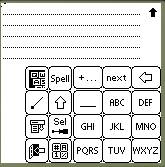
Figure 1 - Basic Layout (Right-Handed Small layout)
Type/Spell Mode
Typing Area Exit Menu drop-down Onscreen
Keyboard Command Button Next Ending Next
Word/Letter (and extra layout key) Backspace





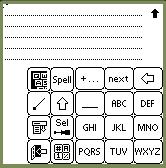
Typing Layout
button Selection Tools

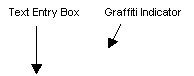
Figure 2 –
Spell Indicator

Displayed at
top-right (under Graffiti indicator)
Figure 3 – Different Typing Area Layouts (change with Typing Layout button)

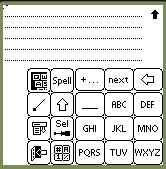
Layout Number


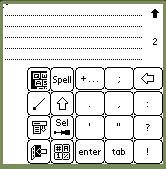
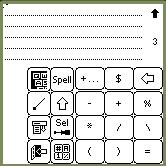
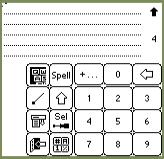
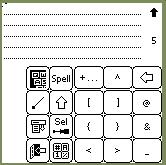
Figure 4 –
Selection Tools screen
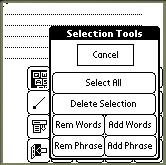
Figure 5 –
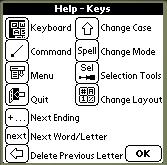
Key Layout Help (/K)
Compatible
Devices/OS’s
I have physically
tested PKWrite on a Palm Vx as well as a Tungsten T, but it should run on all
devices from Palm V onwards.
The software needs
at least Palm OS 3.5, so Palm III and earlier devices will not run
properly.
(Tech Note: Palm
III will actually run but since graphical buttons are only introduced from OS
3.5 onwards, the buttons will look like garbage).
Demonstration
version limitations
Since there are a
lot of hackers out there and unfortunately a lot of people happy to use hacked
software I have been forced to make a demonstration version of the software
with limitations rather than provide a full version that has an expiry date or
a registration key. Once payment has
been made, a registered version will be available to you.
Please be
understanding – I know a couple of the limitations may be annoying but I have
put a lot of time into developing this product.
Limitations
No adding/removing
of words/phrases is allowed
Installing
PKWrite
Make sure you
install the following files onto your palm:
1. Database
Install one of the
following
-
PKWriteDB_UK_English.pdb
-
PKWriteDB_US_English.pdb
2. Application
Install one of the
following
(Demo
users)
-
PKWrite_Small_R.prc - Small(Thumb)-sized layout
(right-handed)
-
PKWrite_R.prc - Normal-sized layout
(right-handed)
-
PKWrite_Small_L.prc - Small(Thumb)-sized layout
(left-handed)
-
PKWrite_L.prc - Normal-sized layout
(left-handed)
(Registered
Users)
-
PKWrite_DEMO_Small_R.prc - Small(Thumb)-sized layout (right-handed)
-
PKWrite_DEMO_R.prc - Normal-sized layout
(right-handed)
-
PKWrite_DEMO_Small_L.prc - Small(Thumb)-sized layout (left-handed)
-
PKWrite_DEMO_L.prc - Normal-sized layout
(left-handed)
Removing
PKWrite
Delete the above
installed files from your Palm
Using PKWrite
Starting up PKWrite
Use any freeware
launcher tool to launch PKWrite.prc from your current application. You will see a blank text field when you
start up PKWrite.
Exiting PKWrite.
Option 1 - PKWrite "Quit"
button 
Tap the
"Quit" button. You will be
asked to confirm. After answering "Yes" you will exit the PKWrite
screen and will be returned to your previous application - often to the exact
same spot you left (this depends on the application).
Option 2 - Application Launcher
silkscreen button or other application launcher
If you quit PKWrite
by switching to another application using the System Application Launcher
silkscreen button or hardware buttons or a 3rd Party launcher application you
will be launched there rather than your previous app.
NOTE: For both options the text in the PKWrite text field will be copied to the clipboard and can be pasted into another application's text fields.
Entering text
PKWrite is called
Phone Key Write because you type in characters using the same system as most
cellular/mobile phones use. There are
basically 8 letter keys (labeled "ABC" to "WXYZ" at the
bottom right section of your screen) which are used to type in all 26
alphabetic characters. Together with
different layouts, many other characters can also be typed in (see later
section).
The way it works is
simple. You basically tap the buttons
that have displayed on them the letter you want to type in. As you type in you will see the current word
(highlighted) changing as you type. You
may see what you believe is garbage coming up - don't worry - PKWrite is doing
a partial lookup ("guessing") the word you want to type in. If the word exists in the dictionary, when
you type in the final letter of the word, the word should magically appear
correctly on the screen. If it doesn't
there are 2 possible reasons why: the
word does not exist in the dictionary - if this is the case you can add the
word in Spell mode (later). The second
reason is that another word with the SAME letter combination exists in the
dictionary - you can cycle through all these (using the "Next"
button) until you get the one you want.
An example is
necessary here:
Say you want to
type in "bat". This would be
done by tapping the following buttons: "ABC", then "ABC"
and finally "TUV". As you
type you may see the following combinations coming up: "c",
"cc", "act". Now,
act is not the right word but it does use the same combination of letters that
"bat" does. Try to see if
"bat" exists by tapping the "Next" button. You should see "bat" coming up
next. Now you have your word. Note that the more often you type in a word,
the more likely it is that the word will come up first next time, e.g.
"bat" will most likely come up next time first. Obviously if you use "bat" and
"act" as often as each other,
there will be a 50% chance of either coming up next time :-)
Typing Modes
There are 2 modes
of entering text in PKWrite: Type Mode (to type using words/phrases that are
already in the dictionary) and Spell Mode (adding new words/phrases to the
dictionary)
A “word” is defined
in PKWrite as a continuous string of Alphabetic (a-z) characters. E.g. “hello” is a word, “123” is not and
neither is “hello123”.
A “phrase” is a
continuous stream of words (defined previously) separated by spaces.
The way the mode is
shown in 2 ways:
Type Mode:
- the Type/Spell
Mode button shows “Spell” – this indicates that when you tap on the button you
will go to Spell Mode (see Figure 1)
- the Spell
Indicator is blank (see Figure 2)
Spell Mode:
- the Type/Spell
Mode button shows “Type” – this indicates that when you tap on the button you
will go to Type Mode (see Figure 1)
- the Spell
Indicator shows an “S” (see Figure 2)
* Type Mode:
In this mode, you
will type words using the PKWrite dictionary.
Should the word/phrase not exist
you can add to the dictionary in Spell Mode (see next section)
The buttons you
will generally use are:
In Typing Area (see
Figure 1):
-
“____”
– space
-
“ABC”,
“DEF”, “GHI”, “JKL”, “MNO”, “PQRS”, “TUV”, “WXYZ” – letter combination buttons
(Note:
if you are in a different layout, instead of “next”,“____”, “ABC”-“WXYZ” you
would see other layouts instead –see Figure 2)
“next” – Cycle
through full/partial word combinations
“+ . . .” - Cycle through word/phrase endings
 - Delete previous character
Note: Word/Phrase
completion only works with alphabetic words/phrases
Here is a basic
example to show you how typing works:
We will type in
“goodbye cruel world”
-
Open
PKWrite
-
Make
sure that the layout is the alphabetic one (tap the Change Layout button  until the alphabetic layout appears (Figure
3)
until the alphabetic layout appears (Figure
3)
-
Make
sure that we are in Typing Mode (the “Spell/Type” button will say “Spell”
-
Tap
the following buttons in order:
o
Tap
“GHI”, “MNO”, “MNO” “DEF” – the word “good should be highlighted
o
To
show how PKWrite can cycle through combinations, tap the “next” button – you
should see various other words come up with that button combination. Keep tapping until “good” comes up again.
o
Tap
“ABC”, “WXYZ”, “DEF” – the word “Goodbye” should appear
o
Tap
“___” – this will unhighlight “goodbye” and make a space
o
Tap
“ABC”, “PQRS”, “TUV” – the word “cru” should be highlighted
o
To
show how to get PKWrite to autocomplete, tap the “+ . . .” button – the word
“cruel should appear. Keep tapping to
cycle through all the options until you get to “cruel” again.
o
Tap
“___” – this will unhighlight “cruel” and make a space
o
Tap
“WXYZ”, “MNO”, “PQRS”, “JKL”, “DEF” – “world” should appear
o
You
are done.
To type in other
symbols, tap the Change Layout button  . Remember that in other layouts, there is no
guessing/completion of words/phrases since the characters are not alphabetic
(a-z).
. Remember that in other layouts, there is no
guessing/completion of words/phrases since the characters are not alphabetic
(a-z).
You will notice
that as soon as you type in a non-alphabetic character after a word, only that
character becomes highlighted.
Note: the “enter”
and “tab” buttons in layout 2 will perform a carriage return and a tab for you.
Note: the “next “
button is replaced by other characters when you cycle through the different
layouts
As an example,
let’s put a period at the end of the sentence.
Tap the Change
Layout button until you see the layout with a period (layout 2). Tap the period button – a “.” should appear
highlighted.
* Spelling Mode
This mode is used
to add words and phrases to the dictionary.
One would spell out a word or phrase, select it using the selection
functions (or stylus) and then choose an add function from the Selection Tools
(see next section for details).
In this mode, 2
things are different to Type Mode:
-
when
tapping the “next “ button, only the LAST letter is cycled through (this only
applies to alphabetic characters again)
-
no
“guessing” of words happens by PKWrite since it assumes you are typing up a new
word anyway
An example:
We would like to
add the word “fraggle” to the dictionary.
Make sure that
PKWrite is in Spell Mode: the Spell
Indicator shows an “S” (see Figure 2), the “Spell/Type” button shows
“Type”. If it says “Spell” tap it
again.
Tap the following:
-
Tap
“DEF”. Tap “next” until the “d” becomes
an “f”
-
Tap
“PQRS”. Tap “next” until the “p”
becomes an “r”
-
Tap
“ABC”.
-
Tap
“GHI”.
-
Tap
“GHI”.
-
Tap
“JKL”. Tap “next” until the “j” becomes
an “l”
-
Tap
“DEF”. Tap “next” until the “d” becomes
an “e”
-
Tap
the Selection Tools button 
-
Tap
on “Add Words” – the word should be now added
Button Functions
(detail)
*
"+..." button (Cycle through endings for current word)
-
Type
Mode:
o
This
will cycle through all the possible endings (phrases/words) for the current word
o
If
there are no matching words/phrases, nothing will appear to happen on the
screen
-
Spell
Mode:
o
Nothing
happens
*
"Next" button (Cycle through combinations)
-
Type
Mode:
o
This
will cycle through all the possible combinations of words with the same button
combination
o
If
there are no matching words, nothing will appear to happen on the screen
o
No
phrases will be matched by this button – use the “+ . . .” button instead to match
phrases
-
Spell
Mode:
o
PKWrite
will cycle through all letter combinations for the the last alphabetic
character of the word
o
Non-alphabetic
characters will not be cycled through
* “ABC”-“WXYZ”
-
These
buttons are used to type in alphabetic words/phrases
* Delete
Previous character button 
-
This
button will delete the character to the left of the cursor position – will in
fact delete currently selected character if highlighted
* "Change
Case" button  - this will toggle between the following
different cases
- this will toggle between the following
different cases
-
Lower
case (no graffiti shift shown by the graffiti shift indicator at the top-right
of the screen)
-
Title
case  ,
i.e. first character of words is upper case while rest of word is lower case
(graffiti shift indicator shows normal shift mode)
,
i.e. first character of words is upper case while rest of word is lower case
(graffiti shift indicator shows normal shift mode)
-
Upper
case  ,
i.e. all characters are in upper case (graffiti shift indicator shows a
Caps-Lock symbol)
,
i.e. all characters are in upper case (graffiti shift indicator shows a
Caps-Lock symbol)
Note that the
graffiti shift indicator is shown on the top-right section of the screen.
The case state has
the following rules:
- if you change the
case before entering a word, the next word will be in that case
- when PKWrite is
first started up, the case wil be automatically set to title case
- as soon as a
non-alphabetic character (or space) is entered, the case mode will change
automatically to lower case.
- if there are
multiple words selected when the button is tapped, ALL alphabetic characters in
the selection will change to the new case
- only alphabetic
characters are affected by the "Change Case" button
- merely selecting text manually will not
change the case of the selected text, the "Change Case" button itself
will have to be tapped to achieve this.
"Change
Layout" button 
-
When
you tap this button, the Typing Area (see Figure 1) will change appearance to one of the layouts shown in Figure 3
-
For
Layout 1 (layout number is blank at the top-right of the screen), only
alphabetic characters are portrayed.
Also, multiple characters re displayed on each button
-
For
Layouts 2 through 5, other characters are shown on the buttons – only one per
button
-
The
Layout number is visible at the top-right of the screen (see Figure 3)
-
When
the button is tapped at Layout 5, the layout will start at 1 (ABC) again.
"Selection
Tools" button 
-
When
you tap this button the Selection Tools screen appears (Figure 4).
-
Operations:
o
“Cancel”
button - cancel without doing any
operation
o
“Select
All” – select the entire text field – this is good for adding the entire text
as new words or as a phrase
o
“Delete
Selection” – deletes all selected text.
To delete the entire text field, do a “Select All” followed by a “Delete
Selection”
o
“Add
Words” – adds the selection as a collection of different words – only if the
words already exist they will not be added. Only alphabetic words are
considered
o
“Rem
Words” – removes the selection as a collection of different words – if the
words already exist will they be removed. Only alphabetic words are considered
o
“Add
Phrase” – adds the selection as a collection of different words to form a
phrase – if the phrase already exists it will not be added. Only alphabetic
words separated by spaces are considered.
Make sure that you select no leading spaces for a phrase. E.g. “ hello there” is bad – “hello there”
is good.
o
“Rem
Phrase” – removes the collection of words as a phrase (if it exists).
"Keyboard"
button 
-
This
launches the onscreen keyboard (or replacement keyboard if you have one
installed). Note that the text field
must have the focus for the keyboard to appear. If it does not appear just tap in the text field so that the cursor
blinks. Then tap the button again.
"Command”
button 
-
This
launches the command bar (which you would launch normally by doing a diagonal
slash (/) in the graffiti area)
"Menu"
button 
-
This
drops down the top menu bar for you.
You would normally have to tap the menu silkscreen button to activate
the menu.
Functions - via
the Menu
"Edit->Undo"
- Standard Palm Undo of last edit action
"Edit->Copy"
- Standard Palm text copy to clipboard
"Edit->Cut"
- Standard Palm text cut to clipboard
"Edit->Paste"
- Standard Palm text paste from clipboard
"Edit->Select
All" - Standard Palm selection of all field text
"Edit-> Sel
Info" - this function shows the following information
- "Total Chars" - this is the
total number of characters selected (alpha and non-alpha)
- "Total Words" - this is the
total number of words (alphabetic chars only) that are found in the selected
text. Remember that only alphabetic
words can be added to the dictionary.
- "In Dict" - this shows you the
number of alphabetic words (see "Total Words" previously) that
actually exist in the dictionary at the moment. Should you choose to add the selection to the dictionary (via the
"Selection Tools" button) the words that will be added should be
"Total Words" - "In Dict" since that would represent the
words that are selected but not in the dictionary. Remember that only words
that are NOT in the dictionary wil be added.
"Tools->Reset
Freq" - this will reset all the frequency counts in the dictionary. What this in effect means is that PKWrite
will consider no word more important than any other when "guessing"
the intended words. It will have to
start customising itself to your most used words all over again. Also, since
this operation could take a while to do, use it with caution.
"Tools->Dict
Info" - this option will show you the total number of words currently in
the dictionary.
"Help->Keys"
- this will show you the Key Layouts
"Help->Tips"
- this will show you a list of tips
"Help->Functions" - this will show you a basic function help
text
"Help->About"
- this will show you build information about PKWrite.
Tips
* Tap the layout
button 3 times to get the numeric layout
* You can see the
layout number at the top-right of the screen ("ABC" layout is shown
as blank, screens 2 to 5 will show "2" to "5" so you know
where you are.
* When in Spell
mode, you will see a "S" at the top-right of the screen.
* If you want to
spell a new word which is an extension of a word you are busy typing in just
switch to spelling mode WHILE when you have typed in the whole word that does
exist. Then type the extension to the
word and add the selection as a new word.
e.g. if you have the word "clever" in the dictionary and you
want to add the word cleverest, just type in "clever" using Type mode
and then while "clever" is highlighted, enter Spell mode
("S" will appear at top-right).
While in Spell mode, type in "est" and then add to dictionary
via the Selection Tools.
* If, as you type,
you see that the word that you think is in the dictionary is not starting to
form, i.e. the letters being added to the end of the word are the first letters
of the buttons, the odds are that the word is not in the dictionary. A quick test of this is to tap on the
Endings button ("+...") and see if there are any endings found - if
there are then the word exists otherwise it does not
* If you have an
expansion card you might want to store all the layouts you would want to use
there. When you want to use a specific
layout you copy that version of PKWrite to RAM. This assumes of course that you are running PKWrite from RAM.
* A good use for
phrases is people's names - e.g. "Joe Bloggs". Also for corporations, e.g. "Chase
Manhattan Bank"
* When using
phrases, try to keep the first word longer than 2 letters e.g. use "matter
of fact" rather than "as a matter of fact". This is because when you type in the first
letters of a phrase and hit the Endings button ("+..."), you want the
list of items to go through to be as small as possible. If you had "as a matter of fact"
as a phrase, you would have to type in "as" and then hit the button -
obviously there are many words and phrases starting with "as". If you had rather "matter of fact"
as a phrase and typed in "matt"
before hitting the button, you would get "matter of fact" pretty
quickly
* Phrases can only
be retrieved using the Endings button ("+...") with the first word of
the phrase entered. As soon as you type
in a space, you can no longer retrieve the phrase. Thus it is a good idea to keep the first word of the phrase
bigger than 2 or 3 letters
Known Bugs/Issues
1. DateBK5 - when doing a new ToDo, clicking on Details and then, without typing
anything, launching PKWrite. This
results in a crash. To work around
this, remember to type at least one character before launching PKWrite.