|
Getting started with PowerPoint 2007 you will notice that there are many similar features to previous versions. You will also notice that there are many new features that you�ll be able to utilize. There are three features that you should remember as you work within PowerPoint 2007: the Microsoft Office Button, the Quick Access Toolbar, and the Ribbon. The function of these features will be more fully explored below. |

Presentation A presentation is a collection of data and information that is to be delivered to a specific audience. A PowerPoint presentation is a collection of electronic slides that can have text, pictures, graphics, tables, sound and video. This collection can run automatically or can be controlled by a presenter. |
|
The Microsoft Office Button performs many of the functions that were located in the File menu of older versions of PowerPoint. This button allows you to create a new presentation, Open an existing presentation, save and save as, print, send, or close. 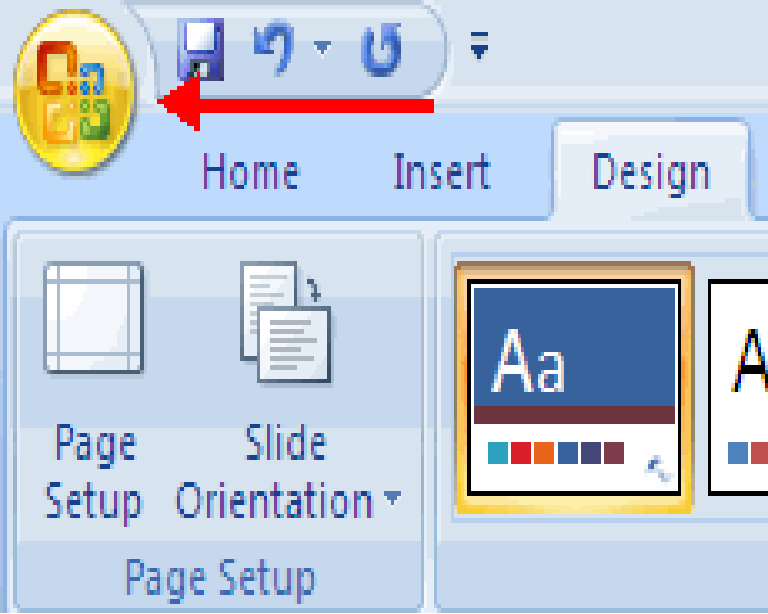
|
Ribbon The ribbon is the panel at the top portion of the document It has seven tabs: Home, Insert, Design, Animations, Slide Show, Review and View. Each tab is divided into groups. The groups are logical collections of features designed to perform function that you will utilize in developing or editing your PowerPoint slides. 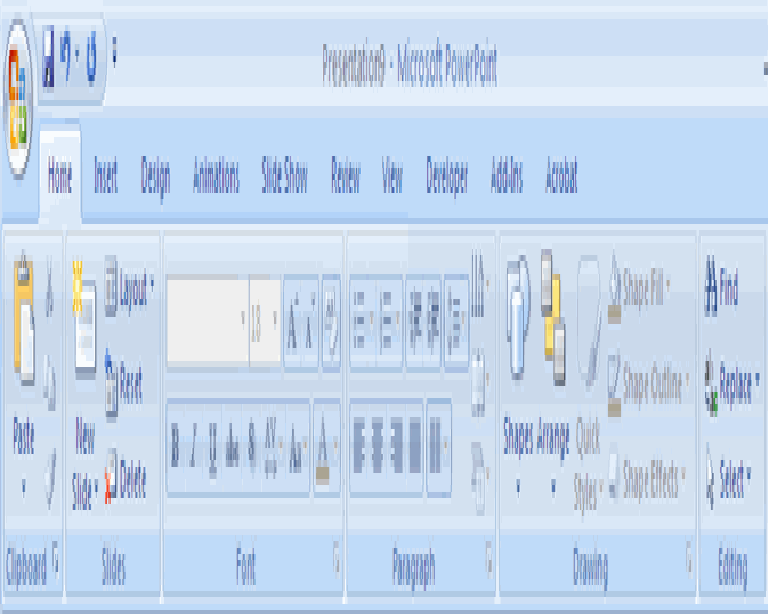
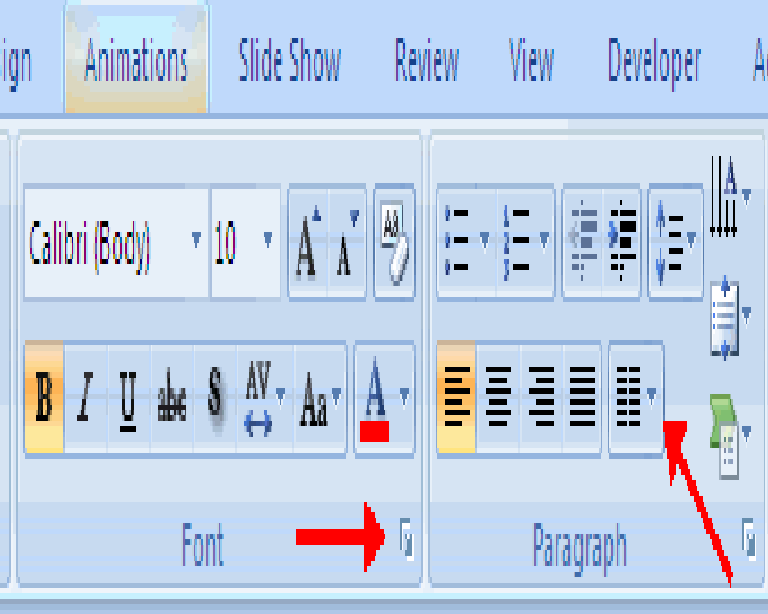
Commonly utilized features are displayed on the Ribbon. To view additional features within each group, click the arrow at the bottom right corner of each group. |
|
Quick Access Toolbar The quick access toolbar is a customizable toolbar that contains commands that you may want to use. You can place the quick access toolbar above or below the ribbon. To change the location of the quick access toolbar, click on the arrow at the end of the toolbar and click Show Below the Ribbon. 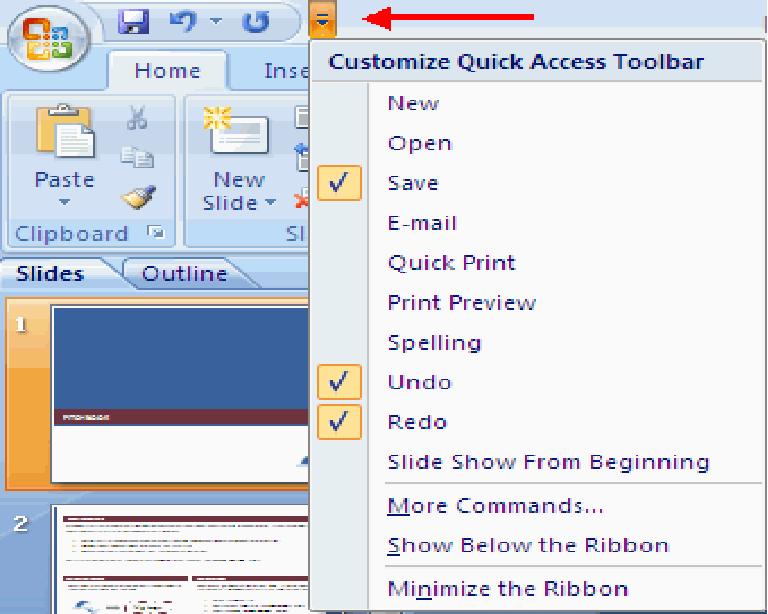
|
You can also add items to the quick access toolbar. Right click on any item in the Office Button or the Ribbon and click Add to Quick Access Toolbar and a shortcut will be added. 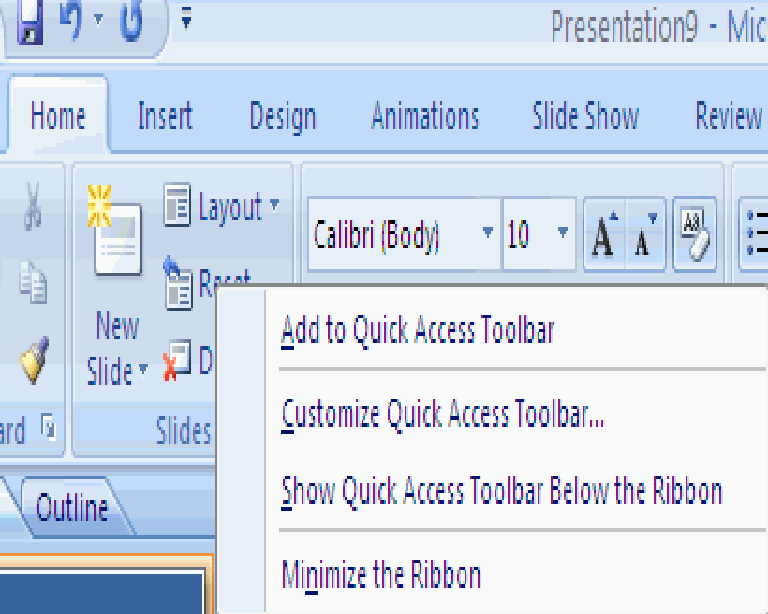
|
Mini Toolbar A new feature in Office 2007 is the Mini Toolbar. This is a floating toolbar that is displayed when you select text or right-click text. It displays common formatting tools, such as Bold, Italics, Fonts, Font Size and Font Color. 
|
Slide Views Presentations can be viewed in a variety of manners. On the View tab, the Presentation Views group allows you to view the slides as Normal, Slide Sorter, Notes Page, Slide Show, Slide Master, Handout Master, and Notes Master. |
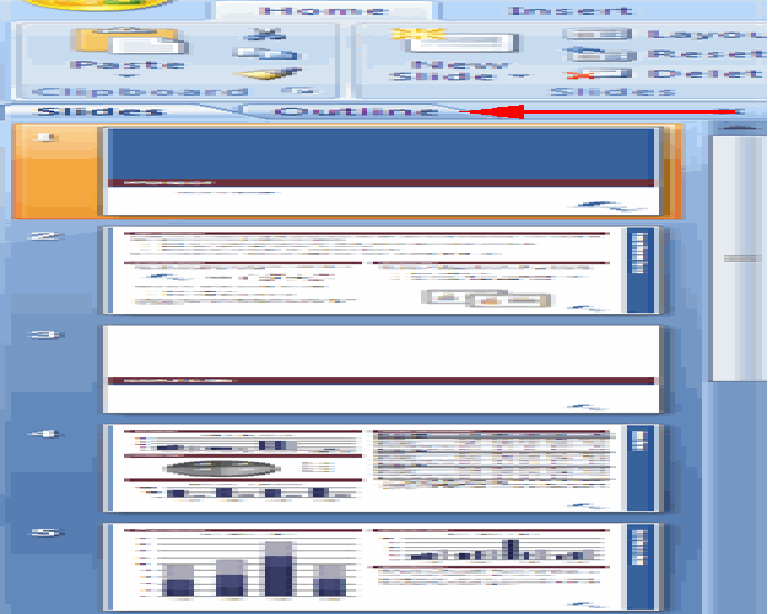
Navigation Navigation through the slides can be accomplished through the Slide Navigation menu on the left side of the screen. Also, an outline appears from materials that have been entered in the presentation. To access the outline, click the outline tab. |