Getting Started


Getting started with Excel 2007 you will notice that there are many
similar features to previous versions. You will also notice that there
are many new features that you�ll be able to utilize. There are three
features that you should remember as you work within Excel 2007:
the Microsoft Office Button, the Quick Access Toolbar, and the Ribbon.
The function of these features will be more fully explored below.


Spreadsheets


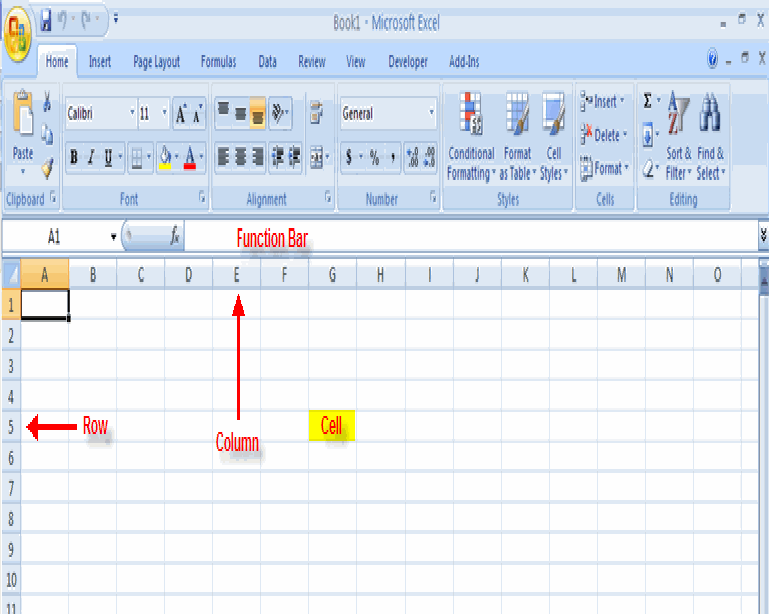
A spreadsheet is an electronic document that stores various types of data.
There are vertical columns and horizontal rows. A cell is where the column
and row intersect. A cell can contain data and can be used in calculations
of data within the spreadsheet. An Excel spreadsheet can contain workbooks
and worksheets. The workbook is the holder for related worksheets.


Microsoft Office Button

The Microsoft Office Button performs many of the functions that were located
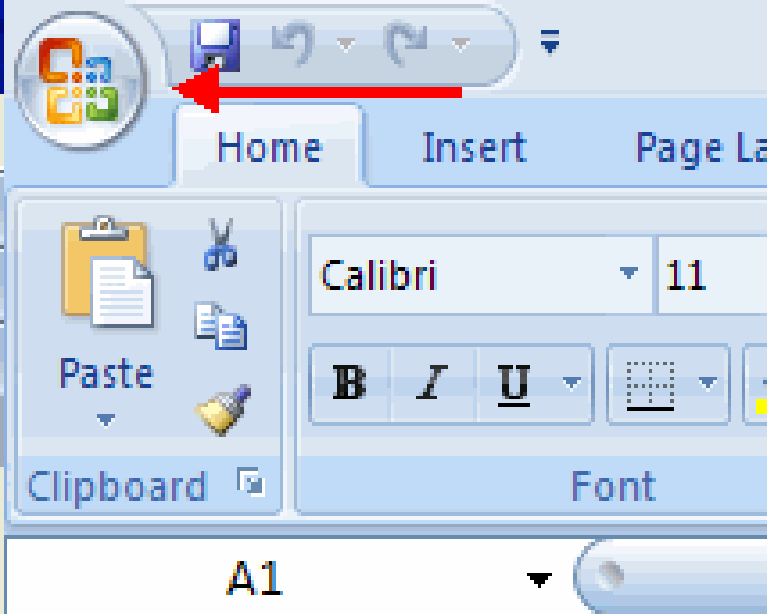
in the File menu of older versions of Excel. This button allows you to create
a new workbook, Open an existing workbook, save and save as, print, send, or close.


Ribbon

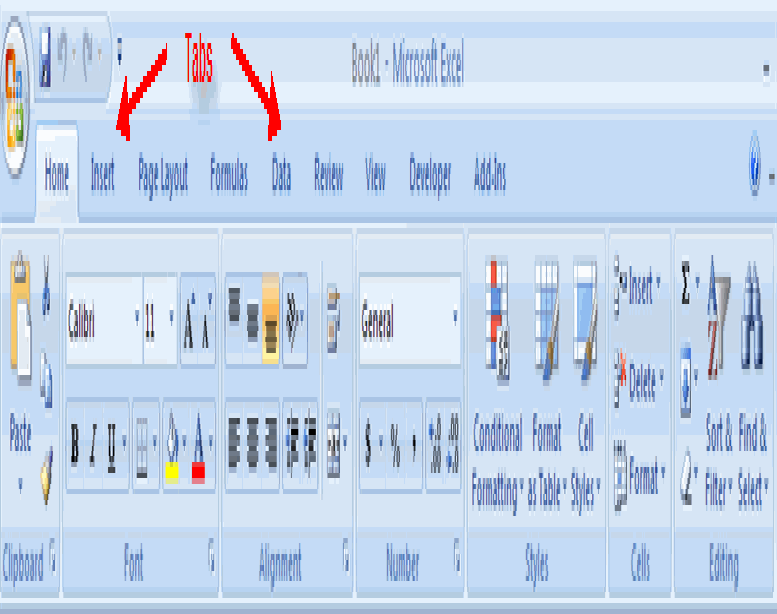
The ribbon is the panel at the top portion of the document It has seven
tabs: Home, Insert, Page Layouts, Formulas, Data, Review, and View.
Each tab is divided into groups. The groups are logical collections of
features designed to perform function that you will utilize in developing
or editing your Excel spreadsheets.


Commonly utilized features are displayed on the Ribbon. To view
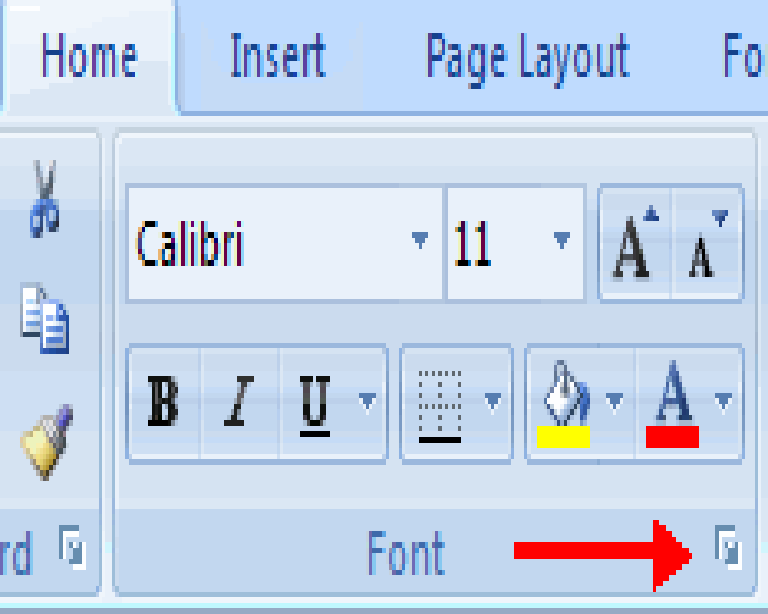
additional features within each group, click the arrow at the bottom
right corner of each group.

  • Home - Clipboard, Fonts, Alignment, Number, Styles, Cells, Editing
  • Insert - Tables, Illustrations, Charts, Links, Text
  • Page Layout - Themes, Page Setup, Scale to Fit, Sheet Options, Arrange
  • Formulas - Function Library, Defined Names, Formula Auditing, Calculation
  • Data - Get External Data, Connections, Sort & Filter, Data Tools, Outline
  • Review - Proofing, Comments, Changes
  • View - Workbook Views, Show/Hide, Zoom, Window, Macros


Quick Access Toolbar

The quick access toolbar is a customizable toolbar that contains
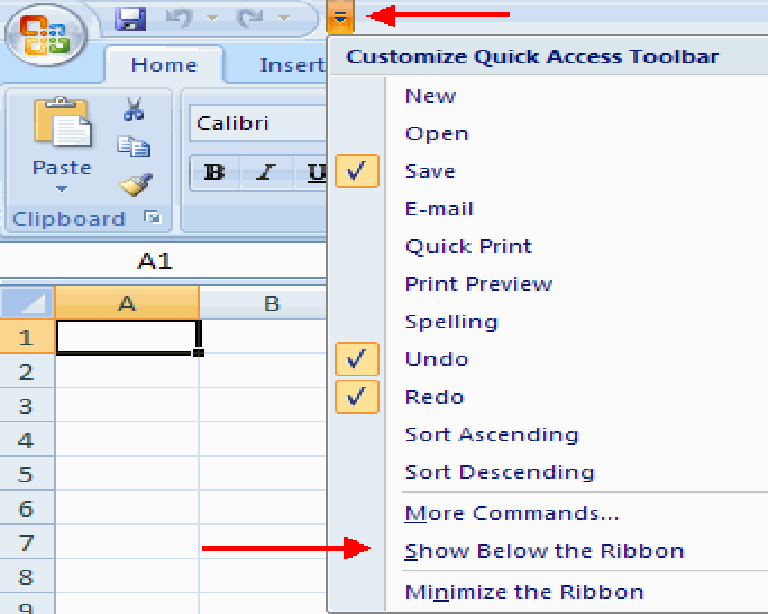
commands that you may want to use. You can place the quick
access toolbar above or below the ribbon. To change the location
of the quick access toolbar, click on the arrow at the end of the
toolbar and click Show Below the Ribbon.


You can also add items to the quick access toolbar. Right click
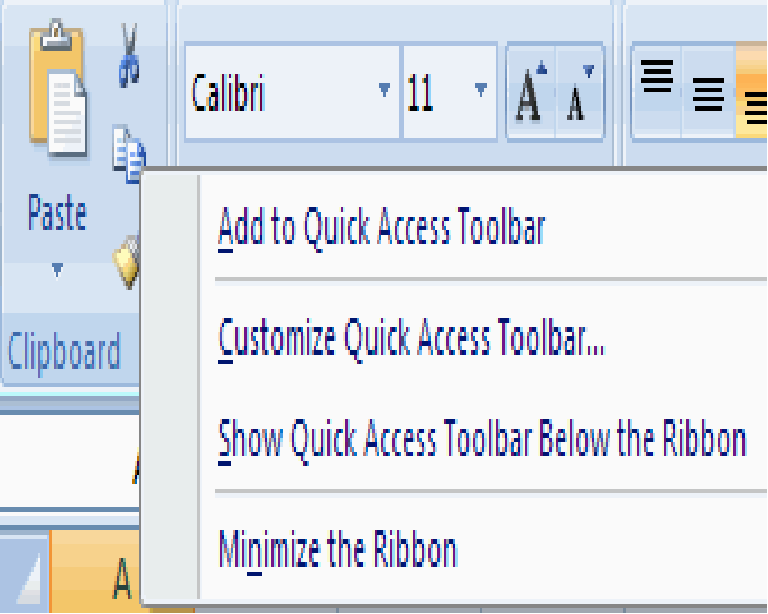
on any item in the Office Button or the Ribbon and click
Add to Quick Access Toolbar and a shortcut will be added.


Mini Toolbar

A new feature in Office 2007 is the Mini Toolbar. This is a floating
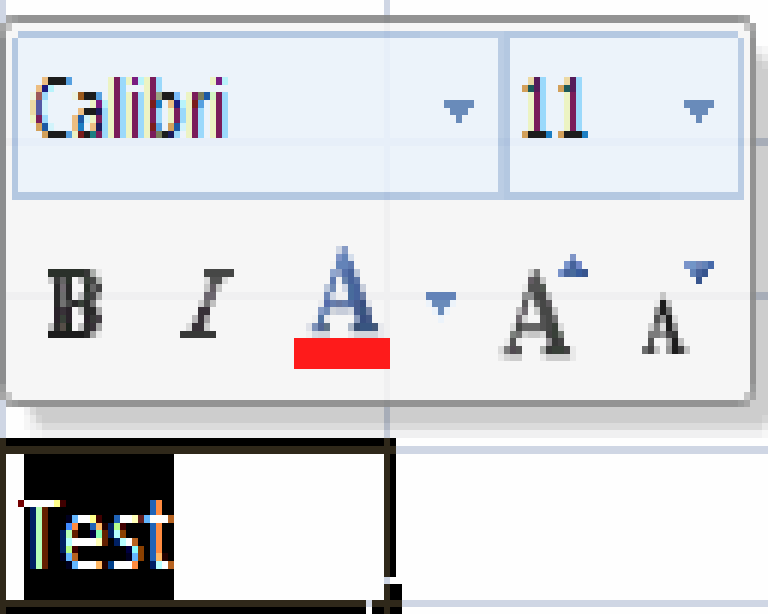
toolbar that is displayed when you select text or right-click text.
It displays common formatting tools, such as Bold, Italics, Fonts,
Font Size and Font Color.