regular hexagons, triangles & squares.
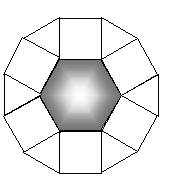
Let’s create a tessellation using
regular hexagons, triangles & squares.
1) Find Word and open a blank document
2) If the Draw toolbar is not visible, go to the
View menu...... Toolbars & select Drawing
3) In the Draw Toolbar, go to AutoShapes.......Basic
Shapes and select the hexagon shape
4) Hold down the “Shift” key and draw a regular
hexagon
5) Return to Basic Shapes and select the rectangle
6) Hold down the “Shift” key and draw a square
that has a side congruent to a side of your hexagon.
7) Click on it and while holding the mouse down,
translate it to fit a side of the hexagon. You can use the arrow keys to
do this even more precisely.
8) Copy & paste the square to fit another side.
9) To rotate a figure, go to Draw......Rotate or
Flip.......Free Rotate
10) While holding down the Shift key, grab a handle
and rotate the shape.
OK…. Now see if you can
make the figure at the top of this page!
Some other tricks:
· To decorate the inside of your polygon, right
click on the shape, choose Format Autoshape....... Fill......... Color
(explore your options)
· To keep all of your polygons together, use the
Select Objects tool  and drag a rectangle around all of them. Then go to Draw and choose the
group tool
and drag a rectangle around all of them. Then go to Draw and choose the
group tool . If you need
to separate your shapes later, just select the figure, return to Draw and
select the ungroup tool.
. If you need
to separate your shapes later, just select the figure, return to Draw and
select the ungroup tool.
· Copy and paste large pieces to quickly finish
a whole page of tessellating polygons.