ZUSRMON v366 26-Aug-2008 - Report for User-Administrators worked with
SAP R/3 System (c) SAP AG
Summary:
This report is destined for user-admins.
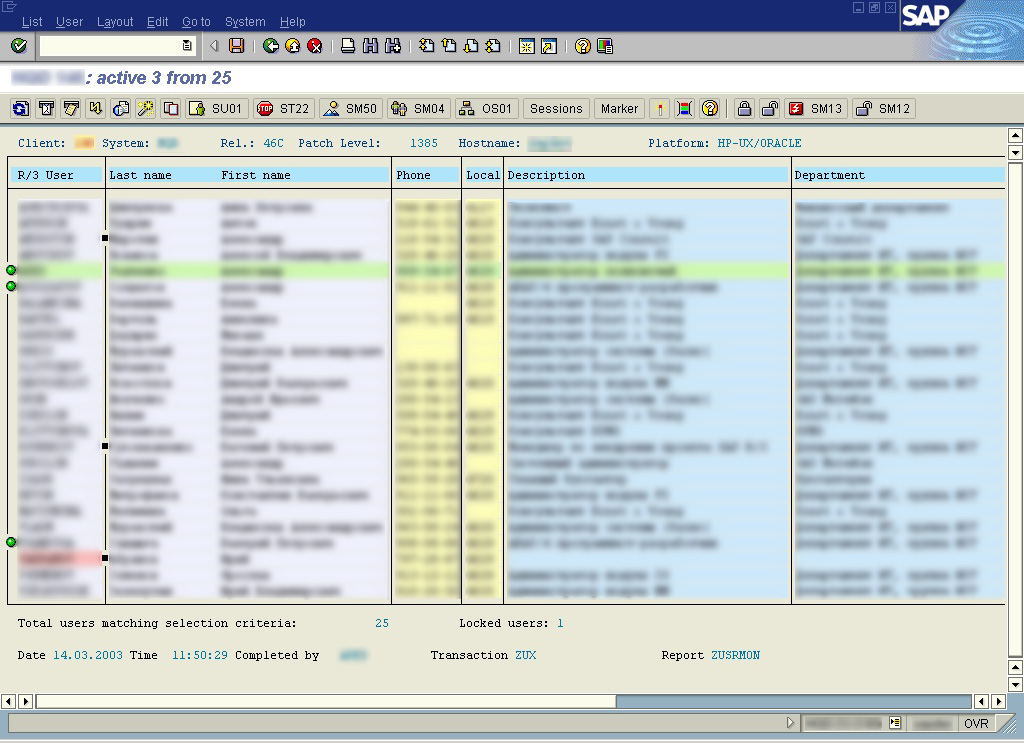
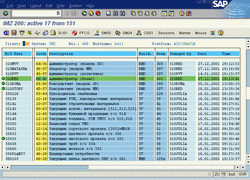
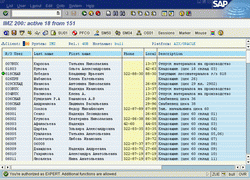
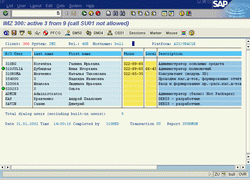
It shows list of users existing within specified R/3 client.
By default, only dialog (type A) users excluding built-in
SAP*, DDIC, TMSADM, EARLYWATCH will be shown.
Columns are: User ID, User name, Phone, Function, Department, Location,
Last registration, Last changed by, Created by, Created When.
ZUSRMON created and tested on SAP R/3 Release 4.6C.
There are also versions for SAP ERP 6.0 Basis 7.00, Business Intelligence Basis 7.00, Solution Manager 4.0 Basis 7.00, SAP R/3 Enterprise 4.7 Basis 6.20 and SAP R/3 4.0B, with some unimportant differences/restrictions.
Sources:
Russian and English versions
are available
Transport request:
You may import a transport into your TEST or SANDBOX system
Main features
- Intuitive Navigation: try doubleclick anywhere you want to get more
- Additional data provided via Quick Infos. (It's recommended that you set Quick info behaviour to Quick: SAPGUI --> Alt+F12 --> Options --> Quick Info --> Quick)
- External/internal RFC-jumps
- Jump to user's roles maintenance
- Mass popup sending (instant messages to users)
- Email to user
- Mass users locking/unlocking
- Mass password change (in EXPERT mode)
- Mark users from clipboard by UserID or by Surname
- Auto refresh option (every 1..9 seconds)
- One click download to Excel (xls templates needed on app. server)
- User's photo inplace (photos should be placed on a network share)
- Internal command line with four modes:
* - search (narrow and wide area)
* - selection (mark users by criteria)
* - filtration
* - command mode
- Special navigation commands in OK-code:
* start a transaction ABCD: ABCD
* jump to declaration of a transaction ABCD: \ABCD
* display ABAP-code of a program PROGNAME: ^PROGNAME
* run a program PROGNAME: ~PROGNAME
* start URL in default browser: http://help.sap.com, file:///c:/Temp/
Easy resorting: just click on relevant column header to resort list
ascending/descending. Active users are marked with a small icon like
a green ball, and it is possible to send an instant POPUP message directly to
active user just clicking on that icon. (POPUP to many users is also available). Double-click on the UserID to view/maintain user master record in SU01, click on Phone to display HTML-pane with user's photo and contact info, click on another place at line shows actual activity for single user (here
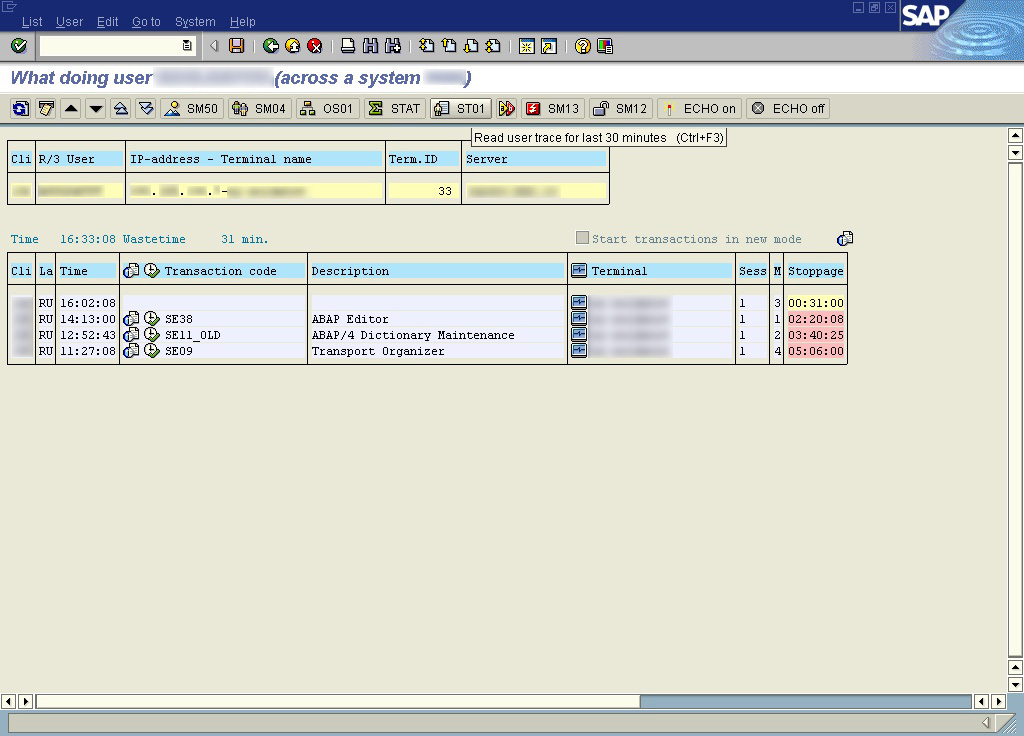
you can see and launch-by-click the transaction where selected user is
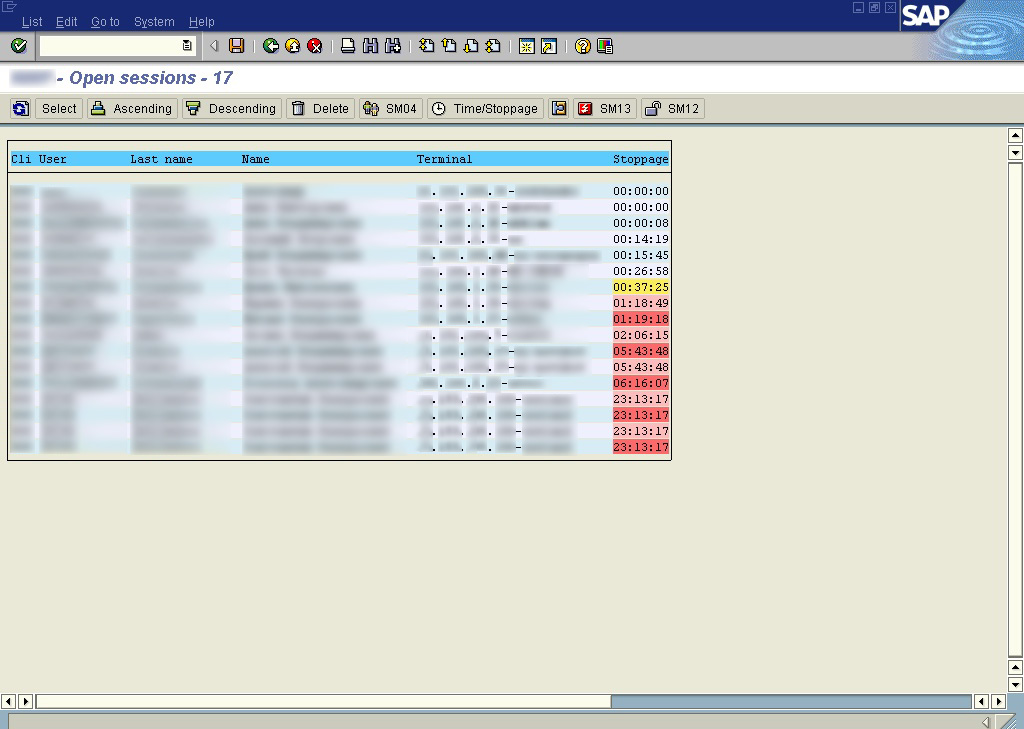
working); you can look also all of the open sessions across the system
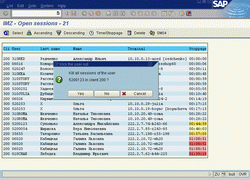
for all logged-on users and can delete user's sessions. From this
report you can launch some useful transactions and others user-admin
related reports; also you can analyze single statistical records for
users, lock/unlock selected users, create/remove slave mode on the end-user terminal...
(Note: slave mode is not allowed for SAP Release >= 4.6B). [Sorry for my English...] Your suggestions, comments send to:
[email protected]
Documentation:
List of users existing in the specified R/3 client.
Getting Started
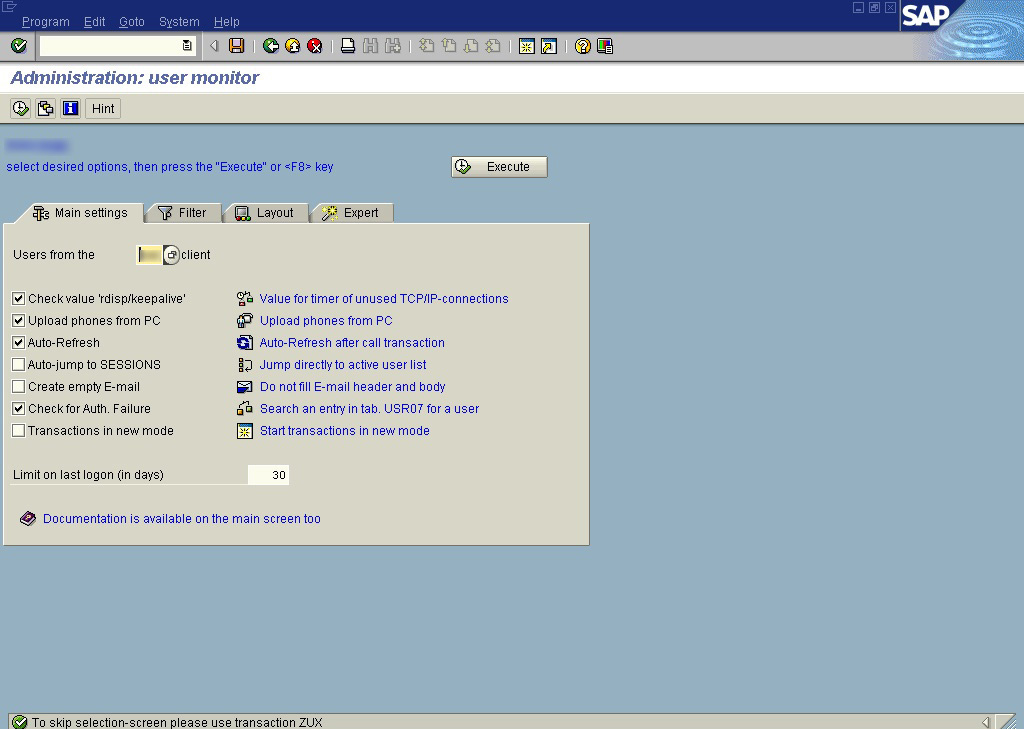
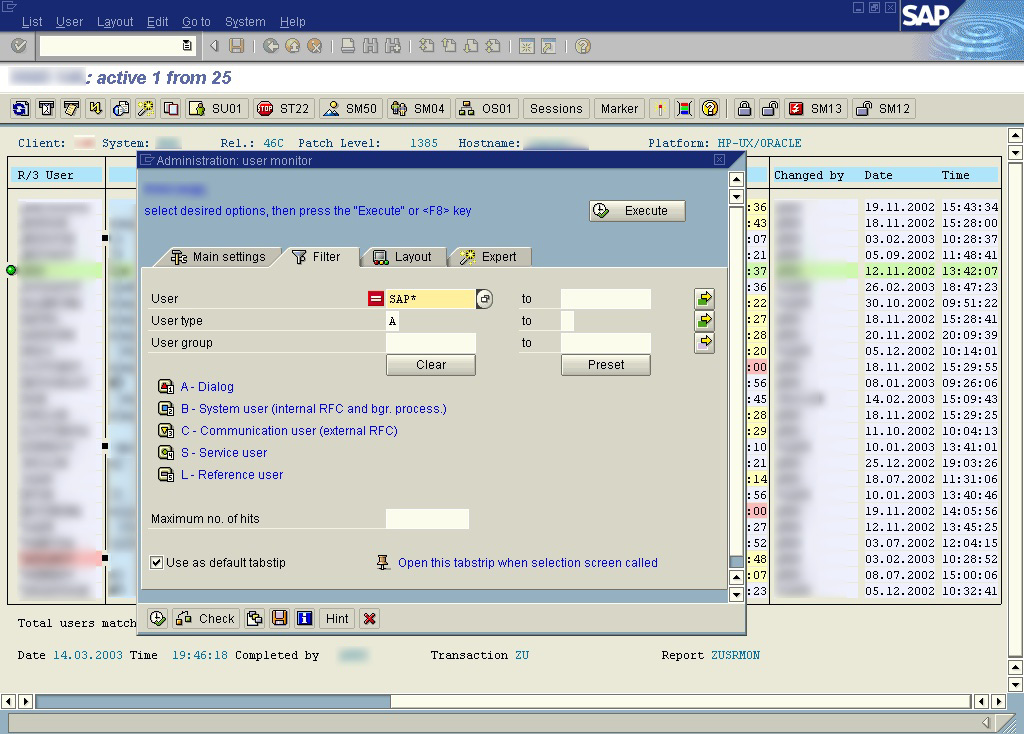
Select client and report layout then press button F8 or icon
"Execute".
User Interface
- To resort initial output list ascending/descending just click on a key of corresponding column.
- To select users from another client enter new value in the screen field CLIENT and press ENTER.
- Mouse click on activity indicator (small green icon is present at the first position of every list line that represents online
user) calls dialog for sending short POPUP-message directly to selected user.
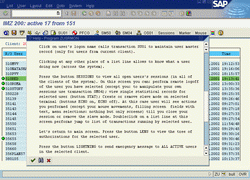
- Click on user's logon name calls transaction SU01 to maintain user master record (only for users from current client).
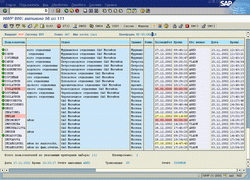
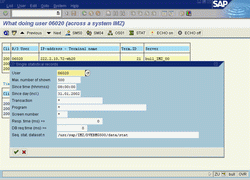
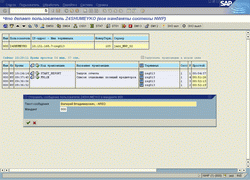
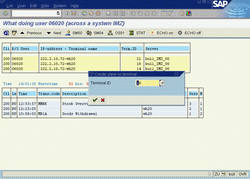
- Clicking at any other place of a list line allows to know what a user doing now (across the system). On this screen you can:
perform remote logoff of the user you have selected (except you: to manipulate your own sessions use transaction SM04); view single
statistical records for selected user (button STAT); Create or remove slave mode on selected terminal (buttons ECHO on, ECHO off).
At this case user will see actions you performed (except your mouse movements, filling screen fields with text, menu selections:
nothing but only screens) till you close your session or remove the slave mode. Note that slave mode not supported for SAP Release
>= 4.6B.
-
Press the button SESSIONS to view all open users's sessions (in all of the clients of the system). Doubleclick on a list line at
this screen performs jump to list of transactions running by selected user.
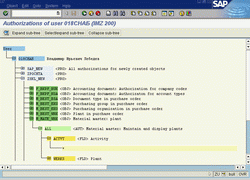
- Let's return to main screen. Press the button LENS to view the tree of authorizations for the selected user.
- Press the button LIGHTNING to send emergency message to ALL ACTIVE users in the selected client (NB: this is for specified server only. To send mass popup over all app. servers, use button 'Send message (Ctrl+F7)' for marked users).
- From this program you may run some useful transactions:
- ST22 - ABAP dump analysis
- SM04 - Users Overview
- SM50 - Process Overview
- OS01 - LAN Check by PING
- SM12 - Display and Delete Locks
- SM13 - Display Update Records
- SM02 - System Messages
-
To call any other transaction just enter its code into Ok-code (without any special prefixes such /n or /o). For example, to run a transaction ABCD, type ABCD in OK-code.
To see definition of a transaction ABCD just enter \ABCD into Ok-code.
To run a report PROGNAME just enter ~PROGNAME into Ok-code.
To see ABAP-code of a report PROGNAME just enter ^PROGNAME into Ok-code.
To activate/deactivate internal command line, press < Ctrl-F8> on the MAIN list. There are four opportunities: search mode (narrow and wide area), mark mode, filtration and command mode. Doubleclick on command line and you will get short help about it.
-
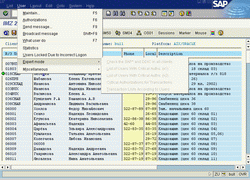
You can cross over DEV, QAS, PRD-systems. To do this choose corresponding
menu items through the menu 'Go to --> More... --> Remote exec on DEV, QAS, PRD'
on the main screen. Alternatively, you can press < Ctrl-F9>, < Ctrl-F10> or < Ctrl-F11> .
Note
If on the selection-screen you've been authorized as EXPERT, you will be able
to run some statistical reports related to User-Administration. Expert mode is also required for mass password change.
Important
To perform some actions within this report user must have
relevant administrative authorizations (objects S_ADMI_FCD, S_USER_GRP)
DISCLAIMER:
I can't guarantee the accuracy and validity of the materials proposed.
You agree that your use of these materials will be at your own risk.
Download
|
for SAP ERP 6.0 and Business Intelligence (Basis Release 7.00)
 Cumulative transport: ZUSRMON v366 with its environment (zusrmon_trans_366_erp_light.zip, 866 Kb)
 Sources - ZUSRMON v366 (zusrmon_366_erp_source.zip, 114 Kb)
for SAP Solution Manager 4.0 (Basis Release 7.00)
Cumulative transport: ZUSRMON v366 with its environment (zusrmon_trans_366_ssm_light.zip, 826 Kb)
for SAP R/3 Enterprise 4.7 (Basis Release 6.20)
Cumulative transport: ZUSRMON v361 with its environment (zusrmon_trans_361_620.zip, 509 Kb)
Sources - ZUSRMON v361 (zusrmon_361_620_source.zip, 111 Kb)
for SAP R/3 4.6C
Cumulative transport: ZUSRMON v366 with its environment (zusrmon_trans_366_46c_light.zip, 560 Kb)
Sources - ZUSRMON v366 (zusrmon_366_46c_source.zip, 119 Kb)
Sources - ZUSRMON v361 (zusrmon_361_46c_source.zip, 106 Kb)
Excel Templates for ZUSRMON v361
Various templates for ZUSRMON v361, ZROLE_LIST and ZTCODE_LIST (templ.zip, 82 Kb)
Outdated downloads...
|