| TEXTURE is Fun... : ) |
| Ok I used to have this awesome Texture section before I deleted it.. oops... : ) Anyways here I go again. First off look at my Worldcraft Basics if you havent already. Memorize were the texture applicator is. It is one of the only buttons that you have to click to turn it off, it isnt like the rest were you have to click the pointer to get rid of it. Click on it and a box will open. |
 |
 |
 |
 |
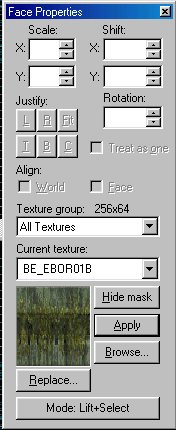 |
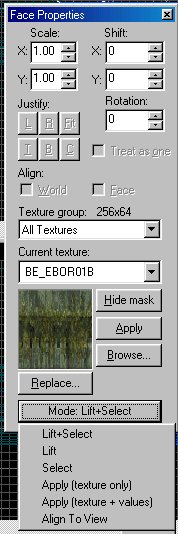
| Ok first lets look at what we have here. At the top you have two functions. Scale and shift. These two boys are your friend. These will tell the texture were it is supposed to go. Scale will either expand or contract a texture depending on which side of 1.00 you go. If you go to 1.50 then it will expand and vice versa if you go .50. Now shift is different, it will go left and right and up and down on the face of the object. Say it doesnt want to line up right on the left side. Just type in a number higher or lower then 0 to move it. You will have to just play with the numbers to see how it works for you. I have spent more time just playing with this then I do on my shape. : ) |
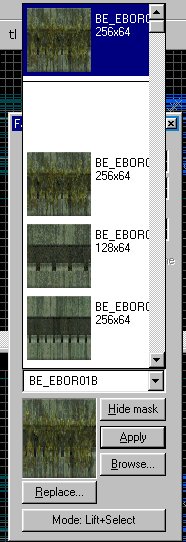
| Now to my right is a look at the texture box feature. It will store some of your most recent selections here so if you have 3-5 textures that you have been using alot you can switch easily back and forth.. : ) kind of handy actually. But it doesnt save your settings.. I will explain that below. |
| Ok time to explain settings. If you look to the left you will see some settings in the drop down box. I will go through all of them for you. 1. Lift and select. This is default and it will select the texture you click and also select the settings for that texture. meaning the scale and shift settings. : ) 2. Lift. Same as above but wont select the settings. (scale and shift) 3. Select. Ditto except it will select the settings (scale and shift) not the texture. 4. Apply(texture only). Only apply texture, no settings. 5. Ditto but will apply settings. 6. align to view. Trickier then the above. since you will have to really work with this one. it will align the texture according to your view. I guess I am old fashioned. : ) I like apply(textures+values) |
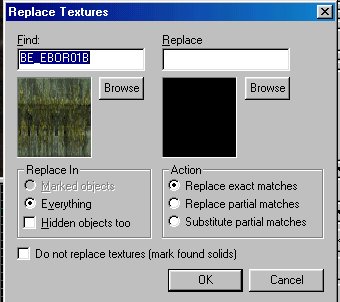
| Now this one is awesome. Replace is so cool. Use this to replace all of one texture with another. Say you have a bunch of textures that you want to change, just select one texture (thatyou want to change) and then hit the replace button. Now browse under replace for the one you want and hit ok.. It will run and then show the number of textures it replaced. thats it.. : ) |
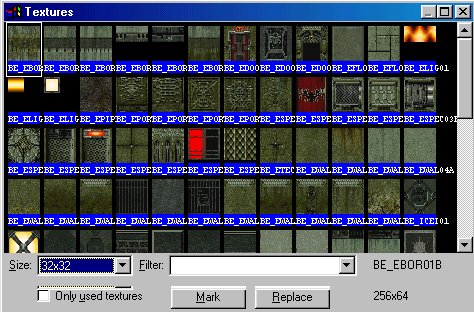
| Thought I would do a pic of what the Wad looks like.. : ) If you look at the Size box. You can change the size of the textures view so that you can see all of them at once. You can also filter the textures by name. sweet huh? And thats about it for now on textures. : ) |