| Adjusting your
settings for Apple's QuickTime for Windows is quite simple and
straightforward. Just follow the directions and screenshots
below.
1) First, open QuickTime from
your desktop icon or shortcut icon in the taskbar. Player
version 5.0.1 for Windows is shown below.

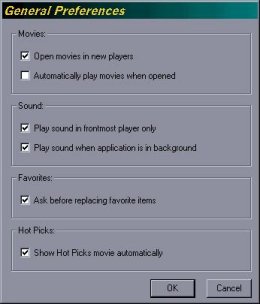
2) Next, on the toolbar at the
top of the player click on Edit --> Preferences -->
Player Preferences. You should see a window similar to the one
in the screenshot below. Just put a checkmark, by clicking, in
the boxes of which functions you want your player to do.
That's it!
3) If you want sound controls
to be visible, just click on Movie --> Show Sound Controls.
This preference will revert to Hidden when you close the
player, so you'll have to re-do that every time you open the
player.
Please note that if you need
more assistance with QuickTime at Apple's website, you are
required to create a log in ID to use the online help
resources. It's free! |