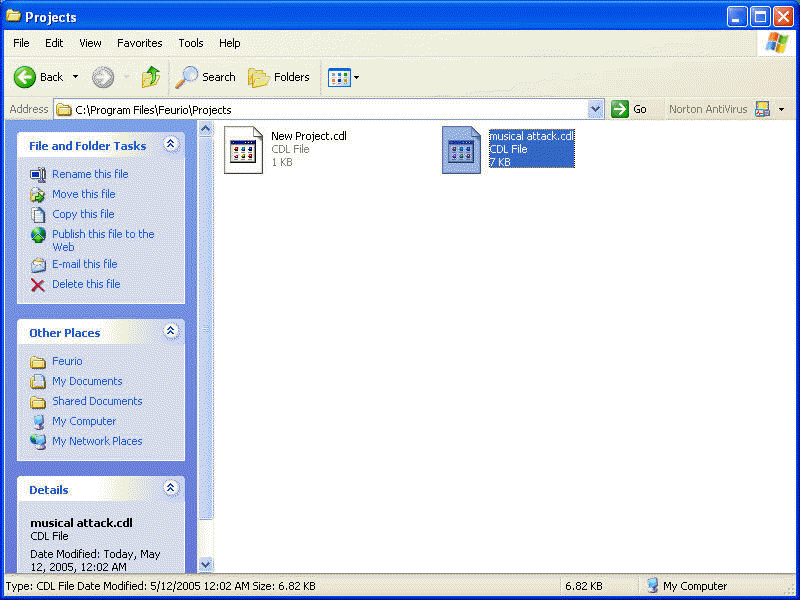
After the first launch close Feurio Cd Manager.
Unzip the Feurio project files (In this example I use the musical attack compilation).
Open the unzipped folder mp3 extraction and copy the .cdl file that you find inside (here it's musical attack.cdl) in C:\Program Files\Feurio\Projects
Launch again Feurio Cd Manager.
In the project selection area select musical attack.
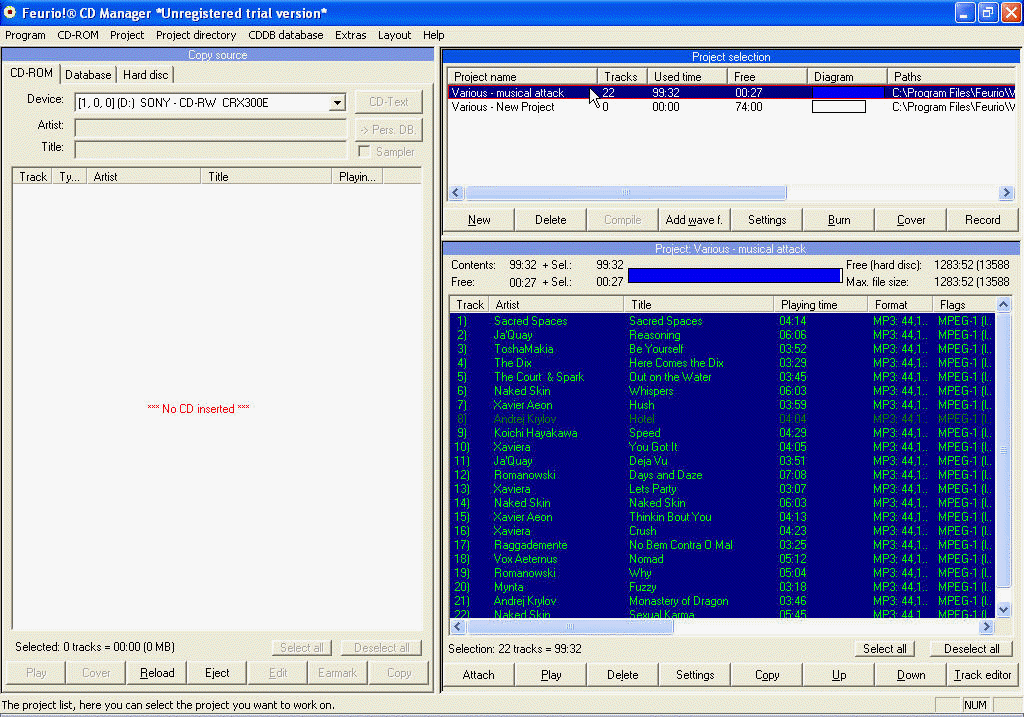
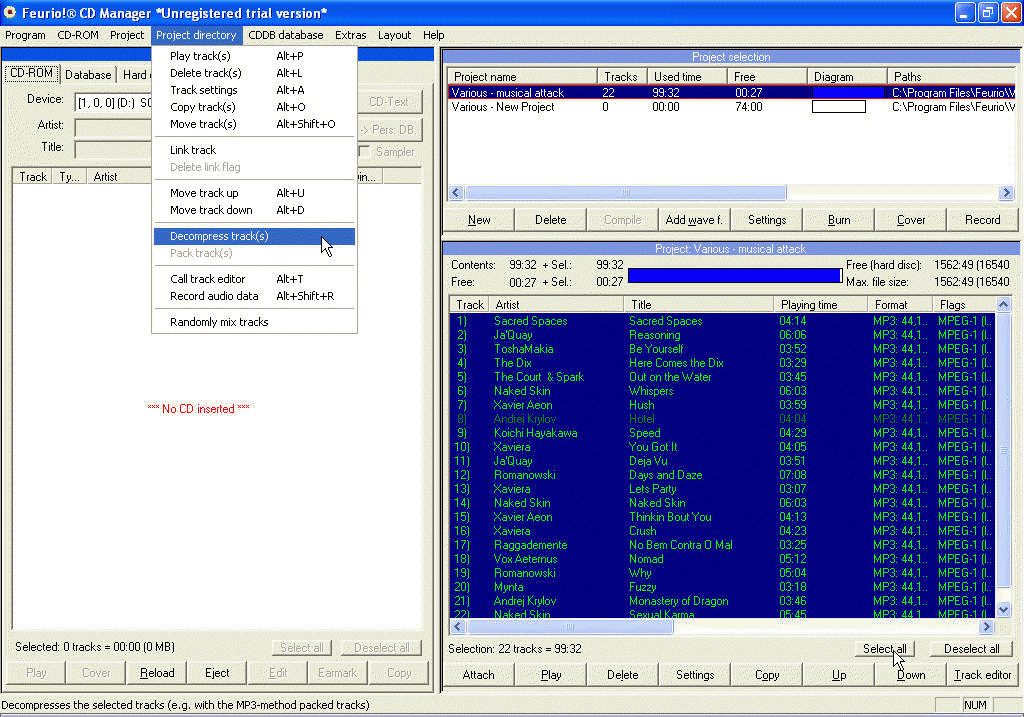
Be sure that all tracks are selected and click on
Project directory>Decompress track(s)
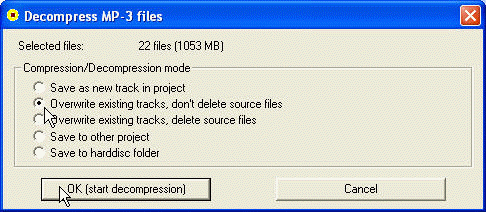
Select Overwrite existing tracks, don 't delete source files and start the decompression of files.
Wait ...
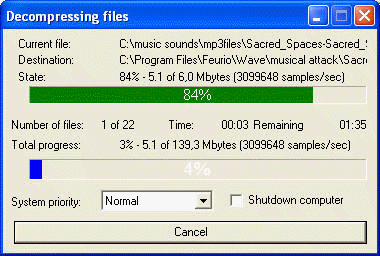
When all tracks will be extracted in .wav format, the screen will appear like this:
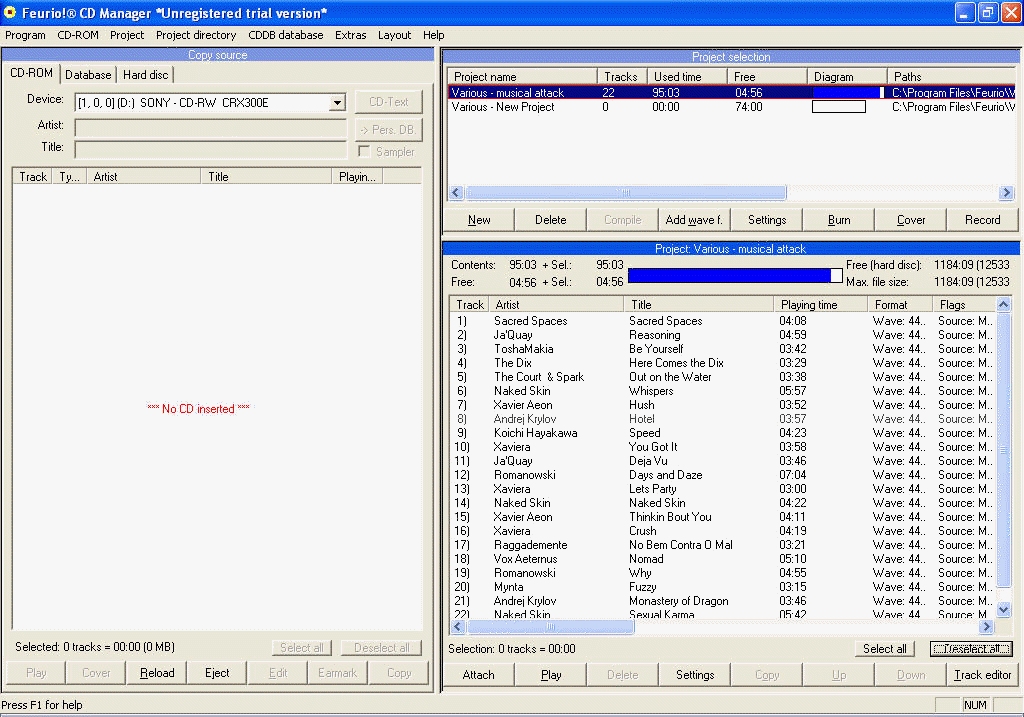
Close Feurio.
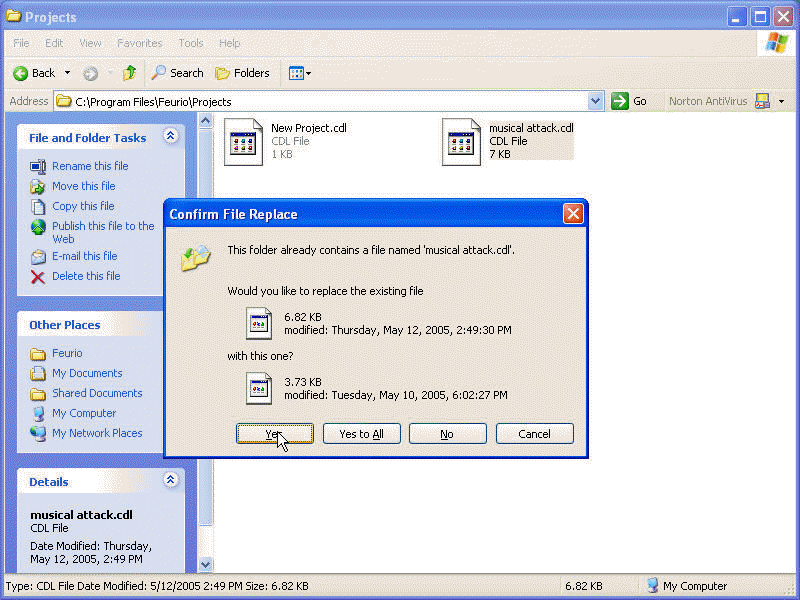
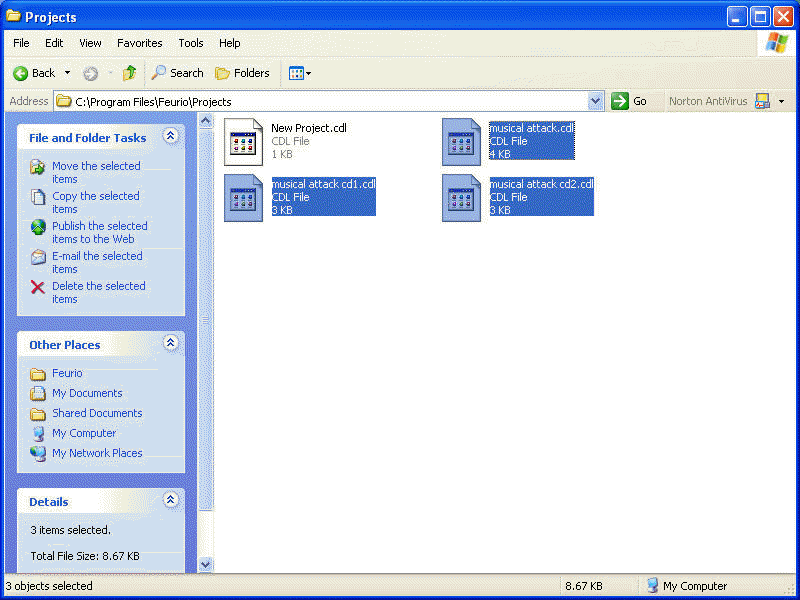
Copy the files that you find in the folder cd burning of the unzipped feurio project files folder (musical attack.cdl - musical attack cd1.cdl - musical attack cd2.cdl) in C:\Program Files\Feurio\Projects
Replace the existing file musical attack.cdl with the new one.
Now the folder will be like this:
Launch Feurio Cd Manager. Now you' re ready to burn your cd.
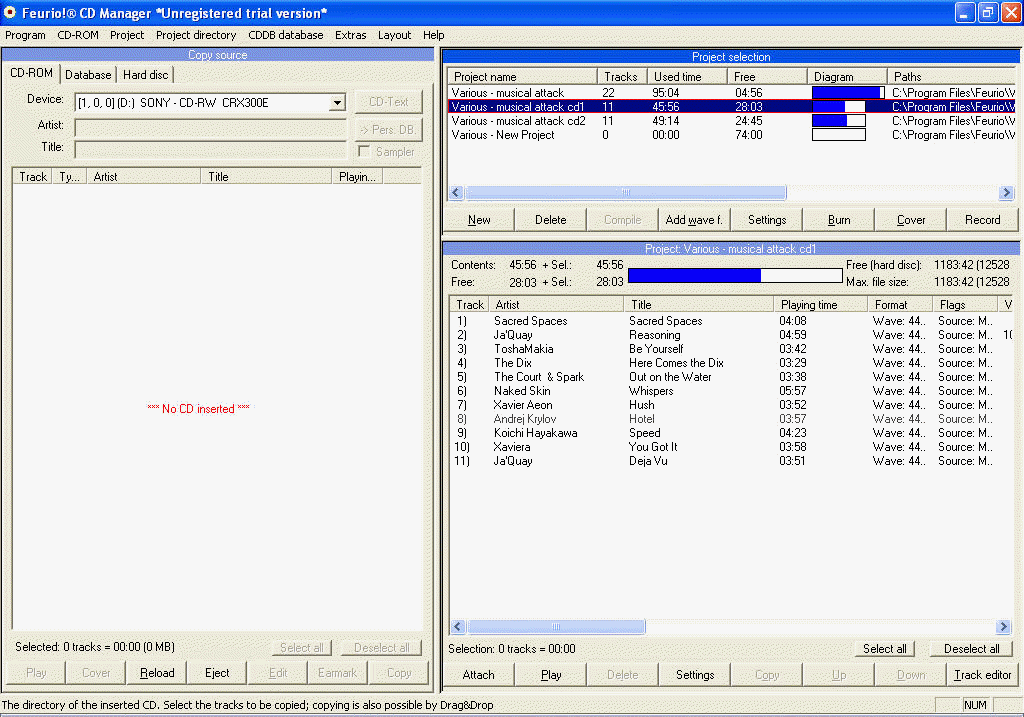
Select musical attack project if you want to burn a cd 100'; if you want to burn 2 cd 80' or 74' instead, select the project musical attack cd1 e cd2.
Click on Burn
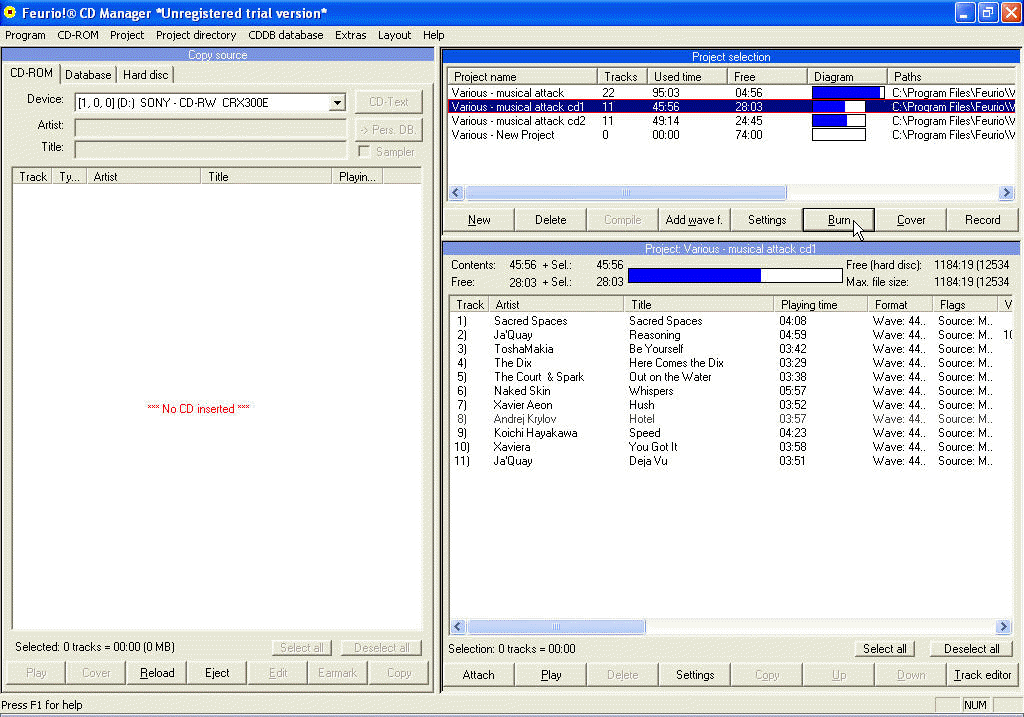
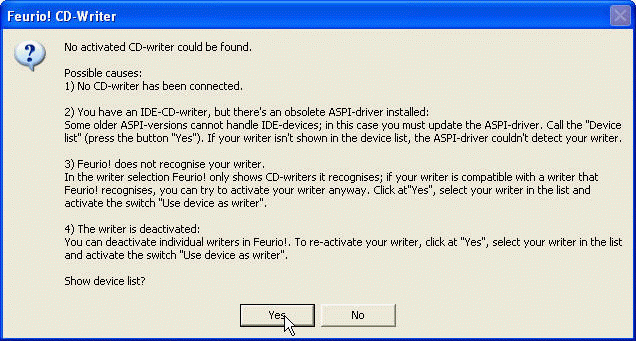
This window will appear. To configure the cd-burner; select Yes
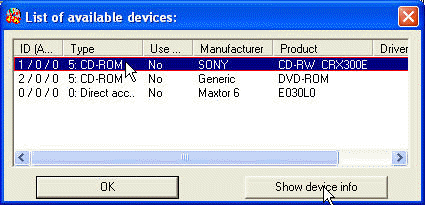
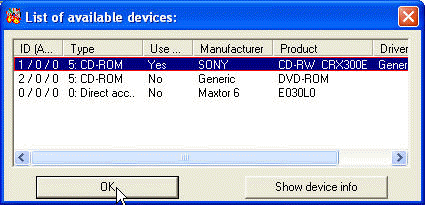
Select your cd-burner from the device list and click on Show device info
In the Properties windows select Use device as writer
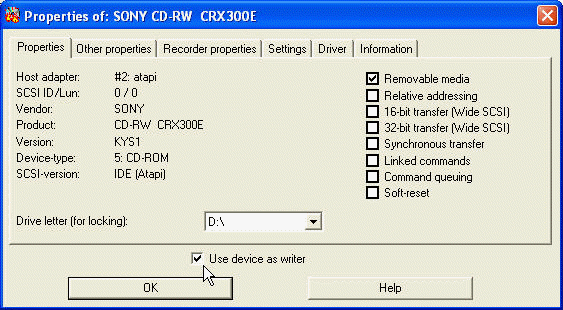
The driver selection windows will appear; select the best driver for your cd-burner and click OK
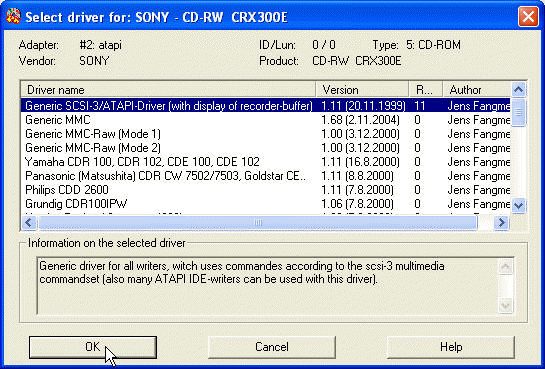
If you leave the default generic driver selected this window should appear; read it and click OK
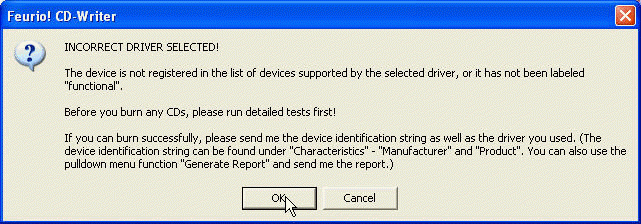
OK again.
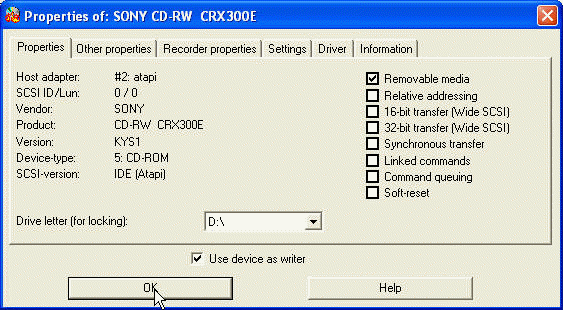
OK
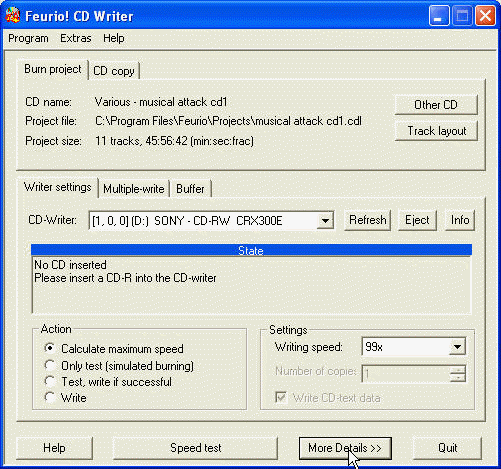
Finally you' re ready to burn; click on More details
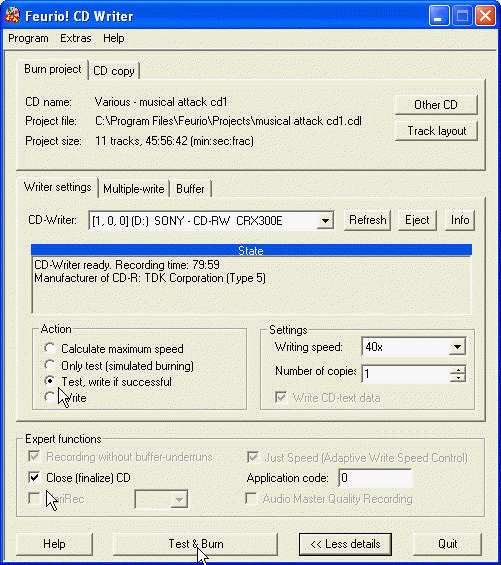
Insert an empty cd in the burner, select the action Test, write if successful ; ensure that Close (finalize) CD is selected and click on Test & Burn
THE END

 |
|
 |
