REACHING US
You can join #Quizit & #Unitedpeople instantly via our WebLink
If you have never been on IRC, now is the time to join in the wonderful world of Internet Relay Chat, where you can speak to people from all over the world.
First you will need to download a copy of "mIRC" (a program which will allow you to chat on IRC)
STEP ONE: Download mIRC 5.82
For users of Windows 3.1 and 3.11 click on this link for a copy of mIRC
5.91
For users of Windows 95, 98, NT and Windows 2000 click on this link
for a copy of mIRC 5.91
(When downloading, remember which folder it was
saved to)
STEP TWO: Installing mIRC 5.82
Once you have finished downloading mIRC, open Windows Explorer (or
File Manager) and go the folder where it was saved to. Find the file called
"mirc582s" or "mirc582t" (they may also be seen as
"mirc582s.exe" or "mirc582t.exe")
When you have found the file, double click on it to begin the installation
process.
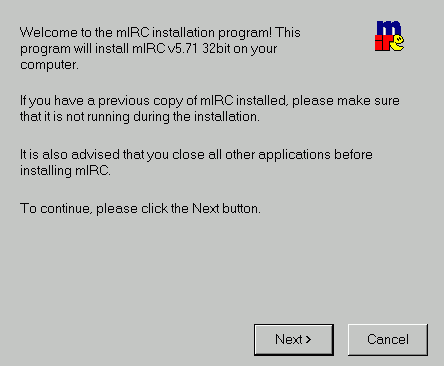
This will be the first screen you
will see, Click on the "Next" Button
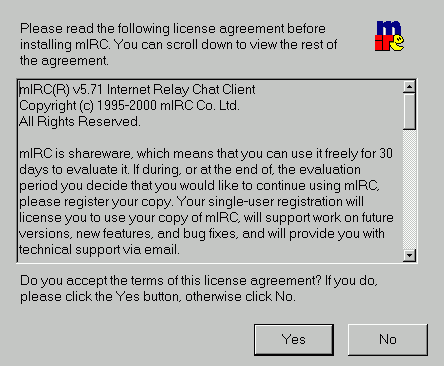
Click on the "Yes" Button
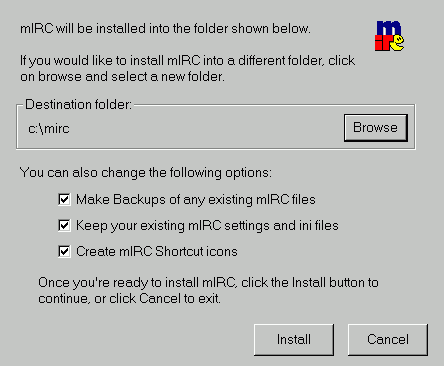
The default folder for installation
is c:\mirc, leave this unless you want to install it elsewhere
Make sure all checkboxes are ticked
as below, then click on the "Install" button
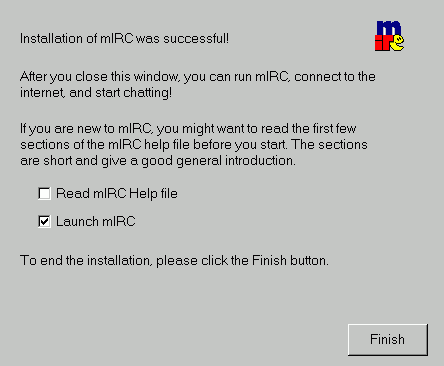
After a brief installation process
you will be given the below screen.
Make sure the checkbox (Launch
mIRC) is ticked as below.
Then click the "Finish" button.
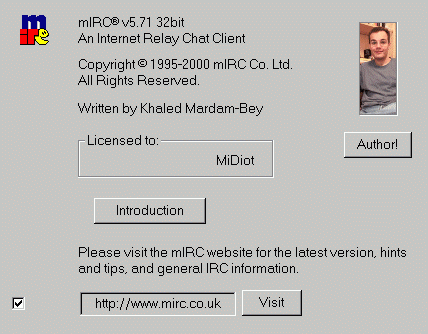
mIRC 5.82 will automatically start
and you will be presented a Dialog box as below.
Click anywhere on this box to close
it.
You will then be presented with
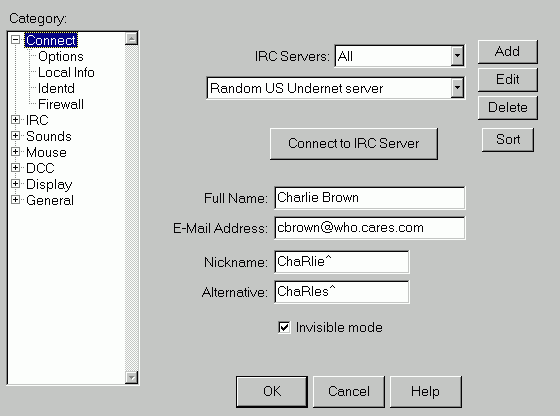
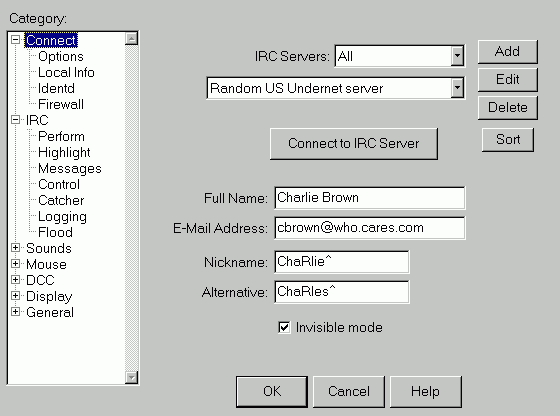
the below Dialog Box, which you MUST fill out!
Make sure you have selected "Random
US Undernet Server"
Type in your name (not your real
name)
Type in your email address (not
your real one)
Type in a Nickname for yourself
(not your real name)
Type in a Nickname Alternative
in case your first choice is unavailable
Go to next step (do not click on
"OK" just yet)
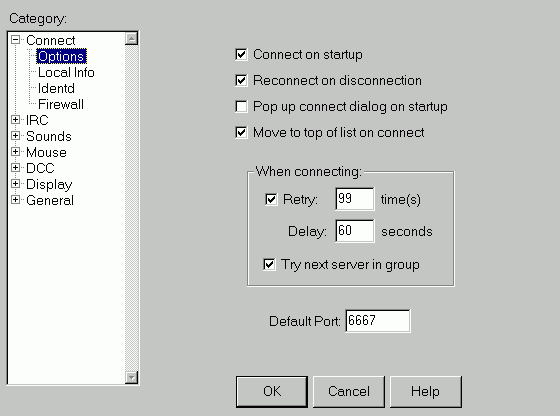
Select Options from the left hand
column. A new area will appear as below.
Tick all the checkboxes as below.
Go to next step (do not click on
"OK" just yet)
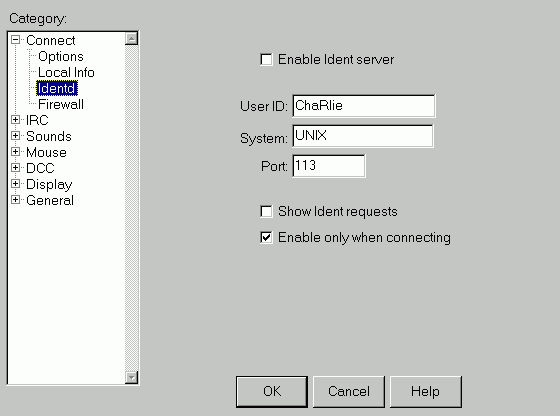
Select Identd from the left hand
column. A new area will appear as below.
Fill out the "User ID" area with
your Nickname
Go to next step (do not click on
"OK" just yet)
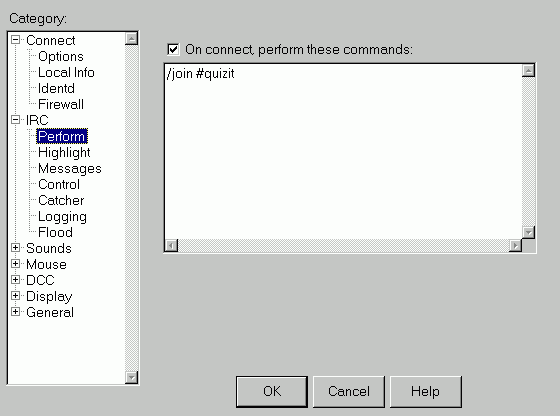
In the left column expand "IRC"
(click on the +)
Select "Perform" (left hand column)
Tick the checkbox and type in the
information as below (/join #quizit)
Go to next step (do not click on
"OK" just yet)
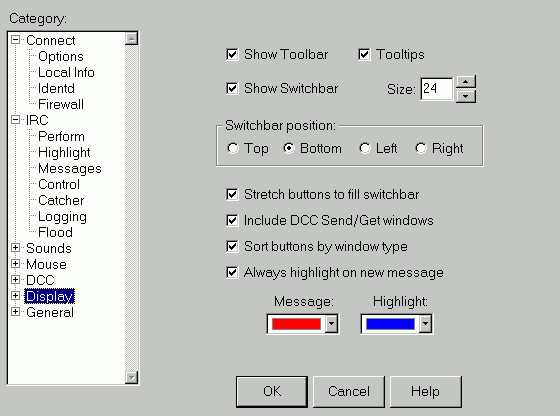
In the left hand column, click on
"Display"
You may wish to use the below example
for your Display settings (optional)
Go to next step (do not click on
"OK" just yet)
In the left hand column select "Connect"
This will take you back to the
first screen in this area.
Make sure all the information is
correct.
Now click on "Connect to IRC Server"
This will connect you automatically,
be patient it may take a little while.
Once connected you will join
#QUIZIT
automatically
The best way to get acquainted
with IRC is to "Lurk and Learn"
Just sit and watch for a while,
it's that easy !
Click here to see a Screen
Shot of #QUIZIT in action
When you wish to reconnect, you will find an ICON for mIRC  by clicking on the START button, then go to PROGRAMS and go to Mirc.
© Copyright 2001 #Quizit (Undernet)