
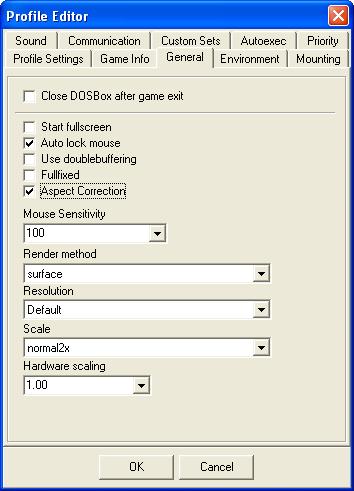
Click on "General" tab,
a) Tick Auto lock mouse - if you want to use your mouse in the dos game.
[Note: if you make your mouse usable in Dosbox, you will then be unable to use the mouse to close
Dosbox like any other windows application (by clicking X). Instead, you have to exit the game
normally as if you were runnning under dos. After exiting the game normally, type "exit" at dos
prompt to close dosbox.]
b) Tick Start fullscreen - if you want to start the game in full screen. This is not a necessity as you
could always start the game in a window and press "Alt-Enter" to change to full screen mode.
c) Tick Aspect Correct - if you are facing the problem where running under full screen gives you a
black screen and states out of range, selecting this option will solve that full screen problem.
Options that can be used to affect speed in dosbox are (descriptions quoted from D-fend help manual):
- Cycles
The amount of processing power Dosbox emulates. You cannot translate this to MHz. Advanced
games need more cycles then simple games. Simple games will run way too fast with a high
amount of cycles. This is probably one of the most important settings Dosbox offers. The amount
of cycles Dosbox can handle depends on how powerful your PC is, on the game you're running
and the selected CPU core.
NOTE: Some games won't even run with this setting set to high.
- Frame Skip
One of those tweaking options. By skipping frames, you lessen the load on your processor. It does
come with a cost, less frames means choppy animation.
- CPU core
You can select Normal, Full, Dynamic or Simple. Normal is slower but the most stable. Dynamic is
the fastest but less stable and less compatible. By slower or faster I mean that you can ser the
amount of cycles a lot higher when using Dynamic core. Don't use Simple or Full.