1. Download PHP at http://www.php.net/downloads.php.
Make sure you download the "zip package" appearing under windows
binaries.
2. Extract the downloaded zip file and extract it to C:\PHP.
3.Configuration of php.ini file.
a)Rename php.ini-recommended to php.ini and move it to C:\WINDOWS.
b)Open php.ini.
c)Edit followings.:
Replace extension_dir = with this: extension_dir = c:\php\extensions
Replace doc_root = with this: doc_root = "c:\Inetpub\wwwroot"
Replace cgi.force_redirect = 1 with this: cgi.force_redirect = 0
d)Save the php.ini file now.
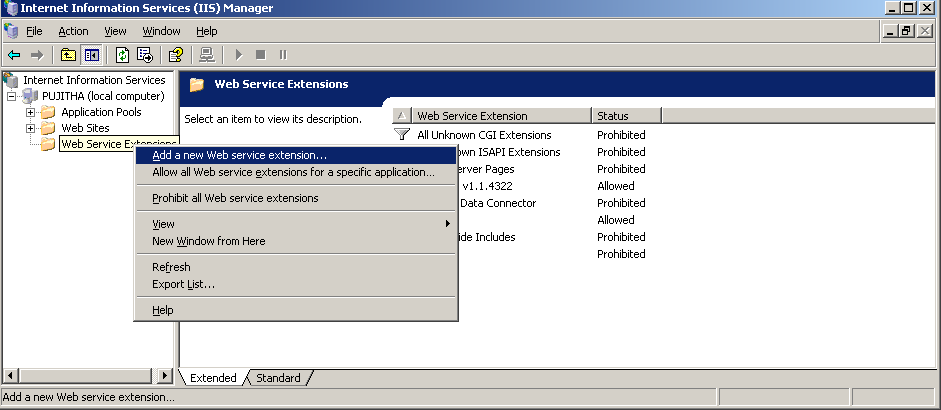
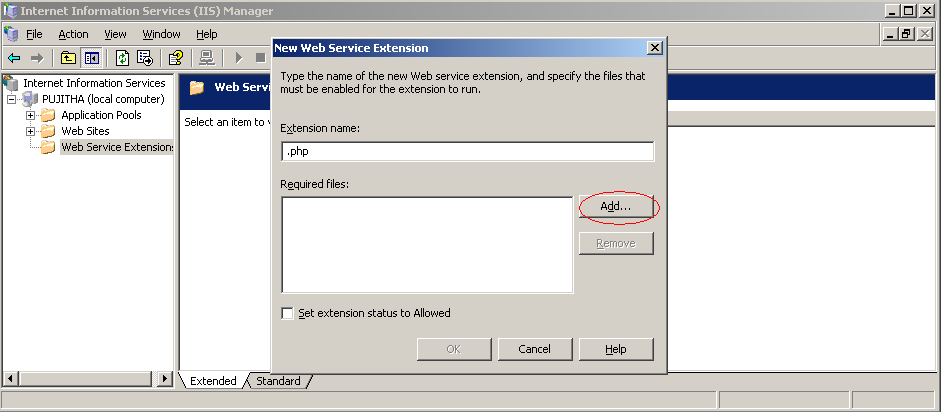
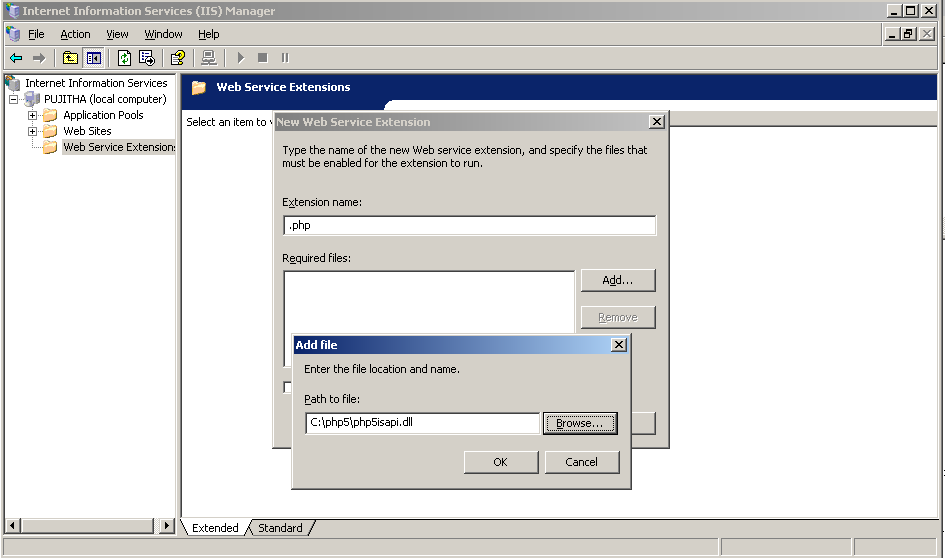
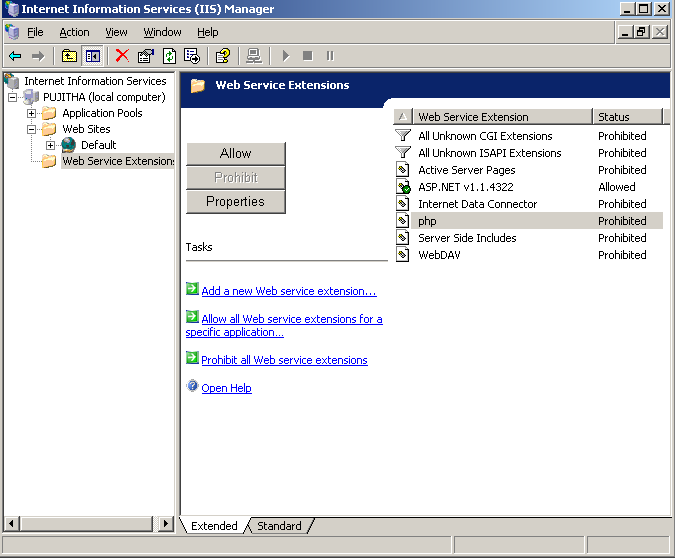
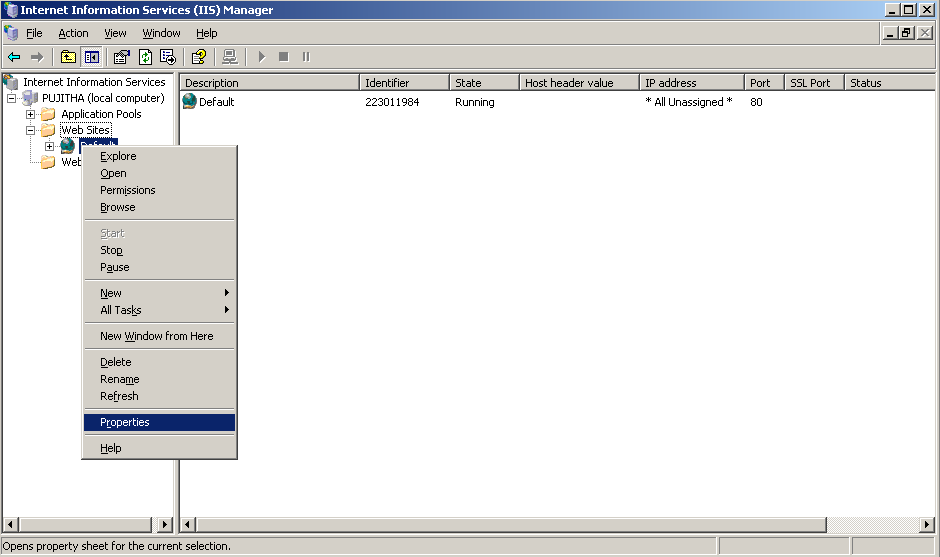
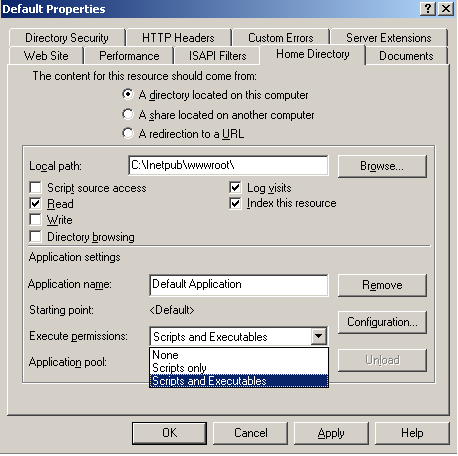
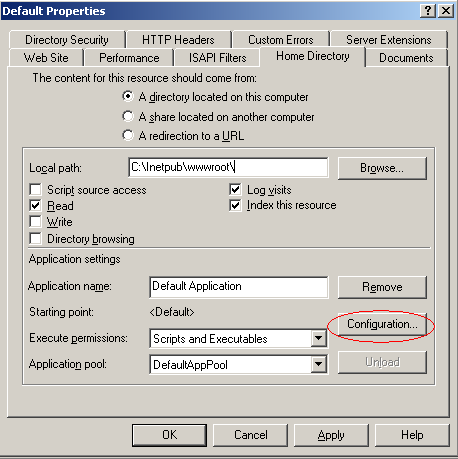
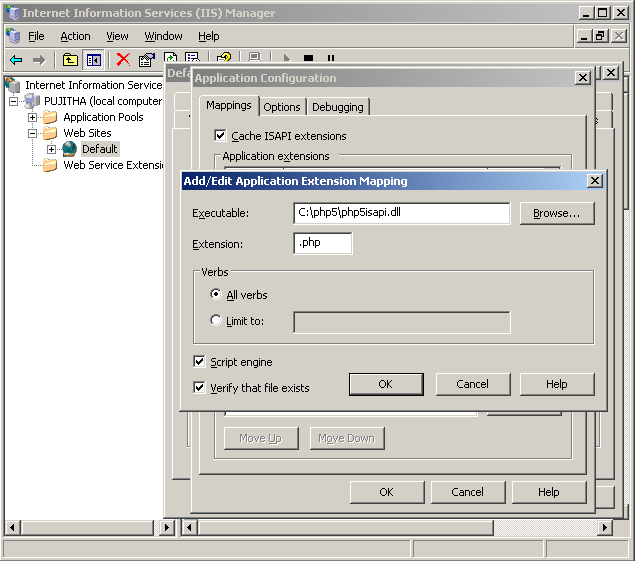
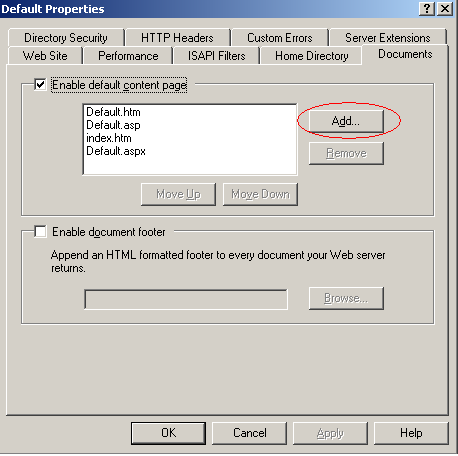
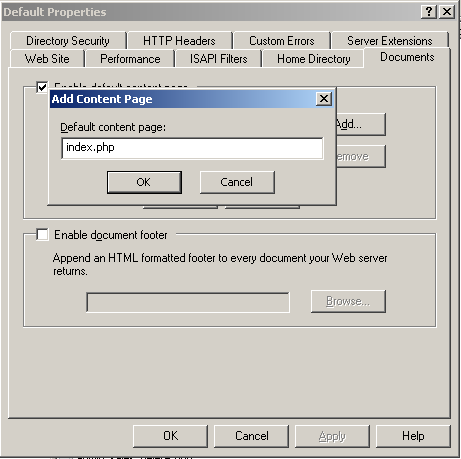
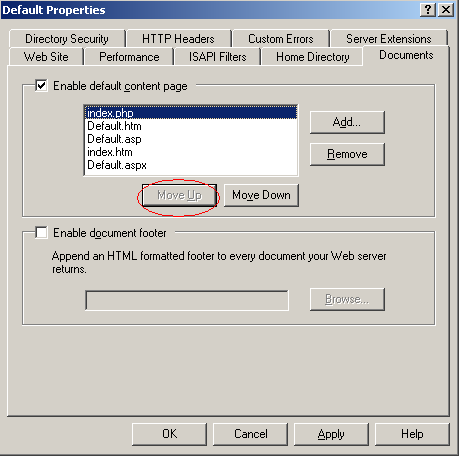
3. Configuration of IIS server for PHP. Open the Internet Information Services
(IIS) Manager from Administrative Tools
*)Start->Programs->Administrative Tools->Internet Information Services(IIS)
Manager or
*)Start->Settings->Control Panel->Administrative Tools->Internet
Information Services(IIS) Manager
4. Test your PHP installation now.Create a text file with the php extension,
eg. test.php. Add the following code segment to it and then save it to your
web site directory, eg. C:\INETPUB\WWWROOT.
<?php
phpinfo();
?>
5. Use your browser to access the file, eg. http://localhost/test.php
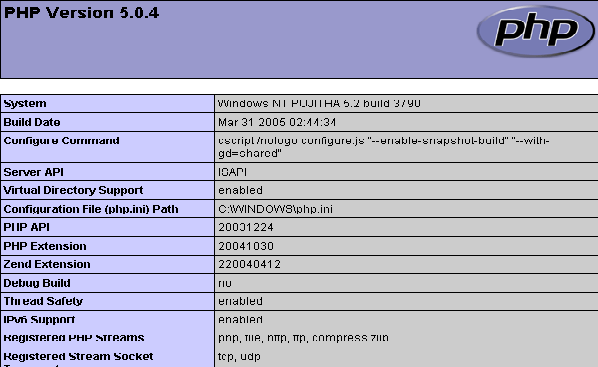
Then, if you see a page similar to following image,you have successfully installed PHP on your windows 2003 server.