|
Please do not place this tutorial on any
other site, or claim them as your own. Thank You
Ding Design Tag
Written By MJessup
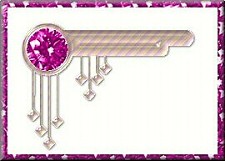
You will need this zip for this tutorial
It includes the font and BP preset

Start by opening a Transparent Image
400 X 300.
Go to your Text tool , click on it,
then go to your transparent image and click close
to the middle of your image.
Find your ap_Fancynavs Font, Size 150,
Antialias, and floating checked.
You want the Lower case "e" for this shape. Click Ok
NOTE: I have My Transparency set to purple so you can see it better.
This is what mine looks like:
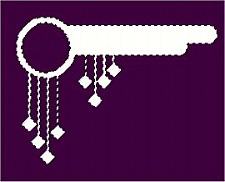
Now with ants Marching, Get your fill.
It can be a Background, Gradient or whatever you choose.
I chose a Gradient.. For this go to your
flood fill tool.(The Lil Bucket),
select the one you want.
Go to your image, and fill it with your Choice.
If you chose a Background, you can copy and paste
into your selection. This is mine now:
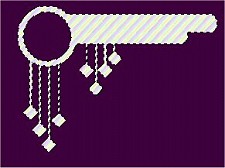
Now go to Image, Plugin Filters, then to Bladepro.
Or what filter you want to use.
I used bladepro, with the Preset Soe_Clear.
With your bladepro, you can play with the settings
till you get what you like. When your Happy with it,
click "Apply or Ok"
This is what mine looks like now:
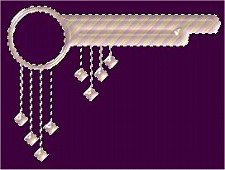
Go to selections, Select none.
Now you may Decorate it any way you Like.
I chose my magic wand and clicked inside the circle part,
and used a Gem stone Tube. When your done decorating,
Go to Layers, Merge, Merge All.
Now My Backgroud is white, not the purple transparent one.
Now if you want, you can put a drop shadow on it at this time.
Here is mine now:
 Now this is just a lil something i do,
but it is Optional. I decided to make a frame around mine,
using the Gem Stone Tube. To do this,
go to your selection Tool, set it to rectangle,
Feather ~ 0, and Antialias checked.
First I cropped the image down in size some,
but left just enough room to make a small frame.
Once you crop it down, then go back to your image,
make a rectangle around it, Like this below:
Now this is just a lil something i do,
but it is Optional. I decided to make a frame around mine,
using the Gem Stone Tube. To do this,
go to your selection Tool, set it to rectangle,
Feather ~ 0, and Antialias checked.
First I cropped the image down in size some,
but left just enough room to make a small frame.
Once you crop it down, then go back to your image,
make a rectangle around it, Like this below:
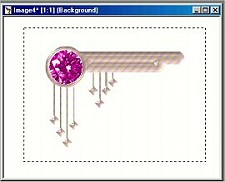 Once you make your rectangle around it,
then go to selections, Invert, this will put your
marching ants around your image, like a frame.
Once thats done, find the fill you would like to use,
then fill the frame.
This is Mine after i filled it with my tube.
I then buttonize it, Now you can add a name etc.
Once your done, you can name it, then save it. Thats it.
Here is my finished tag:
Once you make your rectangle around it,
then go to selections, Invert, this will put your
marching ants around your image, like a frame.
Once thats done, find the fill you would like to use,
then fill the frame.
This is Mine after i filled it with my tube.
I then buttonize it, Now you can add a name etc.
Once your done, you can name it, then save it. Thats it.
Here is my finished tag:
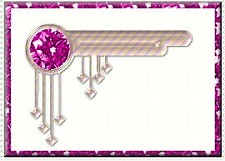 This is another I made using different options :)
 Just play with it, and see what you come up with. Just play with it, and see what you come up with.
To return to Tutorial Index Page
please click below.

To return to Kitty's main page
please click the lil girl below.

|

