|
Please do not place this tutorial on any
other site, or claim them as your own. Thank You
You will need the 3D box mask for this tutorial

First find a Picture you would like to use to
fill the inside of the box with.
Once you have your Picture, set it to the side
till your ready to use it.
Make sure you have the mask downloaded and
in your mask folder.
Start by opening a New image 400 X 400,
Transparent Background.
Now using the eye dropper tool pick a color
from your picture that you would like to use
as the color for the box Mask.
Go to your flood fill tool, open the options
palette and choose these settings below:
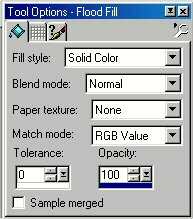
Now go to your image, and flood fill it.
Then go to Masks, load from Disk, Find Your 3D Box Mask,
once you find it, click on it then click open.
Now your image will look like this below:
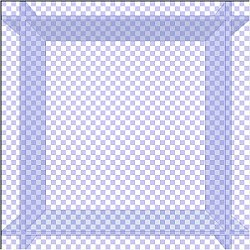
Go to Layers, Merge, Merge All.
Now we want to fill it with our Picture,
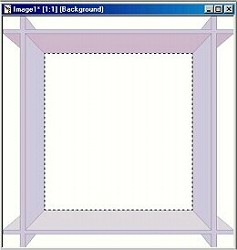
so get your Magic wand tool. Place your mouse over
the inside of the Box, and click on it.
You should have marching ants in this part of your
image only like below:
 Now with your Ants Marching, Bring up the
Picture you want to fill with, make sure it is the
active picture on your screen. then go to
Edit..Copy..then back to your box image
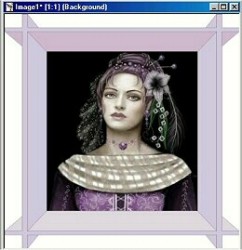
and .. Edit Paste into selection. This is mine below:
Now with your Ants Marching, Bring up the
Picture you want to fill with, make sure it is the
active picture on your screen. then go to
Edit..Copy..then back to your box image
and .. Edit Paste into selection. This is mine below:
 Now comes the fun Part,
You can decorate it anyway you like,
I chose a Pearl frame tube, placed it exactly
in the middle of my image, and clicked ok..
This is what it looks like now:
Now comes the fun Part,
You can decorate it anyway you like,
I chose a Pearl frame tube, placed it exactly
in the middle of my image, and clicked ok..
This is what it looks like now:
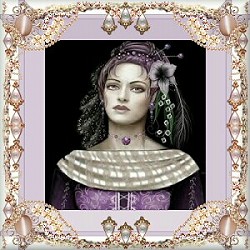 I Buttonized mine,Resized it, Sharpened it
then Named it, and saved it as a JPeg file.
You can decorate it as much or as little as you want.
Thats it....your done.. :)
I Buttonized mine,Resized it, Sharpened it
then Named it, and saved it as a JPeg file.
You can decorate it as much or as little as you want.
Thats it....your done.. :)
To return to Tutorial Index Page
please click below.

To return to Kitty's main page
please click below.

|

