SETTING UP YOUR FILTERS IN PSP
I have been working with filters way back since the late 80’s. I’ve gotten to know some of the filter writers themselves, writing and discussing filters issues with them, and their habits. I also go back 30 years in computer programming and in PC tech. Here I am going to try to give you some pointers as what they have said is best.
There are several ways for filters to be set up. You can set them up in your PSP software program within your plugins folder; set them up on another hard drive, and even on CD’s. Yes, you can point to a CD in your file location. What I will try to explain here is one of the best ways to set them up as how I have learned. I have to let you know this is not “my” way but what many of the filter writers themselves have suggested.
One thing that is for certain is that too many filters installed within your PSP software plugin folder, and if you also have Photoshop and filters installed there too, it soon clutters up your hard drive. They can also slow down your PC as well as make your graphic software run sluggish, filters not show up, and/or shut down the software.
For your graphics software to work effectively and efficiently is to install them on your C: Drive. Then you can set up the file locations in all the graphic software to point to one location. So, if you have lets say versions 7, 8, 9, and 10 of PSP, you would set the pointers in the file location in all of them to point to all four of the plugin folders on the C: drive. If you have thousands of filters as I have, then it is best to break the plugins folder into two or more. I have 5 plugin folders. I sorted alphabetically into the first three plugin folders -- the ones that are free and not the installable kind, only ones that you just copy into a folder that you have made for it. Then, I have one that are for the free filters but have to be installed (meaning files are copied into the Windows\System32 folder on elsewhere and have to be reinstalled if there were a crash). Last folder is for my bought commercial filters and they have to be installed and reinstalled if there were a crash. This way, you can always backup the first three plugin folders and put it away.
One thing about filter habits…they have a mind of their own. Not really. It is the way the programmer (the owner who wrote the filters) programmed their filters to behave. Give for example Tronds filters. There are four sets: Tronds Filters, Tronds First, Tronds II, and Tronds Patterns. Make only ONE folder not four. If you made folders for every set of all filters that there are, you would have several hundred. You don’t want to inundate your plugins folder with too many folders as well. That too can slow down your PC and/or your software. Each folder takes the same amount of space or “chunks” in megabytes for itself regardless of whether your have one files or hundreds of files in that folder. Anyway, back to the four sets of Tronds filters, just copy all of them into one folder and lets call it Tronds. There should be about 73 total. When you open up your PSP or other graphic software, you will see that the Trond filters are all broken down into their original four sets; it is programmed in the filters themselves.
In the figures below are just examples to go by and is not written in stone but only to help in improving your software performance. I have five plugin folders now.
Fig. 1 -- Plugins folder in C: drive has the first half of the free filters from A-L.
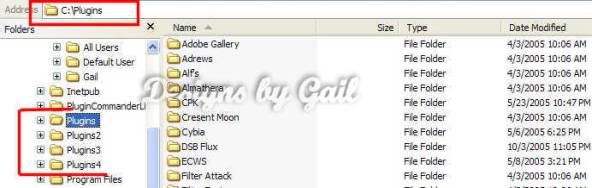
Fig. 2 -- Plugins2 folder in C: drive has the last half of the free filters from M-Z.
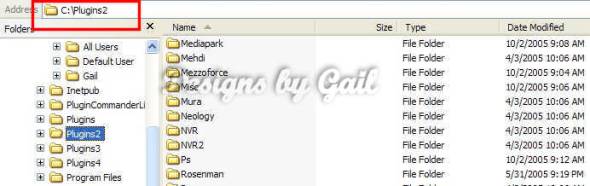
Fig. 3 -- Plugins3 folder in C: drive has the small free installable. (Filter Factory is not installable, I just put it there).
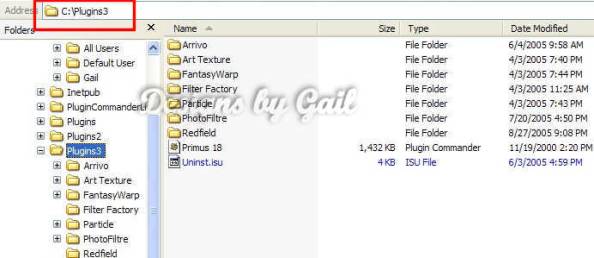
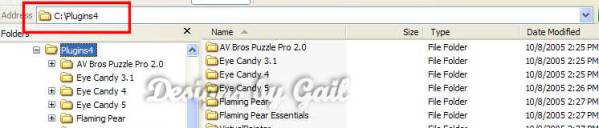
Fig. 4 -- -- Plugins4 folder in C: drive has the installable commercial filters.
DLL files you will need if you don't have. In this zip file are several other files other than the standard msvcrt10.dll and plugin.dll. You can download them here: DLLS