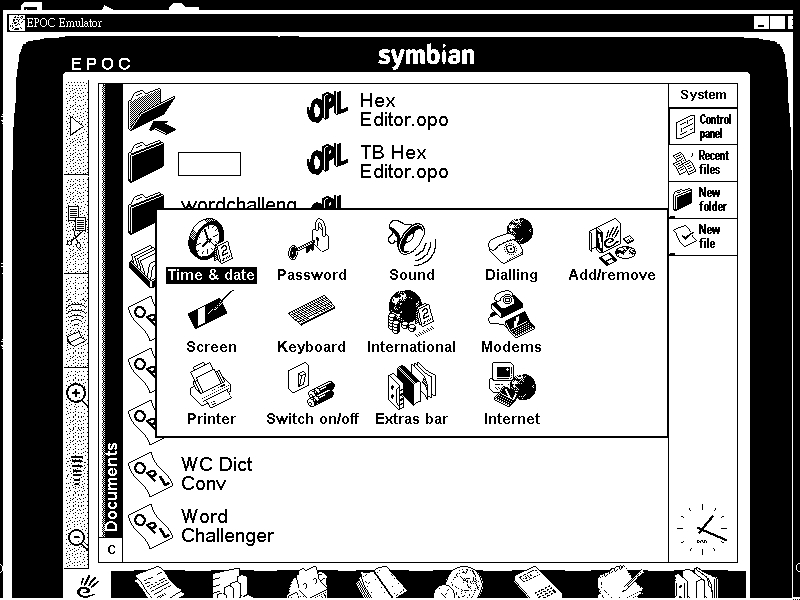
Open the modems icon and make the following setting:
1. You need to connect your psion 5mx to you desktop PC using
the supplied Psi cable.
2. You need to have the software mochaPPP installed in you PC.
You could get this software from mochasoft's website here(a link to mocha's
download page). If you use this software often, please register
it with mocha.
When you start the mochaPPP, you need to set up the parameters
from the Setting-->Configuration menu.
(Photo of the Configuration menu)
Serial Port : Select the serial portt where you Psi cable is
connected to the PC.
Select the Windows CE radial button.
Baud rate : select 115200
Click OK button to confirm your setting.
Go to System screen by taping the System icon on the program
bar. Open the control panel by taping the Control Panel button on
the toolbar.
Open the modems icon and make the following setting:
Choose Modems from the control panel.
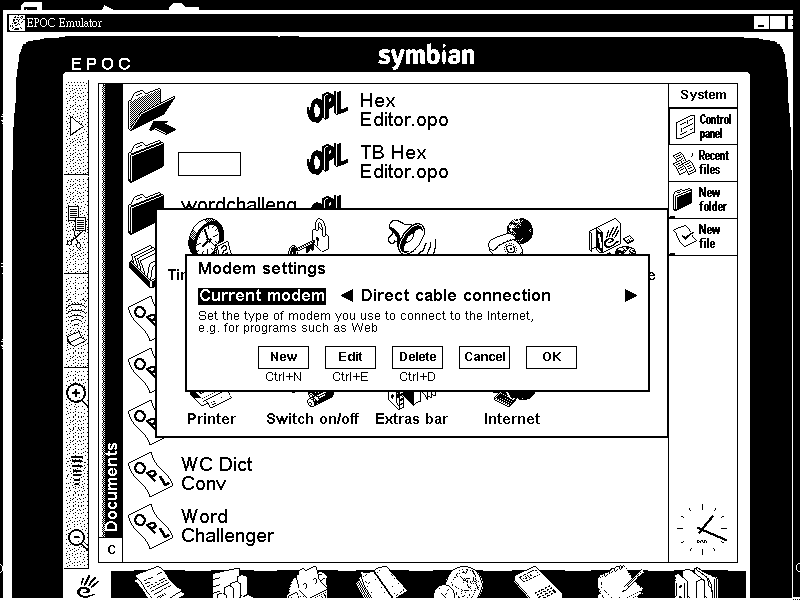
Select in the current modem : direct cable connection and then
press edit to bring up the Setting for Modem dialog.
(Photo of Modem setting dialog)
Modem :
Speed : 115200
Connect via : Select Serial cable
Fax class : Auto
No setting is required in Option, Initialize and Advance.
Click OK to confirm your setting.
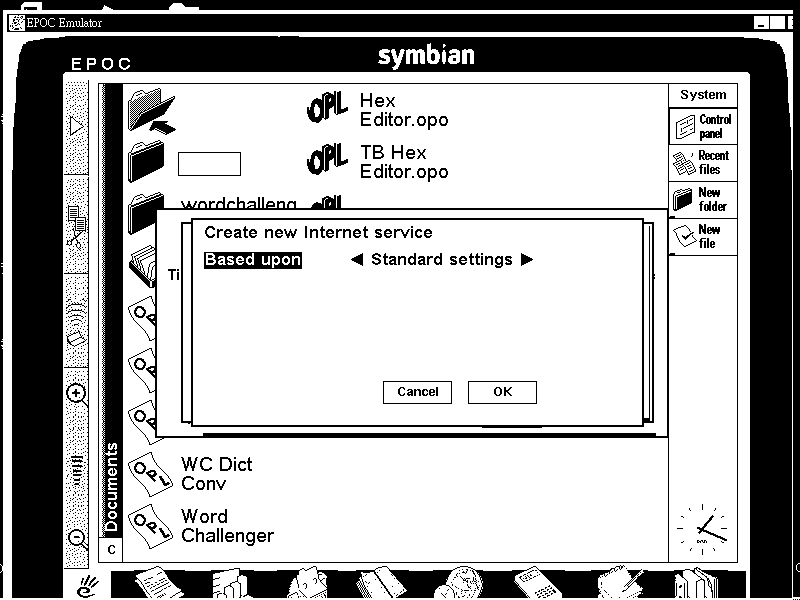
Choose OK to open the internet icon and make the following setting :

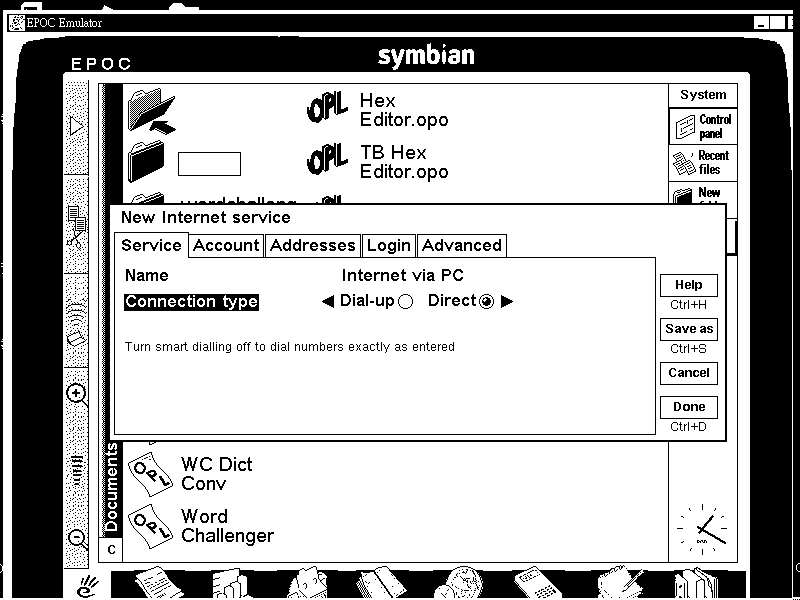
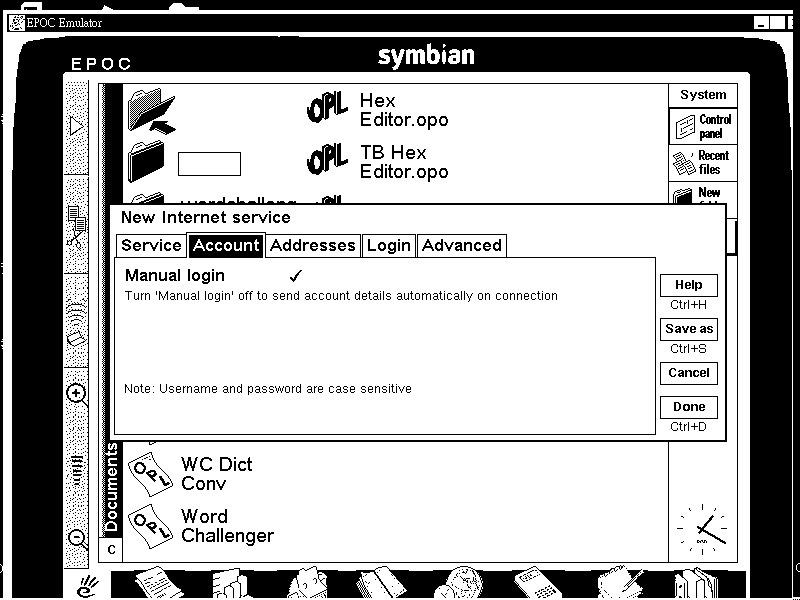
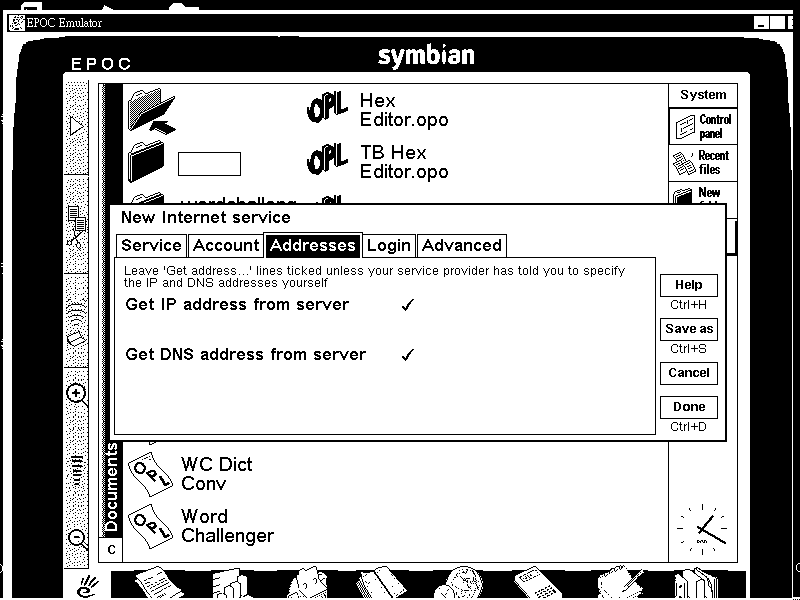
From the Service Tab set the following:
Name : just give any name that is convenient to remember
Connection Type : choose direct
From the Account Tab set the following:
Choose Manual Connection
After the above setting is completed, you could start to
connect your 5mx to the internet. Start any program that require
internet connection. These program will automatically bring up
the Internet Connection Dialog box.
(Photo of internet connection dialog box)
From the to internet service list choose the internet service
just added from the above procedure. Choose the using modem as
direct cable connection. Then press OK, you will get the internet
connection via you PC by now.
Email Me
Please send me email on
your opinion about this page. If you found any link in this page
not working please let me know. i will try best to fix it as soon
as possible.
Return HOME