MAKING SIMPLE TUBES - TWO METHODS
This lesson will show you how you can make a simple tube or psp image using two methods. The first is part is with images surrounded by solid color and the second part is images not surrounded by a solid color.
Part I - Images that are Surrounded by Solid Color
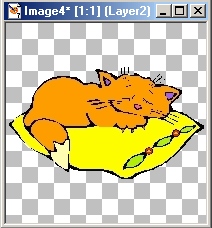
Download this image. These directions will work with most images that are surrounded by a solid color.

Step 1
At the bottom right hand side of the Paint Shop Pro desk top, look to see what the height and width are of this image. You will see it is 200 height by 200 width.
Step 2
Open a transparent image that is the same height and width of the image.
Step 3
Left click your magic wand
 and left click your toggle
tool options window
and left click your toggle
tool options window  and use these settings:
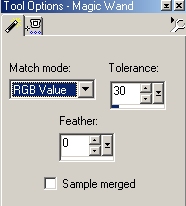
Left click your magic wand and take it to your picture and left click the magic wand on the solid color surrounding your graphic so that it is selected (ants marching around it).
Step 4
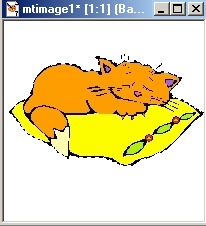
Go to Selections/Invert and you will see that the ants are now surrounding the graphic picture and not the solid portion.
Step 5
Go to Edit/Copy and left click on your transparent image and go to Edit/Paste as
new layer.
Step 6
Go to Layers/Merge/Merge Visible.
This is your finished tube
Step 7
You can save this as a psp file or you can export the tube into your tubes folder by doing this:
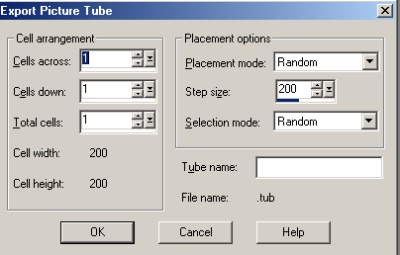
Go to File/Export/Picture Tube. You will get this screen - just fill in the information as you see below and name the file and hit ok.
Part II - Images not Surrounded by Solid Color
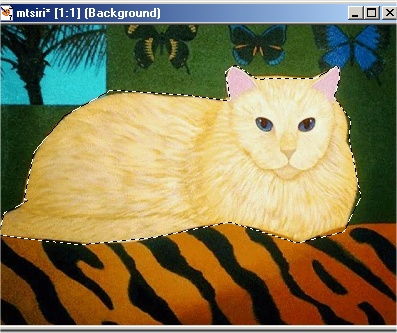
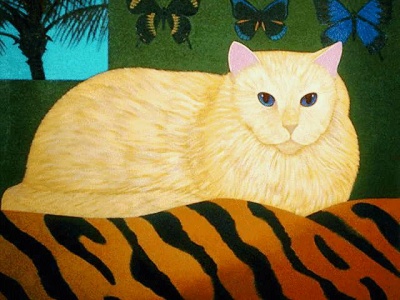
You can download this image or you can use your own. What we will want to do is capture the cat only and make it into a tube.
 and left click your
toggle tool options window using these settings:
and left click your
toggle tool options window using these settings: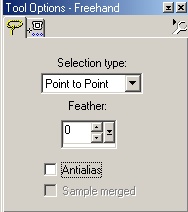
 (magnifying
glass) and bring it to your image and left click it one or two times to enlarge
the image so you can see the edges of the image you will be surrounding with the
lasso tool.
(magnifying
glass) and bring it to your image and left click it one or two times to enlarge
the image so you can see the edges of the image you will be surrounding with the
lasso tool.