|
|




|
This is a step by step procedure that will give information on how to create a project file under Borland or Turbo C/C++ version 3.1 (3.0) for students attending classes CADM231 and CADM331.
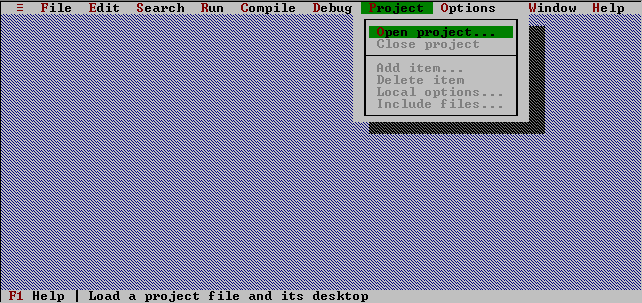
1. After running the program open the project window by clicking on "Project" then "Open project". (Alt P, O).
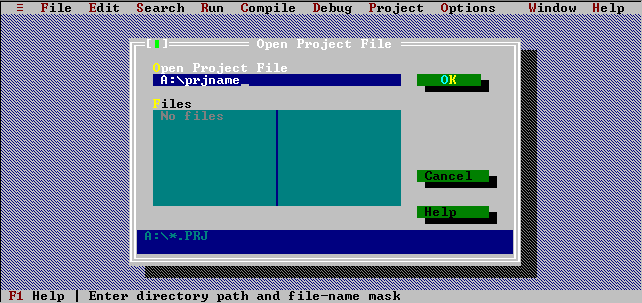
2. In Open Project File type in "A:\" followed by the project name you intend to create in place of the "prjname" I have written. The project name should be unique for each assignment you intend to solve.
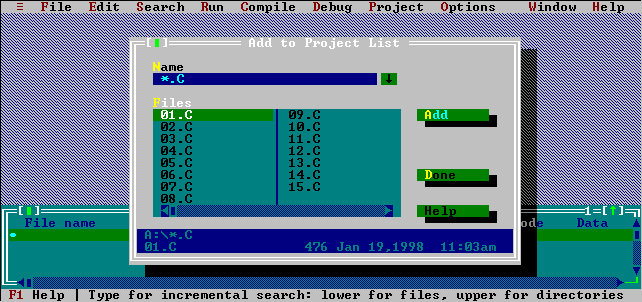
3. After pressing Enter on the keyboard double click on the letters "Ins" located at the bottom of the screen or press the Insert key on the keyboard. Then in the text box called Name type in "*.C" and press Enter or the specified file that you intend to add to your project list. In case you used the first option a list of all C files will appear in the window named Files. Select the appropriate file from the list and click on the Add button or press Enter.
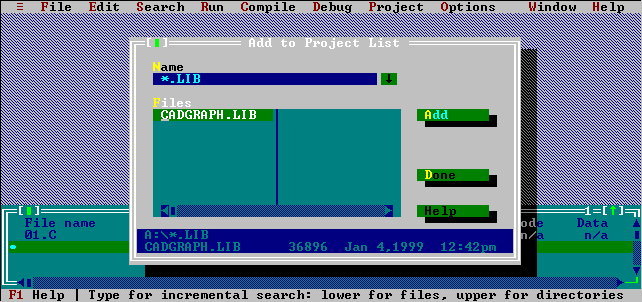
4. Your next step will be to add the library file created by Dr. Shiue for this course. Type in "*.LIB" and press Enter, then select the "cadgraph.lib" by either double clicking on it or highlighting it and pressing Enter.
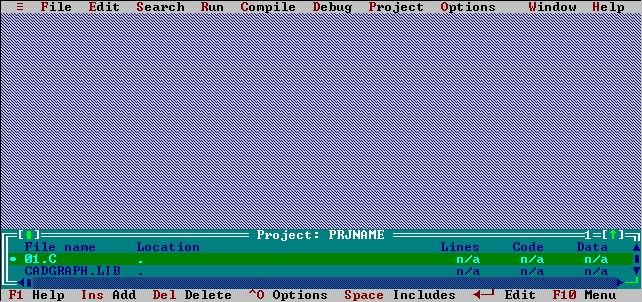
5. After inserting the library file double click the Done button or use keys Alt+D. Your screen then should look like the following image.
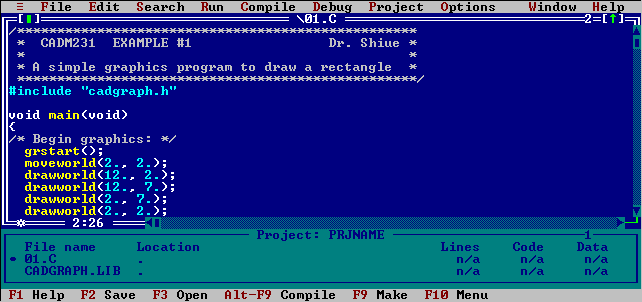
6. The last step is to open the C file. You can do this by either double clicking on the file name in the Project window or after highlighting the file press Enter.
7. The steps of creating a project is now finished, but don't be very happy. You will be soon faced with many problems, so check my trouble shooting page to get an idea on how to solve many of the problems that previous CADM231 students had. Good luck with your homeworks J
|