|
|
Setup Windows 2000 to Dial to The Internet
The following pages illustrate the steps used to connect your computer running Windows 2000
to Eastern Michigan University:
The following steps assume that you have a modem already installed on your system. If you
did not install the modem drivers yet and are having difficulties, please refer to the
Installing a modem on Windows 2000 page.
The first step is to start the wizard that will guide you through the steps to getting the
connection running. The wizard is located under 'Network and Dial-up connections'. You can
get to this menu by clicking the 'Start' menu, then select 'Settings', The icon that you
will be looking for is the following:

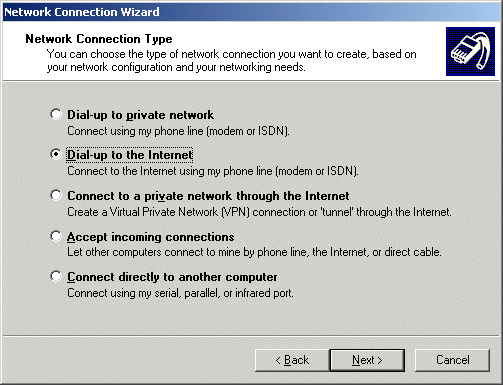
A greeting page with some basic information will appear. Click 'Next' to get to the following
page. Select 'Dial-up to the Internet' as highlighted in the image. Click next to continue.
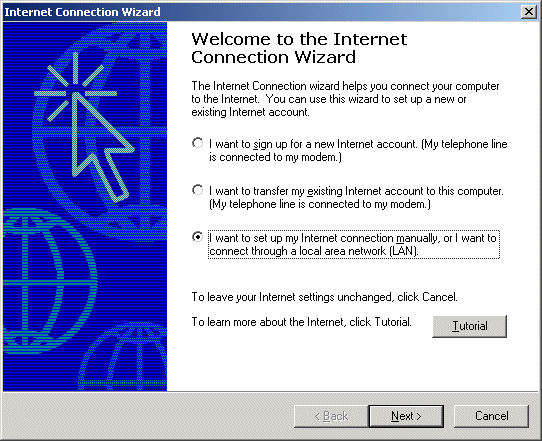
The following steps are similar to all Windows operating systems. A new window called
'Internet Connection Wizard' will open, select "I want to set up my Internet connection
manually... " as highlighted in the figure below.
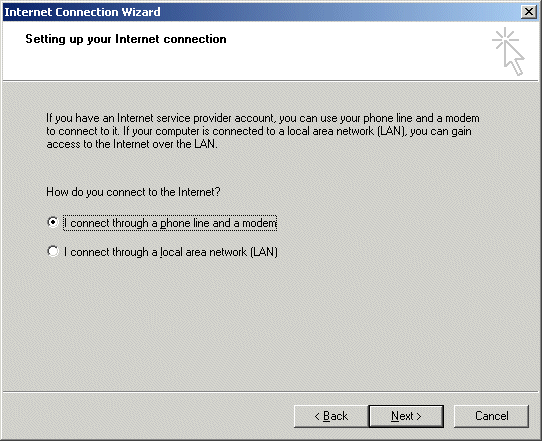
Next select "I connect through a phone line and a modem"
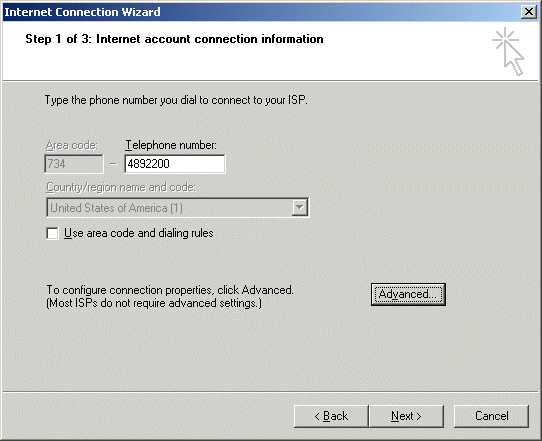
In the step 1 of 3 of the 'Internet Account Connection Information' put in the Michnet phone
number. If you are in the Ann Arbor area the phone number is 4892200. Please check the
Michnet access list for a number in your area. If you do not have to dial an area code to
access the Michnet service uncheck the box named 'Use area code and dialing rules'
Pressing 'Next' brings us to another window that asks us to name the connection. I chose to
call it 'Connection to EMU' but you can choose any name you like
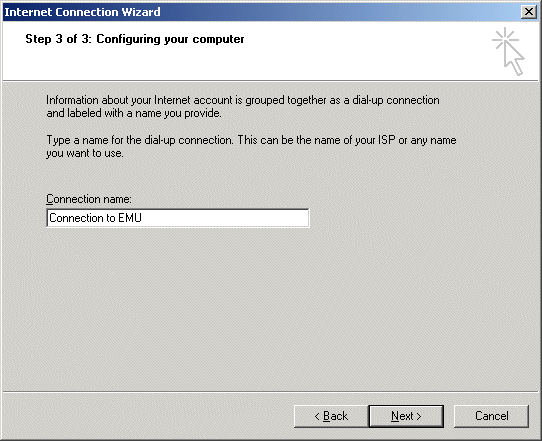
Now you have finished setting up the dialing information, and the Internet mail account
information setup window will show up. If you would like to continue with setting up your
mailing account follow the link to Internet Mail Account Set Up
otherwise select 'No' and click on 'Next'. This will create 'Connection to EMU' in the
'Network and Dial-up connections' submenu located under 'Setting' in 'Start' menu.
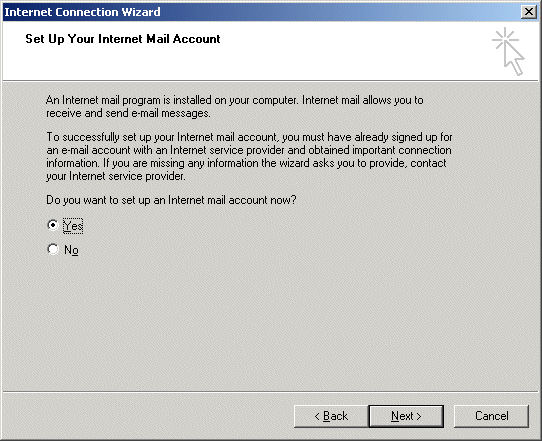
At this point we have finished the wizard that guided you through the Internet dialing
configuration. But you are not ready yet to connect to the Internet. There is still one
more thing you will need to do before you will be able to connect to Internet.
The easiest way to get to that setting is by double clicking on the 'Connection to EMU'
located under 'Network and Dial-up connections' mentioned
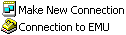
The following window will open. To access the next settings click on the 'Properties'
button at the bottom of the window.
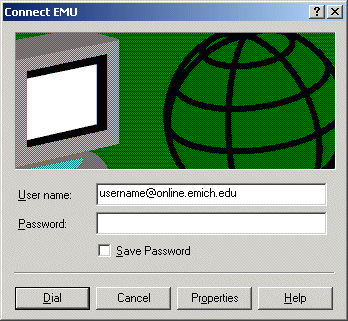
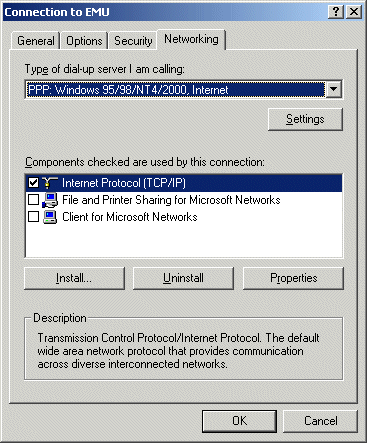
Click on the 'Networking' tab at the top of the newly opened window and you should see
a window similar to the one displayed below. You should see the text 'Internet Protocol
(TCP/IP)' in the middle of the window. Highlight the text and press on the 'Properties'
button.
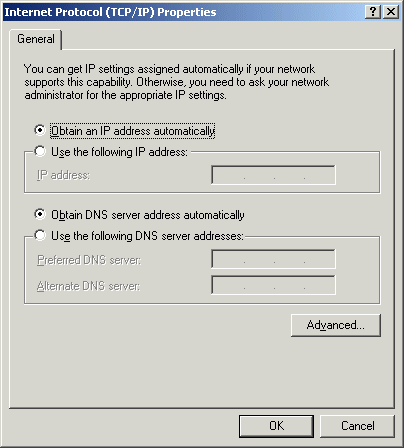
Click on the Advanced button
The 'Advanced TCP/IP' window will appear. Click on the DNS tab and you will be at a window
just like the following. Note that the box with the text 'merit.edu' will be empty. In the
following step, you will have to fill that box to be the same as the picture below.
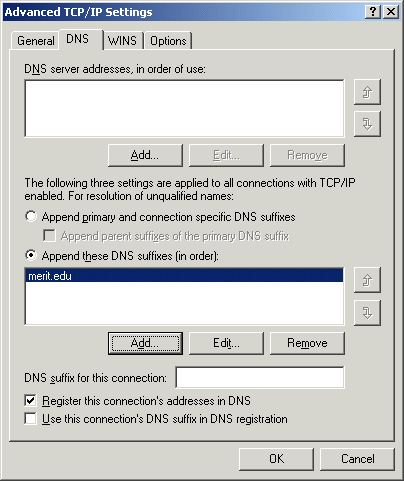
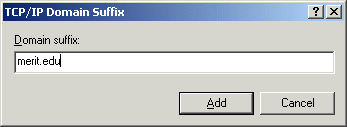
To do that click on the 'Append these DNS suffixes (in order):' radio button, then click
on the 'Add' button beneath that box. The window 'TCP/IP Domain Suffix' will open. Enter
the text 'merit.edu' as shown in the following window. Click on 'Add' button to enter the
text to the designated box.
At this point you have finished setting all the options necessary to connect your Windows
2000 machine to the Internet using the EMU dialup connection. Close all Properties windows
click on the 'OK' buttons to get back to the 'Connect to EMU' window. Enter your e-mail
address as your user name and your e-mail password. You can click on 'Save Password' check
box if you want the computer to fill in the password automatically the next time you dial
a connection. Click the 'Dial' button and happy surfing.
|
|