|
|




|
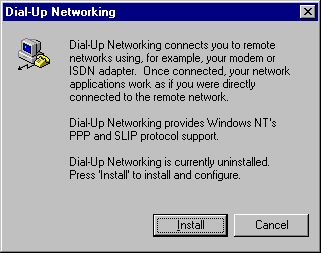
Setup Windows NT 4.0 to Dial to The InternetThe following document illustrates how to connect to EMU Dialup using Windows NT 4.0: 1. There are two ways to setting up the network. The first one can be done when you are installing Windows NT (this step is discussed later in this page). The second one can be invoked after installation by clicking the Dial-Up icon in the Control Panel.
2. If you do not have a modem configured or installed Windows NT cannot access remote services (RAS) thus it will ask you to confirm if it can install a modem. 
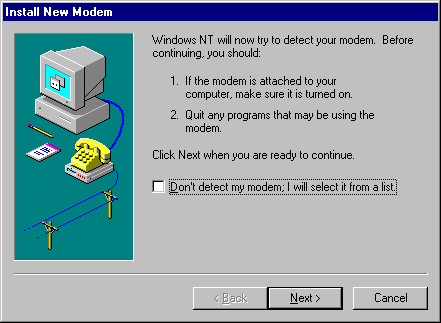
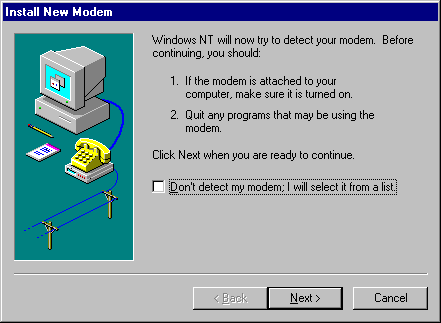
3. It is best to let Windows NT detect the modem you have. Usually if you have a standard modem there is no problem with detecting it. If you have though a win modem it is best to cancel this step and go to the installation disks that came with the modem and run the installation program from the disk. In the last case, after installing the modem you can return to step 1 of this guide.
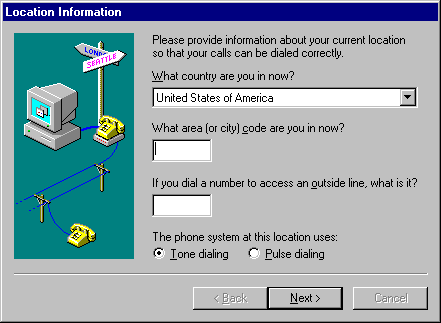
4. After the installation of the modem, Windows NT returns back to where it left off in the installation of the dial-up networking. Select the country you are in and the area code. You must provide the area code in order to continue to the next step.
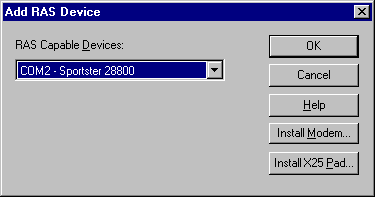
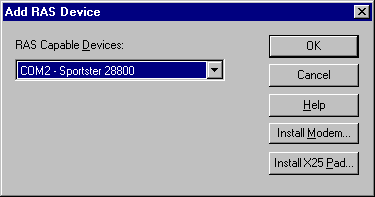
5. Just click OK. There is no need to use the Install Modem button here.
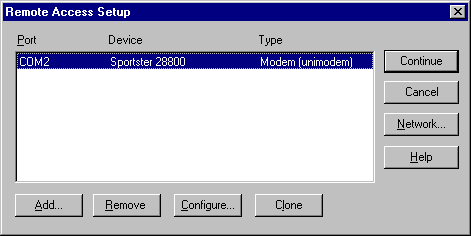
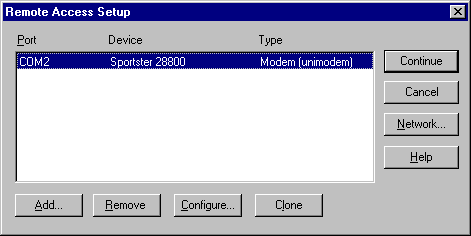
6. A window with all the devices that are capable of accessing remove services are listed in a window similar to the one below. If you have more than one modem you can add it to the list by clicking the Add button, otherwise click Continue.
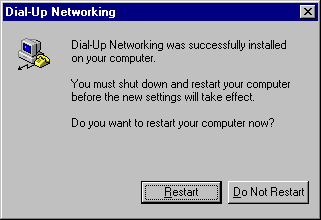
7. Once you get to this window it means that Dial-Up installation has been completed. Before using it to connect to the internet you need to reboot your computer.
Installation Procedure While Installing Windows NTThe steps below explain what you must do to setup your network to enable your computer to connect to the Internet. 1. The following window will show up after the first reboot of the installation program of Windows NT. Windows NT invokes the modem installation procedure. Usually if you have a standard modem there is no problem with detecting it. If you have though a win modem Windows NT 4.0 will not be able to detect it, therefore you have the option of either canceling this step or continue with it and just be aware that its ok that Windows didn't find a modem.
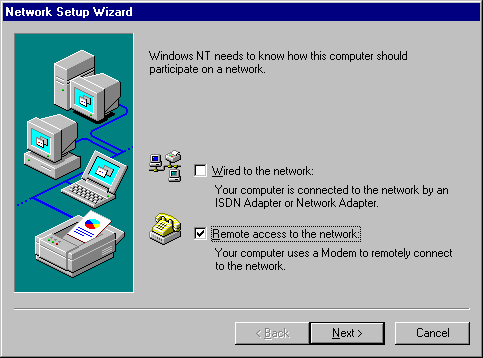
2. Once you are through the modem installation procedure, Windows NT will start the Remote Access Services (RAS) installation procedure. If you have also a network card you should select "Wired to the network" option too.
3. A confirmation to start the RAS (Remote Access Service) procedure. 
4. Just click OK. There is no need to use the Install Modem button here.
5. A window with all the devices that are capable of accessing remove services are listed in a window similar to the one below. If you have more than one modem you can add it to the list by clicking the Add button, otherwise click Continue.
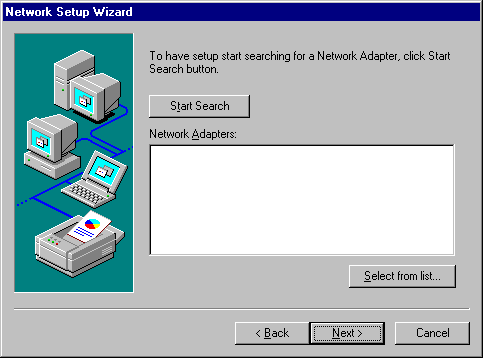
6. We are done with configuring the modem and dialup procedure. Now we will configure the network adapters. Click on the "Start Search" button.
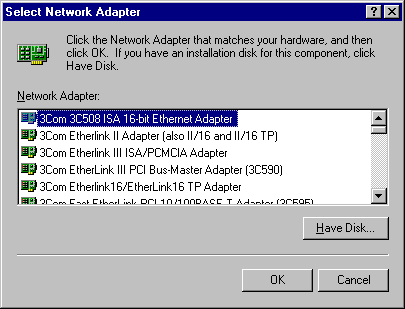
7. If no network card was detected, click on the "Select from list..." button.
8. If you do not find your network card in the list (most likely), have the network card installation disk ready and click on the "Have Disk..." to install it. Otherwise, click Cancel then Next when you return to the previous window. The following window is the last step in the network installation, consult your Network Administrator to decide on which button to click.
|