
MP3 Randomizer is simply an application that can randomly choose
files among your MP3 collection and
copy them to a specified directory. Once in this directory, you
can send the files copies to your MP3 player,
a recordable CD or just any media you want. It's great when you
want to create random playlists for your
MP3 player, or just record a MP3 CD with random files.
You just need to tell the program the amount of memory available
in your media or player. Some default
values are present. They are typically the memory present in MP3
players because this may be the main
application use. Of course you can enter any specific value, in
KBytes or MBytes. It's an interesting time to
talk about the conversion factor used to transform KBytes in MBytes
and vice-versa. Actually, one KByte is
equal to 1024 bytes. In an analog way, 1 MByte = 1024 KBytes, so
1 MByte = 1024 x 1024 = 1048576
bytes. However, MP3 Randomizer will consider instead 1 MByte = 1000
KBytes, and 1 KByte = 1000 bytes
(of course a megabyte will be the same of a million bytes). This
is because most of the MP3 players
manufacturers treats memory this way, so a 32 Mb player will actually
has 32000 KB or simply 32000000
bytes (my player has exactly 31999000 bytes). So, if you want to
tell the program to choose files up to 10
MBytes in the real meaning of a Megabyte, please remember to specify
exactly 10485760 bytes.
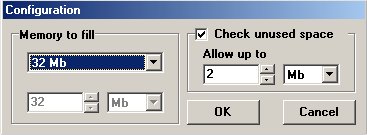
To change the amount of memory available just click on the "Change..."
button. You will see a dialog
where you can enter a new value for the total memory available and
for the allowed unused space. When
you choose to determine a value for the unused space allowed, MP3
Randomizer will try to fill up any
space bigger than the limit you have entered to maximize memory
usage. After randomly choosing the files,
if the remaining memory is above the limit, the application will
order all your files based on their size and
then choose the bigger file that will fit in the remaining memory.
Please note that, depending on the number
of files in the directories you choose and your processor performance,
the ordering process may take
several minutes. If you do not want to use this feature simply uncheck
the checkbox "Check unused
space" in the configuration dialog.
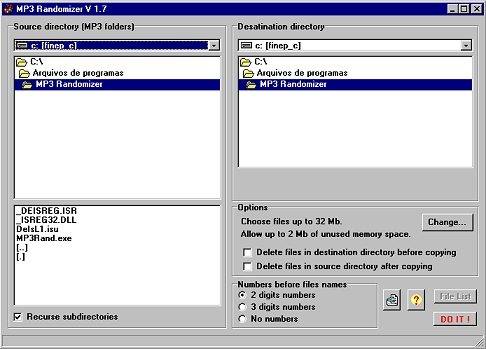
After this configuration is done, you can choose the destination
directory, to where the chosen files will be
copied, and choose the source directory containing your MP3 files.
If you check the "Recurse
subdirectories" checkbox, all the directories
in all levels inside the base folder will be looked for MP3 files.
You can also check the "Delete files in destination
directory before copying" checkbox to guarantee only
the most recent chosen files will reside in the destination folder.
Then will be the time to click the "DO IT !"
button and let MP3 Randomizer do his work. The copied files
will have a order number before their name to avoid the files to
be alphabetically ordered in the directory
and then transfered in this order to the player/CD. Even the songs
playing order will be random.
After the chosen files are copied, the "File
list" button will become enabled, so you can see a list of all
your MP3 files found by the application in the source directory
(and its subdirectories if the specific
checkbox is marked). Please note that this list will be ordered
by file size only if the application has
performed the ordering process, otherwise it will be ordered by
file name and directory name.
This software is freeware, so you can use and distribute it freely,
as long as you don't modify it. If you really
enjoyed it, you can just send me your picture to [email protected].
As I'm crazy about pictures, I'll be
glad to see your face, specially if you are a young beautiful lady
:)
If you want the source code (you probably won't) you can just buy
it for a few bucks. If you want that, or
just to send your comments or suggestions, you can drop me a line.
Fabio Serra
(Brazil)
March/2002