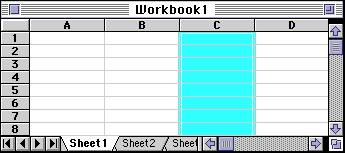
In the above diagram the COLUMN labeled C is highlighted.
Spreadsheets
are made up of
In each cell there may be the following types of data
In a spreadsheet the COLUMN is defined as the vertical space that is going up and down the window. Letters are used to designate each COLUMN'S location.
In the above diagram the COLUMN labeled C is highlighted.
In a spreadsheet the ROW is defined as the horizontal space that is going across the window. Numbers are used to designate each ROW'S location.
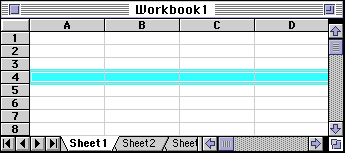
In the above diagram the ROW labeled 4 is highlighted.
In a spreadsheet the CELL is defined as the space where a specified row and column intersect. Each CELL is assigned a name according to its COLUMN letter and ROW number.
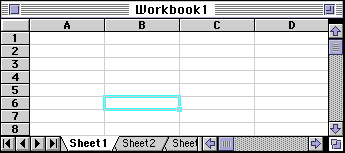
In the above diagram the CELL labeled B6 is highlighted. When
referencing a cell, you should put the column first and the row second.
In a spreadsheet there are three basic types of data that can be entered.
|
data types |
examples |
descriptions |
|
LABEL |
Name or Wage or Days |
anything that is just text |
|
CONSTANT |
5 or 3.75 or -7.4 |
any number |
|
FORMULA |
=5+3 or = 8*5+3 |
math equation |
*ALL formulas MUST begin with an equal sign (=).
Labels are text entries. They do not have a value associated with them. We typically use labels to identify what we are talking about.
|
|
Again, we use labels to help identify what we are talking about. The labels are NOT for the computer but rather for US so we can clarify what we are doing.
Constants are entries that have a specific fixed value. If someone asks you how old you are, you would answer with a specific answer. Sure, other people will have different answers, but it is a fixed value for each person.
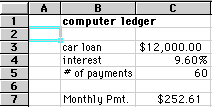
In our first example: the constants were
As you can see from these examples there may be different types of numbers.
Sometimes constants are referring to dollars, sometimes referring to
percentages, and other times referring to a number of items (in this case 60 months). These
are typed into the computer with just the numbers and are changed to display
their type of number by formatting .
Again, we use constants
to enter FIXED number data.
Formulas are entries that have an equation that calculates the value
to display. We DO NOT type in the numbers we are looking for; we type in the
equation. This equation will be updated upon the change or entry of any data
that is referenced in the equation.
This was NOT typed into the keyboard. The formula that was typed into the
spreadsheet was:
=PMT(C4/12,C5,-C3)
C4 (annual interest rate) was divided by 12 because there are 12 months in a
year. Dividing by 12 will give us the interest rate for the payment period - in
this case a payment period of one month.
It is also important to type in the reference to the constants instead of the
constants. Had I entered =PMT(.096,60,-12000) my formula would only work for
that particular set of data. I could change the months above and the payment
would not change. Remember to enter the cell where the data is stored and NOT
the data itself.
Formulas are mathematical equations. There is a list of the functions available within Excel under the menu INSERT down to Function.
Formulas OR Functions MUST BEGIN with an equal sign (=).
Again, we use formulas to CALCULATE a value to be displayed.
When we are entering formulas into a spreadsheet we want to make as many references as possible to existing data. If we can reference that information we don't have to type it in again. AND more importantly if that OTHER information changes, we DO-NOT have to change the equations.
If you work for 23 hours and make $5.36 an hour, how much do you make? We can set up this situation using
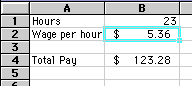
= B1 * B2
= 23 * 5.36
Both of these equations will produce the same answers, but one is much more useful than the other.
DO YOU KNOW which is BEST and WHY?
It is BEST if we can Reference as much data as possible as opposed to typing data into equations.
In our last example, things were pretty straightforward. We had number of hours worked multiplied by wage per hour and we got our total pay. Once you have a working spreadsheet you can save your work and use it at a later time. If we referenced the actual cells (instead of typing the data into the equation) we could update the entire spreadsheet by just typing in the NEW Hours worked. And -- you're done!
Let's look at the new spreadsheet: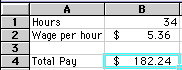
If we had typed in ( = 23 * 5.36 ) the first time and just changed the hours worked, our equation in B4 would still be ( = 23 * 5.36 )
INSTEAD we typed in references to the data that
we wanted to use in the equation.
We typed in ( = B1 * B2 ). These are the locations of the data that we want to
use in our equation.
It is BEST if we can Reference as much data as possible as opposed to typing data into equations.
Spreadsheets have many Math functions built into them. Of the most basic operations are the standard multiply, divide, add and subtract. These operations follow the order of operations (just like algebra). Let's look at some examples.
For these following examples lets consider the following data:
|
|
|
Operation |
Symbol |
Constant |
Referenced |
Answer |
|
Multiplication |
* |
= 5 * 6 |
= A1 * B3 |
30 |
|
Division |
/ |
= 8 / 4 |
= A3 / B2 |
2 |
|
Addition |
+ |
= 4 + 7 |
= B2 + A2 |
11 |
|
Subtraction |
- |
= 8 - 3 |
= A3 - B1 |
5 |
Selecting cells is a very important concept of a spreadsheet. We need
to know how to reference the data in other parts of the spreadsheet. When
entering your selection you may use the keyboard or the mouse.
We can select several cells together if we can specify a starting cell and a
stopping cell. This will select ALL the cells within this specified BLOCK of
cells.
For this following examples lets consider the following data:
|
|
This is just a discussion of selection methods. If we
wanted to add the cells in the (To Select) you would type in
=sum(Type
In)
or
=sum(Click On)
|
To Select |
Type In |
Click
On |
|
A1 |
A1 |
|
|
A1, A2, A3 |
A1:A3 |
|
|
A1, B1 |
A1:B1 |
|
|
A1, B3 |
A1, B3 |
|
|
A1, A2, B1, B2 |
A1:B2 |
|
Probably the most popular function in any spreadsheet is the SUM function. The Sum function takes all of the values in each of the specified cells and totals their values. The syntax is:
In the first and second spots you can enter any of the following (constant, cell, range of cells).
|
Lets use the table here for the discussion that follows: We will look at several different specific examples that show how the typical function can be used! Notice that in A4 there is a TEXT entry. This has NO numeric value and can not be included in a total. |
|
|
Example |
Cells to ADD |
Answer |
|
=sum (A1:A3) |
A1, A2, A3 |
150 |
|
=sum (A1:A3, 100) |
A1, A2, A3 and 100 |
250 |
|
=sum (A1+A4) |
A1, A4 |
#VALUE! |
|
=sum (A1:A2, A5) |
A1, A2, A5 |
75 |
There are many functions built into many spreadsheets. One of the first ones that we are going to discuss is the Average function. The average function finds the average of the specified data. (Simplifies adding all of the indicated cells together and dividing by the total number of cells.) The syntax is as follows.
Text fields and blank entries are not included in the calculations of the Average Function.
|
Lets use the table here for the discussion that
follows: |
|
|
Example |
Cells to average |
Answer |
|
=average (A1:A4) |
A1, A2, A3, A4 |
62.5 |
|
=average (A1:A4, 300) |
A1, A2, A3, A4 and 300 |
110 |
|
=average (A1:A5) |
A1, A2, A3, A4, A5 |
62.5 |
|
=average (A1:A2, A4) |
A1, A2, A4 |
58.33 |
The next function we will discuss is Max (which stand for Maximum). This will return the largest (max) value in the selected range of cells.
|
Lets use the table here for the discussion that
follows. |
|
|
Example of Max |
Cells to look at |
Ans. Max |
|
=max (A1:A4) |
A1, A2, A3, A4 |
30 |
|
=max (A1:A4, 100) |
A1, A2, A3, A4 and 100 |
100 |
|
=max (A1, A3) |
A1, A3 |
30 |
|
=max (A1, A5) |
A1, A5 |
10 |
The next function we will discuss is Min (which stands for minimum). This will return the smallest (Min) value in the selected range of cells.
|
Lets use the table here for the discussion that
follows. |
|
|
Example of min |
Cells to look at |
Ans. min |
|
=min (A1:A4) |
A1, A2, A3, A4 |
10 |
|
=min (A2:A3, 100) |
A2, A3 and 100 |
20 |
|
=min (A1, A3) |
A1, A3 |
10 |
|
=min (A1, A5) |
A1, A5 (displays the smallest number) |
10 |
The next function we will discuss is Count. This will return the number of entries (actually counts each cell that contains number data) in the selected range of cells.
|
Lets use the table here for the discussion that
follows. |
|
|
Example of Count |
Cells to look at |
Answer |
|
=Count (A1:A3) |
A1, A2, A3 |
3 |
|
=Count (A1:A3, 100) |
A1, A2, A3 and 100 |
4 |
|
=Count (A1, A3) |
A1, A3 |
2 |
|
=Count (A1, A4) |
A1, A4 |
1 |
|
=Count (A1, A5) |
A1, A5 |
1 |
The next function we will discuss is CountA. This will return the number of entries (actually counts each cell that contains number data OR text data) in the selected range of cells.
|
Lets use the table here for the discussion that
follows. |
|
|
Example of CountA |
Cells to look at |
Answer |
|
=CountA (A1:A3) |
A1, A2, A3 |
3 |
|
=CountA (A1:A3, 100) |
A1, A2, A3 and 100 |
4 |
|
=CountA (A1, A3) |
A1, A3 |
2 |
|
=CountA (A1, A4) |
A1, A4 |
2 |
|
=CountA (A1, A5) |
A1, A5 |
1 |
The next function we will discuss is IF. The IF function will check the logical condition of a statement and return one value if true and a different value if false. The syntax is
|
Lets use the table here for the discussion that
follows. We will look at several different specific examples that show
how the IF functions can be used! |
|
|
Example of IF |
Compares |
Answer |
|
=IF (A2>1,"Yes","No") |
is ( .95 > 1) |
No |
|
=IF (A3>1, "Yes", "No") |
is (1.37 > 1) |
Yes |
|
=IF (A5>10000, .08, .05) |
is (14000 > 10000) |
.08 |
|
=IF (A6>10000, .08, .05) |
is (8453 > 10000) |
.05 |
In Excel there is a help tool for functions called the Function Wizard.
There are two ways to get the the function wizard. If you look at the Standard Toolbar, the function wizard icon look like the icon on the right.
The other way to get to the function wizard is to go to the Menu INSERT -- down to FUNCTION.
Either way you get there, at this point Excel will list all of the functions available. Upon choosing the function, Excel will prompt you for the information it needs to complete the function. Mini descriptions are available for each of the cells. It is often necessary for you to understand the functions in order to be able to figure out these descriptions.
Yeah, I know it would have been nice to know this earlier, but it is important for you to understand how the functions work before you start using the Function Wizard. It is faster to type the basic function in from the keyboard as opposed to going through the steps of this tool.
Well, that is all of the functions we are going to cover.
Sometimes when we enter a formula, we need to repeat the same formula for many different cells. In the spreadsheet we can use the copy and paste command. The cell locations in the formula are pasted relative to the position we CUT them from.
|
Cells information is copied from its relative
position. In other words in the original cell (C1) the equation
was (A1+B1). When we paste the function it will look to the two
cells to the left. So the equation pasted into (C2) would be (A2+B2).
And the equation pasted into (C3) would be (A3+B3). |
If you have a lot of duplicate formulas you can also perform what is referred to
as a FILL DOWN.
Often we have several cells that need the same formula (in relationship) to the location it is to be typed into. There is a short cut that is called Fill Down. There are a number of ways to perform this operation. One of the ways is to
|
Cells information is copied from its relative
position. In other words in the original cell (C1) the equation
was (A1+B1). When we paste the function it will look to the two
cells to the left. So the equation pasted into (C2) would be (A2+B2).
And the equation pasted into (C3) would be (A3+B3). And
the equation pasted into (C4) would be(A4+B4). |
Sometimes it is necessary to keep a certain position that is not relative to the new cell location. This is possible by inserting a $ before the Column letter or a $ before the Row number (or both). This is called Absolute Positioning.
|
If we were to fill down with this formula we would
have the exact same formula in all of the cells C1, C2, C3, and C4. The
dollar signs Lock the cell location to a FIXED position. When it
is copied and pasted it remains EXACTLY the same (no relative). |
We can also fill right. We must select the original cell (and the cells to the
right) and select from the Edit menu -- Fill and Right.
|
If we were to fill right from A1 to C1 we would get
the formulas displayed to the left. Notice that the second part of the
equation is FIXED or (ABSOLUTE REFERENCE so always references B3 which
is 10). |
Answers would be A1=16, B1=12, C1=15.
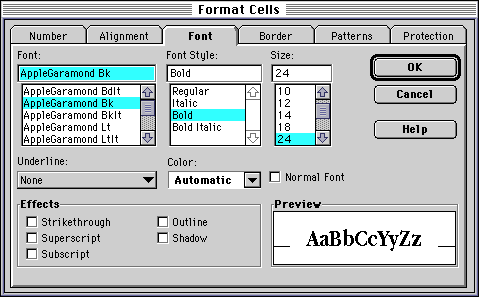
Spreadsheets can be pretty dry, so we need some tools to dress them up a little. We can use most of the tricks in our word processor to do the formatting of text. We can use : bold face, italics, underline, change the color, align (left, right, center), font size, font, etc.
We need to select the cell (or group of cells) that we wish to change the formatting and then go from the FORMAT menu -- down to CELLS -- click on FONT. Here is a picture of what you will see there. Notice that you can choose to change the alignment as well as several other options.
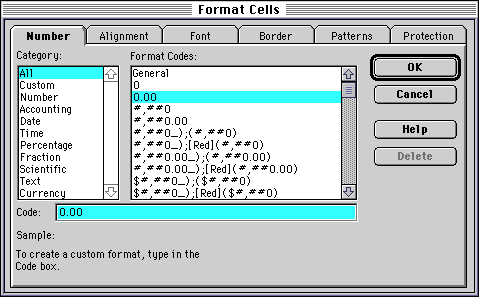
We often need to format the numbers to display the appropriate number of
decimals, dollar signs, percentage, red (for
negative dollars), etc. It is best to keep numbers describing similar items as
uniform as possible.
If we have the number 3.53262624672423, we would probably have to make the
column wider and at the least bore most people. We need to set the number of
decimal places to what is important. If this was a dollar figure that had
calculated tax it should be $3.53.
Here is a screen displaying what you would see if you select a cell (or group of cells) and from the FORMAT menu -- go down to format -- click on number.
A question that everyone (who has ever worked on a spreadsheet) has asked at
one time or another is, "Where did all my numbers go?" or same
question, "Where did all of those ####### come from and why are they in my
spreadsheet?"
The problem is the number trying to be displayed in a particular cell does not
have enough width to display properly. To clear up the problem we just need to
make the column wider. You can do this many ways.
Here are two ways to change the column width

In many spreadsheets you can also change the vertical height of a row by moving the lower edge of the row title (number).
Sometimes we (all) make mistakes or things change. If you have a spreadsheet designed and you forgot to include some important information, you can insert a column into an existing spreadsheet. What you must do is click on the column label (letter) and choose in Columns from the Insert menu. This will insert a column immediately left of the selected column.
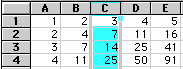
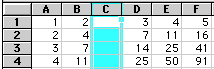
As you can see from this example there was a blank column
inserted into the spreadsheet. You might wonder if this will affect your
referenced formulas. Yes, the Referenced cells are changed to their new
locations. For example:
Cell C4 was =C3+B4
and now is =D3+B4
Likewise, we can also insert rows. With the row label (number) selected you must choose the Row from the Insert menu. Again this will insert a row before the row you have selected.
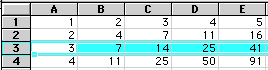
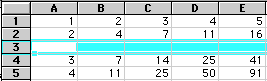
The formulas will
be updated to their corresponding locations.
C3 was = C2+B3
NOW C4=C2+B4
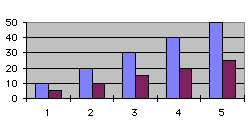
Numbers can usually be represented quicker and to a larger audience in a
picture format. Excel has a chart program built into its main program.  The
Chart Wizard
The
Chart Wizard
 The
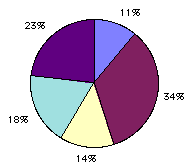
PIE Chart is usually used to look at what makes up a whole Something.
If you had a pie chart of where you spent your money you could look at the
percentages of dollars spent on food (or any other category).
The
PIE Chart is usually used to look at what makes up a whole Something.
If you had a pie chart of where you spent your money you could look at the
percentages of dollars spent on food (or any other category).
You can add legends, titles, and change many of the display variables.
Thank you to Brad James [email protected] http://www.usd.edu/trio/tut/excel/index.html
