Defining your merge document with Microsoft Word

1) Select create new blank document
2) Build your document, statement, letter, adding company logo, and text of document
3) Select tools/mail merge

4) Click (1) Main document 'Create' / form letters
5) Select Active window
6) Click (2) Data source 'Get data' / open data source - your data source
needs to be programmitically created, create manually or possibly export from
another program.

I use .txt files because they are simple for me to build. The text file you
build contains the field names in the 1st record, all records following are
actual data that maps to the fields defined in the 1st record. Here is a
sample .txt merge file generated by a program:

"Company name","Company address","Company street","Company city state zip","Company phone","Company email","Account number","Customer name","Attention to","Bill To street","Bill To city","Bill To state","Bill To zipcode"
"XYZ Company","8 Reading Rd, Pittsburgh, PA  15888","8 Reading Rd,"Pittsburgh, PA 15888","412 999-9999","[email protected]","999999","Mr. John Doe","Attn: John","101 Street","Cityplace","XX","12345-6789"

Once your data file is defined in whatever format that might be you select "get data" for existing or "create data" to build a new data source.

7) Click insert merge field shown in the tool bar above the document to add or insert merged data fields into your document


8) Use the button <> to view actual data in your document, or return to
the document template

9) Save your document in a directory you will remember where it is

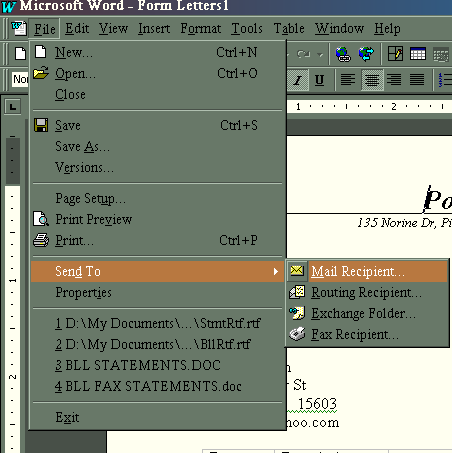
To set the document to E-mail or fax delivery, under the tools/mail merge
option, click the merge button.  Set the desired merge to option (E-mail,
printer), click setup and set data field with mail/fax address
to "xxxxxxxxxx" which correlates to an email or fax field.  Please note that "xxxxxxxxxx" is a field name that correlates to the field you have named and contains Email or Fax for proper delivery.

This is how you can manually send or test your mail merge by E-mail or fax
using Word and Outlook


Once you have saved your new document and it is ready to be used.

OTHER HELPFUL HINTS USING MICROSOFT WORD

The design mode control switches document design mode to non-design mode


The lock mode control (when closed) prevents any changes to the document.
Click this control to un-lock the document for updating the content.  Lock
mode is designed for tabbing through fields for data entry or input (Non-input
text or fields are protected/locked).


Placing a bar code within your document in Word can be completed using the
following steps.

1. Click insert, field, barcode; the following is inserted { BARCODE  \*
MERGEFORMAT }

2. If you cannot view the BARCODE field, press ALT then F9 to view

3. Remove the \* MERGEFORMAT, click �Insert merge field� and select
your field that contains a zip code

4. Enter \u (identifies as US zip code) after your zip code field so your
barcode instruction looks like:

{ BARCODE  { MERGEFIELD Bill_To_zipcode } /u }

Please note that Bill_To_zipcode is a field defined in my own merge data .txt file

5. Remember to return Word back to normal mode by shutting of field codes
pressing ALT F9

6. Save your document as how you wish to appear when starting. Just opening the merge document enables a merging function that will combine the data source with your document.
For tips on how to program opening a MS Word document through Visual Basic, visit my vbtips webpage.
To contact me, please (Author of this website) E-mail me at:
jep1965@gmail.com
 8) Use the button <
 Once you have saved your new document and it is ready to be used.
OTHER HELPFUL HINTS USING MICROSOFT WORD
The design mode control switches document design mode to non-design mode
Once you have saved your new document and it is ready to be used.
OTHER HELPFUL HINTS USING MICROSOFT WORD
The design mode control switches document design mode to non-design mode
 The lock mode control (when closed) prevents any changes to the document.
Click this control to un-lock the document for updating the content. Lock
mode is designed for tabbing through fields for data entry or input (Non-input
text or fields are protected/locked).
The lock mode control (when closed) prevents any changes to the document.
Click this control to un-lock the document for updating the content. Lock
mode is designed for tabbing through fields for data entry or input (Non-input
text or fields are protected/locked).
 Placing a bar code within your document in Word can be completed using the
following steps.
1. Click insert, field, barcode; the following is inserted { BARCODE \*
MERGEFORMAT }
2. If you cannot view the BARCODE field, press ALT then F9 to view
3. Remove the \* MERGEFORMAT, click �Insert merge field� and select
your field that contains a zip code
4. Enter \u (identifies as US zip code) after your zip code field so your
barcode instruction looks like:
{ BARCODE { MERGEFIELD Bill_To_zipcode } /u }
Please note that Bill_To_zipcode is a field defined in my own merge data .txt file
5. Remember to return Word back to normal mode by shutting of field codes
pressing ALT F9
6. Save your document as how you wish to appear when starting. Just opening the merge document enables a merging function that will combine the data source with your document.
Placing a bar code within your document in Word can be completed using the
following steps.
1. Click insert, field, barcode; the following is inserted { BARCODE \*
MERGEFORMAT }
2. If you cannot view the BARCODE field, press ALT then F9 to view
3. Remove the \* MERGEFORMAT, click �Insert merge field� and select
your field that contains a zip code
4. Enter \u (identifies as US zip code) after your zip code field so your
barcode instruction looks like:
{ BARCODE { MERGEFIELD Bill_To_zipcode } /u }
Please note that Bill_To_zipcode is a field defined in my own merge data .txt file
5. Remember to return Word back to normal mode by shutting of field codes
pressing ALT F9
6. Save your document as how you wish to appear when starting. Just opening the merge document enables a merging function that will combine the data source with your document.
