Billing V1.0 software (C) 2004
This software's initial developement began 12/28/1998, completed 2/15/2004 at which time I submitted all software, documentation to the US copyright office. I found it difficult finalizing this software through the years because "good ideas" kept coming up and seemed the project would never end! I'm happy and content now that all the pieces are in place that I wanted. There is no inventory type processing or credit card payment support. Write me if you feel this type of processing is desired. A download link is provided at the bottom of this page (below the product summary and quick reference guide), please send me a message if the download does not function as expected.
Features of Billing
Accounts receivable
Requirements to install Billing software
Operating system Windows 95, Windows 98, Windows 2000, Windows XP
Use of Microsoft Word is required to develop your own statements, invoices and letters. Microsoft Word is used to take advantage of the products data merge features. Word templates are provided for you to change or use them as delivered. A word processor capable of data merge must be used, please contact PcServ if your word processor does not support the Microsoft Word merging capabilities. To E-mail / fax statements or letters, software such as Microsoft outlook (E-mail) and Fax must be installed on your computer.
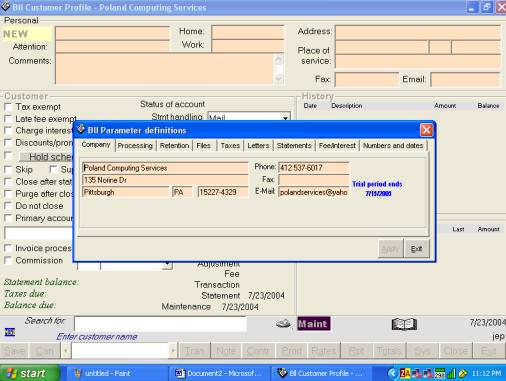
Click here to view screen shot of main profile screen
Bll version 1.0 Copyright (c) 2004
This software is protected by US Copyright laws. There is a one year free trial period, after the trial period there is a $40 (American) registration cost to continue use of the software. See notes below regarding using the software for the 1st time.
Below are notes regarding to using this software for the first time:
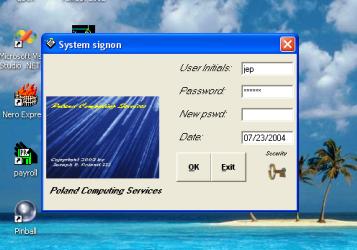
The above sign-on screen always appears. With the first new user id and password entered "ALL" security access will be granted to this user. All user id's following will have the next to the lowest security access. The first user id or the ADMIN user id can be used to upgrade security access by clicking the security key shown on the sign-on screen.
Immediately after entering the first user id, the system parameter box appears. At this time you will need to enter your company name, address, phone number as you would want to see it appear on your statements or other correspondence. The trial ending period will appear on the company tab. Please note there are a number of tabs to review and set up as you become more familiar with this software. Other tabs include: Processing, Retention, Files, Taxes, Letters, Statements, Fee/interest, Numbers and dates. At this point after entering your company information new customer accounts can be manually added or converted into the billing system. If you would like assistance in the conversion of your accounts I should be able to help you in this process.
Audit customer maintenance and transaction posting
All functionality available from the customer profile
Automated transaction posting
Backup and reload utility
Business alert reporting
Charges by fixed or variable amount, hour, quantity or by season
Combined statements for accounts with more than one property
Continuous or monthly periods for statement processing
Contract agreements
Conversion utility for first time use
Customized statements, invoices and letters using Microsoft Word
Description size for statements and invoices not limited
Discounts, price breaks and promotion support
Employee commission tracking
Estimate and request preparation tool
Fixed rates retained for future use
Flexible parameter driven
General ledger interface
Help interface for fields, screens and functionality
Late payment fee, minimum payment not met fee and finance charging
Manual posting to all accounts using one input screen
Microsoft Access 97 database connectivity
Multiple company support
Over 110 different reports
Past history inquiries have an age limitation set by you
Primary account balance transfers from secondary accounts
Rate increases or decreases may be applied across entire customer base
Reactivate expired fixed charges
Release upgrade cost should be minimal, no charge for requested changes
Reload data capability built in
Retention controls for accounts, history, statements, etc
Run special promotional offers for a set time period or frequency
Search for accounts meeting special criteria
Secured environment
Statement messages may be customized
Statement, invoice, contract and letter printing
Statement, invoice, letter and estimate Word templates included
Support is free of charge by phone, writing or internet request
Track bank deposits during current period or year to date
Transaction descriptions posted may be changed for statements
Transaction summaries by account or all clients for current and the last four years
Use the system with end of day, month, year or special snapshot backup of customer data
Disk space with no customers or history 16 Megabytes
Disk space with 100 cust/1 yr of history 16.9 million bytes, 16578K or 16.19M
Free memory required 5 to 13MB
US Copyright TXu-1-144-053 dated Feb 20, 2004
January 2004
Version 1

Quick reference guide
1	Installation and set up instructions
2	Customer profile
3	Statement processing
4	General ledger
5	Critical file back-up
6	Questions and Answers

1. Installation and set up instructions
How to install your new software

Requirements
Microsoft Word 97 or greater, Windows 95 or greater

Internet Installation
NOTE: If you have received a Cd-rom for this software, please
skip to the Cd installation section.
Step 1 � For the download files, build a new directory to either retain
or remove after successful install.  You can select open so you won�t need
to maintain install files.
Step 2 - Download InstallBilling.exe from step 1.
Step 3 � Start the downloaded InstallBilling.exe install program.
Step 4 � Follow installation procedure below.
Continue with �Installation procedure� Step 1

CD Installation
Insert your software into the cd-rom drive of your computer.
Automatic installation is started.

Installation procedure
Step 1 � Begin the install by clicking the �Install Billing 1.0� button.
Step 2 � Review and agree to the terms of this software.
Step 3 � Click �continue� at the program group list � your programs will
be installed in the highlighted PcServ group.  This group will be found
under the window�s �Start� menu, programs list.
Step 4 � Wait for the installation to complete, click Ok.
Step 5 � Use your new software.

Starting the software
The windows �Start� button, under programs and PcServ, highlight and click
the Billing menu task.  A sign on screen appears, enter a three character
user id (or your name initials) and a password of your choice.

�Sys� - Parameter set up
Before using this software, you will need to review and establish your
companies processing options.  You may choose to use options as delivered.
Defining your company name, address, phone number and tax liabilities are
required.

Registration
You will need to click the �Key� image found on the sign-on screen to assign
serial and registration numbers.  If you do not complete registration the
software will prevent cycle processing past the defined trial period or cycles
(from three periods to a one year trial), also multiple companies will not be
permitted.  View system parameters to determine your trial period in effect
for your software.

2. Customer profile
All functions of the Billing are started from the customer profile.

Features of Billing

The profile permits adding and changing customer account information.
Additional options on the profile provide necessary system functionality.
Customer notes, contract agreements, product definitions, fixed rates,
recurring charges and transaction posting are provided to support and track
account receivables.

Conversion of customer accounts
Please contact PcServ for assistance or use the interface utility provided
with this software to convert your existing system to Billing.

3. Statement processing
Generating statements and invoices

After a period of gathering transactions and charging customers for service
or products, you will want to create statements or invoices.  The �Close�
button on the customer profile generates customer statements, invoices and
letters.  An unregistered version of this software can complete processing
of up to three statement periods or a one year trial period of unlimited use.

Printing correspondence
The statement, invoice and letter application is used to view and print
customer correspondence.  It may also be used to join multiple statements
into a single statement.

The Billing application can generate different types of automatic letters
such as a �New account letter� or �Rate change letter�.  See the Billing
�Sys� parameters to control creating these letters.

All statements, invoices and letters require a Microsoft Word document.
Such sample documents have been provided and may be changed according to
your business needs.  Use the �Format� button on the statement detail
screen to change the Word document used.  Use the �Edit� button to tailor
your document (using Word) for correspondence according to your business
needs.  If you need additional assistance, please use the help facility (F1)
or contact the author of this software.

4. General ledger
The General ledger application receives automated posting entries from billing
of account receivables, tax liabilities, sales, net income or loss, etc.  New
general ledger accounts are easily added.  The �Input� button is used to
manually post entries to your general ledger accounts as needed.  Several
reports provide basic business reporting such as trial balance, balance sheet
and income statement.

5. Critical file back-up
Back-up of your data is written to a set defined folder path on your
computer.  Click the �Sys� button, �Files� tab to show or set the location.

Automatic back-up�s are taken: 1. On exit of Billing if changes were made, 2.
Before statement generation, 3. Before end of year switch to a new year.
These backup�s are placed where you specify.  If you indicate to back-up to
your C: drive, please consider what would happen if you lost your C: drive.
In addition, manual back-up of data may be completed by using the Import /
Export file utility or the back-up to A: (3 �� disk) option from the customer
profile �Menu�.

6. Questions and answers
All software in this distribution comes with a complete help feature assisting
you to find additional information.  In general pressing the �F1� key starts
the help facility.  For help on a part of the screen, move your mouse over the
questioned area, then press the �F1� key.

Any processing issues or enhancements you would like to request, simply
contact the author.  All new ideas are welcome and appreciated.  If a request
is important enough for your operations, it would be promptly completed for
registered clients without additional charge.  See �Registration of your
software� on page 2, on how you may contact the author.

This software was developed using the following licensed and registered
development applications:
Microsoft Visual Basic 5.0
Microsoft Word 97
Microsoft Access 97
Seagate Software Crystal Reports for Visual Basic 4.6.1
Download page for Billing V1.0 software