Making Text Smaller or Larger in IE
If you're using Internet Explorer, some websites allow you to change the text size on their pages by making a simple adjustment. I don't really have much experience with other browsers than that so I'm not sure about this function with other browsers than Internet Explorer, although I think Firefox has this function available for all or most sites, and even a more customizable version.
In Internet Explorer, not all websites let you do this, though, as some have applied to their font size what I think is called an "absolute size" so that no matter what the font stays that size and cannot be resized through the website viewer's browser. This is especially common with sites focusing a lot on design rather than function and information. But anyway, this tutorial refers to those sites that you can use it with.
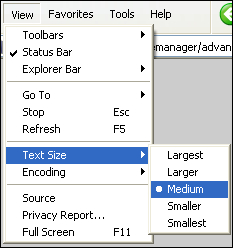
Okay. With all that said, to make the text size larger when you're looking at a website that lets you, all you have to do is click on View on your internet toolbar, then go down and hover your mouse over where it says Text Size, then finally choose what size you'd want the text. The options should be something like Largest, Larger, Medium, Smaller, and Smallest. Most likely it was by default set at Medium.
Another way I know of that you can do this (which is the way I usually use since it's more convenient) is by using the scrolling wheel on your mouse if you have one. Just hold on the Ctrl key on your keyboard and scroll either up with the mouse scrolling wheel for making the text smaller, or down to make the text larger.
Note: You may have to refresh the page (where you resized the text) after resizing because things might be overlapped or distorted until you do 
That's pretty much it. If you have any questions related to this tutorial, please feel free to contact me with this form or just email me here. Although it's not required, if this tutorial helped you at all I'd sincerely appreciate it if you'd link me or left a comment in my guestbook :)