Photo shop 69 Disc
1
Chapter 1
Lesson
1 Make a picture more colorful and
bright
-Frist click at create new
layer then yo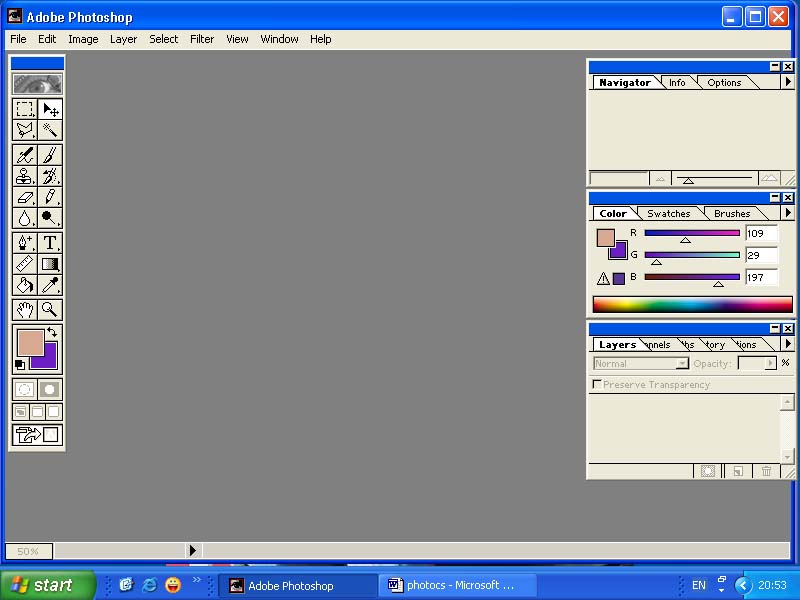 u will get the new layer
-Then you will put the color on
the picture that you want to make more colorful
-Then you go to set forgroung
color
-Then click at ok and then
click at Geadient tool and then you change the layer became
Multiplu
Lesson
2 Filter for
picture
-
Normally if you want to
make a picture more interesting and nice to look at, you can do that by put the
filter in the picture on lens and you will get a picture as you expected
-
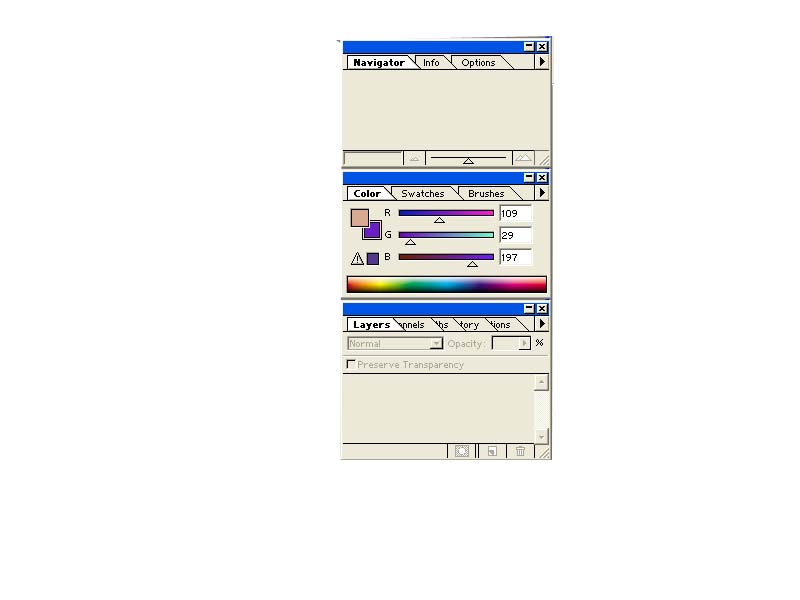
First open file of the
picture that we want to put the fliter ( you have to work in place layers
)
-
Then click create new fill
or adjustment layer
-
Then solia color then you
will see color part,
-
So choose coulor that you
need
-
Then click at
OK
-
Then click at layer at the
color mode use Mautiply and you will get it
Lesson
3 Make more coulorfull by put
the Gradient
-
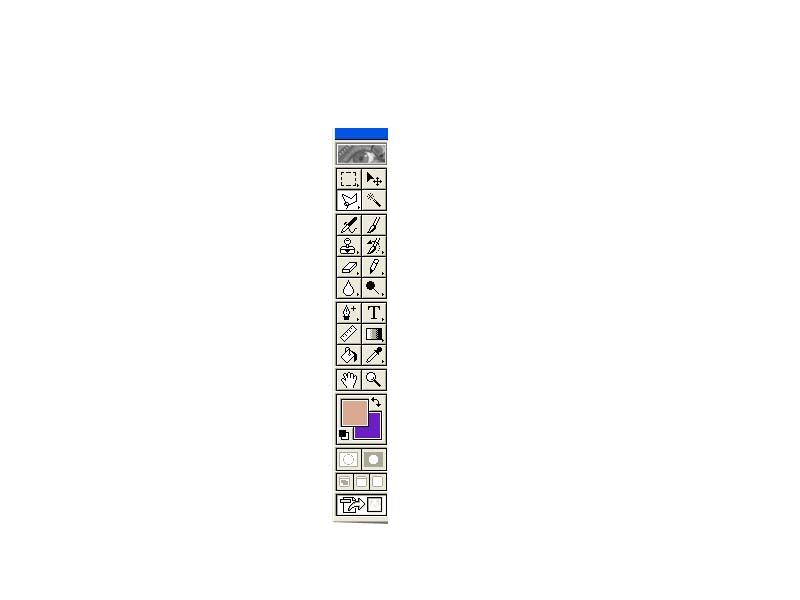
First open file of the
picture which you have to unlock
the picture before ( dubble click at layer )
-
Then Add thrnlayer style
-
Then go to Gradient
overlay
-
So you will see the window
which called layer style
-
Blend Mode : Color
-
Opacity :
100%
-
Gradient : Linear
-
Angle :
130
-
Scale :
100
-
Then click ok
Lesson
4 Change the color picture
become Cpier picture
-
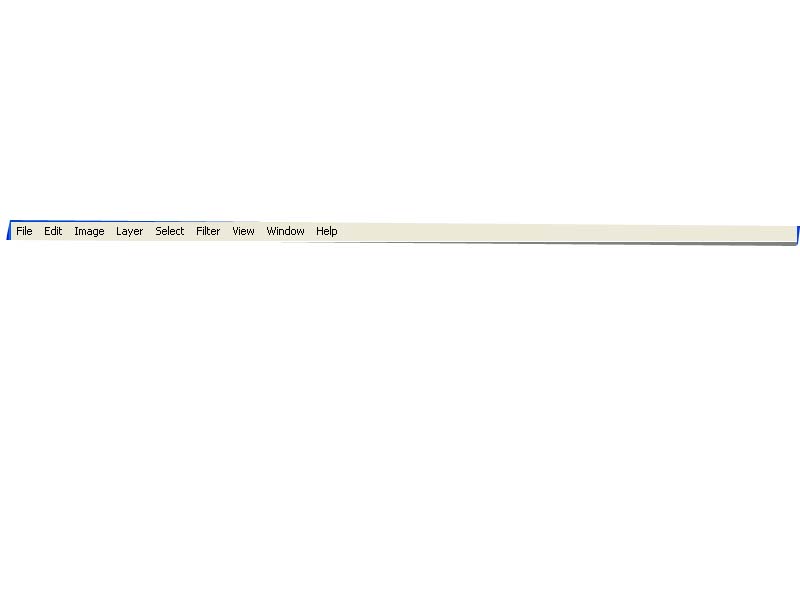
First open file the
picture
-
Then Click Image → and
then click at Mode
-
Then Grayscale becouse you
have to change became black and white picture before
-
After that click at the
image → then Mode →
then CMYK color
-
Then click at
image then adjustment
-
Then Desaturate
Lesson
5 Change the
color more colorfull and Brightness
-
First open file
of the picture
-
Then click at
image
-
Then adjustment
-
Then auto level
..so you will get it
Lesson
6 Adapt Brightness of the
picture only the part that you need
-
we can change how
brightness of the picture that we want, Not all of the
picture.
-
First Open file picture
that you want to adapt
-
You can use CURVES, then
click at the image
-
Then Adjustment at Curves
-
Then you can chage how
bright as much as you wany
-
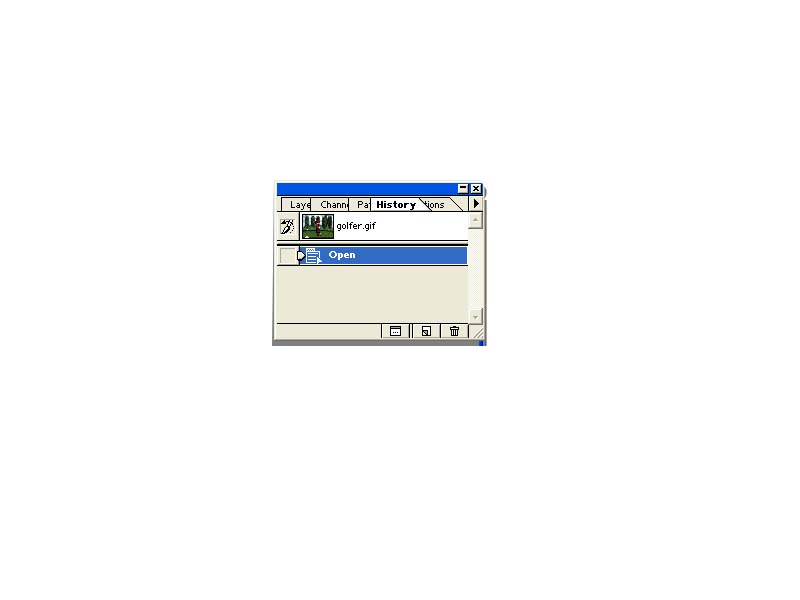
Then you have to go to the
window which on the right hand side on then screen called
History
-
Then click at Create new
snapshop
-
Then back to History’s
window again
-
Then click at Snapshop one
work and clicl at the First Snapshop
-
Then click at History
brush tool
-
Then we paint at the part
that we want to make more bright
- Then you will get it
Lesson
7 Change the picture that we
took in the day time became in the evening time
picture
-
Open file picture then
click at Image then Adjustment
-
then levels and change in
the day time became evening time picture
Channel RGB
Input level
0 0.70 255
Channel RED
Input level
0 1.50 255
Channel
blue
Input level
0
0.50
255
Then click OK, you will get it
Lesson 8
Change the picture in the day time became a night time picture
-
Open file picture
-
then Image→ then
Adjustment
-
then channel mixer then click at
Monochrome
-
then change at the first window, you will
change at RED become +100 →constant became -30%→ OK, However we can make more beautiful by you can put
the star at on the picture
-
click The Filter
→ Render → lens flare → click at 105mm prime at lens type → OK, so you
will get it.
Lesson
9 You can change
the mood of pictures that looked bright and beautiful become dam
picture.
-
Open file of
the picture → click at Image → Adjustment → invert → back
to
image →
adjustment → desaturate
-
Click at bottom
called create a new layer
-
Change the
color for ground become back and change background become white
-
Click at print tool → put at new layer → filter → render
→color → change at lending became →
line light,
-
Then make a new
copy and
-
Then change
lending mode became → Hard Light and if you want to make
more interesting. you can click at
layer background →
adjustment
Hue/saturation → click at colorize
→ change Hue as you want → OK, so you will get it.
Chapter 2
Lessons 1 make a graphic picture like a wave on the water like we
throw the stone on the skin of water.
-
We have to make
work window first
-
Width 400
pixels × 300 pixels
-
Change foe
ground → blue
-
Background → white
Use paint tool put the color on the window
work.
-
Then go to filter
→ render → clouds
-
Then go to filter again
→ distort → zig zag then it will show the window then change .
amount became 100 and
ridges became 10 and style → around centre → click OK and last filter again by press Ctrl and F → then go to
filter → sketch → chrome → change default → became 10 and smoothers → 7 → OK
→ after that we have to change color first → click at image → adjustment → Hue/saturation click at colorize → then change color as you want → then OK
Then more blight for water→ go to filter → sharpen → unsharp mask→ then we have to change the detail in the
window,
Amount
50%
Radios 1.0
pixels
Threshold: 0
levels
Lesson 2 shadow on the water
Open file the picture (background) → then open the
picture that we already dricut → move drag the picture that you want to make a
shadow on the background picture lasson toon selection the bottom of the picture after you got thee
part that you already selection → filter → blur → motion blur then change, How blur as much as you want,
you can see at the preview screen → click OK → filter → blur
→ Gaussian
Blur → then OK → then copy the picture, that you want to make a shadow
at the new layer → create a new layer → then use paint tool for move drag picture out
→ Edit → Transform → flip Horizontal → then click Ctrl + T at the key board then you can turn
around the picture in the right section → then click at right → Distort then change the picture as you need
→ then press ENTER at the keyboard → then go to filter → Distort → Zigzag
→ then it will show on the window, we have
to change :
Amount→ 4
Ridges → 6
Style → around centre then OKThen we have to change opacity (
at the right hand side ) → about 30% and
then you will get it.
Lesson3
use Blanding technical for over lap the picture
Open file that
you want to over lap → then click
laser tool then select the part that you want → then go to
select → feather then change feather Radius : 30then OK
→ then copy the part that you selected Ctrl + C at the
keyboard → then open the background picture then press Ctrl + V at the keyboard for select the
picture that you selected mode to the background picture → then go to Blanding mode → layers → you can choose the mode that you want → then if you choose it → then go to create new fill → curses → then change it as you want → click OK, so ypu will get it.
Lesson 4
Change the background can
move
-
Open file the picture
-
Selection from the part of
picture that you don’t want to move.
-
Then copy layer the new
one
-
Click at menu SELECT
→ INVERSE → then delete background of a new layer by you can press
delete at the keyboard.
-
Back to the first layer
then put filter
-
Click filter → blur → motion blur → then change distance became 70
-
Angle → depend on you, then you will get it
Lesson
5
Create the
movement picture from the file picture by filter blur technic
- Open the
picture that you already dricut
-
Open background
→ drag mouse drag to the picture that you already prepared to the background
window
-
Then copy the
picture for a new one
-
Choose the
layer below → filter → blur → motion blur
-
Then change as
you need → then on background
-
Then move the
picture that you did motion Blur backward a bit
-
Then change
opacity became → 54%
-
Click first
layer on the top
-
Use laser tool
select the end of the picture
-
Then go to
select → go to feather then you will see ion the window Feather Radius →
15 pixels then click OK
Then go to
Filter → Blur → motion blur : Distant : 30 pixels / Angle→ 18 and OK
Lesson
6 Create some burn on background
-
Open the
picture that you want to do
-
Use laser tool
and select the e part that you want to make burn then press delete at the
keyboard
-
Select → modify
→ Border → 25 pixels click OK
-
Select →
feather → 6 pixels click OK
-
Image →
adjustment → Hue/saturation :
-
Click at
colorize
Hue → 0
Saturation → 20
Lightness → -95
Then OK and press CTRL + D
to preview
Lesson 7 we gonna make
flash of lightning
- Make a new window depend on you
- Click
gradent
- Change for ground → white ,
background → back
- Drag tool gradent from left →
right then you can choose
color
- Filter → Render
different clouds
- Image → adjustment →
invert
- Create new fill or adjust
layer
- Levels and make it bright then
click OK
- Go to create new fill or adjust
layer→ Hue/saturation click
at colorize and change the color that you need then
click
Lesson
8 Graphic rain fall like
flash
-
Open the
graphic picture that you want to put the rain fall
-
Make a new
layer
-
Click equipment
brush tool
-
For ground →
white
-
Then put on the
picture as much as you want
-
When you
already get the picture you need then you have to change opacity:
down
-
Click right at
layer → Blending option→ you will see on the window and called layer style, so
you have to change like this→ click at other glow choose the color that you want and then
click OK
-
Blend mode :
liner light then
OK
Lesson 9 mix the picture
together by layer technical
-
Open file
background picture
-
Open the
picture that you already dricut
-
Then move the
picture to background
-
Click at the
picture layer
-
Change opacity
down till you can see background clear
-
If you want to
make some part of background show on the picture, so you have to do like
this :
First
-
Print tool
chooses
-
Make a line
cover the part that you want to do
-
Click right →
make selection → then feather Radius 1 pixels click OK
-
Then click
layer at the picture then delete layer shape
-
Change opacity
became 100% then go to select invert
-
Click at layer
mark
then if you
finish you will see some part background show on the
picture.
Lesson
10 change picture became lens y’s
picture
-
Open file of
picture → image
-
90۫ CW → then click at filter → distort → shear →shear’s window you
have to click at the paint and move it curves → then click
OK
-
Click → image →
retate carves → 90۫۫ CCW
-
Then use crop
drag mouse in the part that you want and then press OK
Lesson
11 put effect for picture (LIGHTS FOR
PICTURE)
-
Open file of
picture
-
Then click
filter → render → lens flash and choose 50-300mm zoom click
OK
Lesson
12 make picture more clear , deep and near.
To make the point of the picture
more interesting.
-
Open file of
picture that you want to make some point More interesting by make another point
blur
-
Have to copy a
new layer
-
Then select the
point on the new layer
-
Click select →
invert → then delete
-
Back to the
first layer
-
Click filter
→ blur → Gaussion blur
-
Change how blur
at Radius then click
OK
-
Then CTRL + D
to put selection out and then you
will get it.
Lesson13 make blight and clear of the picture ,
when you took a picture but it not clear.
-
Open file og
picture
-
Click at filter
→ sharper→ sharper more
-
Then if you
want more clear CTRL + F and then you will get
it.
Lesson
14 make more blight for
picture
- Open file picture
-
Make selection
of brightness
-
Then click
right → then make selection then click
OK
-
Click add layer
mark at layer’s window
-
Then change
make became soft light
-
Click at
filter → blur → Gasussion blur
-
Then change
radius more down then click OK
-
Then you will
get it
Lesson 15 we will make a new picture become
old picture
-
Open file
picture
-
Click at image
→ adjustment → desaturate
-
Click filter
→ noise → add noise → amount 10% then OK
-
Image → adjustment → levels then cjange → click OK
-
Filter → blur → Gaussion blur and put radios → 0.1 pixels
-
Image → adjustment → Hue/saturation click at colorize : Hue → 13
Saturation
→ 14
Lightness → 0
Then click OK you will get it.
Lesson
16 put the rainbow on the
picture
-
Open file
picture
-
Make cruves
line → click right → make selection
-
Make new layer
and put the color inside
-
Put all the
color that you want
-
Click at
filter→ blur → gaussion
blur
-
Then change
bleanding mode became screen and then you will get
it
Lesson
17 you can change view or colorful
and bright by you want to change new style ( the color of the sky
)
-
Open file
picture
-
Then seletion
the part of sky, you will use the tool called magic wand tool
-
Change
Tolerance : 25 and then click at the picture
-
Then dubble
click at layer to unlock and then press delete at the keyboard, so you will make
a new sky by you will make a blank file :
width → 900 / height→ 400
-
Then changr for
ground → blur, background → white
-
Filter→ render → clouds , then put in the view picture change
sky’s layer under of view picture
and then adjustand you will got it
Lesson
18 you can make a
butterfly
- Make a new file → width 500pixels
→ height 400 pixels
- Then clikc at bottom shape
too
- Then color shapes that you want
and you make a picture on a
file
- If you get it click at CTRL
bottom, then click butterfly
picture on the layer. you will get selection line,
then delete this layer, then open the picture
that you want to put the
butterfly with.
Lesson
19 you will change a photo became
painting picture
- Open file picture
-
Click filter
→ artistic water color and then
adap as you want then click OK
-
Image → adjustment → brightness/contrast and then change as
you need and then press OK
Lesson
20 create a glass
ball
- Make a new file → width 300 pixels
→ height 300 pixels
-
Resolution
100pixels/inch then click OK
-
Then click for
ground become red color ( bright red )
-
Then click
background → dark red
-
Then click tool
→ Eliptical Marqeuee tool
-
Then change
feather become 0 pixels
-
Then pressshift
at the keyboard and drag mouse make a new circle
-
Then click at
Gradient tool and choose color you want
-
Then click at
create new layer to make a new layer
-
Drag mouse on
the circle
-
Then click a
new layer
-
Click
select → color range : Fuzziness : 100 click
OK
-
Then make a new
layer
-
Then click a
new layer before to make a selection on the circle
-
Click selection
→ invert
-
Then
selection→
feather
-
Feather Radius
30 pixels then click OK and CTRL + ALT + SHIFT together
-
Click the first
layer
-
Then click CTRL
and black space for put the color in the picture
-
Make a new
layer press CTRL then click mouxe at the first layer to make a selection
again
-
Then
select → modify → contract to change contract by 15 pixels
then Ok
-
Select →
feather → feather selection → feather Radius :5 then
OK
-
Click tool bar
→ Eliqtical Marquee tool → feather : 10
pixels
-
Click at layer
background
-
Stop
selection
-
Then you will
get it
Lesson
21 Devision door as in
movie
-
Make a new
file → width 400 pixels
→ height 400 pixels
-
Then click D on
keyboard to reset color to start
color
-
Click filter
→ render → clouds
-
Filter → stylize → extrude→ then OK
-
Filter→ brush strokes → Accented edges then
OK
-
Filter →
stylize → find
Edges
-
Image→ adjustment → invert
-
Filter → Distort → polar Coordinates click at Rectangular
to polar then OK
-
Filter → Render→ lens flare → Brightness → 160 then OK then to change contract
by : 15 pixels then
OK
-
Select → feather → feather selection feather Radius : 5
then OK
-
Click tool
bar→ Eliqtical Maurquee tool
Feather : 10 pixels
-
Click at layer
background
-
Stop
selecttion
-
Then you will
get it.

