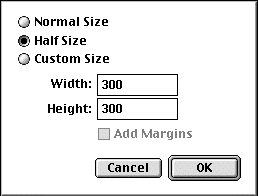
The video can be handled at normal size, at half size, or at an arbitrary custom size. If you use a custom size, you have the option of adding black 'margins' to the edges of the video to keep the picture's proportions.
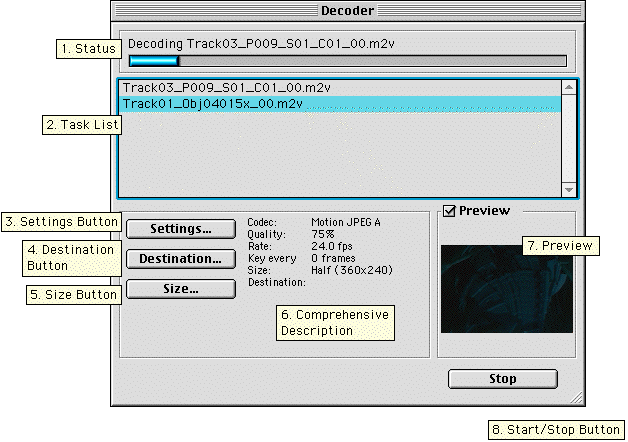
In the status area, the name of the current task as well as the progress for that task are displayed.
The name of each task is displayed here. Tasks are decoded in the order in which they appear here. Tasks are added to this list by using the 'Add to Decoder�' command in the File menu or by dragging a file to the decoder window. You can remove a task by selecting it and choosing 'Remove' from the File menu.
This button allows you to change the compression settings for the selected task. Clicking this button will display the standard QuickTime compression settings dialog. In this dialog you can set such options as frame rate, quality, key frame rate and codec type. If you choose 'best' for the frame rate, the decoder will attempt to determine the frame rate from the mpeg2 file.
Click this button to change the location of the decoder's output file for the selected task.
This button allows you to change the way the decoder scales the decompressed video before QuickTime compression. Clicking this button results in the size dialog:
The video can be handled at normal size, at half size, or at an arbitrary custom size. If you use a custom size, you have the option of adding black 'margins' to the edges of the video to keep the picture's proportions.
This area displays a summary of the compression settings, size, and output location for the selected task.
A scaled down preview of the video is displayed here. Note that this preview reflects the image before compression and thus will not contain artifacts that may exist in the final video.
Click this button to start or stop processing tasks. Tasks are processed in the order in which they appear, and all tasks that appear in the task list are processed. If a task is stopped, it cannot be continued from that point, it must be started again from the beginning.