 |
| 1) Make your image, mine is 200 x 200 pixils. |
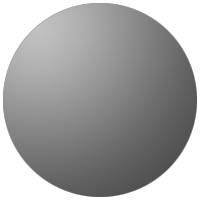
| 2) Create new layer. Use the elliptical selector tool. Hold shift and make the circle fairly large. Now click on the Gradient tool, change it to "Radial Gradient" and using the "Foreground to Background" option. Make the foreground color bright grey and the background a dark gray. (fig 1 |
 |
 |
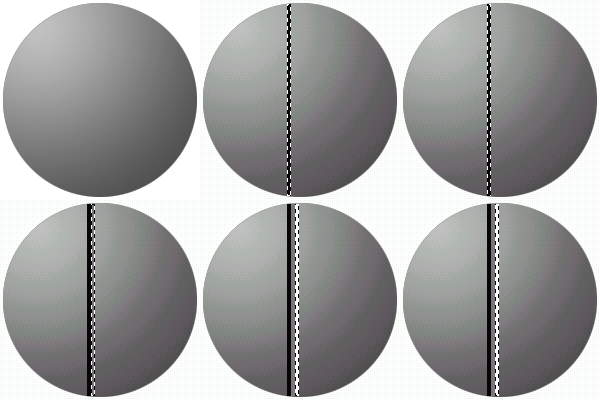
| 3) Use the rectangular slecetor tool and use a 4 (or less) pixil wide line from the top of the circle to the bottom. Fill it black, then nudge over 4 pixils, fill 50% grey, move 4 pixils, fill white. You now have a 3D effect, and your screw! (fig 2) |
 |
| FIG 1 |
| FIG 2 |
| 4) Change the lines layer to overlay, or whatever, mess around, and hope my screw screwed you over :). |