| 1) Create a new layer. Use the rectangular selection and make the size of the button you want and fill it black. Deselect. |
 |
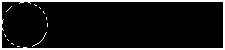
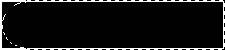
| 2) Use the elliptical holding shift, and select from the top right, down to the bottom of the black rectangal, like in fig 2. DO NOT DESELECT. Then use the Rectanular selection holding shift and go from the top flat part of the circle to the bottom flat part (fig 3). Press <Ctrl+Shift+I> and delete. |
| FIG 1 |
| FIG 2 |
 |
 |
| FIG 3 |
| 3) Repeat step 2 on the other side of the sahpe. We now have our rounded off button! (fig 4) |
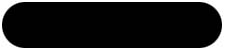 |
| FIG 4 |
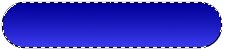
| 4) Ctrl Click on the layer to select it. Click on the gradient tool and use the "Foeground to Background" option. Make your foreground the color you want and the background a light color than the foreground (fig 5). |
 |
| FIG 5 |
 |
| 5) Use linear gradient and drag from top to bottom and it should look like fig 6. |
| FIG 6 |
| 6) Now go to Select>modify>contract and contract it by at least 2 pixils (or more). |
| 7) Create a new layer. Click on the gradient tool again and use the "Foreground to Transparent" gradient. Make your foreground white and drag the gradient cursor from the top of the selection to the middle and deselect. (fig 7) |
 |
| FIG 7 |
| 8) Lastly, gaussian blur it by 1 to 3 pixils (I used 2). And your all done! Add whatever effects you want to it |
 |
 |