Fedora Core 1, MP3's and XMMS
|
Fedora Core 1, MP3's and XMMS |
||
|---|---|---|
|
|
|
|
|
|
||
The Problem:
Fedora Core 1 doesn't include support for MP3 files. It either displays a licensing problem message or scrolls through the mp3 files.
The Reason:
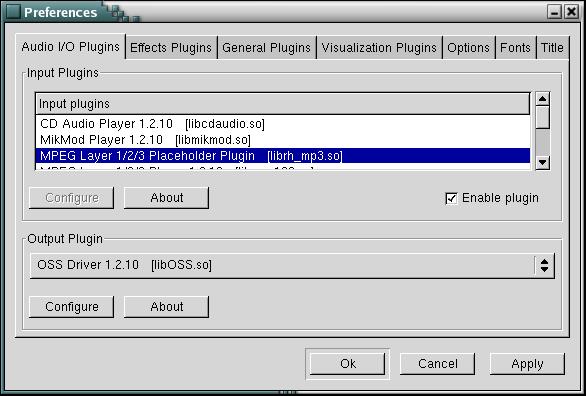
Apparently there are some problems in some countries with the use of MP3 files. In attempt to all use open license software the Fedora crew opted to put a MP3 input placeholder rather than the actual encoder. (see screenshot below)
|
|
|
Figure 1, the XMMS Preferences screen with the MPEG 'placeholder' plug in. |
The Fix:
Build and compile XMMS using source code from the XMMS website and install.
The Steps:
Note that I use filename.x.x.x as a convention here, replace it with the version wish to use aka xmms-1.2.10
Download the source tar ball from the XMMS web site. (The tar.gz or the tar.bz2 should be fine, just don't get the RPM is it has the same problem =)
Extract the tar ball into your home directory. Open up a terminal window and issue the following : tar -xvzf xmms-x.x.x.tar.gz
Change into the new directory with cd xmms-x.x.x
Configure the XMMS Build by issuing /.configure at the bash prompt. (Note: this takes some time to complete)
Build XMMS from scratch. Issue make at the bash prompt. (Note: this takes a LONG time on slower machines. Don't worry! Go get a coke, beer, pizza whatever =)
Once the make is finished you need to change over to your root account by typing su at the bash prompt and enter in the root password at the prompt.
Install the newly built (with MPEG 1,2, and 3 layer support) type make install. (no period)
After the install process is complete, exit out of root and back to your normal user account by typing exit at the bash prompt, then start up XMMS by typing xmms at the bash prompt. XMMS should start normaly. If you don't already add a few MP3's to your play list for testing.
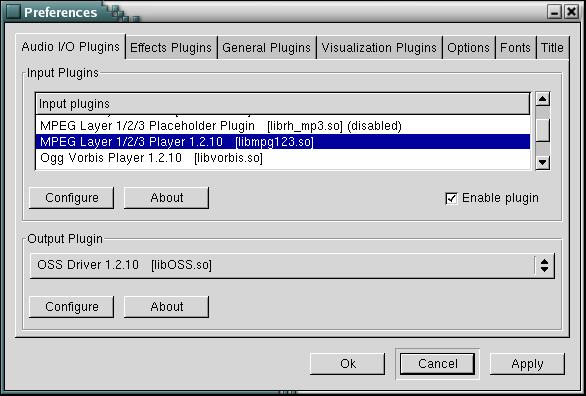
With XMMS in focus type CTRL-P This will activate Preferences form for XMMS. The first tab should be Audio I/O plug ins. Disable the placeholder plug in and enable the one labeled “MPEG Layer 1/2/3 Player x.x.x [libmpg123.so]” this is the MP3 player plug in. (See screen shot)
|
|
|
Figure 2, the XMMS Preferences screen with the MPEG plug in's enabled properly. |
Make sure you have the correct output plug in selected for your system. (Note: I use the Old OSS drivers because I don't feel like mucking around with ALSA, but if you have it, select it here!)
Enjoy! };8>
If you have any difficulties with these instructions feel free to e-mail me and see what I can do, just remember to include everything you can about your system and what went wrong.
All Images and Content © 2004 by Phantomgraph