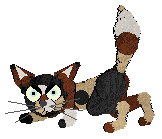
In this image I want the white area to be tranpsarent so i am going to make this area a bright colour, in this case hot pink. Do this by first of all selecting the background filler which should be on the right toolbar, and look like this..

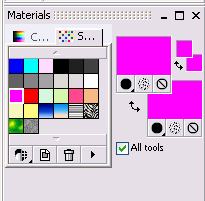
Now select you chosen colour on the materials pallette, both left click and right click on the colour, so that the materials pallette looks like this, with both the front and background colour are changed.
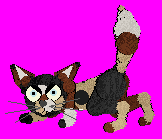
Your image should now look something like this....
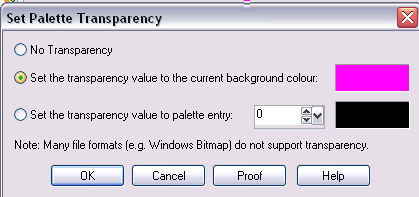
The next step is to make your chosen colour transparent, do this by going to Image (on the top menu), Pallette, Set Pallette Transparency. A box will now appear and you should change the settings to those in this picture, and click OK
Your Image should now have grey and white chequers in the areas that you want to be transparent, like this....
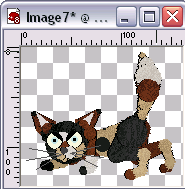
Now you have to save the pic as GIF, as this is the only image format that supports transparent pics, with this done your pic will be transparent!