Screen
Shot Documentation
Ed
668 A2 Don Wolff and Sonny Portacio
by
Heather Angel Pozzi
This
lesson is designed to help my future students upload their webpage to our
website on Geocities.
|
1.First
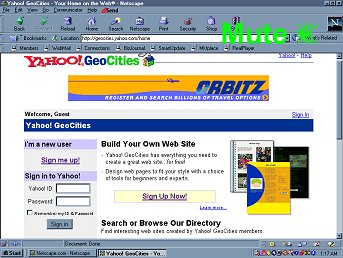
log onto the internet: Type in www.geocities.com
into the address bar of your NETSCAPE Browser.
Once you are there, it will
look like this:
|
|
|
|
|
2. Next
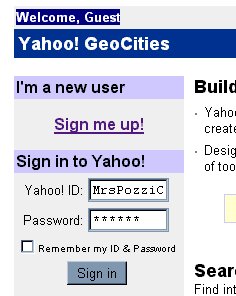
go to the Yahoo ID
and Password
screen
and input ID and password given in class.
Once you have typed that
in, click"Sign
In."
|
|
|
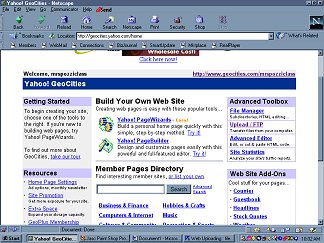
3.
The
screen should look like this... |
|
|
|
|
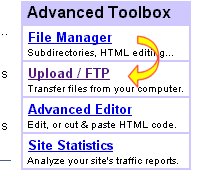
4. Now click on UPLOAD/FTP |
|
|
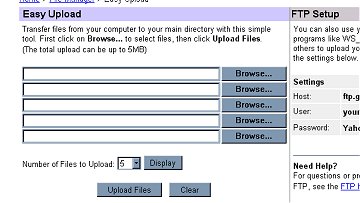
5. This
is what you will use to locate the files on your desktop folder and upload
them to the world wide web. Notice the buttons say "BROWSE"
|
 |
|
|
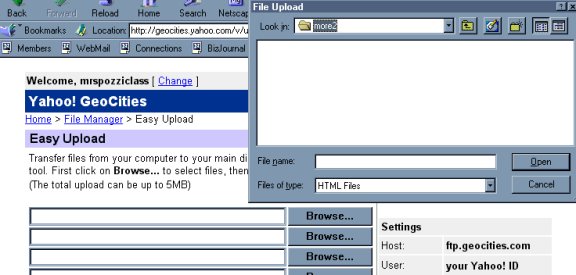
| 6.
Click
on the BROWSE button and
a window will pop up like the one below:
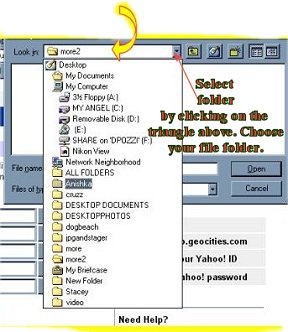
7. Take
your mouse and go to the window.
|
|
|
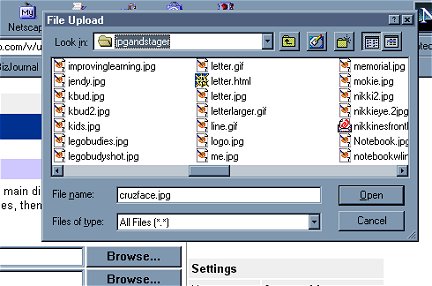
| 8.
Once
you have selected your folder by clicking on it, the new window look like
this}
The
LOOK
IN window should have your Folder
Name in it.
Make sure that FILES
OF TYPE is set to
ALL FILES. Do this by grabbing the triangle,
and a menu will pop up. CHOOSE "ALL FILES"
Then
look for the file you want and select it by clicking on it. The name
of the file will then appear in the FILE NAME
**REMEMBER
this symbol " "
means
that is an HTML page, the
rest of the symbols in this box are picture files. Select the HTML
files first.... "
means
that is an HTML page, the
rest of the symbols in this box are picture files. Select the HTML
files first.... |
 |
|
|
|
9.
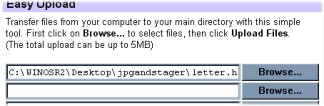
After pressing the OPEN BUTTON your file will
automatically be inserted. |
| |
|
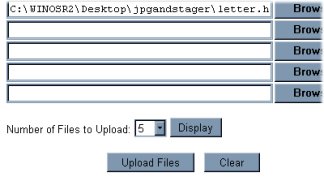
| 10. Now,
click on the UPLOAD FILE button |
 |
|
|
 |
11.
You
will be brought back to this screen... |
|
|
|
|
|
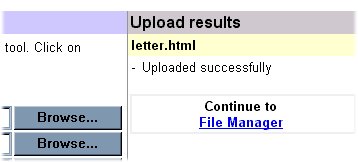
12. Look
at the UPLOAD RESULTS.
It list your file(s).
*If
it says "Uploaded successfully,"
you
have succeeded!
|
 |
|
|

