
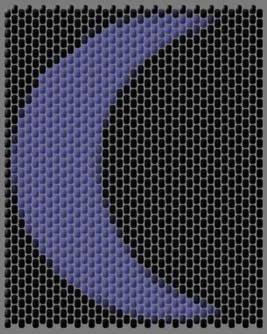
How to use Paint Shop Pro and Bead Painter to make bead patterns. |
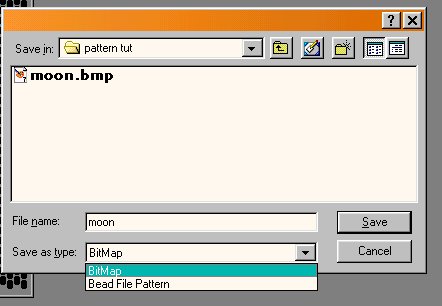
First open a picture in PSP and then save file as a Bitmap (.bmp) |
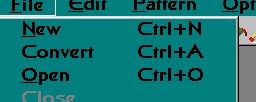
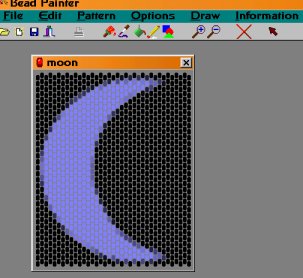
Open Bead Painter Click on file > convert Open the .bmp file you saved in PSP |
Download PSP |
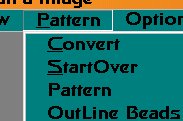
Click on Pattern > Check outline beads Pattern > Pattern > (your choice, I did Peyote) Pattern > Convert |
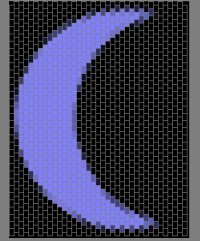
Here is what it looks like. |
Save your file again, you can overwrite your previous file as a .bmp |
Close this window (X in the upper right corner) This will open a new window as the program converts the file |
Reopen your newly saved file in PSP Here is where I edit the bead colors if I need to by using the magic wand tool. If you hold down on the shift key you can select all the beads you wish to make one color, then use the fill bucket to paint them all at once. If you make a mistake just click Edit > Undo |
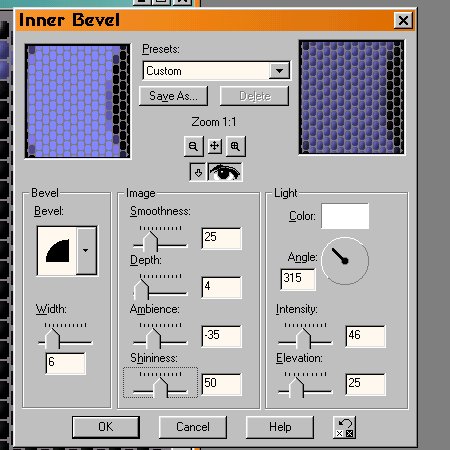
Here is the fun part. Use the wand and click in the gray area of your picture. Click on Selections > invert This will outline each bead individually. Next click on Effects > 3d effects> inner bevel You can follow my example for the settings to give the beads some depth You may need to adjust the shininess or the ambience bar depending on the colors you are using. |
This is my final result. |
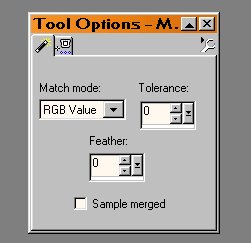
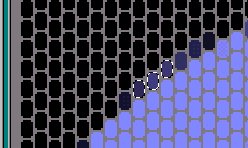
If your picture has gray in it similar to the background color you may have to adjust
the tolarance of your wand tool, or use the paint brush touch up the beads,
so they do not blend with the background color. You will know when this happens, because all of the beads will be selected. Just use the undo feature and fix the bead causing the problem. |