Map Overlayer
User Manual
A program designed to ease the creation of maps overlaid
with coordinates, within the UK.
Map Overlayer 1.0,
23rd September 1991
© Paul Stephenson 1991.
Abstract
This project is designed to automate the process of overlaying maps with coordinates. ‘Map Overlayer’ is able to input a map in PICT format, and overlay it with coordinates in National Grid Format, entered through the text editor within the program, or imported from a text file. These coordinates can be plotted at various accuracies and sizes, with the assigned symbols being changeable. Gridlines can be added, and the whole map scaled to a suitable size before being exported to a suitable application, or printed out.
© Copyright
This program is provided free, conditional upon the clause that it may not be sold for profit. If you like this product, send me a postcard of your home town, and I’ll send you one of mine. Send cards to:
Paul Stephenson
9 Holmfield Drive
Roundhay
Leeds LS8 1AZ.
Credits
This program would not have progressed to becoming a finished product so quickly without the aid of QuickApp: a skeleton program written by Dr Peter Coxhead. The main features of QuickApp are:
• A simple but carefully designed structure based on an object-oriented model.
• The use of standard ‘Macintosh Pascal’ so that in principle a variety of compilers can be used.
• Full documentation of both the design and the code.
• Free availability to academic programmers.
• Access to the source code.
QuickApp is being made available via a demonstration program, QADemo. Version 2.2 has been produced using THINK Pascal. QuickApp can be obtained from:
Dr P. Coxhead
Department of Computer Science
Aston University
Birmingham B4 7ET.
e-mail: [email protected]
(This is not the bug report address)
This program also used two Control Definition Functions: PICT CDEF and Pop Up Menu CDEF which were extensively used in dialogs. Many thanks to Chris Johnson for these. These CDEFs are available at the Lancs NPDSA with supporting documentation.
Map Overlayer was written using THINK Pascal 3.0, with resources created using RedEdit 2.1. This report was written in MS Word 4.0.
1: Introduction to Map Overlayer
The Map Overlayer application is designed to automate the process of creating maps overlaid with Coordinates. The application uses National Grid Format coordinates entered in a TEXT file, and a map in the PICT format.
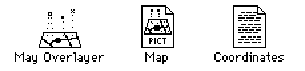
To launch into Map Overlayer, double click on the Map Overlayer icon shown below. Icons for map and coordinate files saved from Map Overlayer are also shown below.
This user manual consists of 7 other sections:
• Automation of Map Overlaying
• Explanation of the National Grid
• Description of the Commands, describing when and how these commands are used.
• Worked Examples. Two worked examples are given showing the broad range of facilities available. One of the maps shows how to overlay information on local maps, the the second map shows how to proceed with nationally scaled maps.
• Guide-lines to producing files, giving help and tips about producing maps for use in this application, and the format that text files should be produced in.
• Error Messages, giving expanded explanations behind the error messages
• Program Specification, giving the limits of the program.
2: Automation of Map Overlaying
The origin of this program came from biological records containing thousands of locations of plants/species needing to be plotted on maps. A publisher of a book or technical report might require many maps showing the species distribution across a set area, perhaps at different scales and at differing sizes, and to create these, to the typographical standard required for printed matter would be a Herculean task.
The traditional way is to hand convert the coordinates tracing them onto maps. This however is very time consuming, laborious, and error prone. The idea behind this program is to computerise this process, with the user supplying the map and coordinates, and the program overlaying the map with the coordinates, calculating all the transformations needed to convert the coordinates from written form into graphical form on the map. The program would also allow scaling of the map and overlaying with grid lines.
3: The National Grid
This project uses for its coordinate format the National Grid which is described below.
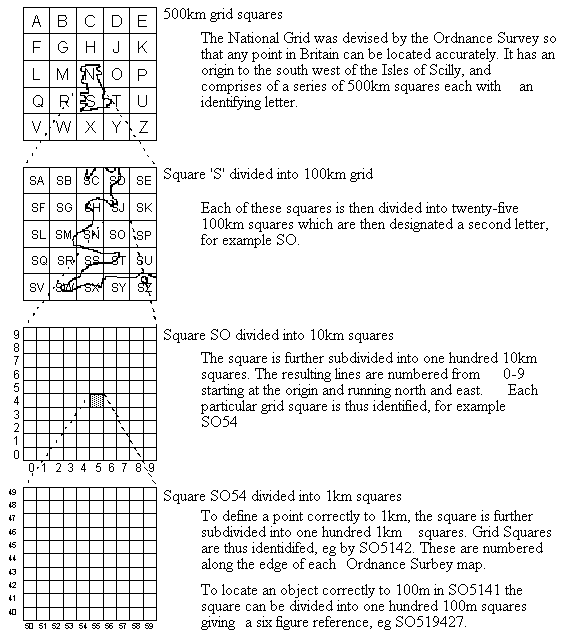
It must be noted that whilst the lettering system runs right and down, the numbering system runs right and up.
4: Description of Commands
Apple Menu
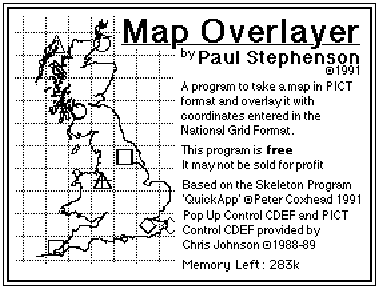
About Map Overlayer... displays the information box below, then shows a help page, giving the procedure to create an overlaid map.
File Menu

The file menu contains commands which relate to input and output routines.
New... opens a dialog asking the user to select which type of window to create, as seen below.
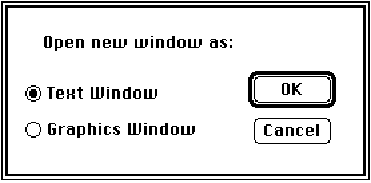
A text window allows you to enter coordinates, whilst a graphics window creates an empty map window, allowing you to paste in maps from the clipboard.
Open... leads you to the standard Macintosh file open dialog, allowing you to select which file you can select. Only files of type TEXT and PICT are displayed, along with all directories. However if you press down the option key when you enter the dialog, all files will be displayed.
Close will attempt to close the front window. If the window's data has been saved or the window is empty, the window will be closed straight away. If there is any data, a dialog will appear asking you whether you want to save the window. Keyboard shortcuts of y (for yes), n (for no) and c (for cancel) are available.
Save will save the current data should a file be attached to the window. With Graphics windows containing maps, any gridlines or symbols present will be saved, and will not be removable should the map be reloaded back into the application. In addition, the map will be saved at the current magnification. If the scale has been set, this is saved with the map, (this means you would not have to re-enter the scale again) though only if the map is saved at it’s Actual size (i.e. with no magnification applied to it).
Save As... places you in the standard Macintosh save dialog, allowing you to save data to a new file.
Page Setup... and Print... display the normal Macintosh print dialogs.
Quit will quit the application, asking whether you want to save any unsaved data in windows first.
Edit Menu
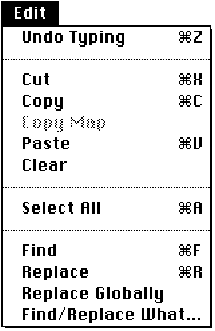
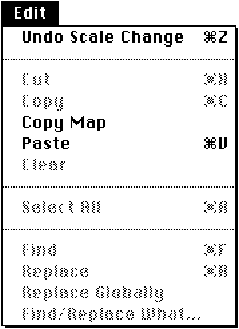
Text Windows Graphics Windows
Undo typing will remove the most current typing in text windows. In graphics windows, Undo Scale Change undoes the the command Set Scale. This changes to Re-enter 1st Coordinate should the first coordinate have been entered in scaling mode
Cut and copy place any selected text onto the clipboard. These options are disabled in graphics windows.
Copy Map will create a copy of the current display in the graphics window and place it on the clipboard. Gridlines and the Zoom magnification are also copied across.
Paste will paste text into text windows and paste maps into graphics windows, overwriting any previous map in that window. Should there be insufficient memory to paste the map in, an alert will be displayed. Three times the amount of memory required for a map should be allowed. The amount of free memory present is given in the About Map Overlayer dialog.
Clear will remove any selected text or markers.
Select All will select all text or markers
Find, Replace, Replace Globally, Find/Replace What...
These are simple search and replace utilities for use in text editing windows. Enter your selection in the Find/Replace What dialog, then issue a find, replace or replace global command to find or replace the relevant string.
Special Menu
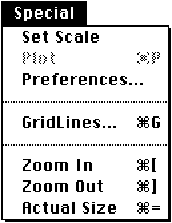
The special menu contains all commands specific to this application.
Set Scale allows you to input two new coordinates to act as reference points in the calculation to determine the location and scale of the map. This command can be reversed using the ‘Undo’ command.
Plot... will plot coordinates onto a map. With the text window at front, this command will error check the file, reporting back any errors. With the file error free, a dialog is displayed asking you to input the accuracy you wish the coordinates to be plotted to, and the size of the symbols (note: symbols have a minimum radius of two pixels, and should the size of symbol you select cause the symbol to be drawn smaller than this, the size will be reset to two pixels). The dialog is displayed below.
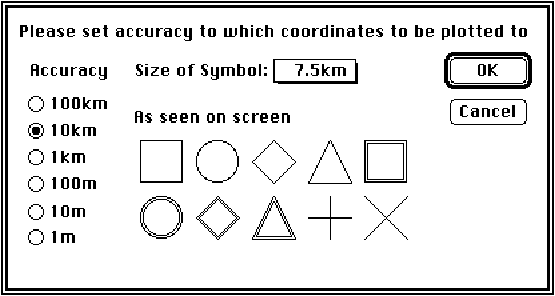
If the user cancels the dialog, they are returned to the text window. Otherwise, the front most graphics window is selected, and coordinates plotted on it.
Preferences
This displays the dialog below

The Error checking refers to the checking done on the text file just before it is plotted. With the ‘Stylised Text Editor’, group names are displayed in bold, otherwise, the entire document appears in a plain style font. The option to switch between 9pt and 12pt Geneva allow users to switch to a smaller font should their monitor give a clear rendition of it.
The ‘Remove text from display’ will filter out all text from maps. This is reversible. This is useful for removing text used for pin pointing coordinates when setting scale. ‘Draw grid lines behind map’ allows users to reduce the obtrusiveness of the gridlines by placing them ‘behind’ the map. However, certain maps, particularly those drawn in MacPaint type applications will find the gridlines being completely overdrawn by the map, and should ensure this option is turned off.
Gridlines... displays the following dialog
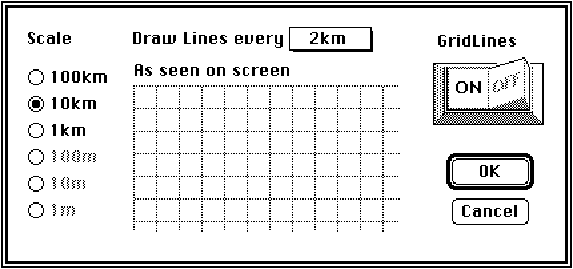 Should the map be saved or exported to the clipboard with
Gridlines on, then the grid lines will be exported too, and will be not be
removable should the map be loaded back into the application.
Should the map be saved or exported to the clipboard with
Gridlines on, then the grid lines will be exported too, and will be not be
removable should the map be loaded back into the application.
Zoom In will enlarge the map in factors of 4 up to a maximum magnification of 64.
Zoom Out will shrink the map in factors of 4 down to a minimum shrinkage of 1024
Actual Size will return the map to its original size.
Note: When the map is not at actual size, the user will be able to plot coordinates and overlay the map with coordinates, but will not be able to select, delete or change any symbols on the map.
Windows Menu
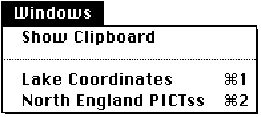
Show Clipboard will display a window showing the clipboard. With the clipboard present this option will change to Hide Clipboard which will close the clipboard window. There may be insufficient memory to display the clipboard, particularly if the clipboard contains a large grey scale scanned image. If so a message to the effect will be displayed.
Any further menu options allow you to bring the specified window to the front by simply issuing the relevant command or pressing the relevant menu key.
5: Sample Session Using Small Scale Map
This will describe a typical session to create a map overlaid with a set of coordinates.
Two files have already been created and are supplied on the disk
• North England - a PICT format file containing a map of north England
• Lake Coordinates - a TEXT format file already typed in using the Map Overlayer editor, or a word processor eg Word 4 and saved as text
Open both of these files. When you open the North England you will be informed that the scale needs setting, and the cursor will turn into a cross whenever it is over the map. Click on two points on the map where you know the coordinates. For example go to the top left corner and click in the centre of the SD63 text. A dialog will be displayed and enter the coordinate, padding out with noughts. If the coordinate is not padded out the program assumes the coordinate refers to the centre of the square eg in this case 65003500.

Go the the bottom right for the next coordinate and click in the centre of SK48, entering 40008000 for the coordinate.
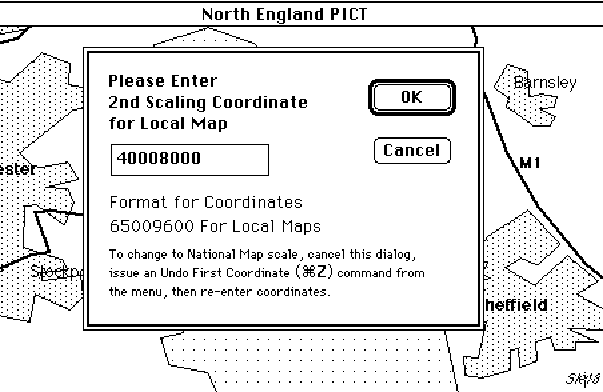
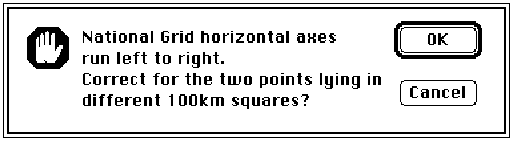
The two coordinates selected lie in different 100km squares (SD and SK), and the program will prompt you asking whether it should correct them. Press OK now. If entering your own coordinates and you did not expect it to cross between 100km squares, press Cancel to return you to the the coordinate entry dialog.
Please note: For maximum accuracy please select points as far away horizontally and vertically from each other as possible. This minimises any error due to mouse pointing.
Once you have entered two points and their relevant coordinates, go to the grid lines dialog and turn them on to check that the scale is correctly set.
To plot coordinates bring the Lake Coordinates window to the front and select the plot command. (You can only select plot if a graphics window is behind the text window, and that the scale has been set on that window). Set the accuracy to plot to at 1km and the size of symbol to 0.9km, then press return. The map window will be brought to the front and coordinates plotted on it.
Select a few coordinates and delete them by pressing the delete key or issuing the clear command. To change the symbol allocated to a coordinate double click on it and the dialog below will be displayed. The symbol in the box is the current selected symbol.
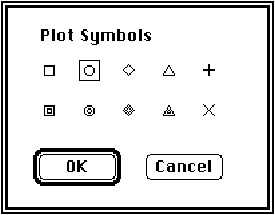
Click on the new symbol you want and then click on OK, alternatively double click on the new symbol.
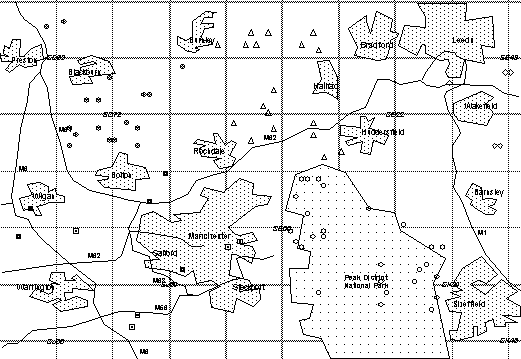
Now Zoom into the picture, copy the map onto the clipboard and you should have the following map ready for pasting into another application.
6: Sample Session: National Map
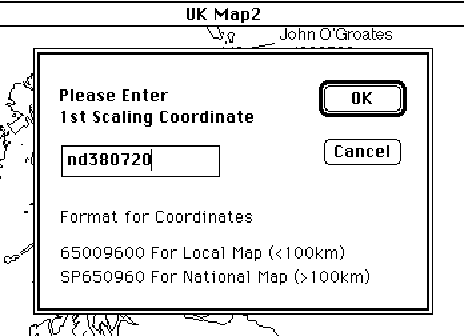
This second worked example will show how to plot coordinates on a map of national scale. To fully represent a position nationally, National Grid Format letter prefixes have to be used with coordinates. The example map given is an map showing the coastline of the UK called “UK outline”. Load this in and you will be informed the scale needs setting. Click on John O’Groates, in the northern eastern most part of Scotland, and enter the coordinate nd380720, as below.
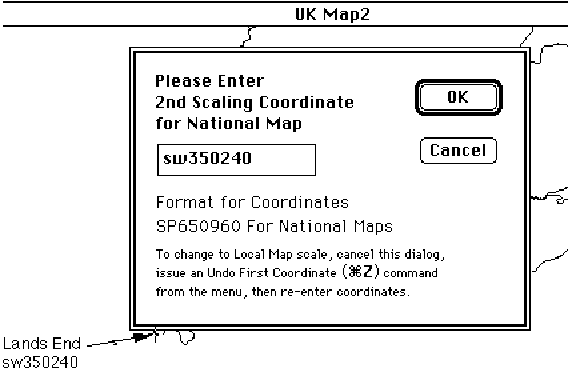
Click on the second location, Lands End, in the tip of the south west. A dialog will come up asking you for the 2nd coordinate for a national map. Enter sw350240. Should you be asked for a coordinate for a local map, you will probably have missed off the letters to the previous coordinate. To rectify this, cancel the dialog, and issue an Undo command, then re-enter the first coordinate, this time with the letter prefixes.
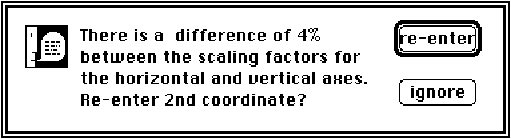
Depending on the accuracy that you entered the coordinates, and the accuracy that the map was drawn to, you might be told there is a difference between the scaling factors for the horizontal and vertical axes (see below). If this is negliable enough for you, press the ignore button, otherwise re-enter the coordinates, hopefully achieving a greater accuracy.
With the scale now set, click on the ‘Save As...’ command, and save the file as ‘UK outline scaled’. This will allow you to return to this map, without having to set the scale every time, and is recommended should you use a particular map frequently. (This does not affect the portability of the map created. It will still be readable by MacDraw and other drawing programs).
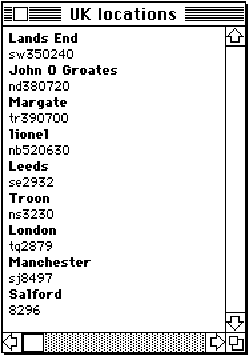
Load in a text file called “UK Locations”. This will be displayed in a text window as below (you may wish to go into the ‘Preferences’ dialog and switch to 9pt Geneva to squeeze more lines onto the screen - though the clarity of your Macintosh screen may not be good enough to allow individual characters to be distinguished):
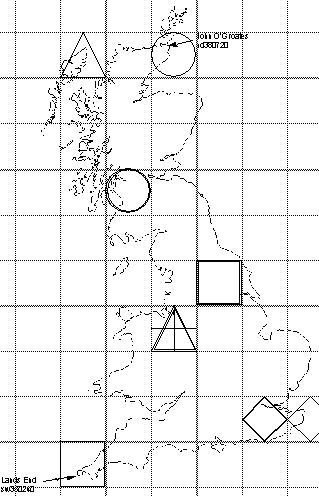
Issue a ‘Plot’ Command, selecting the accuracy to plot the symbols to be 100km, and the size of symbol to be 50km. Then add some gridlines, at 100km scale, with gridlines drawn every 100km. Remember to switch the Grid Lines on. Then Copy Map.
7: Creation of Maps and Coordinate Files
This program accepts maps in the PICT format. Most graphics packages allow export via this format. Maps can also be copied in from the Clipboard. It must be noted that the accuracy of the maps is of supreme importance, and this should be prevalent in your mind when drawing maps. It is best to lay out a grid, and then add the map features around that grid. Many commercial ‘Clip Art’ maps, particularly in MacPaint format, are not very accurate, and care must be taken when using these, to ensure they are accurate enough for the purposes required.
Files containing coordinate information should be in the TEXT format, which is supported by most word processors. Alternatively, text can be copied in from the clipboard.
Each coordinate or coordinate group name should start on a new line. The file is error checked before being plotted and any format inconsistencies will be noted. An example file is shown below
Species A File MUST begin with Group Name
sp5646 Coordinate format consistent with the National Grid
9856 No prefix letters, assumed to be last letters given, i.e sp
Sd6537 Case is not important in coordinate prefix letters.
Species B Group Name
sf4532
sx346533 Coordinate in six figure notation
It must be noted that whilst coordinate files may be used with both National and Local maps, they may be interpreted differently. Most noticeably:
• Letter coordinates with no numerical part will be ignored with Local Maps, i.e the coordinate SE will be ignored, though the coordinate SE11 would be OK.
• Any coordinate not having letter prefixes with a National Map will be prefixed with the letters of the coordinate which last had letter prefixes. This may be extended right back to the first coordinate entered in the ‘Set Scale’ dialog, i.e. the coordinate 5364 would be prefixed with the last prefix letters which might result in the coordinate ps5364
• A local map may be spread over up to four 100km squares as defined in the National Grid. Thus the map might lay over the SD, SE, SJ and SK squares, see Figure 8.1.
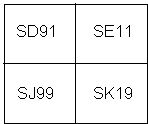
figure 8.1
The program intelligently decides which square coordinates lie in, so a coordinate 1010 would be placed in the SE square whilst a coordinate 9999 would be placed in square SJ. However, it must be realised, that since with local maps, letter prefixes are ignored, a coordinate SJ1010 would not be placed in the south east corner of square SJ, but would be placed in the square SE.
8: Error Messages
Errors when plotting a text file:
Coordinates must contain numbers
only.
Common error: 56s5
Where letters are given in
Coordinates, they must come in pairs not singularly, eg SP0987
Common error: S0987
Group Names are made up of all
letters. No numbers are allowed.
Common Error: Species 1
Coordinates must have an even
number of figures
Common error: 09876
Coordinates must not have more
than 12 figures
Common error: 09876543210987
The 1st line must give a group
name NOT a coordinate
Common error: a coordinate was placed on the first line of the data file
Errors when setting the scale on a map:
This point lies directly
horizontally or vertically from the 1st point. Please choose another point with
different x,y coordinates.
Common error: the second coordinate is on the same horizontal or vertical line from the first coordinate, hence giving no scaling information about that axes.
Coordinate entered in wrong
format. Must have an even number of numerics.
Common error: The coordinate either had an odd number of figures eg 12345, or had misplaced letters eg 87s5.
Scaling coordinates cannot have
the same vertical or horizontal values as the previous point. Please re-enter
second coordinate.
Common error: the same x or y value was entered for both coordinates, eg the first coordinate: 0989, second coordinate 1189. Here the y values are the same and hence no scaling information can be gained from them.
There is a difference of x%
between the scaling factors for the horizontal and vertical axes. Re-enter 2nd
coordinate?
Should there only be a small difference, say 1%, you may ignore this message, and the program will continue with the scaling difference between the axes; however if there is a large difference, you may wish to go back and more accurately place the coordinates.
9: Program Specification Limits
Maximum number of windows open at one time: 7
File Types supported: TEXT, PICT
Map files: PICT
• Scaling information saved with PICT files in 512 byte header if:
- Scale has been set on the map
- Magnification at Zero (Actual Size)
• Any Gridlines or Markers on map when map is saved are not removable when file is loaded back in. (They can only be removed via a drawing package, eg MacDraw II)
• Pictures are loaded in full.
• No spooling of large pictures take place.
• No screen bitmaps of pictures are created.
• Maximum size of local maps: 100km x 100km
• Minimum radius of symbols: 2 pixels
• Minimum distance between 2 principle gridlines: 5 pixels
• Maps must align their axes with the North pointing directly up.
• No correction made for non-linearity between x and y axes.
Coordinate Files: TEXT
Maximum internal accuracy of coordinates: 0.1m
Largest size of text file: 32000 bytes ~ 4000-8000 lines
Definition of a Coordinate: Letter := [‘A’..‘H’,‘J’..‘Z’,‘a’..‘h’,‘j’..‘z’]
Number := [‘0’..‘9’]
Valid Coordinates: Letter
2 x Letter
2 x Letter + n x Number where n = [2,4,6,8,10,12]
n x Number
Group Names: Lines containing anything that is not a coordinate
Text file MUST start with a group name.
Memory Considerations
Minimum memory required to run Map Overlayer: 150k
Minimum memory recommended to run Map Overlayer: 200k
Default memory allocated to run Map Overlayer: 384k
With a 384k partition, memory should not be a problem if you are using maps drawn in MacDraw / MacPaint. However if you are using maps scanned in, particularly with grey scales present, more memory may need to be allocated as the maps take up large amounts of space, maybe 100k. To be on the safe side you need to allocate Map Overlayer 3 times the amount of memory a picture takes up plus 150k. So taking a case of 100k map, the amount of memory required would be:
3 x 100k + 150k = 450k
[The program holds two copies of the map, one consisting of the original, and the second scaled to the current magnification with coordinates and gridlines overlaid. In addition, a third temporary map may be created when exporting maps.]
In addition, the program may not be able to display the clipboard when large scanned maps are in it.
These considerations need not worry you if you run the program under Finder.