T R A N S I T S T O P


T R A N S I T S T O P |
|
|
|
||
|
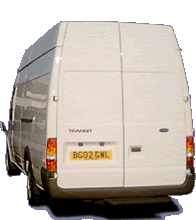
Still working on tables2.html we're going to turn the table we've just made of three rows and three columns into a garage filled with Transit vans, like the one above.
Below the cells we're going to merge have been colour coded. First off we merge the green cells to form one cell that crosses two columns. We do this by removing one cell from the top row and by assigning the first cell a column span of two colspan="2" This will make the code for the top row:
Next we merge the pink cells to make a single cell crossing two rows. This we do by giving the last cell in the top row a rowspan of two rowspan="2". Also because it now takes up the space of one of the cells in the second row we have to remove a cell from the second row. The code for the top two rows will now read:
and it should look like: Using the same logic you should now be able to merge the two blue cells. Click on the link to see if you've got it right. The code gets more complicated now as we add text and images, and give properties to the table cells; so it's worthwhile putting comments to remind you where each row begins
and so on. |
||||||||||||||||||||||||||
 |
|
|
 |
|
With tables, properties can be set to the table as a whole, to a single row or to an individual cell. A background set to a table will sit behind one set to a row which in turn sits behind one set to a cell - you'll see what I mean as you build up the table, especially if you keep saving and viewing your changes as you go. First set the background colour of the table as #330033. That means the table tag should now read <table border="1 width ="80%" bgcolor="#330033"> Now change the properties of the individual cells to what I've spelt out in the diagram:
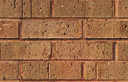
In the top left hand cell valign means vertical alignment, and align means horizontal alignment within the cell. This is different to the align instruction in the <table> tag, which aligns the table relative to what's outside it, positioning it in the page or letting text run around it. Click to see what it should look like Next we add background images. These are just properties and go in the cell tag like the size, align and bgcolor instructions.
Click to see what it should look like Notice how the background image tiles to fill the whole cell. |
||||||||||||||
|
Now you've given the cells properties you can add the content, remembering to remove the non-breaking spaces from the cells you add content to. In the top left hand cell type in T R A N S I T S T O P (with a spaces between each of the letters) and format it as an h1 heading. Next add the image olj3.gif to the top right hand cell and the image constr2.gif to the bottom left cell. You'll find the height of the images will define the height of the cells, though we had to set the width of the cells to pin them down as the table width is set as a percent and can vary with monitor resolution. Click here to see what it should look like Try stretching and shrinking the browser window to see what happens to the table And click here to see what the source code should be in another window. |
ON LINE JONES