How to compile
GMP-ECM to make it suit your system:
GMP-ECM is
used to perform certain mathematical operations. To get an optimal performance,
you’ll need to compile (build) your own version of GMP-ECM.
Jes
Hansen (JHansen on the mersenneforum.org) has written
an excellent guide to how to compile GMP-ECM. This guide is all thanks to him.
All I did was provide the screenshots.
1. First
you’ll need to get the right environment and stuff to work with:
Get MinGW
Install it
Get MSYS (when
installing MSYS answer y, y and input the directory where you installed MinGW when asked)
Get GMP and GMP-ECM
(don’t unpack them, just place them on your desktop).
2. Open
MSYS (there should be a “MSYS” icon on your desktop) and shut it down again.
3. Now move
the GMP and GMP-ECM to C:\YourMsysDirectory\1.0\home\YourUser\.
4. Time to
open MSYS again. Inside MSYS you’ll need to do as shown on this screenshot:

I’m about to press “enter”
(and to those of you who for some reason can’t see the
screenshot: Type “gunzip gmp-4.2.1.tar.gz” and press
enter. Type “tar –xvf gmp-4.2.1.tar” and press
enter).
After
typing “tar –xvf gmp-4.2.1.tar” and pressing enter,
MSYS should start unpacking GMP.
5. Type “cd gmp-4.2.1” and press enter (to change to your new GMP
directory)
6. Type “./configure” (dot slash configure in one word) and press
enter.
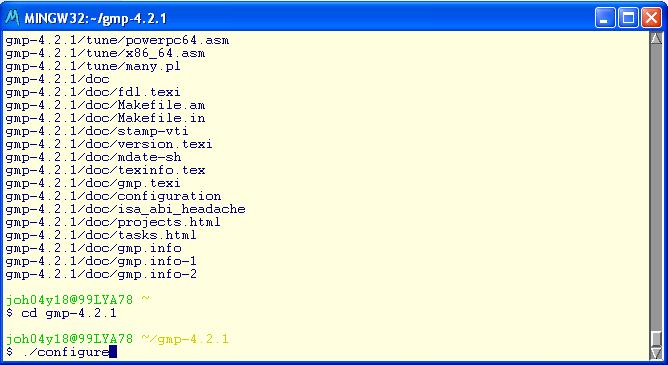
I’m about to press enter again
Now it will
probably start configuring a bunch of stuff and you should see a lot of output.
7. After
MSYS is done configuring, type “make install”
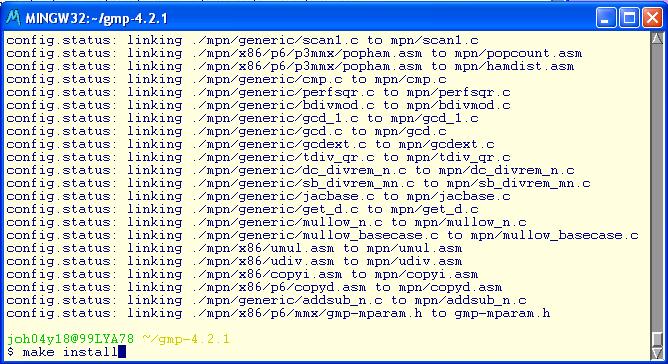
I’m still about to press enter
Now GMP
installs itself. This is going to take a little while.
8. After
it’s finished, type “cd” and press enter to go back
to your initial directory.
9. Follow
this screenshot:
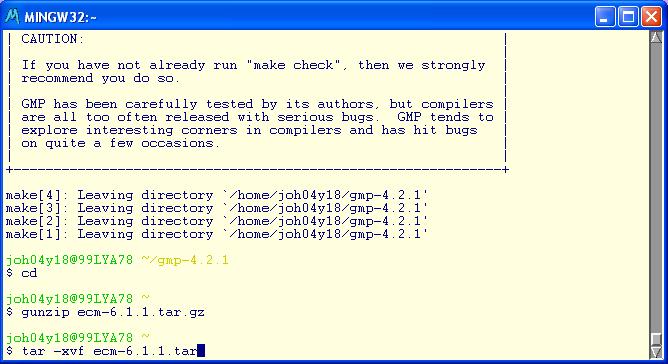
Guess what I’m about to do…
(Gunzip and tar GMP-ECM like you did with GMP)
Now it’ll
start unpacking.
10. Type “cd ecm-6.1.1” (to get to the new directory)
11. Do as
shown in the screenshot:
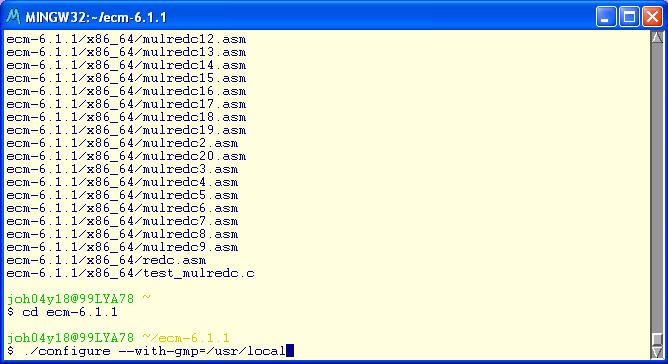
About to press enter
(type “./configure –with-gmp=/usr/local” and press enter)
Now it will
make sure that you get an optimal performance out of your GMP-ECM.
12. Type
“make” and press enter. This will create your ecm.exe and will take some time.
13. When it
has finished, close MSYS and you should be able to find ecm.exe in the
home-directory.
Now that
you have an optimized ecm.exe you’ll need to use it either manually on the
Cunningham list or as a part of ECMclient