Putting in Pictures
OK, let's put a picture on the page.  This is the button you press in FrontPage
Express. On the popup, you can either choose a file or a
link to something on the web. To use a file, you have to use the
"Browse" button. Then you get to wander around until
you find the right directory, because it always seems to start
out in "My Documents." Once you get to the directory,
though, Frontpage will remember it, at least for
the rest of the session. Anyway, once you have it up, you can
change a lot of the qualities. I discovered some new alignments
here.
This is the button you press in FrontPage
Express. On the popup, you can either choose a file or a
link to something on the web. To use a file, you have to use the
"Browse" button. Then you get to wander around until
you find the right directory, because it always seems to start
out in "My Documents." Once you get to the directory,
though, Frontpage will remember it, at least for
the rest of the session. Anyway, once you have it up, you can
change a lot of the qualities. I discovered some new alignments
here.
This is the code Frontpage generated:
<img
src="file:///E:/myGeosite/dream/html/fppicbtn.gif" align="middle"
width="25" height="25">
Well, it works on my machine, but it won't work on the web. It's "absolute addressing." What you want for things on your site are relative
addresses, like this one:
<img
src="fppicbtn.gif" align="middle"
width="25" height="25">
Ok, let's do one with Arachnophilia. Usually I press the "Graphics" button
at the bottom, and then the "NewImg" button that comes up on the graphics bar.
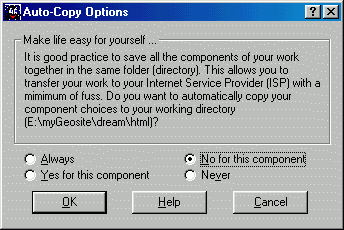
First comes up the "Autocopy" popup, since this is the first time I've used
this function in this session. Autocopy is a an Arachnophilia goodie
that automatically copies graphics files to the directory you are saving
your current HTML file into. I usually turn it off, but it can be a great
timesaver if you are gathering images from several sources for one page.
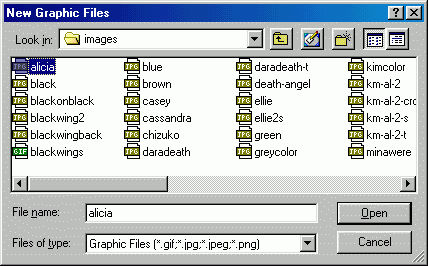
This next one should look very familiar--it's a standard Windows
component. Arachnophilia remembers which directories it used in the
last session, though, so I don't have to do as much mousing around.
In this case, the last time I put up an image file, it was in
the "Images" folder. I'll just pick the first one. This is the code
that comes up after I finish the selection:
<img src="../images/alicia.jpg" width="142" height="168" alt="">
And this is what it does:

Without any "align" command, it left-aligns. Now I'm putting in an
"align=left" command and putting something in "alt=" . . .
And now the text starts at the right edge.
If you look at the code, you'll see that I just put in another copy of the
code in the middle of the paragraph and changed width and height to 50
and "align" to "middle."
And here's another instance using 25, 100, and "bottom."
Here's Alicia again with a visible borders and some spacing. The code for this is:
<img src="../images/alicia.jpg" width="142" height="168"
alt="Alicia as Sailor Earth" align=right border=2 vspace=5 hspace=20>
<img src="../images/alicia.jpg" width="142" height="168" alt="Alicia as Sailor Earth" align=right border=4 vspace=10 hspace=20>
<p>Here's Alicia again with a visible borders and some spacing. The code for this is:</P>
Now we're going to use this pic as a link button-twice. The "alt" is
changed to reflect the place the links will lead to. This is what the code
looks like now:
<a href=http://www.crosswinds.net/~marshangel/angelmoon.html><img src="../images/alicia.jpg" width="142" height="168" alt="Look for Alicia's story at From the Earth to the Moon" align=right vspace=3 hspace=3></a>
<a href=http://www.annasgallery.net/><img src="../images/alicia.jpg" width="142" height="168" alt="Anna's Gallery (Anna made the original for this picture)" align=left border=0 vspace=3 hspace=3></a>
Note that the picture on the right has a border now, even though there
is no "border" specified. When a picture is just a picture, an <img> tag without a "border" member shows the picture without
a border-but when the image tag is inside a link, then a border shows
unless the term "border=0" is present. The border color here is the same
as for text links.
I always remove the borders from my buttons and banners, but some people leave them in. It does have one advantage: it shows you whether the link has
been visited recently. I never see it on professionally-designed pages,
though.
Back to The Sound of Loading
On to Using WS_FTP LE
HTML Index
Main Index