FIT-3 Projet 1 - Architecture des Ordinateurs
Annoncé:
06.11.2001
Due:
Jeudi 06.12.2001
Voici
des sujets de votre premier projet: Compréhension et présentation
(il
y aura 2 au total ce semestre).
Il
s'agit de projets de présentation de l'état d'art (state of art) dans le
domaines respectifs. La source principale de vos recherches sera la toile WEB,
ainsi que les chapitres correspondants de livres de Tanenbaum et Stallings
(disponibles après
les
horaires de cours). La mise en page et à vous, et une proposition concernant la
structure par chapitres est donnée en dessous (désolé … en anglais seulement).
Les
versions définitives de vos travaux doivent représenter une ensemble compact
par sujets, c.à.d. à la fin on doit obtenir 4 "grands" projets 1.,
2., 3. et 4. que vous allez échanger entre vous.
3.
Disques durs (Groupes 6, 7 et 8)
3.1.
Aspects physiques, Organisation et Formatage, Spécifications
3.2.
disques IDE, EIDE, SCSI
3.3.
disques RAID
Hard Drives
http://www.pcmech.com/hdindex.htm
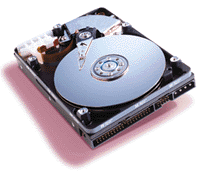
As anyone who has
worked with a computer will know, a hard drive is one of the most important
parts of your computer. Although it is a complex piece of hardware and
installing one can sometimes be a chore, a little knowledge and
practice can make it very easy. The process of replacing or
installing hard drives can make you very nervous, but it doesn't have to.
This section of
the site is written to help you decide on various types, learn how they
work, and explain how to install a drive and conveniently prepare it for
use.
1.
Hard Drives- Internal Parts
2.
File Structure
3.
Hard Drive, Heal Thyself
4.
Installing A Hard Drive - Step by Step
5.
HDD Configuration
6.
Partitioning
7.
Formatting
8.
ST-506/412 & ESDI Interface
9.
IDE Interface
10.
SCSI Interface
11.
SCA SCSI Drives
12.
IDE vs. SCSI
13.
Ultra ATA/66
14.
ATA/66 vs. ATA/33
15.
Ultra ATA/100
16.
RAID: Your Guide
17.
Common Hard Drive Problems
Hard Drives- Internal Parts
http://www.pcmech.com/show/harddrive/65
All hard drives share
the same basic structure, varying only in how each part is used and the quality
of the parts themselves. The platters, spindle motor, heads, and head actuator
are inside the drive, sealed from the outside. This chamber is often called the
head disk assembly (HDA). The HDA is rarely opened, except by professionals. On
the outside are the logic board, bezel, and mounting equipment. Below, I will
describe each of these components.
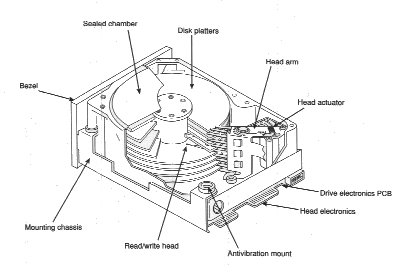
The platters are the disks inside the drive. Platters can vary in size. Often
the size of the drive, 5.25" or 3.5", is based on the physical size
of the platters. Most drives have two or more platters. The larger capacity drives
have more platters. They are usually made of an aluminum alloy so that they are
light. The newest and largest drives make use of a new technology of
glass/ceramic platters. Basically, this is glass with enough ceramic within to
resist cracking. This glass technology is taking over aluminum in the hard
drive industry. Many popular manufacturers already use it, including Maxtor,
Toshiba, and SeaGate. Glass platters can be made much thinner than aluminum
ones, and they can better resist the heat produced in operation.
Alone, platters
are not capable of recording data. Each one is coated with a film of some
magnetically sensitive substance. The oxide media is one of the ways of doing
this. A mixture of compound syrup is poured on the platter, then spun to evenly
distribute the film over the entire platter. This substance has iron oxide as a
main ingredient, explaining why many platters you may see will be
brownish-orange. The other main media consists of a thin film of a cobalt alloy
which is placed on the platter through electroplating, much like chrome.
The read/write
heads do just that, they read and write to the platters. There is usually one
head per platter side, and each head is attached to a single actuator shaft so
that all the heads move in unison. Each head is spring loaded to force it into
the platter it reads. When off, each head rests on the platter surface. When
the drive is running, the spinning of the platters causes air pressure that
lifts the heads ever-so-slightly off the platter surface. The distance between
the head and platter is very small...so small that the HDA must be assembled in
a clean room because one dust particle can throw the whole thing off. This
sensitivity and accuracy is what causes only bigger companies to be able to repair
hard drives simply because of the expense of a clean room. A slider is attached
to each head. This mechanism actually glides over the platter and holds the
head at the correct distance to do its job.
The head actuator is
the device that all the heads are attached to. This part is in charge of moving
the heads around the platters. They come in two types: stepper motor actuators
and servo motor actuators. The stepper motor design is actually an electric
motor that moves from one stop position to another, governed by click stop
positions. They cannot stop between stop positions. The motor is small and is
located outside the HDA, so it is visible from the outside. The stepper motor
design is inferior. It suffers from slow access rate and is very sensitive to
temperature. It is also sensitive to physical orientation and can't
automatically park the heads in a safe zone. Besides, the actuator operates
blindly from the track positions, governed only by the stop positions. Over
time, the drive becomes misaligned, requiring occasional re-formats to realign
the sector data with the heads.
The servo motor
actuator is found in all modern drives, including any over 100MB in capacity.
Unlike the stepper design, the heads get feedback as to position, assuring
proper tracks are read. The guidance system used by the heads is called a
servo. Its job is to position the head over the correct cylinder. It does this
through the use of grey code. Grey code is a special binary number system in
which any two adjacent numbers provide info to the servo as to their position
on the drive. Also, the heads are free to move wherever needed...no steps.
Basically, when the drive needs to retrieve certain data, the servo motor moves
the heads out to the appropriate position on the disk and then waits for the
corrects bit of data to spin over to it. The time it takes for all this to
happen is called latency, and is a key measure of the speed of the drive.
When the hard
drive is powered down, the springs attached to the heads pull the head into the
platter. This is called a landing. =) Every drive is designed to handle
thousands of takeoffs and landings, but since the head actually hits the
platter, its best to have this happens on a section of platter where there is
no data. In a voice coil design, small springs drag the heads into a park and
lock position before the drive even stops spinning. This assures that the heads
are not just let go of and left to drag along the platter until the platter
stops, a problem common to the stepper motor design. When powered on, the drive
automatically unparks itself and the parking springs are overcome by the
magnetic force.
The spindle motor
is responsible for spinning the platters. These devices must be precisely
controlled and quiet. They are set to spin the platters at a set rate, ranging
from 5400 RPM to 10000 RPM. The motor is attached to a feedback loop to make
sure it spins at exactly the speed it is supposed to. The speed is not
adjustable during operation. Some spindle motors are on the bottom of the
drive, below the HDA, while the more modern ones are built into the hub of
rotation of the platters, thereby taking up no vertical space and allowing more
platters.
Attached to the
spindle motor is a ground strap which helps rid the drive of the static charges
created by the rotating the platters through the air. In many drives, this can
be accessed by removing the logic board. After a while, this strap can become
worn and produce noise, like a high-pitched squeal. One can usually lubricate
the strap and stop the noise, but this entails some minor disassembling of the
drive.
The logic board is the
board of chips underneath the drive. It controls the spindle and head actuator
and also translates data to a form usable by the controller and the rest of the
system. Some logic boards have an integrated controller, also. Sometimes, an
apparent disk failure is actually a failure of the logic board. In such a case,
you can replace the logic board and regain access to the data held up on the
drive. This is relatively easy to do, because the board is simply plugged into
the drive and held in by screws.
Hard drives are
precision instruments and operate mechanically, so it needs to be handled with
care. They don't handle shocks very well, and you don't want to replace them
mainly because its a pain in the butt. Laptop computer hard drives are still
fragile, but built to handle more shock. Putting one down on a table won't hurt
it, but dropping it will.
Capacity
Just take a trip
to the computer store and you can see that there have been major advancements
in hard drive technology that lead to larger capacity drives. Where there were
once 500MB drives, we now have huge drives. Recently, a 36GB IDE drive was
released. What led to this?
Well, the first
thought would be: Add more platters, or maybe bigger ones. Well, yeah, larger
platters would do the trick. 5.25" platters have been used on older
drives, and do hold more data. But, manufacturers don't use these big platters
because of the extra stresses the larger platters put on the motor. These
stresses, and the simple fact that the heads have more disk to cover, make the
drives hotter and a lot bigger. Most drives in use today use 3.5"
platters, and 2.5" or smaller is commonly used for notebook systems. So, the
manufacturer decides it would be better to keep smaller platters, but just add
more of them. This works, but in order to reach such high capacities, you'd
need a lot of platters. The vertical heights of these drives would just be too
much. So, then what?
Keyword: Areal
Density. This is the closeness of data bits on the hard disk to each other.
Manufacturers have made major strides in this area: making more sensitive media
and making read/write heads that can pack data bits much closer together. The
heads operate much closer to the platter itself (but don't touch) and use a
weaker electrical charge than usual to do the job.
This density
increases performance and allows more data to be packed on a platter. The
closeness of the bits together mean that more data passes the head at a time,
increasing read/write performance.
So, now you know
how they get these little drives up to 36GB and beyond.
File Structure
http://www.pcmech.com/show/harddrive/67/
On this page, I'll
cover file structure on a hard drive. Tracks, sectors, cylinders, etc. Plus
I'll cover what happens when you format and partition a drive.
Basically, tracks,
sectors, and cylinders are the divisions of the hard drive platters where
information is stored. A track is a concentric ring around the platter
containing information. Since a hard drive typically has two or more platters,
each storing data on both sides, these tracks line up on each platter. The
identically positioned tracks on each platter are called cylinders. To better
help you understand a track and cylinder, let's take a target used for target
practice. You have a bunch of concentric circles, each bigger than the other,
all sharing the same center, which is the bulleye. Now, each of the spaces
between circles is similar to a track on a hard disk platter. Now, if you stack
several of these targets on top of each other, each exactly the same, you can
form a cylinder by simply taking a track and moving it down through all of the
same tracks on the targets below.
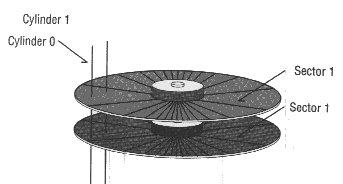
Since typical hard
drives are too large to deal with by the track, each track is divided into
sectors. Its not that a track could not be dealt with, but since a track can
hold as much as 50K sometimes, this would not be practical for storing large
files. So, sectors are basically slices of the track. Different drives have
different numbers of sectors per track.
Each sector is
given an identity during formatting to aid the controller in finding what it
needs in the appropriate sector. These sector numbers are written to the
beginning and the end of each sector, called the prefix portion and the suffix
portion respectively. These identities take actual space on the hard drive.
This explains why there is a difference between the capacity of an unformatted
disk and a formatted one. On a floppy, the disk itself can hold 2M or so of
data. When formatted and the identities placed, the capacity reduces to 1.44M.
The same holds true for a hard drive. Drive manufacturers know this and publish
formatted capacities to indicate drive size.
There are two
types of disk formatting: low-level and high-level. These both are done in the
preparation of a hard drive for use. First, one low-level formats, then
partitions, then high-level formats. A low-level format turns the platter from
a blank slate to a divided slate. It defines the data areas: creates tracks,
separates into sectors, and writes the ID numbers to each sector.
Partitioning
segments the drive into separate areas, each capable of running its own
operating system. At this point, the file allocation tables (FATs)
are dropped in. There are four types of file systems.
- FAT16. The is the file
system used by DOS, Win95 and Win98, unless you convert. It supports an
eight letter file name max, with a three letter extension under DOS. With
Windows it supports up to 255 characters. With this system, a partition
can be no larger than 2G.
- FAT32. The 32 means 32-bit.
This is an optional file system introduced with Windows 95 OSR-2. The file
allocation units are stored as 32-bit numbers. The main advantage is that
it allows for partitions of up to 2048G with smaller clusters. There is an
option to convert FAT16 to FAT32 under Windows 98, and Windows NT5 will
support it as an option.
- High Performance File System
(HPFS). An unpopular file system only used with OS/2 or early versions of
NT. File names can be 256 characters and partitions can be 8G.
- Windows NT File System
(NTFS). Just like the HPFS, but only for NT.
FAT file system is
most used in PC's today. The main problem with the original FAT was the
inefficient use of disk space in defining clusters, or groups of sectors. The
clusters were rather large, causing wasted space, because a small file would
take up the entire cluster even though it could hold more. With FAT-32, 4
billion clusters are allowed, allowing 4K clusters. This significantly reduces
disk waste.
The concept of FAT
explains why one can run out of disk space even when you are not storing the
capacity of files. For example, a 1G hard drive can run out of space with 160MB
to spare. This is due simply to the FAT structure. With the original FAT, each
cluster could hold 32K. But, if you are storing an 8K file, it still takes up a
complete cluster, leaving the other 24K to waste. This is called slack. The
only way around this is to re-partition the hard drive to two or more
partitions. As the partition gets smaller the wasted space gets less. This,
then is a tradeoff. The convenience of one partition, or the wasted disk space.
With FAT32, the
wasted space is much less. Smaller clusters.
No matter what
file system is used, a boot sector is written to the beginning of each disk, in
the first sector. This sector contains the boot program which tells the system
what to do when you turn it on.
In a high-level
format, the operating system creates a structure needed to manage its files and
data. In short, it creates a table of contents for the disk. While the
low-level format gives a structure, the high-level format makes it readable and
orderly. The DOS FORMAT command is only capable of high-level formatting on a
hard disk. Most manufacturers sell drives already low-level formatted.
Otherwise, a special utility is needed, usually provided by the manufacturer.
Hard Drive, Heal Thyself
http://www.pcmech.com/show/harddrive/158/
With hard drives
getting bigger and bigger, and data becoming more and more volatile, as well as
more and more important, having a drive that isn't going to fail is very
beneficial. It is for this reason that data storage manufacturers have worked
on developing a method by which the hard drive can make rudimentary attempts to
diagnose its own problems, thus averting a disaster before it happens.
The need for
drives that can do this spawned the development of the S.M.A.R.T. system.
That's an acronym for Self-Monitoring, Analysis, and Reporting Technology. It
was developed by a number of computer companies in a concerted effort to
increase the reliability of drives. Quantum pioneered the effort in the field
of hard drives, though many companies have been involved since.
The SMART system
does just what its name implies it does. It monitors the drive for anything
that might seem out of the ordinary, documents it, and analyzes the data. If it
sees something that indicates a problem, it is capable of notifying the user
(or, if applicable, system administrator).
In essence, SMART
is merely a set of software tools on the drive itself, constantly running
diagnostics. They run diagnostics on the motors, the media, the electronic
components, and the mechanical components. Another set of monitoring software
is often set up on the controller, to monitor the overall reliability of the
drive, taking the data given it by the on drive software and checking it
against predefined thresholds.
The errors that
the system can detect can be predicted by a number of methods. Currently the
SMART system can detect around 70% of all hard drive errors.
For example, motor
and/or bearing failure can be predicted by an increase in the drive spin-up
time and the number of retries it takes to succeed in spinning up the drive.
Or, if the drive notes that the error correction is being used excessively, it
can attribute this to a broken drive head or contamination, and alert before
the problem gets worse. Granted, there are some things that cannot be predicted
with any accuracy. An example of such would be a total electronics failure.
There is no reliable manner in which to predict such a failure without highly
specialized and expensive equipment, making it less cost effective. This
detection of problems is not limited to only physical aspects of the drive. If
it detects that the number of write errors is excessive, it can predict an
increase in bad sectors and warn the user that the data should be backed up as
soon as possible.
Most assuredly,
the SMART system is a nice thing to have on a drive, despite the very high
reliability of today's drives. When purchasing a drive, take this into
consideration, but not too heavily. It can, yes, predict and warn against many
types of problems with the hard drive. However, you must also realize that a
good number of problems with hard drives (like crashes and damage through
shock) are caused by users or at least are non-hardware related problems.
If you do want a
drive with SMART protection, many companies offer them. In fact, most drives
today are SMART compliant. Quantum, Western Digital, Maxtor, most good name
brand drives have some level of SMART compliance.
Installing A Hard
Drive - Step by Step
http://www.pcmech.com/show/harddrive/43/
Installing a hard
drive is a medium level job. You can do it, but it might not be fun. If you are
confident in yourself and would like to save the money a computer guy would
charge to do it, go ahead and do it yourself. It won't be that bad.
Before starting,
make sure you have a system disk. This is a disk that has the necessary files
for your computer to boot off of. You need to make sure your system disk works
now. You will need to boot your system with it in order to complete the set up
of your new hard drive.
If you are adding
a second hard drive, you need to decide which one will be the master and which
one will be the slave. The master is your drive C. The other one is the
slave. Look at the instructions for the hard drive. It will tell you how to
make the drive a master or a slave. They usually come configured as a master,
and you simply adjust a jumper on the back of the drive to make it a slave.
Pre-286 computers can't handle two hard drives. A later computer can handle two
IDE hard drives per IDE channel. This is more than enough for most people.
Get the setup in
your mind. Which IDE channel? Master or slave? As a consideration, don't put
the hard drive on the same channel as your CD-ROM unless you have to.
Physical
Installation
Okay, now lets do
it. If you are only installing a second hard drive or a new one, you can skip
down to step 5, although this might help as a reference.
- Back up your old hard drive,
turn the computer off, unplug it, and take the case off. You'll want to
make sure you back up your old drive first. You can do this with a
tape-backup drive or some other form of removable storage. I'd recommend
the later of these options, due to their speed and capacity. Also, you may
want to make some quick sketches of just how everything is in there: Which
direction is everything facing? Where and how are the cables connected?
For some people, such sketches help to put everything back when you are
done.
- Remove the cables from the
old drive. You will see both a wide IDE ribbon cable and a small 4-pin
power plug. Do not force them out. The ribbon cable is usually quite easy
to remove. Sometimes, though, the power connector can become stuck. Just
rock it back and forth, taking care not to rip the connector off the
drive.
- Remove the mounting screws
that hold the drive to the case frame. Sometimes, you may need to tip the
case or get into some strange positions to reach all the screws. But,
that's part of the fun.
- Remove the old drive from
the case. Be sure not to bump anything too hard on the way out.
- Slide the new drive in right
where the other one came out. If it is smaller than the drive bay ( if you
are installing a 3.5" drive into a 5.25" drive bay ), you may
need to add rails or a mounting bracket to make it fit. If you are adding
a second drive, just pick any empty drive bay. Screw the drive into place.
- If you need a separate
controller card, install it now into any unused motherboard slot. If you
are replacing a non-IDE drive with an IDE drive, you'll need to throw a
new IDE controller card in. Most of today's motherboards have two built-on
IDE controllers. It is easiest to use these controllers when available,
and it saves a slot for something more fun.
- Attach the cables to the
hard drive. Just like a floppy drive, connect the ribbon cable and the
power cable. The ribbon cable goes from the controller to the drive. Make
sure the red edge of the ribbon cable is in line with Pin 1 on the drive.
If you place the cable on backwards, you may get strange errors that make
your new drive sound like it has died already. If you are adding a second
drive, simply choose a connector on the same ribbon cable that is not
used. Most ribbon cables come with three connectors: one on the end and
one mid-way, then one further away on the other end which connects to the
motherboard. In this case, it doesn't matter which plug goes in what
drive. The computer looks at the master/slave jumpers to see which one is
Master. Make the second hard drive the slave. The manual should show you
how to do this on your particular drive, although many drives have the
jumper settings conveniently labeled on the drive itself.
- If you have not yet done so,
replace the screws. First double check your work, though. Also, make sure
you use screws short enough not to damage the drive when tightened. Do not
force the screws to tighten.
- Plug the system in , and
turn it on with your system disk in Drive A:. It is best to leave the case
cover off for now in case you need to fiddle with something or
troubleshoot the installation.
- New hard drives need to be
prepared before they will work. You will need to configure it and set the
CMOS. When you turn the system on, immediately hit the Hot Key sequence
necessary to enter CMOS setup. A lot of times, this is Delete. Go to the
section on IDE auto-detection, if your BIOS has this option. Follow the
prompt under this section and it will auto-detect the drive. If your BIOS
does not support this, then you will need to manually plug the necessary
information into setup for the drive. When this is done, exit CMOS and
save your changes. The system will reboot. Leave the system disk in Drive
A:.
- When the system completes
boot up, it should stop at the A: prompt. Type "fdisk" and hit
enter. Follow the prompts to partition the drive.
- When FDISK is done, you
should be able to switch to the C: drive, or whatever letter the new drive
happens to be. Now, all you need to do is format the drive. At the A:
prompt, type "format x: /s". Replace "x" with the
letter of this new drive. This will proceed to format the drive and copy
necessary system files to it. After that, you will be able to boot the
system off the new hard drive.
- Now you can copy files to it
or whatever. If this is to be your main drive, you can install your
operating system now.
Physical
Installation - SCSI Drives
- Take the case off. Find the
drive that's in there, if you have one in there. Inspect the ribbon
cables. The red edge of the cable should be facing Pin #1 on the drive.
Take any notes you may need to help you install the new drive and get the
cables right. Then disconnect the ribbon cable and the power supply wires.
It may be necessary to remove some other parts to get at the drive.
- Remove the old drive. It
comes out the same way an IDE drive does.
- Now you need to set any
switches or jumpers that need setting on the new drive. In SCSI setups,
each device gets its own SCSI ID, numbered 1-7. #7 is usually given to the
adapter card. You may pick, then, any other unused address. You may need
to take into account any little quirks in your adapter, such as special
likings to other addresses that could cause problems a little later.
You'll need the manual for this one.
- Check for the correct
termination. In SCSI setups, the adapter can hold up to seven SCSI
devices. These devices are hooked up in a chain, usually with the adapter
at one end and another device at the other end. This ending device must be
set to be the terminating device, therefore ending the SCSI chain.
Usually, SCSI devices come with a terminator plug. In some cases, the
adapter is in the middle of the chain, therefore you must terminate at
both ends of the chain. You may need to consult the manual for any special
termination techniques particular to your brand of drive.
- Slide the drive in and
connect the cables. This is the reverse of what you did in steps 1 and 2.
Make sure that pin #1 on the ribbon matches up with pin #1 on the drive.
- Plug the system in and turn
it on with a system disk in Drive A:. Continue as normal.
HDD Configuration
http://www.pcmech.com/show/harddrive/66/
After doing the
physical installation, this doesn't mean your hard drive is ready to use. Your
first step in making your system use the new hard drive is to configure the
computer to it. This is mostly done in the BIOS. Most IDE drives install basically
the same way. With SCSI drives, configuration procedure varies widely due to
the myriad of SCSI host
adapters. You must follow the instructions that come with your adapter and hard
drive.
Automatic Drive
Setup
On almost every
system, the BIOS is capable of performing a special ID command on the drive.
The drive sends its information to the BIOS, and the BIOS can automatically
configure itself for the drive. This is very convenient, as it keeps the user
from having to figure out and manually type in all the settings, although all
BIOS versions allow this option as well for the brave soul.
To use this BIOS
feature, boot the system and immediately enter the hot key sequence necessary
to get into your BIOS. When there, choose the menu option for IDE
auto-detection. Follow the prompts. Sometimes, it will offer you a few choices
to choose from. Just choose whichever one the system recommends.
Manual Drive Setup
If your BIOS does
not support auto-detection, or if, for some god-awful reason, you want to do it
yourself, you can manually set all your drive's information. All information
you need is in the manual.
You will need
several pieces of information:
- Number of Cylinders
- Number of Heads
- Sectors Per Track
- Defective Tracks
After you have
this info, you need to match these parameters with one of the entries in your
motherboard's ROM. If
there is no entry even close to yours, select "User Defined" and plug
in the settings yourself. Make sure you maintain a record of the settings. If
your battery dies, or your BIOS becomes corrupted, all these settings will be
lossed, requiring you to retype them to get access to your drive.
Intelligent IDE
drives can adapt to the geometry you plug in, as long as it is less than or
equal to the drive's actual capacity. They translate themselves for older BIOS.
This is very convenient and gets around older hard drive table entries in older
BIOS.
Partitioning
http://www.pcmech.com/show/harddrive/137/
Partitioning is one of
the necessary steps to prepare a drive for use. It is the process of defining
certain areas of the hard disk for the operating system to use as a volume. A
volume is a section of the drive with a letter, like C: or D:. All hard drives
must be partitioned, even if they will have only one partition called C:.
A partition
program writes a master partition boot sector to cylinder 0, head 0, sector 1.
The data in this sector defines the start and end locations of each of the
other partitions. It also indicates which of these partitions is active, or
bootable, thus telling the computer where to look for the operating system.
All systems can
handle 24 partitions, either spread out on the same drive or many drives. This
means that one can have up to 24 different hard drives, according to DOS. DOS
can't recognize more than 24 partitions, although some other OSes may. The
limiting factor is simply the availability of letters. All partitions must have
a letter. There are 26 letters, A: and B: are reserved for floppy drives,
leaving 24 letters available.
Although there are
third party partitioning programs that boast added capabilities, DOS FDISK is
the accepted program for partitioning. FDISK sets up the partition in a way
optimum for DOS, and allow more than one OS to operate on one system.
FDISK only shows
two DOS partitions, the primary partition and the extended partition. The
extended partition is divided into logical DOS volumes, each being a separate
partition. The minimum partition size is one megabyte, due to the fact that
FDISK in DOS 4.0 or later create partitions based on numbers of MB. Partition
size is usually limited to 2G. DOS versions earlier than 4.0 allow max
partitions of 32MB. Using the Fat32 system under DOS 7 and Windows 95 OSR2, max
partition size is kicked up to 2T, or 2,000G.
How To Partition
The first
partition is your primary DOS partition. This is your C: drive and can't be
divided. This is also called the active partition. You can only have one active
partition.
The second
partition is optional. It is called an extended partition. This is the space
left over after the primary partition. Each extended partition must be labeled
with a letter D: through Z:. In FDISK, there is one extended partition, with it
being divided up into Logical DOS Drives which each have a drive letter.
To start this,
type "fdisk" at the A> prompt. If this doesn't work, it is because
your drive is not installed correctly.
First you have to
setup a primary DOS partition. Choose Option 1 ( Create DOS partition or
Logical DOS drive). Choose Option 1 in the next menu. Now you can make your
entire C: drive the primary partition or only a part of it. Many people just
make the entire drive one partition just to stay simple. If you want to break
from this norm, specify the amount of drive you want to partition in either
megabytes or percentage of total drive. If you are using a percentage, be sure
to follow the number by a "%" or the computer will think you're
talking MB's.
Next, you'll need
to make this partition active. Return to the main FDISK menu and choose Option
2 ( Set Active Partition). Follow the prompts.
If you're going to
create an extended partition, choose Option 1 again, but this time choose
Option 2 in the next menu ( Create Extended DOS partition). Plug in the
percentage of drive to partition for this one. Do not make this partition
active. Only one can be active.
After you create
an extended partition, you will be given the Create Logical Drives option in
the extended partition menu. Follow the on-screen instructions to assign drive
letters to your partitions D: through Z:. Keep in mind that D: is often used
for the CD-ROM.
After all this is
done, you can choose Option 4 ( Display Partition Information) and check your
work.
Optional FDISK
Functions
FDISK in DOS 5.0
or later is more powerful than most people know. There are several options
available with the program that are undocumented in the DOS manuals. The bad
news is that these command are unavailable with Windows 95. Instead, you will
have to purchase a third party program such as PartitionMagic.
The most useful,
in my opinion, is the "/MBR" parameter. This parameter tells FDISK to
rewrite the Master Partition boot sector based on the partitions present on the
drive, without damaging the partitions on the drive. This is very useful when
recovering from a virus that infects the boot sector of the drive. Use it by
typing "FDISK /MBR" at the A> prompt.
To back up the
partition table onto a floppy diskette, type "MIRROR /PARTN". This
uses the MIRROR program to copy the partition table into a file called
PARTNSAV.FIL. This can then be stored on your system disk. To restore this
partition info, type "UNFORMAT /PARTN".
Formatting
http://www.pcmech.com/show/harddrive/58/
Formatting is another
necessary step to hard drive preparation, and very simple. In most cases, when
installing a new hard drive, all you need to do is a high-level format. It is
usually the final step in preparation.
When preparing a
new drive, use the "FORMAT C: /S" command. This high-level formats
the volume C:, copies hidden operating system files to the volume, and prompt
you for a label. It marks bad sectors as unreadable, writes the boot sector, creates
the FAT, writes the root
directory, and copies system files. If you do not want to copy system files to
the you are formatting, just type "FORMAT X:" where X is the drive
letter you wish to format. You cannot format a drive while working on that
drive. Meaning, you cannot be at the C prompt and try to format the C drive.
You must switch to another drive which contains the FORMAT.COM file. This is
the file used to format drives.
The other type of
formatting is the low-level format. In general, this procedure is already done
on your drive when you buy it. Only on old drives would this need to be done.
Other situations exist where you would want to low-level format your hard
drive. If you need to erase all traces of data on the disk, a low format will
do this. It will also remove corrupted operating systems or viruses. It will
also re-map the drive so as to reallocate all bad sectors to other sectors.
This basically replaces bad sectors with good ones. It will make your drive
appear to be free of defects. This process is called defect mapping.
That said,
manufacturers recommend you never low-level format a hard drive.
A low-level format
cannot be done with the FORMAT command. It is recommended you get a low-level
format program from the manufacturer of your drive. These programs are tailored
to work with specific drives and can sufficiently trace the defects and map
them. Visit the web site of the manufacturer to find these programs. They are
often available for download.
ST-506/412 & ESDI Interface
http://www.pcmech.com/show/harddrive/162/
Wow, does that title
look like Greek of what?! But, really, they are interfaces used for hard
drives.
The ST-506/412
interface was developed by Seagate Tech around 1980. The first drive to use it
was, guess what, the ST-506. This was a big drive with the 5.25" form
factor, very large in comparison to today's drives. A year later, Seagate came
out with the ST-412. This drive added a new feature to the interface called
buffered seek. Although most of these drives are long gone now, Seagate still
manufactures drives for many PC's. This contributes to the popularity of the
ST-506 interface, although it doesn't compare to the IDE or SCSI interfaces.
The ST-506
interface is very simple to use. It requires no special cables or connectors.
It will work with any ST-506 controller. The only worry is the BIOS in the
system: does it fully support the interface?
In the beginning
of the interface, BIOS support on the motherboard was rare. Instead, the
support came from a ROM BIOS chip on the controller itself. With the release of
the AT machine, which constitutes almost every machine now days, support for
the interface was written into the motherboard's BIOS. Virtually all systems in
use today have ST-506 support.
ST-506/412 isn't
much used in mainstream systems today. It is not conducive to high-performance
drives, being that it was originally designed for old drives. Most drives
boasting this interface are smaller than 200MB. Due to these limitations, the
interface is obsolete. The only reason I mention it at all is because it is
used in many older machines, like the XT's.
ESDI stands for
Enhanced Small Drive Interface. It is another old interface developed by Maxtor
in 1983. It was developed as a high-performance successor to the ST-506
interface. The interface is built to out perform the ST-506. The endec, or
encoder/decoder, is built onto the drive itself. It is capable of 24 MB/sec
data transfer, although most setups limit it to about 15MB/sec.
ESDI never took
off. With several different versions out, it could never compete with the
low-cost, high-performance IDE interface. I doubt you'll ever find a new PC
using the ESDI interface. It was a 1980's interface.
IDE Interface
http://www.pcmech.com/show/harddrive/78/
Integrated Drive
Electronics (IDE) is really a misnomer in the way we use it today. IDE really
refers to any drive with the controller built-in. The interface most of us use,
that we call IDE, is actually called ATA, or AT Attachment.
Most drives today
are IDE. These drives have the controller built on. They plug into a bus
connector on the motherboard or an adapter card. Such drives are easy to
install and require a minimum number of cables. This is due to the fact that
the controller is on the drive itself. Less parts are needed and the signal
pathways can be much shorter. These short signal pathways improve reliability
of the drive. Before, data could lose its integrity while traveling over cheap
ribbon cables. Lastly, integrating the controller is easier on the manufacturer
because they do not have to worry about complying with another manufacturer's
controller. Each drive is an independent entity.
As said before,
IDE is really a much broader term than what we usually use. Most of the time,
one is referring to ATA IDE, simply because this is most popular. There are
other types, including MCA IDE and XT IDE. These will be discussed briefly
further down.
ATA IDE
This is the most
popular IDE form. CDC, Compaq, and Western Digital were the first to create the
interface. They also decided to use the 40-pin connector. They were large
drives of the 5.25" form, but were only 40M. They were used in the early
Compaq 386 systems, using WD controllers. Later, Compaq founded Conner. Conner
produced drives for Compaq, but was later sold.
In the late
1980's, the ATA IDE was set as ANSI standard. This caused all manufacturer's to
agree with a common design for the interface. But, before this was done, many
companies had produced their own variations. This sometimes makes it hard for
us to make these older drives work with newer ones in the same system. Some
areas of the ATA standard were left open to manufacturer's for their own
commands. Due to this, the standard is really loosely set. Low-level formatting
drives, then, require a program tailored to drives from a certain manufacturer,
one that knows that company's commands.
Dual Drives
Using two drives
in the same system has been known to be hard at times. This is usually due to
the fact that each drive has its own controller, both trying to operate over
the same bus. One of the nice features introduced with ATA was the ability to
operate two drives together in a chain. The primary drive is the master, and
the second drive is the slave. On most drives, you tell it to be a master or a
slave with a jumper on the drive itself.
When two drives
are on the same ribbon cable, all commands are received by both controllers.
Each drive must respond only to commands meant for itself. This is done with
that jumper. Setting the drive as either master or slave tells it to ignore the
commands for the other drive and to only act on ones meant for itself.
ATA I/O
The ATA interface
uses a 40-pin connector. This is usually designed to prevent plugging it in
backwards. This design is recommended. In theory, plugging it in backwards can
damage the drive and related circuitry, although I have done it before a few
times and all my drives still work.
The ribbon cable
is 40-wires wide. It carries all signals to and from the controller. This cable
should be no longer than 18 inches long.
ATA Types
Non-Intelligent
IDE was the first type. These drives were simplistic. They only responded to
the first eight commands built into the original WD1003 controller. They were
actually more like ST506.412 drives with the controller screwed on. Most of
these drives could be low-level formatted, unlike today's drives. Each was
low-level formatted in the factory with a few optimizations built on. Factory
defects were written as a file to the drive. This means that, although you can
low-level format the drive, it would erase the factory optimizations and defect
list. Some companies released programs to do this while saving these settings,
but many did not.
Intelligent IDE
drives were enhanced to use special commands like the "Identify
Drive" command.
Intelligent Zoned
Recording IDE is an intelligent drive with special Zoned Recording capability.
This means that the drive can have a different number of sectors on each track.
Since the BIOS can still only handle a fixed number of sectors per track, the
drive runs in a special translation mode. This ability means that you cannot
low-level format this type of drive without a special program from the
manufacturer.
ATA-2 is EIDE, or
Enhanced IDE. This is an extension off the original ATA that includes features
such as PIO and DMA modes. These are basically performance enhancing features
and are discussed below.
The main benefits
of ATA-2 are:
- Increased Capacity. This is basically due to an advance in BIOS to work with drives
larger than 504 MB. This limit was there basically because of the geometry
in the drive. Newer enhanced BIOS are capable of using translation modes,
thereby using different geometry when talking with the drive than when
talking with the software. If your BIOS is dated around 1994 or later, it
is probably enhanced. You can tell if it offers settings called LBA, ECHS,
or Large, which are just three different methods of translation.
- Faster Data Transfer. This is what everyone is after these days. ATA-2 offers several
different modes for higher performance. Most drives today are capable of
PIO Modes 3 and 4, which are very fast. PIO (Programmed I/O) modes
determine the speed at which data is transferred to and from the drive.
Below is a table of the PIO Modes:
|
PIO Mode |
Transfer |
ATA Ver. |
|
0 |
3.3 MB/sec |
ATA-1 |
|
1 |
5.2 MB/sec |
ATA-1 |
|
2 |
8.3 MB/sec |
ATA-1 |
|
3 |
11.1 MB/sec |
ATA-2 |
|
4 |
16.6 MB/sec |
ATA-2 |
·
To run Mode 3 or 4, the IDE port must be on a VL-bus or PCI bus
connection. Some newer boards with two IDE connectors only have the IDE 1
connected to the PCI bus, while the second IDE connector uses an ISA bus, only
capable of Mode 2. One should look into this before buying a new motherboard.
- ATAPI. This is ATA Packet Interface. This is designed for extra drives
like CD-ROM's and tape drives that connect to an ATA connector.
- DMA Transfer. ATA-2 drives support Direct Memory Access transfers, which means
that data is transferred directly from the drive to memory, bypassing the
CPU. These drives only support the feature. Most OSes do not support it.
Proper software support for this transfer is needed before it can be taken
full advantage of.
Cable
Configuration
Cable
configuration is quite simple with the ATA IDE interface. There is a single
40-pin cable with three connectors on it. One of these connectors plugs into
the IDE connector on the motherboard or I/O adapter card. The other two attach
to the drives. On most setups, one end of the cable is attached to the IDE
connector. The middle connector attaches to the secondary drive, if there is
one. The other end is attached to the primary drive, or drive C:.
There is no
termination of the chain required, as there is in SCSI. A termination circuit
is built into the drive.
Although the above
is the typical setup, it isn't necessary. Sometimes, the D: drive is on the end
while the C: drive is connected in the middle. This usually works fine since
the master/slave
relationship is determined by the jumpers, not the cable. Other setups have the
middle connector attached to the motherboard, with the cable ends attached to the
drive: a sort of Y arrangement. This is done in many systems, but must be
handled with care because the master/slave relationship is then determined by
position on the cable. On the Y setup, a special signal called the CSEL,
carried on pin 28, defines primary or secondary. If the CSEL circuit is closed,
the drive is primary. If it is open, the drive is secondary. This is usually
done with a small hole pricked through wire 28 on the cable. Whichever drive is
connected to that section of cable is then drive D:. Get it?
Jumper Settings
Most IDE drives
come in three configurations: Single drive, master, and slave. These are
controlled by a small series of jumpers, usually on the rear of the drive. The
single drive setting tells the drive it is alone in the system, and it responds
to all commands. If it is configured as a master, this tells the drive there is
a slave drive present, and the drive will respond to only master commands. If
the drive is configured as a slave, it responds only to slave commands. These
jumpers are usually labeled on the drive, so setting them should be no problem.
Some drives also
have a "Slave Present" jumper. This is only needed on the master
drive, and basically just tells it that it has a partner.
Before the ATA IDE
specification, there was no common method of master/slave relationships. Each
manufacturer had a different method. For this reason, these drives can be
difficult to work with in a two-drive system. Some must work in either a
master/slave or slave/master order.
Now a quick blurb
about the older IDE's.
XT-IDE
The XT IDE drive
was used in older XT systems with the XT ISA bus. Only IBM, Seagate, and
Western Digital made them, and they got no bigger than about 40M.
MCA IDE
Computers with the
MCA bus, at one time, used a MCA IDE drive. It is only an IDE drive configured
to work over the MCA bus. It is not compatible with any other type of bus. Very
few companies made them, therefore they are very expensive, and small. Most
systems today with the MCA bus use SCSI drives.
SCSI Interface
http://www.pcmech.com/show/harddrive/153/
SCSI is an entirely
different interface than the more popular IDE. It is more of a system level
interface, meaning that it does not only deal with disk drives. It is not a
controller, like IDE, but a separate bus that is hooked to the system bus via a
host adapter. A single SCSI bus can hold up to eight units, each with a
different SCSI ID, ranging from 0 to 7. The host adapter takes up one ID,
leaving 7 ID's for other hardware. SCSI hardware is typically hard drives, tape
drives, CD-ROMs, scanners, etc.
SCSI's popularity
is increasing. Speed seems to be the main reason for this, although I will show
further down that this really isn't anything to get excited about. One
advantage is that there are a multitude of hardware types that can use a SCSI
bus. The interface is very expandable, whereas IDE is pretty much limited to
hard drives and CD-ROMs.
The reason for the
slow taking of SCSI is the lack of standard. Each company seems to have its own
idea of how SCSI should work. While the connections themselves have been
standardized, the actual driver specs used for communication have not been. The
end result is that each piece of SCSI hardware has its own host adapter, and
the software drivers for the device cannot work with an adapter made by someone
else. So, due to the lack of an adapter standard, a standardized software
interface, and a standard BIOS for hard drives attached to the SCSI adapter,
SCSI is pretty much a mess for the end-user. Don't get me wrong, here, though.
SCSI is a relatively easy thing to implement, should you wish to.
SCSI Evolution
SCSI has come a
long way. In the beginning, one couldn't even use a hard drive on the bus. This
was mainly because the BIOS in those systems were designed to use the ST506/412
controller. With the IDE, the BIOS was easily changed because of the similarity
to ST506/412 on the WD1003 controller. At the register level, though, SCSI was
very different, and would have required an entirely new set of BIOS in the PC.
The newer PC BIOs has been designed for SCSI support or there is an extension
BIOS on the host adapter.
When this feature
first started, though, hard drives could only be used with DOS. Later, Adaptec
and Future Domain designed adapters that could be used with non-DOS OSes.
Many high-end
systems have built-in SCSI support. There is usually an adapter card or an
adapter built in to the motherboard. This native support for SCSI was set in
motion by IBM. Their example was followed by many manufacturers. As a result,
SCSI integration is becoming very easy to work with and will get easier as
technology progresses.
SCSI Standards
SCSI-1 was
standardized by ANSI in 1986. While this outlined the physical and electrical
traits of SCSI, it failed to outline a common set of commands so that all
manufacturer's hardware would work together. The industry, then, decided to
agree on a minimum set of 18 basic commands. This command set was called the
Common Command Set (CCS). All SCSI hardware supported the CCS.
CCS became the
basis for SCSI-2, a more advanced version of the original SCSI that provided
extra commands for other types of devices. SCSI-2 also provided extra speed
with options called Fast SCSI and a 16-bit version called Wide SCSI. A feature
called command queuing gave the SCSI device the ability to execute command in
an order that would be most efficient. This is most useful on hard drives using
OSes that are multitasking.
The standard for
SCSI-1 and SCSI-2 is somewhat clouded. Almost all features and commands of
SCSI-1 are supported in SCSI-2, and most SCSI-1 hardware is called SCSI-2. Many
manufacturers boast that their equipment is SCSI-2. This makes it seem better,
but in reality, it may not support the extra features that were included in the
true SCSI-2 revision.
This also means
that SCSI-1 adapters will work with SCSI-2 hardware. SCSI-1 and SCSI-2
compliant hardware is the same.
A SCSI-3 standard
is being worked on, although features of this new standard are already in use
by some manufacturers. Such drives run in Fast-20 mode or an Ultra-SCSI mode.
These speed rates are defined below.
Data Transfer
Rates
Below is a quick
table describing the data transfer rates:
|
Bus Width |
Standard |
Fast SCSI |
Ultra SCSI |
Cable |
|
8-bit |
5 MB/sec |
10 MB/sec |
20 MB/sec |
50-pin |
|
16-bit |
10 MB/sec |
20 MB/sec |
40 MB/sec |
68-pin |
Fast SCSI delivers a 10 MB/sec
transfer rate. When combined with the 16-bit bus, this doubles to 20 MB/sec. This
is called Fast-Wide SCSI.
Ultra SCSI, also
called Fast-20 SCSI, is twice as fast as Fast SCSI. It is part of the SCSI-3
setup, which has not been standardized but is still being sold in high-speed
drives. Ultra SCSI delivers 20MB/sec over the 8-bit bus. Ultra-Wide SCSI
incorporates the 16-bit bus, and the speed raises to 40MB/sec.
SCSI-2
Now that I have
jarbled the subject up saying that SCSI-1 is the same as SCSI-2, let me say
that SCSI-2 is improved. SCSI-1 and SCSI-2 work the same: just one has more
features than the other. SCSI-2 hardware will work over a SCSI-1 adapter just
fine, but the extra features won't be able to be used.
What are the extra
features?
- Termination. SCSI-1 was very
stringent in its requirements in termination. It used a 132ohm passive
terminator. This was not conducive to the higher speed data transfers used
today and sometimes caused data errors when more than one device was added
to the chain. SCSI-2 uses an active terminator, or voltage-regulated. It
lowers the impedance of the termination and improves reliability.
- New Commands. SCSI-2 made
the CCS part of the standard. It also rewrote some old commands and added
several new ones. These new commands were designed for hardware other than
hard drives.
- Command Queuing. While
SCSI-1 adapters could only send one command at a time, SCSI-2 adapters
could send 256 to one device. The device, in turn, could store the
commands, process them, and reorder them separate from the bus.
SCSI-3
As said above,
elements of SCSI-3 are in use today in the forms of Ultra-Wide and Ultra SCSI
drives, but the SCSI-3 standard has not yet been agreed upon.
There are many
interesting advances with SCSI-3. For example, while SCSI-2 can support up to 8
devices on a single chain, SCSI-3 will support 32.
SCSI-3 also hold
promising developments such as Serial SCSI. This feature will allow data
transfer up to 100MB/sec through a six-conductor coaxial cable. It will solve
many of the termination and delay problems of older SCSI versions. It may also
ease SCSI installation woes by being more plug-and-play in nature, such as
automatic SCSI ID assigning and termination.
Termination
The SCSI bus
operates on a chain, and like all other interfaces, it must be properly
terminated at the end of the chain. There are three types of terminating
devices:
- Passive - This is basically
a bunch of resistors. It does the job, but higher performance drives can't
use it and it only works on distances of 2 or 3 feet.
- Active - This terminator has
a voltage regulator that ensure the correct termination voltage. Many have
a LED showing the termination level.
- Forced Perfect Termination
(FPT) - Even better than Active termination.
Configuration
SCSI drives aren't
that hard to configure.
Each device must
have a SCSI ID, 0-7. The host adapter takes one ID. Most are usually
factory-set to ID 7, which is the highest-priority ID. Many adapters require
that any SCSI boot drive be configured to a certain ID. With the newer ones, it
doesn't usually matter.
The ID is
configured by some type of switch or jumper on the drive, much like the
master-slave jumper on an IDE setup. There are three jumpers used to describe
the SCSI ID. Instead of making this simple, manufacturers decided to make the
ID # a result of a binary representation of the jumpers. For example, setting
all three jumpers off gives a binary of 000, meaning SCSI ID 0. Below is a
table of jumper settings:
|
SCSI ID |
Jumper Settings |
|
0 |
off / off / off |
|
1 |
off / off / on |
|
2 |
off / on / off |
|
3 |
off / on / on |
|
4 |
on/ off / off |
|
5 |
on / off / on |
|
6 |
on / on / off |
|
7 |
on/ on / on |
Depending on the manufacturer,
the order of these jumpers may have been reversed. In this case, just flip the
order of the jumper settings around. For example, ID 4 above is on-off-off. On
a reversed setup, it would be off-off-on.
Besides
configuring the proper ID, proper termination must be ensured. If the adapter
is at the end of the chain, enable its termination. If it is in the middle,
disable its termination and install termination at each end of the bus. Use the
best-terminators possible. Passive are bad, Active is better, but FPT is best.
Stick with high-quality terminators and you will avoid most termination
problems.
There are a few
other settings available:
- Start-on Delay - Controlled
by jumper. This delays start up of the drive. When you turn on the system,
you can overload the power supply if all drives try to start spinning at
the same time. To avoid this, enable this setting. This keeps the drive
from starting until it gets a Start command1. Most adapters send this
command in succession, from 7 down to 0.
- SCSI Parity. This ensures
data integrity. It should be enabled on every device. It is only an option
because older adapters didn't support it.
Tips
- Add one device at a time.
- Use good termination. Use
the best available terminator.
- Document your settings. All
of them.
- Use high-quality cables. The
cables should be rated for SCSI and all be the same make. Also, don't use
more cable length than the bus allows.
SCA SCSI Drives
http://www.pcmech.com/show/harddrive/152/
UDMA, ATA, EIDE, and
SCSI, buzz words that we all associate with hard drives today but in the past 8
months another word to pop up is SCA (Single Connection Attach) SCSI. It seems
even with all the "gurus" out there that say and know a lot about
computers that word still seems to confuse most. I am sure most experienced
shoppers have seen these types of ads in the past 8 months:
"SCSI SCA
Fast Wide Seagate Hawk 15230WC - $199.00 (adapter sold separately)"
No it’s not a hoax
and not a scam but rather a different type of SCSI that very few people know
about. In this article you will have a little better knowledge on SCSI SCA
drives so you will know what someone is talking about when they try to sell you
a hard drive for your SCSI system.
First of all SCA
drives are a bit different than the regular SCSI drives. In the chart listed
below you will see the major differences between the SCSI SCA and regular SCSI
drives:
|
|
Seagate Hawk SCA15230 WC |
Seagate Barracuda UWST34371W |
|
Interface |
80 pin SCA |
68 pin |
|
On board Termination? |
NO |
YES |
|
On board SCSI ID’s |
NO |
YES |
|
Powered by 4-pin Molex? |
NO |
YES |
|
PROS |
·
Cheap
storage. Enough Suppliers out there that are willing to
make deals. |
Fast! |
|
CONS |
|
|
I myself started on my quest for SCSI Zen
by buying a 4.3GB Fast Wide Seagate Hawk thinking that I would like to get into
the world of SCSI. Because of my love for graphics I figured the extra cost
would be a great investment and that my knowledge set would help me setup the
SCSI system with ease.
 Wrong! First of
all after buying a new Diamond Fireport 40 UW SCSI card I found that I couldn’t
get the drive to work unless I bought a separate $25.00 adapter. So investing
more money I bought one, they shipped it and voila into the system it went. The
particular card I bought would handle 50 and 68 pin hookups so I opted for the
68 pin route, jumpered the "term" pins for termination and plugged it
all in. Thinking I was near the end of my IDE life I turned on the computer
booted up and started working with the usual Adobe PhotoShop 25mb files. Quick
you say? Hmmm not so quick. As a matter of fact the hard drive would seem to
stall in the middle of a job like umm opening a window or just minor things.
This is supposed to be SCSI I thought but then decided to make some phone
calls.
Wrong! First of
all after buying a new Diamond Fireport 40 UW SCSI card I found that I couldn’t
get the drive to work unless I bought a separate $25.00 adapter. So investing
more money I bought one, they shipped it and voila into the system it went. The
particular card I bought would handle 50 and 68 pin hookups so I opted for the
68 pin route, jumpered the "term" pins for termination and plugged it
all in. Thinking I was near the end of my IDE life I turned on the computer
booted up and started working with the usual Adobe PhotoShop 25mb files. Quick
you say? Hmmm not so quick. As a matter of fact the hard drive would seem to
stall in the middle of a job like umm opening a window or just minor things.
This is supposed to be SCSI I thought but then decided to make some phone
calls.
First of all I
called the vendor who sold me the drive. They stated that the drive had no
termination on it but the adapter they sold me would work and terminate the end
of my SCSI chain. They stated that they have sold the drives without any
problems and that the drive should work properly.
Still skeptical I
called Seagate Technical Support directly and talked to a gentleman who
proceeded to inform me of the drive that I had just purchased. He stated that:
1.
Seagate does not support this drive because that it is an OEM drive that
was made for computer companies such as Hewlett-Packard for their servers and
that the drive was intended to have a backplate that controlled the power,
termination and ID’s.
2.
That the drive I had bought wasn’t recommended on any home user's
computer and that the only place where I could possibly get a good adapter
would be from http://www.scsi-cables.com.
So I called CS Electronics
and talked to a representative that said that for me the drive could not
terminate without their adapter and their adapter only. It seems at the time
that they didn’t even offer a 68-pin adapter that would provide active
termination. They also said the best thing to do is to buy a 68 pin internal
SCSI cable and to attach the middle to the drive and then put an active
terminator on the end and the opposite end attach it to the card. They said
that it would complete the SCSI chain and I wouldn’t have any more problems
with the drive. Hmmm another $60.00 dollar I would have to spend…..
So in the end I am
sure you are asking what I did to solve my problem I assume…..well I went out
and bought a regular 4.3 GB SCSI UW Barracuda and put that on the end and am
currently using the drive for storage only. It’s been almost 8 months and I
haven’t had one problem using the Hawk as a storage and storage only. I suppose
it has served it’s purpose even if it has caused me trouble since unpacking it
from UPS but it also has given me the knowledge on SCA drives to share with
others.
Just a quick note:
I heard a rumor that HP ordered 10,000 of these drives for their servers and
then backed out of the deal, forcing Seagate to sell these drives as OEM to
wholesalers……don’t quote me but that is the rumor :o)
SCA Drive vs. SCSI
Non SCA Benchmarks
After owning both
SCA and non-SCA drives I did some benchmarks to determine if the SCA Drive with
an adapter was any slower than a non-SCA drive even if they were the same brand
and model. Here are the results:
|
Device
SCSI Info |
|||
|
CPU Speed |
233mhz |
233mhz |
233mhz |
|
Manufacturer: |
SEAGATE |
SEAGATE |
SEAGATE |
|
Model |
Barracuda |
Hawk |
Barracuda |
|
Version: |
7462 |
738 |
876 |
|
Device Type: |
Hard Disk |
Hard Disk |
Hard Disk |
|
Product Name: |
ST34371W SUN4.2 |
ST15230W SUN4.2 |
ST34572W |
|
SCSI Features: |
Synchronous Transfer |
Synchronous Transfer |
Synchronous Transfer |
|
SCSI Bus Width: |
Wide (16-bit) |
Wide (16-bit) |
Wide (16-bit) |
|
SCSI Version: |
SCSI2 |
SCSI2 |
SCSI2 |
|
Device Features |
|
|
|
|
Data Buffer Size: |
421 kb |
440 kb |
411 kb |
|
Media Speed: |
7228 RPM |
5411 RPM |
7228 RPM |
|
Read Cache: |
Enabled |
Enabled |
Enabled |
|
Write Cache: |
Disabled |
Disabled |
Enabled |
|
Block Size: |
512 Bytes |
512 Bytes |
512 Bytes |
|
Media Capacity: |
4.94 GB |
4.95 GB |
4.340 GB |
|
Miscellaneous Info: |
JDN617560FZJR7 |
804423 |
JK1323990X3WD7 |
|
|
|
|
|
|
Performance |
|
|
|
|
Sequential READ |
|
|
|
|
1 Sector |
2202.0 KB/s |
771.3 KB/s |
2351.8 KB/s |
|
16,324 Bytes |
9292.8 KB/s |
5596 KB/s |
10412.8 KB/s |
|
65,536 Bytes |
9309.1 KB/s |
5600.7 KB/s |
10414.0 KB/s |
|
Random READ |
|
|
|
|
1 Sector |
34.4 KB/s |
30.0 KB/s |
37.0 KB/s |
|
16,324 Bytes |
985.6 KB/s |
812.8 KB/s |
1056 KB/s |
|
65,536 Bytes |
2806.7 KB/s |
2070.1 KB/s |
3009.9 KB/s |
As you can see the Seagate Hawk reported
slow scores due to the low RPM and also due to the SCA adapter. As for the SCA
Barracuda it did better because of higher RPM yet still fell short of the
non-SCA Barracuda that spins at the same rate and is built exactly the same
minus some features that are disabled at the factory. The Seagate Barracuda
non-SCA reported fast scores and also allowed the enabling of write cache,
which improved the overall speed of this drive.
Also you can note
that both the SCA drives show up as "Sun 4.2" in the bios when you
boot into windows and also when you use a hard drive utility. This clearly
shows this is an OEM drive made specifically for a certain manufacturer and
that it was not intended for public use. A representative at CS Electronics stated that by
removing the embedded tag would possibly improve the performance but he could
not tell me how to do it and was quite debatable whether that would affect
performance by Seagate.
Yet with all these
hard drive scores, none are downright horrible, they just all have different
uses. For a primary drive to run your Operating System off of I would choose a
non-SCA drive like the Seagate Barracuda. As for storage I would and I do use a
SCA drive if the price is right and if there is a warranty provided by the
seller. So play it smart, get educated and good luck and happy shopping!
System Configuration:
Intel Pentium II
233
Abit LX6
Motherboard
80mbs SDRAM with
EEPROM (Samsung)
Diamond Fireport
40 UW SCSI Card
Windows NT 4.0
with Service Pack 3 installed
IDE vs. SCSI
http://www.pcmech.com/show/harddrive/79/
The popularity of SCSI
is increasing rapidly, but I believe this is due to a misunderstanding. It is
often thought that SCSI automatically blows IDE away when it comes to
performance. While SCSI does offer a faster throughput, one's activities on the
machine affect just how much this performance will really matter. Several
factors must be considered when determining which is better for you.
Performance
Most PC's use IDE
drives because they are cheap and they perform well. But, to look at
performance, you need to look at the entire drive.
Many manufacturer
release identical model drives in both IDE and SCSI formats. If you look at
these drives, they are identical except for the logic board. this means that
the HDA and other drive mechanics are the same. The difference lies in the
logic board. The IDE logic board has the disk controller and the built on AT
bus interface. The logic board on the SCSI drive contains one extra SBIC chip.
Basically, this chip is a SCSI adapter to allow the drive to operate on a SCSI
bus. So, structurally, IDE and SCSI drives are the same.
The performance
overhead of SCSI over IDE comes from structure of the bus, not the drive. The
nature of the SCSI bus allows it much better performance when doing data hungry
tasks such as multi-tasking. The SCSI bus controller is capable of controlling
the drives without any work by the processor. Also, all drives on a SCSI chain
are cable of operating at the same time. With IDE, one is limited to two drives
in a chain, and these drives cannot work at the same time. In essence, they
must "take turns".
Comparison
In some computers,
SCSI is better. As mentioned above, SCSI is a smarter bus than IDE. There are
many steps in the SCSI data transfer. But, on OSes that allow multitasking, or
if you often use several programs at once, the SCSI drive is a better choice
because this extra intelligence of the SCSI bus is used.
SCSI devices can
communicate independently from the CPU over the SCSI bus. This is due to the
fact that each device has its own embedded controller. Data can then be
transferred at high-speeds between the devices without taking any CPU power.
IDE, likewise, uses controllers on each device, but they cannot operate at the
same time and they do not support command queuing.
Last Thoughts
Finally, let me
say that for most people, IDE is just fine and offers very good performance.
The reason I believe one does not need to get SCSI, though, is that most users
do not use their system in a way that would actually justify the SCSI bus.
While the nature of the bus is faster, it takes certain situations to actually
need it. Couple this with the significantly higher price, one can see that they
can easily live with IDE.
Ultra ATA/66
http://www.pcmech.com/show/harddrive/179/
As always, things get
faster and better. It's how humanity has lived ever since the Greek's
introduced the Olympics. With computers, it's the same thing as 100 meter
sprinters. Every year, things get faster and therefore better.
Ultra ATA/66
utilizes an 80 wire, 40 pin IDE cable, which can be thought of as a regular IDE
cable, with extra wires leading no where to prevent line noise. The name
insinuates that the hard drives constantly runs at 66MB/s, that's only the
maximum burst transfer rate of the interface between the hard drive and the
host. The reason that this cannot be the sustained transfer rate is because the
hard drive, being mechanical and not electrical in nature, is held back by
physical constraints.
The hard drive is
just a series of disks built inside a housing that spin at a certain speed.
From a technical standpoint, it appears to be the same as most other drives.
Most today spin at 5400RPM, while some spin at 7200RPM. For instance, if the
Hard drive fills it's buffer, then a few seconds later, the CPU requests for
some data, which just so happens to be in the buffer, to be sent to the main
system memory. Then, all the data in the buffer will be sent at 66MB/sec. The rest
of the data needed, if there is any, will be read off the hard drive's
platters, then sent to the buffer, where it would be sent at 66MB/sec to the
system memory. This is where the physical constraints come in. The hard drive
cannot read things at 66MB/sec. Currently, the fastest drive on the market can
read at approximately 56MB/sec. This keeps us 10MB/sec shy of that maximum
rate, and even the 56MB/sec rate is under conditions so perfect no computer
user can hope to achieve.
Now, as for the 80
wire cable. It's a standard IDE cable, with 40 holes in each connector. That
means it's backwards compatible with older Ultra ATA/33 and EIDE hard drives.
The reason for the extra 40 wires is to reduce the problem of signal
interference. At 66MB/sec, the electrical signals are sent so fast that they
sometimes get crossed in the small space between them. The extra cables, in the
Ultra ATA/66 suck up those portions signals that get away and take them
nowhere. They basically just eat them and the signals disappear. That way, the
cable can keep running at 66MB/sec, with no problems.
Ultra ATA/66 was
introduced early. That was for a reason. That way, it gives companies time to
catch up and perfect Ultra ATA/66 by the time it is needed. I recommend holding
off purchasing a Ultra ATA/66 hard drive or controller until hard drives get
faster. As for now, unless you have one of those incredibly fast drives, its
not going to be necessary to have ATA/66. Stick with the ATA/33 for a while.
ATA/66 vs. ATA/33
http://www.pcmech.com/show/harddrive/6/
In the dark ages, back
in May, Jeff used an old Asus motherboard. The day after the dark ages, Jeff
had switched to a new Abit motherboard, with bells, whistles, gadgets, and even
a doohickey. To better play with the motherboard, Jeff purchased a 20GB hard
drive to replace his measly 6.4GB hard drive. He transferred all of his vital
information to the drive, and sold the drive that he replaced on eBay. Soon
afterwards, while bragging to Dok, he mentioned that the drive was ATA66 and
that he has an ATA66 controller. And so begins our saga…
And forth went
Jeff to write a comparison review article between ATA33 and ATA66, which he
would be able to do with his magnificent motherboard. But alas, Dok is a
bastard and wanted Jeff to reformat his drive, which has all of his crap on it.
For generations (read weeks), Jeff and Dok were at each other’s respective
throats, Dok wanting the drive reformatted, and Jeff wanting all his data to
not disappear into oblivion. Cries for blood echoed in Dok’s camp, while cries
for sleep echoed in Jeff’s. But one side had to finally give.
Now, with much
pomp and ceremony, we present to you the results of the comparison review. With
great skill and intestinal fortitude Dok called upon the great people at
Quantum, who bailed a drive on us for review.
Is ATA/66 really
necessary. We've seen all of the synthetic benchmarks saying that ATA/66
is twice as fast as ATA/33, which it should be, being it transfers data at
twice the speed. In the real world, it doesn't transfer twice as
fast. That is mainly because the interface isn't the bottleneck in
today's drives. It's actually the rotational speed of the disks inside
the hard drive. The majority of the drives on the market today, be them
ATA/33 or ATA/66, are spinning at 5400RPM. Some of the newer and faster
drives are spinning at 7200RPM. Even with the 7200RPM drives, as we are
about to prove, the real world difference between the two interfaces isn't
noticeable, because the rotational speed is still a bottle neck.
By taking the same
hard drive, with the same rotational speed, and cache site, and placing it on
the ATA/66 and ATA/33 Channels of the same motherboard, in the same
system. The only thing that is different is the ATA Channels, even the
operating system is the same. Below are the Synthetic Benchmarks is
WinBench 99 Version 1.1
Test
|
ATA/66 |
ATA/33 |
Difference |
Business
Disk
|
5900
Thousand Bytes/Sec |
4980
Thousand Bytes/Sec |
18.47 |
|
High-End Disk |
17100
Thousand Bytes/Sec |
12400
Thousand Bytes/Sec |
37.9 |
|
Disk Transfer Rate Beginning |
27000
Thousand Bytes/Sec |
8620
Thousand Bytes/Sec |
213.22 |
|
Disk Transfer Rate End |
19600
Thousand Bytes/Sec |
8490
Thousand Bytes/Sec |
130.86 |
|
Access Time |
11.7
Milliseconds |
12.2
Milliseconds |
4.1 |
|
CPU Utilization |
3.87
Percent Used |
49
Percent used |
Ungodly
Huge |
|
Playback Business Overall |
5900
Thousand Bytes/Sec |
4980
Thousand Bytes/Sec |
18.47 |
|
Playback High End Overall |
17100 Thousand Bytes/Sec |
12400 Thousand Bytes/Sec |
37.9 |
|
AVS/Express 3.4 |
12400 Thousand Bytes/Sec |
8490 Thousand Bytes/Sec |
46.1 |
|
Front Page 98 |
64600 Thousand Bytes/Sec |
64700 Thousand Bytes/Sec |
-.15 |
|
Microstation SE |
18700 Thousand Bytes/Sec |
18600 Thousand Bytes/Sec |
.53 |
|
Photoshop 4.0 |
9760 Thousand Bytes/Sec |
6450 Thousand Bytes/Sec |
51.3 |
|
Premiere 4.2 |
15200 Thousand Bytes/Sec |
11100 Thousand Bytes/Sec |
36.94 |
|
Sound Forge 4.0 |
2900 Thousand Bytes/Sec |
16800 Thousand Bytes/Sec |
-82.73 |
|
Visual C++ 5.0 |
17900 Thousand Bytes/Sec |
13800 Thousand Bytes/Sec |
29.71 |
|
Disk Playback/ emovable Media |
6930 Thousand Bytes/Sec |
5050 Thousand Bytes/Sec |
37.22 |
As expected,
ATA/66 isn't 100% faster than ATA/33, even in synthetic benchmarks. Only
in the Disk Transfer Rate tests does ATA/66 perform more than 100% better than
ATA/33, which is probably a fluke in the benchmarking program, or the system
that we used.
·
Pentium iii
Katmai 500MHz Slot 1 SECC2 Processor
·
196MB of
PC100 SDRAM
·
Abit BE6
Motherboard
·
10.2GB
Quantum Fireball Plus LM Ultra ATA/66 with 7200RPM Rotational Speed
·
Voodoo3 2000
AGP
·
Etherlink III
PCI, DLink Ethernet PCI Network
·
Soundblaster
512 PCI
Enough with the
Synthetic Benchmarks, those tell you hardly anything about the real
world. It's the actual performance when you're using it. And what
can be more trying on a Hard Drive than the initial boot up? Hardly
anything. In these tests, we used a very basic installation of Windows 98
Second Edition, which we installed on the same 10.2GB Quantum Hard Drive.
We booted up the computer freshly from a total shut down, and timed it's
startup speed from pushing the power button, to the Network Login box.
|
|
ATA/66 |
ATA/33 |
|
First Boot |
1:03 Minutes |
1:07 Minutes |
|
Second Boot |
1:03 Minutes |
1:07 Minutes |
|
Third Boot |
1:02 Minutes |
1:07 Minutes |
The time
difference of about 4 seconds between the two interfaces is hardly even
noticeable when sitting in front of the computer. Doc and Jeff wouldn't
have even noticed a difference if it were for their stop watches. Because
of this, it's proven that in real world uses, where the hard drive wants lots
of random different data, the seek time and rotational speed of the drive have
more to do with the speed of the drive than anything else. If our two
testers were to use a 5400RPM drive in this testing, they are willing to bet
with 10:1 odds that the difference would be even less noticeable, if there
would be one at all. The synthetic benchmarks can tell the difference
between ATA/66 and ATA/33, but humans usually can't. If you're buying a
new system, it is recommended that you purchase at ATA/66 7200RPM drive along
with a motherboard with ATA/66 included. If you're thinking about
upgrading your system to ATA/66, think again. The cost involved with this
is around $200. If you really need to upgrade because you're doing
graphics, try SCSI. If you want to upgrade for the all-around speed,
don't. It's not worth the cost to get a few more seconds out of your boot
time, and fractions of seconds on the load time of your favorite
programs. ATA/33 is good enough for today's slow mechanical drives, but
as always, technology will advance, and maybe in 9 months or so, we will start
to see drives that take true advantage of the bandwidth ATA/66 has to offer.
Ultra ATA/100
http://www.pcmech.com/show/harddrive/12/
As we look at our computers, we can see the speed of the processor increase steadily with time (though it seems to be going at a much accelerated pace in recent years). We also see the size of the hard drive, the power of the video card, and practically every other aspect of the computer get faster, stronger, bigger, and so on. With all of these components becoming greater in their own respects, it becomes possible to create programs which are more intensive on all areas of the computer. Take, for example, newer games. Many of them have installation routines which easily take up nearly a GB (sometimes more) on the hard drive. Much of this data is audio or video, and oftentimes the game, with its fancy graphics, will be rather processor intensive.
Now, having lots
of multimedia on the drive is all well and good, and having it be processor
intensive is the choice of the designer, but one thing needs to be accounted
for. If you are trying to play a massive, high quality video, or perhaps
sending lots of data to the processor, you need the capacity to transfer the
data fast enough to not encounter a bottleneck.
This is where
forward-looking companies like Quantum come in (perhaps Quantum should send me
free stuff for that plug). They recently developed the Ultra ATA/100 interface
for newer hard drives. The idea behind this is to increase the transfer rate
between the hard drive and the computer itself. With this in mind, the goal is
to eliminate data bottlenecks on even the largest of files, allowing for the transfer
and storage of massive files, without having to deal with long waiting periods.
And now for some technical aspects.
Quantum touts the
main points of the specification to be data transfer rates of up to 100MB/s and
full backward compatibility with ATA/33 and ATA/66. Another main point that
Quantum has tried to make rather explicit is that the drives will be plug and
play. This was somewhat of a problem for ATA/66 drives, as the controller often
required drivers to fully utilize the abilities. With full compliance (already
garnered) from companies like Intel, they managed to get full support in the
chipsets of new and upcoming motherboards. Motherboards coming out towards the
end of this year are already expected to be fully compliant with ATA/100, as
are hard drives released in Fall of 2000.
Having a maximum
transfer rate of 100MB/s seems excessive, but the goal with it is to be
prepared for future drives, rather than to make as much use of it in present
drives. The true goal is to always keep the transfer rate between the drive and
the computer greater than the transfer rate within the drive itself. If the
internal transfer rate is greater, then we have lag caused by lots of data
ready to be transferred, some of it in the buffer, some of it still sitting in
the middle of the drive, waiting to be taken to the buffer. With this being the
case, drives have to be built which have larger buffers, causing them to be
more expensive. So, in an effort to keep things flowing smoothly, if the drive
to computer transfer rate is always greater than the internal data transfer
rate, things will always be flowing to and from the computer, without the
annoying bottlenecks that cause delays we all hate. As an example, today's
fastest drives have internal transfer rates of around 56MB/s, just under the
66MB/s limit of ATA/66. Therefore, whenever the drive needs to send something
to the computer, the path is not so crowded that nothing can get through.
The interface
utilizes the same 40-pin, 80-wire IDE cable that was introduced with ATA/66.
Every other wire leads nowhere to prevent line crosstalk.
Present
recommendation is to stick with ATA/33, or ATA/66 if you have one of the
fastest drives on the market. There is presently no need for anyone to have an
ATA/100 controller, though the fact that the technology exists is good, as it
will give way to newer, faster technology, keeping our computer oriented
society moving forward.
RAID: Your Guide
http://www.pcmech.com/show/harddrive/296/
Two things blend
together to make RAID more powerful than ever: An increasing number of
die-hard, PC-loving speed- freaks and an ever-decreasing price of the hard
drive. We're (for most of us) beyond the stage of thinking our hard drives are
too small. We're beyond the stages of making due because a hard drive costs so
much. But, for the PC enthusiast, we're not beyond the stage of saying,
"Damn, that hard drive is too slow!".
There is where
RAID comes in. Individually, most hard drives today are too slow. Regardless of
how fast they are designed to be, with the speed of today's processor and other
system components, hard drives today are a source of incredible bottleneck for
a system. With RAID, we can blend the power of two or more hard drives together
to accomplish great things.
What is it?
RAID stands for
Redundant Array of Inexpensive Disks. This is actually a great name for it. And
with the price decreasing like never before, the "Inexpensive" part
of the name is now becoming a reality. Depending on the setup you choose for
your RAID array, it can offer you increased performance by using the power of
two hard drives as a single volume or simply using the redundancy of a second
drive for increased data security. Just like designers do in mission-critical
machines (building redundant systems in case of the failure of one), a RAID
array can provide increased security in the event of the failure of one of the
drives. I will get into the RAID types in a minute, but any good RAID array
will use mirroring technology, meaning that whenever you write something to
your primary drive, the RAID setup will simultaneously write the same info to
the secondary disk, meaning you always have a duplicate copy. In the event one
drive fails, you have an exact, working copy of your entire system on the
second disk.
The word
"array" usually implies a series of elements, each of a similar size
and nature. Well, RAID is no different. The optmimum setup for a RAID array
employs two identical hard drives. If one of your drives is a 7200 RPM drive,
then its best to be sure the other one is also a 7200 RPM drive. The same goes
for capacity. If you have one 20 gig drive and the other is a 10 gig drive,
your 20 gig drive will only operate on the RAID array as a 10 gig drive. In the
example preceding, that RAID array would operate at 5400 RPM if you had a 5,400
RPM drive paired up with the 7200 RPM drive. Summing up, your RAID array will
always operate at the speed or capacity of the weakest or smallest drive. A
chain is only as strong as its weakest link. So, obviously, if you're looking
to set up a RAID setup, buy two identical drives.
As you might
guess, you need a special controller to set up a RAID array. The controller
handles the task of managing read/write requests to both drives, managing the
mirroring, etc. On some operating systems, namely NT Server or Win2000, you can
use the OS itself as a software-based controller. But, it is always better to
install a separate, hardware-based PCI controller. The PCI controller handles
all the work onboard, saving the CPU cycles that a software controller would
use. Controller cards also come with software to allow you to monitor the
status of the array.
Redundancy is the key
to a RAID array, but regardless of whichever setup you employ, you will
defintely use one or more of the following:
Striping
This is a RAID configuration that can offer huge performance gains. Data in a
striped array is interleaved across all the drives in the array. Data is read
and written on both drives at the same time. A good analogy would be this:
Imagine having to write an essay on a sheet of paper. You can take a pen and
write it. Now, imagine for a second that you were a mythological God or
something and could write with both hands, nice and neat, at the SAME time.
Imagine how fast you could write that paper now! This theory applies to a RAID
array using striping. By splitting the data up and using both drives to
read/write, it effectively doubles the speed.
The performance of
a striped array is governed by the stripe width and stripe size. The width is
equal to the number of drives in your array. To outline this, assume you need
to write a 1 meg Word file to your RAID array. If you have two drives, then the
stripe width is two. For purpose of clarifying, assume you will be writing this
data in 50K chunks. That is 20 write cycles to write the entire Word file, 10
write cycles per drive. So, the first drive writes the first 50K, then the
third, then the fifth, etc. At the same time, the other drive writes the
second, then the fouth, etc. You can see that this setup would write the entire
1 meg file in about half the time of one drive. You can increase performance
even more by adding another hard drive to the RAID array, thereby increasing
the stripe width to 3.
The stripe size is
basically the size of those chunks of data being written across the array.
Default for an IDE configuration is usually 64K. Contrary to common sense,
increasing the stripe size can have a negative impact on performance. See, if
the data chunks are huge, then many times the parallel nature of RAID will not
even be employed, because the chunks may be larger than the files themselves.
This would lead to no better performance than a non-RAID setup. On the flip
side, a stripe size that is too small will guarantee that your file will be
broken up across the array (increasing performance) but increases the liklihood
of small-time random accesses to the array, meaning your drives will likely be
busier. As you can see, its a give-and-take thing.
Mirroring
With striping alone, you do not get any redundancy. The data is all split up
amongst the drives in the array, so if you lose one of the drives, you're
screwed. Mirroring is the other feature of RAID that comes to the rescue. The
only problem is that with mirroring, you don't get striping. Mirroring is a
simple concept: whatever you write to one drive, you write simultaneously to
the other. Thus, you always have an exact duplicate of your data on the second
drive. The cool parts of this come with the controller you decide to use. For
example, most controllers will automatically sense a drive failure and
instantly switch to the backup drive, meaning virtually no downtime. This is
great for servers and other mission-critical machines. If the controller
doesn't support this, it will most likely at least automatically transfer the
data from the backup drive to the new drive.
Mirroring does
give a small performance benefit as well. Since both drives contain similar
data, the controller can read data from one drive while simultaneously
requesting data from the copy. But, write speeds will slow down some, because
the controller must write all data twice.
Parity
Parity is another type of redundancy built into some RAID arrays. Instead of
simply making copies of everything, the RAID controller adds a parity bit to
all binary info being written to the array. Basically, its just an extra bit of
data appended onto the actual data. This series of parity bits is added up by
the controller to equal either an even or an odd number. By analyzing this
value, the controller can determine whether the information has been
compromised in any way. If it has, it can replace the data automatically with
data from the other drive.
Most parity setups
use the XOR to do their magic. This is a type of Boolean logic, the eXclusive
OR. Basically, it analyzes the series of 0's and 1's and returns either a TRUE
or FALSE (even numbers are TRUE, odd is FALSE). By using this data, the
controller can "fill in the blanks". Its like algebra. We know that 3
+ 4 = 7. If you see an equation like 3 + __ = 7, you know the blank is supposed
to be a 4. The XOR logic is used in this way to rebuild corrupted data on the
array, thus maintaining integrity.
The more commonly used
RAID levels are RAID 0, RAID 1, RAID 0+1, and RAID 5. Each "level" is
simply a different configuration of the RAID standard, each providing certain
benefits and performance parameters.
RAID 0
RAID 0 could be
said to not be technically RAID. Why? Because it lacks the "R" -
redundancy. RAID 0 is basically a RAID setup that employs the striping I talked
about above. This setup requires at least two hard drives to be configured into
a "striped set". RAID 0 is becoming increasingly popular amongst
power users. As discussed before, this setup offers much higher read/write
speeds than normal and will really help to speed up a computer. People who are
into raw speed for gaming, multimedia, etc, will enjoy RAID 0. But, because it
lacks the redundancy factor, it is not typically used in corporate,
mission-critical environments. If one drive of the RAID 0 array dies, the whole
array is screwed.
RAID 1
RAID 1 employs the
mirroring capability discussed previously. It can, in some cases, provide a
little performance benefit, but it is primarily used for redundancy, pure and
simple. With RAID 1, you have the option of attaching a third drive to the
controller. It acts as a spare drive. It is not part of the RAID array, but
simply kicks in in the event that one of the drives fails. The controller would
perform an automatic restore to the spare drive, notify you of the failure, and
continue operating as though nothing happened. RAID 1 is used more on corporate
networks andweb servers. Desktop users don't typically need it, although some
who REALLY need that redundancy do use it on desktop machines.
RAID 0+1
RAID 0+1, as you
might be able to tell from the name, gives you the best of both worlds. It can
be costly, though, as it requires at least 4 hard drives to do it. Two of the
drives are striped, as in a RAID 0 array, and the other two are mirrors of the
first two. This is the only option for IDE users who want both the speed and
the redundancy. Due to the cost of buying 4 hard drives plus a RAID controller,
this is not the most popular option in town. It does, though, kick ass, and you
will find desktop users and web server guys using this.
RAID 5
RAID 5 uses the
high performance capability of striping with the increased integrity of the
parity bit. The setup requires at least 3 drives. To see why it needs 3, see
the discussion of parity above. By comparing the data on two of the drives, it
can "fill in the blanks" on the third drive, just like solving an
algabraic equation. This is what gives RAID 5 the security. Because both the
data and parity info is spread out across all drives, it is often called
"distributed parity".
RAID 5 is
typically not an option for desktop users. It offers the best of all worlds,
but typically only SCSI RAID controllers have the ability to handle it. This
means IDE cannot be used, which in turn means this option will cost a crapload.
RAID 5 is typically thought to be used in enterprise servers and the like.
JBOD
I love the name of this one - JBOD, "Just a Bunch of Drives". No
kidding. This is barely RAID at all. It basically uses the controller to span
two drives together into a single drive volume. When one of the disks fill up,
it starts using the other one, transparently to the user. This setup will
utilize all the space of the drives, which means you won't lose any space with
differently sized drives placed on the array. On the flip side, though, it
doesn't offer any redundancy or performance benefits. You will find that many
controllers offer this as an option, although there's not a huge point in using
it, in my opinion.
Simply put, IDE. Okay,
well let me clarify my position.
Until more
recently, an IDE RAID array would have been grounds for fun and laughter. IDE
was slow and the whole setup just wasn't worth the hassle. But, we now have
ATA/66 and, better yet, ATA/100 drives. And they are dirt cheap. Today, IDE
RAID arrays are a great alternative to a SCSI array.
First, let me tell
you, SCSI arrays are EXPENSIVE. A good SCSI RAID controller will set you back
several hundred dollars. Add on top of that the need for two or more SCSI hard
drives (depending on what RAID level you will be employing). Are you seeing the
dollar signs yet? On the plus side, SCSI does offer a wider array of options
and is faster. Also, in big server environments, IDE would be a bad option
because the IDE design limits the number of drives to four. SCSI RAID can
support up to 60.
IDE RAID is more
affordable and quite fast. Many times, a good RAID 0 array using two decent
speed IDE drives can outperform a high-end SCSI alone, while costing much less.
For this reason, many users are finding IDE RAID 0 (or possibly RAID 0+1) a
good way to go. Some of today's real powerful systems are now employing RAID
arrays.
Setting up an IDE RAID
array is not that difficult. There are some things you will need and some
things you need to do first.
- Make sure you have a valid,
working system disk before doing anything. Create it and test it. Make
sure it also has the necessary files to boot your CD-ROM. If you have a CD
backup, you will need to get that CD-ROM working before you can proceed.
- In # 1, I said "If you
have a CD backup". In Step 2, I say, "Make a CD backup". Or
some kind of backup. Unless you are setting up a simple RAID 1 array, your
data on the first drive will be hosed. You are starting your system from
scratch. So, before doing anything, make backups of everything you deem
important. A more thorough solution would be to create an image file of
your whole drive and back it up on a CD.
- Wet, rinse, repeat step 2.
(Just emphasizing.)
- You'll need hard drives and
a controller. You will need at least 2 hard drives, possibly more
depending on the type of RAID you are doing. Get a RAID controller that
matches your drives' specs.
Start playing:
- Grab some standard IDE
ribbon cables and connect your two hard drives to your RAID controller
card. For two drive configurations, use one cable per drive, and attach
each drive to its own channel on the card. For four-drive configurations,
use a cable per 2 drives, just like you would with a standard master/slave
setup.
- Going with the previous
step, you need to act as if each channel on the RAID controller is an IDE
channel of your motherboard. Thus, if you only have two drives, each drive
should be set to master. If you have four, each channel should have one
master and one slave.
- Install the controller into
an open PCI slot.
- Connect the hard drives to
the case, as you would with any other drive installation. Be sure to
connect the power leads, too.
- After confirming everything
is in place and ready to go, boot the PC. You will likely be brought to a
configuration screen for your RAID controller. Here you will need to
configure the array type, such as striped, mirrored, etc.
- Insert your system disk into
Drive A: and reboot.
- Use FDISK to partition the
array.
- Likewise, format the array.
All this is just like any normal installation.
- Restore your programs and
backup data.
- Pat yourself on the back.
Twice.
Things to Watch
There are two
major points to keep in mind when installing RAID in your system.
First, your
motherboard must have a good bus-mastering DMA sequencer on board.
Bus-mastering is a technique which allows hardware to communicate to other
hardware on the same bus without going through the processor. This reduces the
load on the CPU. The DMA sequencer is what assigns your four of eight
bus-mastered DMA channels to your PCI slots. Not only does your RAID controller
have to be installed into one of these bus-mastered slots, but the DMA
sequencer must be robust enough to handle it. This is kind of a trial and error
thing, although some controller manufacturers will post on their web site a
listing of tested motherboards that will work well.
Second, your RAID
card is picky in that it wants to be in the very first bus-mastered slot on the
motherboard. You will need your motherboard's manual to determine which slot is
the first. Some boards count their bus numbers from the top down, others from
the bottom up. Some start from the AGP slot and count down. So, since the RAID
controller needs to be first, make sure it is. If you have a PCI video card,
make sure the RAID controller is above it (or whichever slot is numbered
first). If you're using AGP, pay attention to see if the first PCI slot below
that shares an IRQ with the AGP video card. If it does, you'll need to move the
RAID controller down a slot. The manual is your best reference. In a crunch,
you can always use trial and error - remove all cards from system except for
RAID and video, and move around until it works, then re-install all the other
cards.
Conclusion
I hope you found
this article useful. RAID is defintely a viable option for the speed freaks out
there. Some of us even have a few hard drives lying around with decent specs.
Popping a cheap RAID controller into a system and putting those drives to use
could really improve your system's performance.
Common Hard Drive Problems
http://www.pcmech.com/show/harddrive/68/
If you’re like most
people, you have either already ran out of space on your hard drive, or you are
soon to do so. And you’ll probably go out and get a new hard drive, either new
or used. The new ones usually come with software that set the drive up for you,
by partitioning and
formatting it. The used ones usually don’t. That’s where the trouble starts.
The most common
problem I get from people trying to set up their hard drive is: "My
(Larger than 2GB) Drive is only showing 2GB." The problem for that is
usually in the Operating System (OS for short). The first version of Windows
95, for example, uses a file system called FAT16. That file system limits the
size of the hard drive that is visible to the OS to only 2GB. So when you try
to make that larger, it won’t let you. Plain and simple as that. You either
must partition your hard drive into several 2GB partitions, or upgrade to an OS
that with a file system that will support more than 2GB on a partition.
Another reason is
because your BIOS has limits. 386 and 486 and lower end Pentium systems have
limits of 512MB. Some Pentium Systems are limited to 2GB, and some of the newer
ones, are limited to 8GB. It’s all in how the BIOS address the clusters on the
Hard drive. It can be corrected with software, that comes with most new drives,
like Western Digital’s EZ Drive, and Quantum’s Disk manager just to name a few.
They take over where your real BIOS can’t perform, and then addresses the hard
drive correctly
The next most common problem I get is "My hard drive says it’s 2GB, but
Windows is saying it’s 1.86GB. Where’d that 90MB of space go?" Well, that
problem is all in the numbers. The makers of the hard drive count 1MB as
1,000,000 Bytes. Windows counts 1MB as 1,048,576 bytes, a difference of 48,576
bytes. That adds up when you are talking 2,000MB. Let’s do the math.
Makers of hard drive says there are 2,000,000,000 bytes on the drive, so divide
that by 1024 to get the number of kilobytes on the drive. Do that again to get
the number of megabytes on the drive. Once more for the number of Gigabytes on
the drive. You should get 1.862645149GB, or just 1.86GB, which is what Windows
is thinking. That’s where your space went, in the numbers.
Another problem I am asked the answer for are a lot of FAT32 ones. "What
is FAT32?" "Should I switch to FAT32?" "Can I switch to
FAT32 and keep my data on the drive." "What OSs support FAT32."
Versions of Windows95 older than OSR2, as well as any DOS version, operate on a
file system called FAT16 (or FAT12 in some cases). The existence of large hard
drives has led to large partition sizes, which mean large cluster sizes and
wasted space. Under FAT16, a smaller cluster size is better, because a small
file takes up a whole cluster if there is even one byte in it; the leftover
space is called "slack." FAT32 changed that.
FDISK in Windows 95 OSR2 or later will only allow you to put FAT32 on drives
larger than 512MB. (Unless you use the /fprmt switch when starting FDISK)
Inside FDISK, you must enable "large disk support," to choose FAT32.
After exiting FDISK and rebooting, FORMAT the drive. NOTE that you must
manually reboot after exiting FDISK, this is not automatic as in previous
versions of FDISK. If you do not reboot between FDISKing and FORMATing, you
will get strange-looking error messages.
As always, when you FDISK a drive, you will loose all data. But there are
programs out there, like the one that comes with Windows 98, and Partition
Magic, that will convert your drive to FAT32 without loosing your data.
With that, I hope that somehow, and someway, your Hard drive upgrades, and
future problems, will be easily corrected.