oa_indy
Puzzle Cube 3D
Here I present some information to use this video game
that I made during my free time.
Download this video game in
http://www.tucows.com
http://www.download.com
Their name is : oa_indy PuzzleCube3D
Main Window
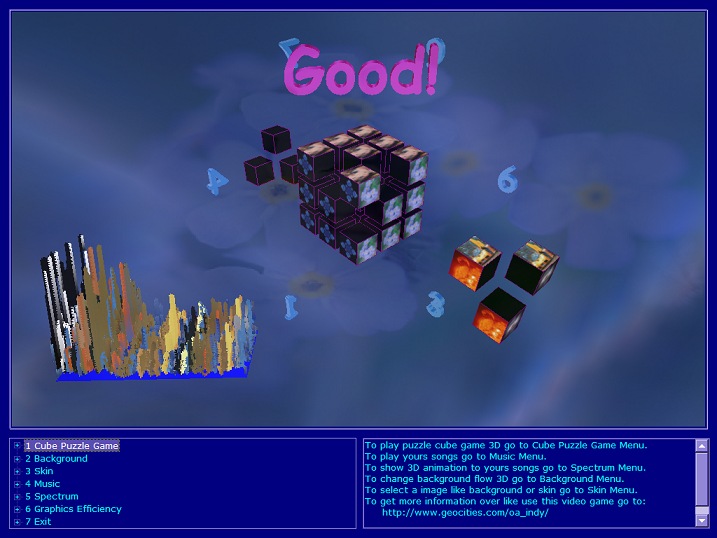
- To play puzzle cube game 3D go to Cube Puzzle Game Menu.
- To play yours songs go to Music Menu.
- To show 3D animation to yours songs go to Spectrum Menu.
- To change background flow 3D go to Background Menu.
- To select a image like background or skin go to Skin Menu.
- This Video Game is:
- Cube Puzzle 3D.
- Music player 3D.
- Image loader 3D.
- Skin Generator to 3D Scene.
- Fluid Background 3D.
- And all this in one.
- Everything in the scene is animated in 3D, even the background,
and flows smoothly.
Background Sky And Spectrum Star
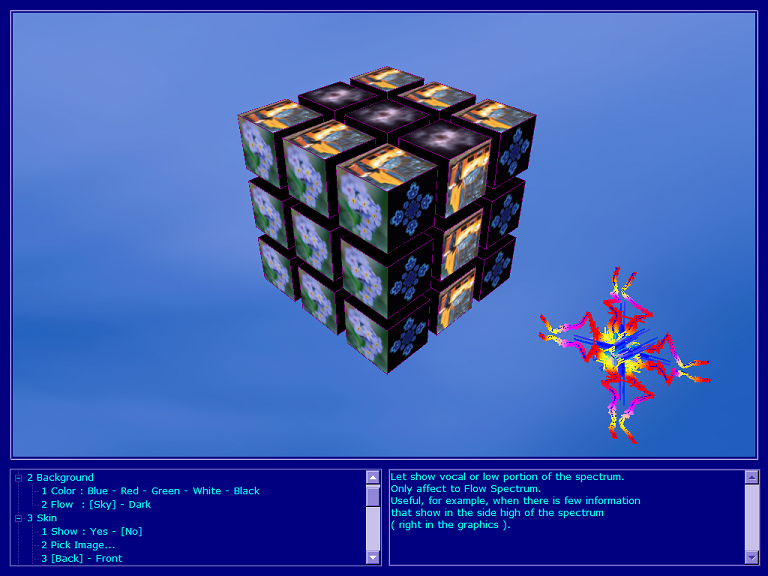
- In this Scene you can see a real sky 3D flowing smoothly.
- The bottom left panel, shows you the Tree Menu
it allows to play and to configure the game.
- The bottom right panel, shows you helps according to
option selected in the Tree Menu.
- To obtain this appearance:
In Background menu, sub menu Flow, choose [Sky].
In Skin menu, sub menu Show, choose [No].
In Music Menu, with sub menu Pick Song And Directory,
choose a song.
In the Spectrum menu, sub menu Show, choose [Star].
- To use the Tree Menu Setup:
You can do it with the mouse making click to select one option.
Too with the address keys, to navigate and to expand
or to contract the Tree Menu and the key Enter to select
one option.
Skin Inverse Like Background
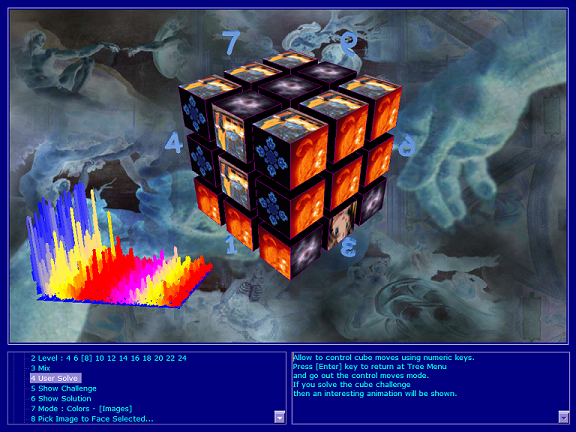
- In this Scene you can see a inverse background image.
Too Spectrum Flow with single colors.
The spectrum will only move if there is a song
reproducing currently.
You can see too 3D numbers around the cube.
These will only be seen in the mode user solve.
- To obtain this appearance:
- Menu Background choose [white].
- In the menu Skin, choose Pick Image... To select a image.
In sub menu Back-Front choose [Back].
Sub menu Transparent Type choose [Inverse].
- Menu Music, with sub menu Pick Song And Directory,
choose a song.
- Menu Spectrum, sub menu Show, choose [Flow].
Sub menu Show Image Color Patron, choose [no].
- Menu Cube Puzzle Game, choose User Solve.
Skin Inverse And Cube Single Colors
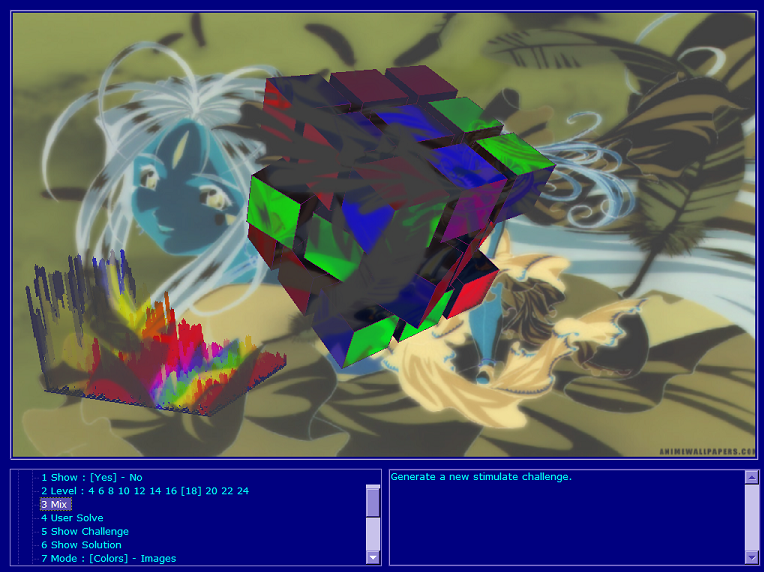
- In this Scene you can see a inverse skin image,
different to the previous one.
And cube with single colors.
- To obtain this appearance
take as starting point the previous one and:
- In the menu Skin:
Choose Pick Image... To select a image.
In sub menu Back-Front choose [Front].
In sub menu Solid-Transparent choose [Transparent].
In sub menu Level chooses one that you like.
In sub menu Transparent Type choose [Inverse].
- In menu Cube Puzzle Game,
first choose Sub menu Mode [Colors]
and only then chooses Mix.
- Remember that different effects will be shown
according to the image that you choose as Skin.
Choose Images For Cube's Faces
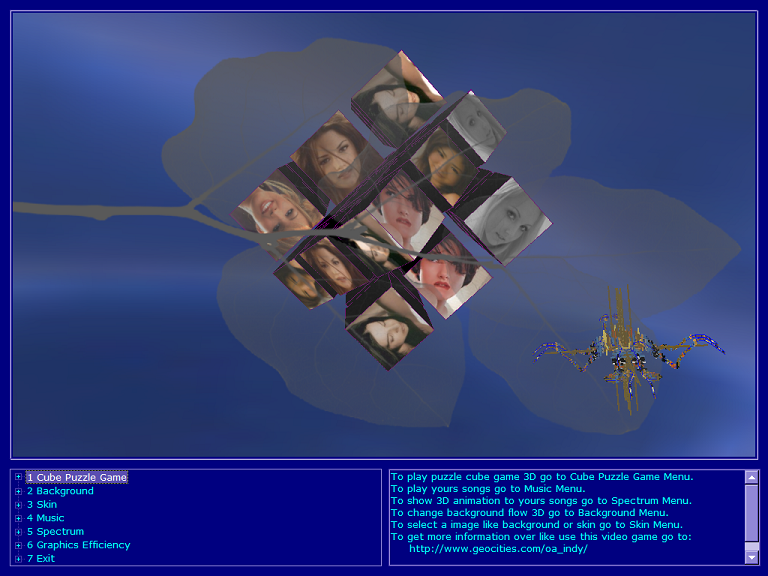
- In this Scene you can see new images for the faces of the cube.
- You can see too, like Skin is over the Cube and Spectrum Star
without hiding these objects.
- Remember that different effects will be shown
according to the image that you choose as skin.
- To obtain this appearance:
- In menu Cube Puzzle Game.
Use sub menus Select Face and Pick Image to Face Selected
for choose images for all faces of the cube.
Use sub menu Mix to animate the cube.
- In menu Skin
Sub menu Show choose [Yes].
Sub menu Pick Image choose a image to skin.
Sub menu Back-Front choose [Front].
Sub menu Solid-Transparent choose [Transparent].
Sub menu Level chooses one that you like.
Sub menu Transparent Type choose [Inverse].
- In Music menu, with sub menu Pick Song And Directory,
choose a song.
- In menu Spectrum
Sub menu Show choose [Star].
Sub menu Show Image Color Patron choose [Yes].
Sub menu Move Image Color Patron choose [Yes].
Sub menu Flow Frequency Range choose [Low_Vocal].
Sub menu Volume_Low Size chooses [Double].
- Now you can experiment varying these parameters
and build, this way, their artistic own environments
3D for their game.
- All configuration will be saved, when you exit of the video game.
3D Music Player
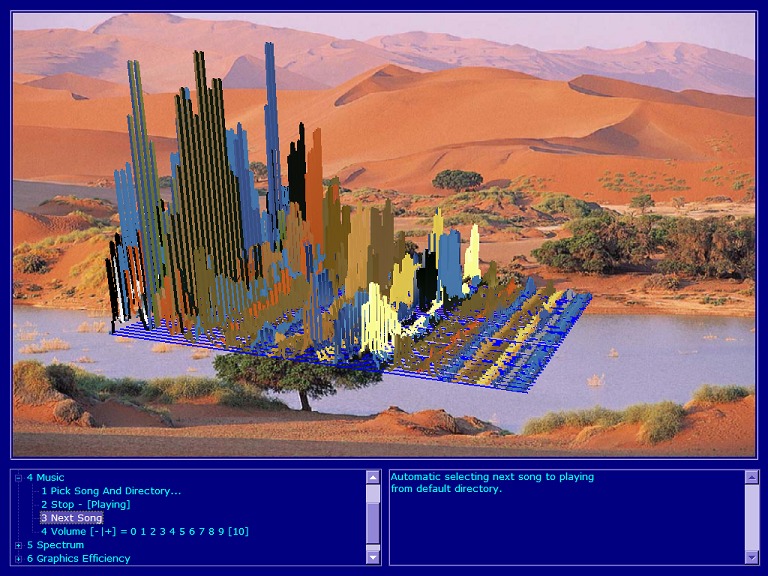
- In this Scene you can see like this video game can use like
a Music Player 3D.
- You can see like Spectrum occupies the center of the scene.
- To obtain this appearance:
- In menu Cube Puzzle Game.
Sub menu Show choose [No].
- In menu Skin
Sub menu Show choose [Yes].
Sub menu Pick Image choose a image to skin.
Sub menu Back-Front choose [Back].
Sub menu Solid-Transparent choose [Solid].
Sub menu Transparent Type choose [Normal].
- In Music menu, with sub menu Pick Song And Directory,
choose a song.
- In Spectrum menu
Sub menu Show choose [Flow].
Sub menu Show Image Color Patron choose [Yes].
Sub menu Move Image Color Patron choose [No].
Sub menu Flow Frequency Range choose [Low_Vocal].
Sub menu Volume_Low Size chooses [Normal].
- All configuration will be saved, when you exit of the video game.
- When resetting the application, the programa will continue
reproducing the songs of the directory that
you selected in Music menu.
Playing Puzzle Cube 3D !
-
Firs go to menu Cube Puzzle Game.
-
Go to sub menu Show and choose [Yes].
-
Go to sub menu Level and choose one level.
The options are the number of times that the segments
of the cube will move independently,
to mix it and then to generate, this way, a new problem to solve.
Begin for the first levels.
-
Go to sub menu Mix to begin to mix the cube,
according to the selected level.
-
Go to sub menu User Solve to control Cube moves using numeric keys.
Each number indicates a possible movement.
Use the key zero to return to the init state
of the numbers of movements.
Press [Enter] key to return at Tree Menu
and go out the moves mode.
If you solve the cube challenge
then an interesting animation will be shown.
According to the selected level it will be
a more and more interesting animation.
-
Go to sub menu Show Challenge to show the problem to solve.
To activate a sub menu remembers that to select it is not enough.
You also have to press the [Enter] key.
To activate it, too you can make click with the mouse.
-
Go to sub menu Show Solution to
by means of an animation show a way to solve the problem.
To try to solve it for yourself go to sub menu Show Challenge.
-
Go to sub menu Mode to let you to choose show colors or images
in the cube's faces.
-
Sub menu Pick Image to Face Selected allow to you to choose a image
to show in a face selected.
To select the face on which the selected image will be shown
go to sub menu Select Face.
-
Sub menu Select Face allow to you to choose a cube face
on which the selected image, with Pick Image sub menu, will be shown.
-
Remember not to try to use only the memory, to solve the challenge,
but also uses the logic and the common sense.
This makes it, to solve the challenge, even more interesting.
Notes
To Save Setup
All configuration will be saved automatically
when you exit of the video game.
To Solve Cube
Remember not to try to use only the memory, to solve the challenge,
but also uses the logic and the common sense.
This makes it, to solve the challenge, even more interesting.
Art
Now you can experiment varying setup parameters
and build, this way, their own artistic environments 3D
for their game.
Congratulations!
If you solve the cube challenge
then an interesting animation will be shown.
According to the selected level it will be
a more and more interesting animation.
Skin Inverse Effects
Remember that different effects will be shown
according to the image that you choose as skin.
To Use the Tree Menu Setup
You can do it with the mouse making click to select one option.
Too with the address keys to navigate and to expand
or to contract the Tree Menu and use the key Enter to select one option.
Access To Other Applications
Use the keys Alt+Tab to change among applications.
This video game doesn't change the screen resolution.
Exit of the Video Game
You can exit fast press key escape [Esc]
at any moment.
The most important configuration will saved.
Mistakes
When is 24:00 o'clock the music spectrum stops,
to solve exit of the video game and reset it again.
Not try to modify any file of the application
if you do it then the aplication can become unstable.
Minimum Requirements
Processor Pentium 4.
Memory 256 MB.
Video Graphic Memory 64 MB.
Shareware
Full functionality, free trial for 7 days.
Install and Uninstall
This video game doesn't require to be
neither installed nor uninstalled.
This video game doesn't write in any file of the system,
except only the file "start.ini".
It was made this way to be more easy to use.
To use this video game copies the files in a folder.
To eliminate the video game, simply deletes the folder
where their files are.
Bad English
My English is very bad, please excuse me, thank you.
Gratefulness
-
To my brother for their help in the code,
ideas and inspiration for this program.
-
To my mascots that are always willing to play with me.
They are an inexhaustible spring of inspiration.