

Creating Alien stylish text - Text
Manupulation
Description: It converts the normal text in to alien stylish text.
To do this text manupulation, do the following,
1. Open a new document by pressing Ctrl+N (or File >> New). Specify
the image document dimensions as Width=400, Height=150, Mode=RGB and Contents=Background
Color and click Ok as below showned figure.
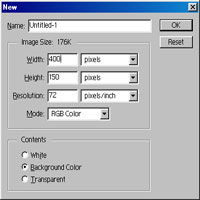
fig-1
2. (Note: Reset to forground color=BLACK and background=WHITE color by
pressing "D"). Create a New Layer by pressing SHIFT+CTRL+N and
fill with "Back" Color. Again, create a New Layer by pressing
SHIFT+CTRL+N. Now, select "just" created Layer as shown in figure.
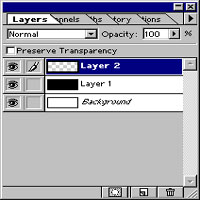
fig-2
3. Select "Type Mast Tool" and click on the "Layer 2".
A Dialog Box appears. Specify the Type Mask Tool's Size=80. Type some
text. (I typed "BHMK", just as example) and click Ok.
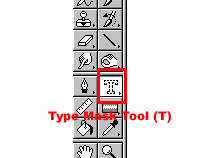
fig-3
4. Now fill with "Red" color as shown in the figure.
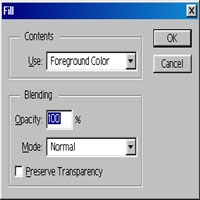
fig-4
5. Now, you have like this (shown in the figure).

fig-5
6. Still you selected the text. Make it Feather by selecting SELECT >>
FEATHER and Feather Radius=2 and click Ok as shown in the figure.
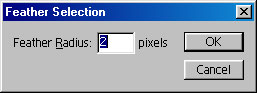
fig-6
7. It's time to make some effects. Goto Select >> Inverse. Goto
Filter >> Blur >> Radial Blur and enter the values as follows
(Amount=100, Blur Method=ZOOM Selected and Quality=Best Selected). You
will see below figure.

fig-7
Note: If you are not satisfied with the above
effect, again do Step 7. Repeat until you get your desired effect.
That's all my dear friends. Hope You Enjoyed It!!!
Don't forget send mail to me.
"Fundamentals are the Route
to the Destination" - BHMK
Go Home